
Introduction
Thank you for choosing the ANTELA Smart WiFi Plug. This intelligent plug allows you to control your electrical appliances remotely, monitor energy consumption, and automate your home with ease. This manual provides essential information for safe operation, setup, and troubleshooting.
Safety Information
Please read all safety instructions before using the device to prevent injury or damage.
- This device is designed for indoor use only.
- Do not exceed the maximum load of 16A / 3680W. Overloading can cause overheating and fire.
- Ensure the plug is fully inserted into the wall socket.
- Do not disassemble or modify the device.
- Keep away from water and high humidity environments.
- The device is equipped with protection against overheating, short-circuits, overvoltage, and overloads.
- Only connect to a 2.4 GHz Wi-Fi network. 5 GHz networks are not supported.

Figure 1: Ensure parallel insertion of the plug into the socket for proper connection and safety.
Package Contents
The package includes:
- ANTELA Smart WiFi Plug (Type F)
- User Manual (this document)
Product Overview
The ANTELA Smart WiFi Plug is a compact device designed to integrate your traditional appliances into a smart home system. It features a manual power button and an indicator light.
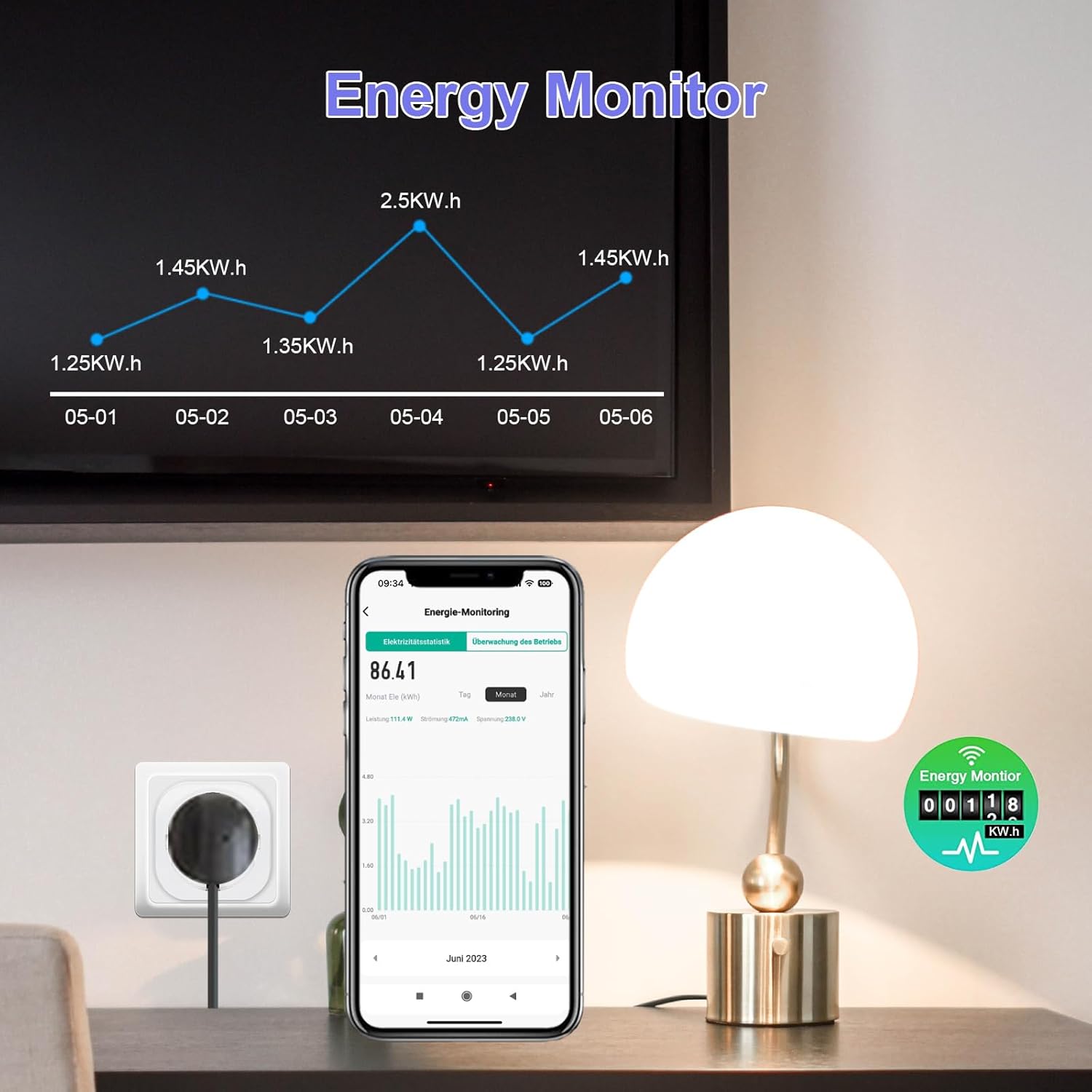
Figure 2: Front view of the ANTELA Smart WiFi Plug, showing the power button with an indicator light.

Figure 3: Key features of the smart plug, including WiFi connectivity, voice control, timer functions, app control, energy monitoring, and built-in security protections.
Setup
1. Download the App
Search for and download the Smart Life or Tuya Smart app from your mobile device's app store (App Store for iOS, Google Play Store for Android).
2. Register/Log In
Open the app and register a new account or log in with an existing one.
3. Connect the Smart Plug
- Plug the ANTELA Smart WiFi Plug into a standard Type F wall socket.
- Ensure the indicator light on the plug is blinking rapidly. If not, press and hold the power button on the plug for 5-10 seconds until it blinks rapidly. This indicates pairing mode.
- Open the Smart Life/Tuya Smart app. Tap the "Add Device" (+) icon in the top right corner.
- Select "Electrical Outlet" or "Socket (Wi-Fi)" from the device list.
- Confirm that the indicator light is blinking rapidly in the app.
- Enter your 2.4 GHz Wi-Fi network password. Note: 5 GHz Wi-Fi networks are not supported.
- Wait for the app to connect to the device. Once connected, you can rename the plug and assign it to a room.
Operating Instructions
Manual Control
Press the power button on the side of the smart plug to manually turn the connected appliance on or off.

Figure 4: The smart plug's indicator light changes to show its ON or OFF status.
Remote Control via App
Once connected to the Smart Life/Tuya Smart app, you can control the plug from anywhere with an internet connection.
- Open the app and select the smart plug from your device list.
- Tap the power icon to turn the connected appliance on or off.
- Use the app to create custom scenes and automations.

Figure 5: Remote control of appliances using the Smart Life app from various locations.
Energy Monitoring
The ANTELA Smart WiFi Plug can measure the energy consumption of the appliance connected to it. This data is accessible through the Smart Life/Tuya Smart app.
- Open the app and select the smart plug.
- Navigate to the "Energy Statistics" or "Power Consumption" section within the device interface.
- View real-time power usage, daily, weekly, or monthly consumption reports.

Figure 6: The app interface showing energy consumption data over time, helping users track usage.

Figure 7: Visual representation of energy usage, demonstrating the plug's monitoring capability.
Voice Control (Alexa & Google Home)
The smart plug is compatible with Amazon Alexa and Google Home for convenient voice control.
Linking with Alexa:
- Open the Amazon Alexa app.
- Go to "Skills & Games" and search for "Smart Life" or "Tuya Smart".
- Enable the skill and link your Smart Life/Tuya Smart account using your app credentials.
- Discover devices. Alexa will find your smart plug.
- You can now control the plug using voice commands like: "Alexa, turn on [Plug Name]".
Linking with Google Home:
- Open the Google Home app.
- Tap the "Add" (+) icon, then "Set up device" > "Works with Google".
- Search for "Smart Life" or "Tuya Smart".
- Link your Smart Life/Tuya Smart account using your app credentials.
- Assign the smart plug to a room.
- You can now control the plug using voice commands like: "Hey Google, turn off [Plug Name]".

Figure 8: Example of using voice commands with Alexa to control a connected light.

Figure 9: Voice control in action, demonstrating ease of use with smart assistants.
Timer and Schedule Functions
Automate your appliances by setting schedules, timers, and countdowns through the Smart Life/Tuya Smart app.
- Schedule: Set specific times for the plug to turn on or off daily or on selected days of the week.
- Timer: Program the plug to turn on or off after a set duration.
- Countdown: Set a countdown for the plug to switch its state after the timer expires.

Figure 10: Examples of scheduled operations, such as turning on an air conditioner at 8:00 AM or turning off a lamp at 8:30 PM.

Figure 11: Visual representation of timer, schedule, and countdown features for automated control.
Device Sharing
You can share control of your smart plug with family members or other users through the Smart Life/Tuya Smart app.
- In the app, go to the device settings for the smart plug.
- Select "Share Device" and enter the account details of the person you wish to share with.
- Shared users will have control over the plug's functions.
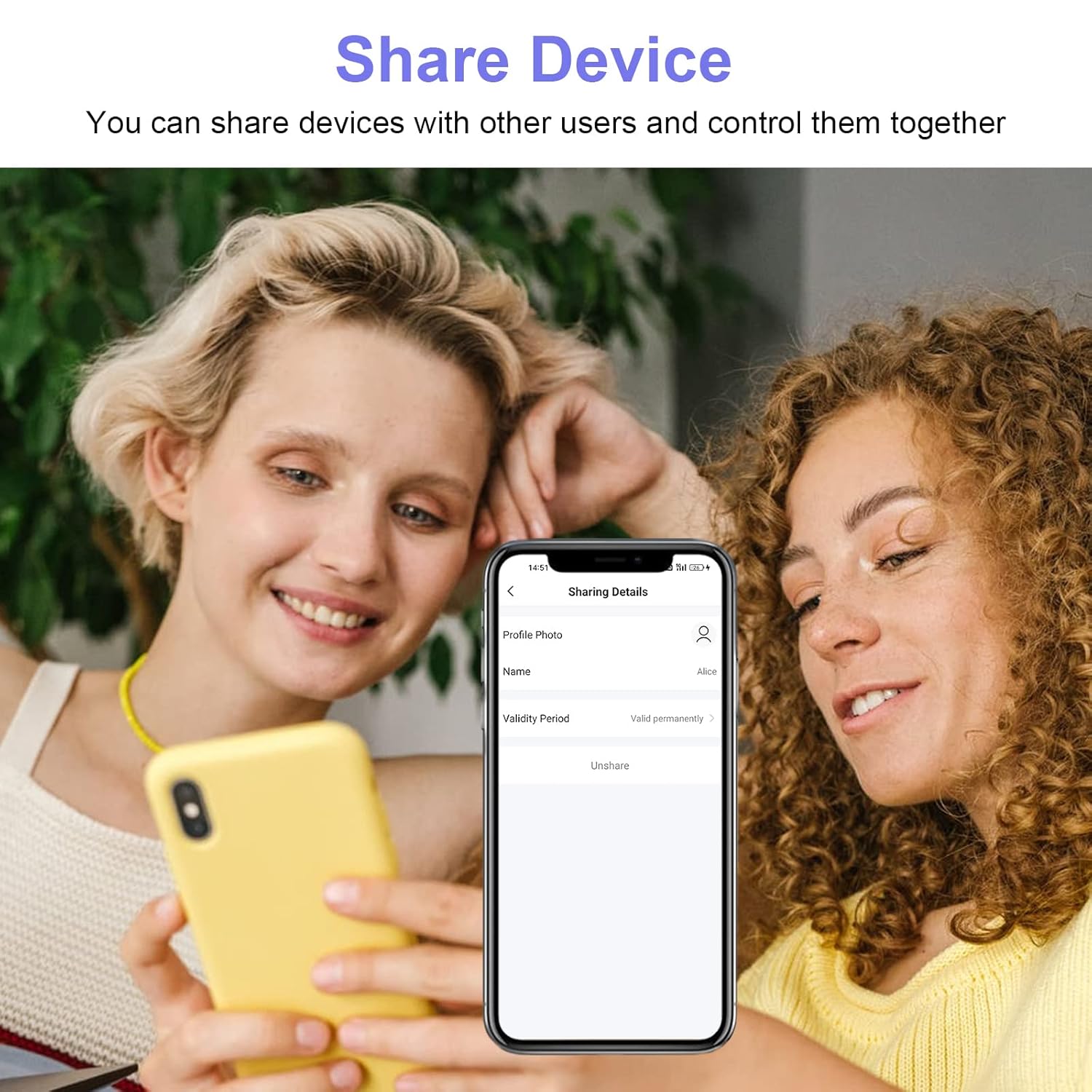
Figure 12: Device sharing feature allows multiple users to control the smart plug.

Figure 13: The app interface for managing shared access to the smart plug.
Maintenance
To ensure the longevity and proper functioning of your smart plug:
- Keep the device clean and dry. Wipe with a soft, dry cloth.
- Avoid exposing the plug to extreme temperatures or direct sunlight.
- Do not use harsh chemicals or abrasive cleaners.
- Regularly check for any signs of damage to the plug or connected appliances.
Troubleshooting
| Problem | Possible Cause | Solution |
|---|---|---|
| Plug not connecting to Wi-Fi | Incorrect Wi-Fi password; 5 GHz Wi-Fi network; plug too far from router; not in pairing mode. |
|
| Appliance not turning on/off | Plug is off; appliance is off; power outage; plug overloaded. |
|
| Voice control not working | Skill not enabled; account not linked; incorrect device name; internet connection issue. |
|
Specifications
| Model Number | SPL-W-TY-PM-EU-RY |
| Brand | ANTELA |
| Voltage | 240 Volts (AC) |
| Max Current | 16 Amperes |
| Max Power | 3680 Watts |
| Wi-Fi Standard | 2.4 GHz only (IEEE 802.11 b/g/n) |
| Material | Plastic (Fire-retardant) |
| Dimensions (L x W x H) | 5.5 x 5.5 x 7 cm |
| Weight | 320 grams |
| Certifications | CE |

Figure 14: Physical dimensions of the ANTELA Smart WiFi Plug.
Warranty and Support
ANTELA products are designed for reliability and performance. For warranty information and technical support, please refer to the contact details provided with your purchase or visit the official ANTELA website.
If you encounter any issues not covered in the troubleshooting section, please contact our customer support team for assistance.


