
1. Introduction
This manual provides essential information for the assembly, operation, maintenance, and troubleshooting of your AODK 48-Inch Gaming Desk. Please read these instructions carefully before assembly and use to ensure proper function and longevity of your product.
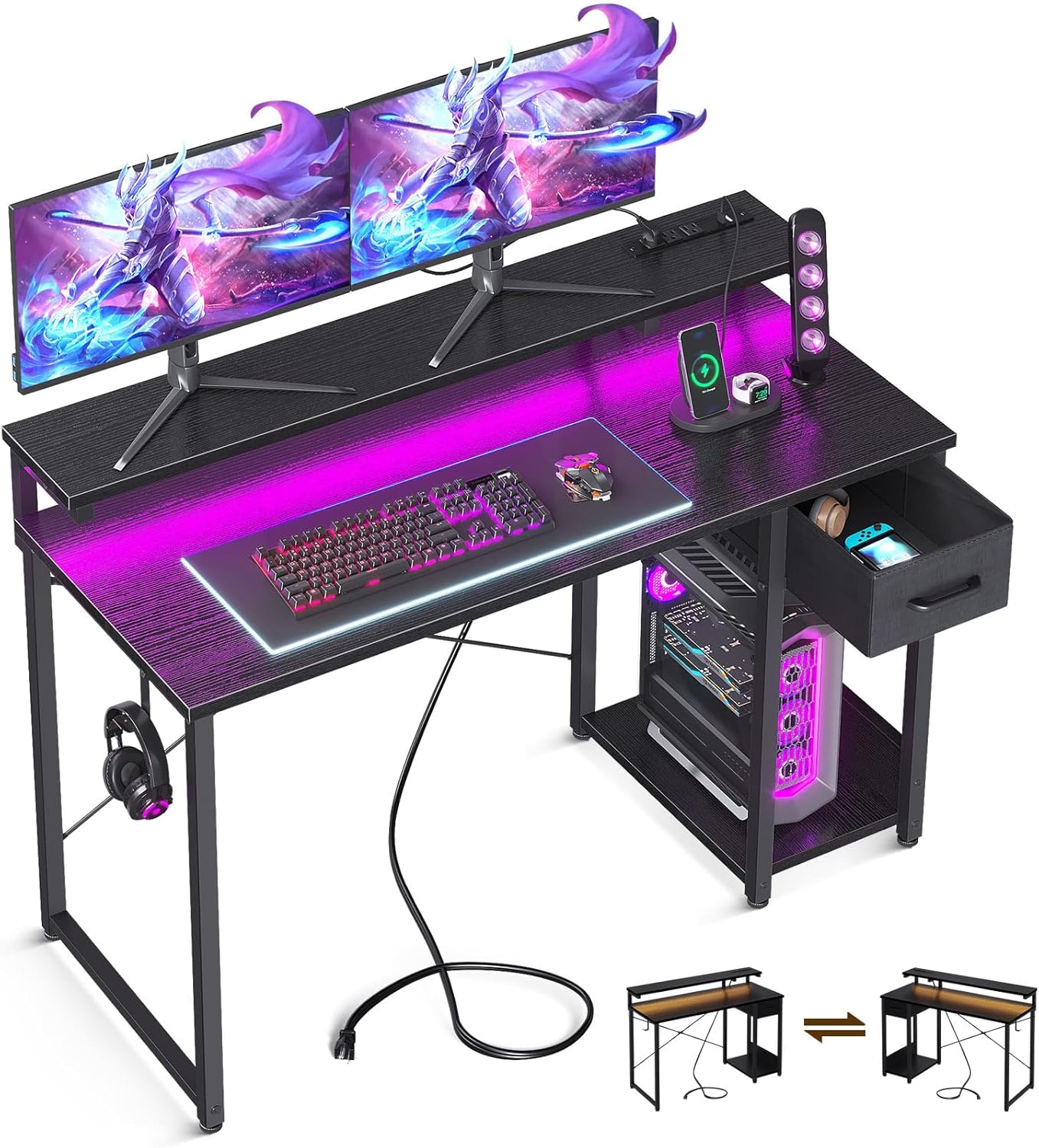
Image 1.1: The AODK 48-Inch Gaming Desk, showcasing its LED lighting, integrated power outlet, monitor stand, and storage drawer.
2. Setup and Assembly
The AODK Gaming Desk is designed for straightforward assembly. All necessary tools and detailed instructions are included in the packaging. For a complete step-by-step guide, please refer to the official Installation Manual (PDF).
Important Considerations:
- Ensure all parts are present before beginning assembly.
- Follow the instructions precisely, paying close attention to directional notes for component orientation.
- The PC stand can be assembled on either the left or right side of the desk, offering a reversible design to suit your preference.

Image 2.1: A detailed diagram illustrating the dimensions of the 48-inch gaming desk and the flexibility of its reversible design for the PC stand and drawer unit.
3. Operating Instructions
3.1. LED Lights
The gaming desk features an integrated RGB LED strip with customizable lighting options:
- Static Colors: Offers 10 distinct static color options.
- Dynamic Modes: Provides 10 dynamic lighting effects.
- Brightness Levels: Adjustable to three levels (35%, 75%, 100%).
- Memory Function: The LED strip retains the last selected color, brightness, and mode upon power-off.
Control Panel Operation:
- Static Color Button (C): Press to cycle through static colors.
- Dynamic Mode Button (M): Press to cycle through dynamic effects. Press and hold for over 3 seconds to enter demo mode, which automatically cycles through various dynamic modes.
- Speed & Brightness and Power Button (S/B & Power):
- In static mode, press to adjust brightness levels.
- In dynamic mode, press to adjust dynamic mode speed.
- Press and hold to turn the LED strip off when it is on. Press and hold to turn it on when it is off.

Image 3.1: The control panel for the RGB LED strip, detailing the functions of the static color, dynamic mode, and speed/brightness/power buttons.

Image 3.2: Visual representation of the three adjustable brightness settings for the LED lighting feature.
3.2. Power Outlet
The desk is equipped with a built-in power panel for convenient device charging and power access:
- AC Outlets: 3 standard 120V/12A AC outlets.
- USB Ports: 2 USB ports providing 5V/2A output.
- Power Cord: A 6.6-foot power cord is integrated for flexible placement.
This feature allows for direct charging of laptops, tablets, smartphones, and other gaming equipment from your workspace.

Image 3.3: A detailed view of the recessed power outlet, highlighting its three AC outlets and two USB ports for convenient device connectivity.
3.3. Fabric Drawer
A fabric drawer is included for organized storage of personal items and accessories. It is designed for ease of use and cleaning.

Image 3.4: The fabric drawer, shown open and containing various items, illustrating its practical storage function.
4. Key Features
4.1. Ergonomic Monitor Stand
The integrated monitor stand is designed to elevate your screen to an ergonomic viewing height, which can help reduce neck and spine fatigue during extended periods of work or gaming.

Image 4.1: The ergonomic monitor stand, providing an elevated surface for displays, alongside the convenient iron headphone hook.
4.2. Headphone Hook
A dedicated headphone hook is located on the side of the desk, providing a convenient storage solution for your headphones and keeping your workspace tidy.

Image 4.2: The headphone hook, shown with headphones hanging, demonstrating its utility for organized storage.
4.3. Adjustable Non-slip Foot Pads
The desk is equipped with adjustable non-slip foot pads to ensure stability on various floor surfaces and to prevent scratches.
5. Maintenance
To maintain the condition and appearance of your AODK Gaming Desk, follow these guidelines:
- Cleaning: Wipe surfaces with a soft, damp cloth. Avoid abrasive cleaners or harsh chemicals that may damage the finish.
- Spills: Clean up spills immediately to prevent staining or damage to the wood surface.
- LED Strip: Ensure the LED strip and control panel remain dry. If cleaning is necessary, use a dry, soft cloth.
- Power Outlet: Keep the power outlets free from dust and debris. Do not expose to liquids.
- Hardware: Periodically check and tighten all assembly hardware to ensure stability.
6. Troubleshooting
If you encounter any issues with your AODK Gaming Desk, consider the following common solutions:
- Desk Instability: Ensure all screws and bolts are securely tightened. Verify that the adjustable foot pads are properly leveled on your floor surface.
- LED Lights Not Working:
- Check if the power cord for the LED strip is securely plugged into a working outlet.
- Ensure the LED strip is properly connected to its control unit.
- Press and hold the power button on the control panel to turn the lights on.
- Power Outlets/USB Ports Not Functioning:
- Verify that the desk's main power cord is securely plugged into a functional wall outlet.
- Test the wall outlet with another device to confirm it is supplying power.
- Ensure devices are correctly plugged into the AC outlets or USB ports.
- Drawer Sticking: Check for any obstructions within the drawer or its runners. Ensure the drawer is correctly aligned within its compartment.
If problems persist after attempting these solutions, please contact customer support for further assistance.
7. Specifications
| Feature | Specification |
|---|---|
| Brand | AODK |
| Model Number | B01170401006USAN0624A0DO3NA |
| Product Dimensions (D x W x H) | 19.69"D x 47.24"W x 29.92"H |
| Color | Black |
| Style | Modern |
| Base Material | Metal |
| Top Material Type | Engineered Wood |
| Finish Type | Clear Finish |
| Special Features | Built-In USB Outlet, Monitor Stand, Reversible, LED Lights, Headphone Hook |
| Room Type | Bedroom, Gaming Room, Office, Study Room |
| Recommended Uses | Gaming, Working, Writing |
| Item Weight | 30.9 Pounds |
| Maximum Weight Recommendation | 30.9 Pounds (for desk surface) |
| Number of Drawers | 1 |
| Required Assembly | Yes |
| Includes All Assembly Tools | Yes |
| Power Outlet | 3 AC Outlets (120V/12A), 2 USB Ports (5V/2A) |
| Power Cord Length | 6.6-Foot |
8. Warranty and Support
AODK is committed to providing quality products and customer satisfaction. If you encounter any product problems regarding assembly, damaged parts, or operational issues, please do not hesitate to contact AODK customer service. Refer to your purchase documentation or the AODK official website for specific warranty details and contact information.
For assistance, please visit the AODK Store on Amazon or consult the contact information provided with your product packaging.


