
1. Introduction
Thank you for choosing the Case Logic XC60 Wired Earbuds with Lightning Connector. These earbuds are designed to provide clear audio and convenient control for your compatible iOS devices. This manual will guide you through the setup, operation, and maintenance of your new earbuds.

A pair of white Case Logic XC60 wired earbuds with a Lightning connector, showcasing the in-ear design and the integrated control module.
2. Package Contents
- Case Logic XC60 Wired Earbuds with Lightning Connector
3. Product Overview
The Case Logic XC60 earbuds feature an in-ear design for comfortable listening and a Lightning connector for direct compatibility with Apple devices. An in-line remote control allows for easy management of audio playback, calls, and voice assistant functions.

Images depicting individuals engaged in different activities such as exercising, working, and enjoying music while wearing the Case Logic XC60 earbuds.
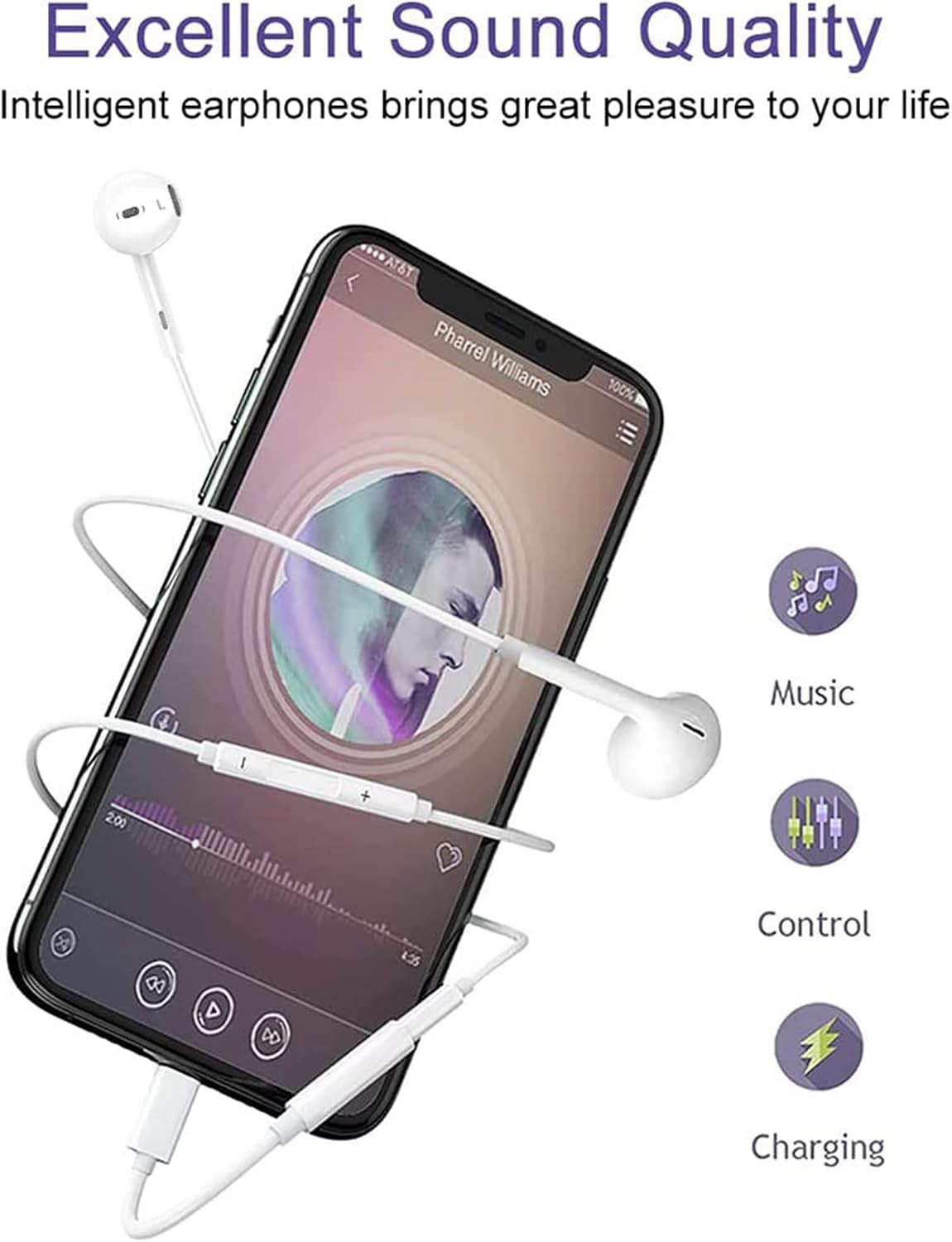
The Case Logic XC60 earbuds connected to an iPhone, highlighting their use for music playback, integrated controls, and power delivery via the Lightning port.
4. Setup and Connection
To ensure proper functionality, these wired earbuds require a Bluetooth connection to your iOS device. Follow these steps for initial setup:
- Enable Bluetooth: Before plugging the earbuds into your iPhone or iPad, navigate to your device's Settings and ensure Bluetooth is turned On.
- Connect Earbuds: Plug the Lightning connector of the earbuds into your iOS device. A prompt may appear on your screen, such as "Connect with iCloud" or a similar Bluetooth pairing request. Tap to confirm the connection.
- Confirmation: Once connected, your device will recognize the earbuds, and audio will be routed through them.

A two-step guide showing how to enable Bluetooth on an iPhone (Step 1) and then connect the earbuds by plugging them in and confirming the 'Connect with iCloud' prompt (Step 2).
5. Operating Instructions
The in-line remote control allows you to manage audio playback, phone calls, and Siri. Refer to the diagrams below for button identification and functions.
In-line Remote and Microphone

A visual guide to the in-line remote control, identifying the volume up, volume down, and center buttons, along with the microphone location.
Control Functions
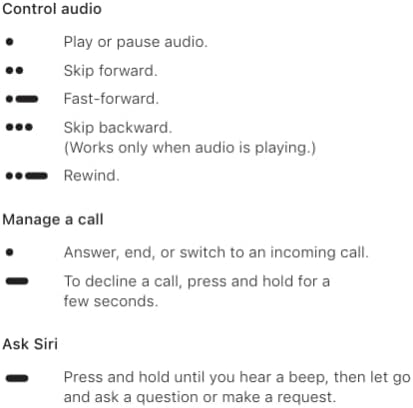
Instructions detailing how to use the in-line remote's center button for various functions: playing/pausing audio, skipping tracks, fast-forwarding, rewinding, answering/ending/declining calls, and activating Siri.
- Audio Playback:
- Single Press (Center Button): Play or pause audio.
- Double Press (Center Button): Skip forward to the next track.
- Triple Press (Center Button): Skip backward to the previous track.
- Press and Hold (Volume Up/Down): Adjust volume.
- Phone Calls:
- Single Press (Center Button): Answer or end an incoming call.
- Press and Hold (Center Button): Decline an incoming call.
- Siri Activation:
- Press and Hold (Center Button): Activate Siri. Release when you hear a beep, then speak your command.
6. Features
Quality Design and Sound
The earbuds are engineered with an in-ear design that aims to reduce background noise, contributing to a clearer sound experience. The internal components are optimized for audio reproduction.

An exploded diagram illustrating the internal acoustic components of the earbud, designed for clear sound and reduced background noise.
Comfortable Fit
Designed for comfort, the earbuds feature a classic and lightweight form factor with rounded tips, intended for extended wear.

An illustration of an earbud correctly placed in the ear, accompanied by a frequency response graph indicating the audio performance across different sound frequencies.
Lightning Connector with Integrated Chip
The Lightning connector incorporates an integrated chip for reliable and intelligent transmission of audio signals, aiming to preserve original sound quality.

A detailed view of the Lightning connector, emphasizing the integrated chip for reliable and intelligent data transmission and original sound quality.
7. Care and Maintenance
- Cleaning: Gently wipe the earbuds and cable with a soft, dry cloth. Avoid using harsh chemicals or abrasive materials.
- Storage: Store the earbuds in a clean, dry place when not in use. Avoid tangling the cable to prevent damage.
- Handling: Do not pull on the cable to disconnect the earbuds from your device. Always grasp the Lightning connector directly.
- Moisture: Keep the earbuds away from water and excessive moisture.
8. Troubleshooting
- No Sound:
- Ensure the earbuds are securely plugged into the Lightning port.
- Verify that Bluetooth is enabled on your iOS device and the earbuds are connected (refer to Section 4).
- Check the volume level on your device and using the in-line remote.
- Test with another audio source or device to rule out device-specific issues.
- Microphone Not Working:
- Ensure the microphone is not obstructed.
- Confirm that the earbuds are properly connected via Bluetooth.
- Check privacy settings on your iOS device to ensure the app you are using has access to the microphone.
- Controls Not Responding:
- Ensure the earbuds are fully connected and recognized by your device.
- Restart your iOS device and try again.
- Intermittent Connection/Sound:
- Ensure the Lightning connector and your device's port are clean and free of debris.
- Avoid excessive bending or pulling of the cable near the connector.
9. Specifications
| Model Name | XC60 |
| Connectivity Technology | Wired (Lightning Connector with Bluetooth pairing) |
| Compatible Devices | iPhones, iPads (iOS 7 and above) |
| Control Type | Volume Control, Play/Pause, Track Skip, Call Management, Siri Activation |
| Special Feature | Built-in Microphone |
| Earpiece Shape | Rounded tips (In-Ear) |
| Material | Plastic |
| Color | White |
| Item Weight | Approximately 0.16 ounces |
| UPC | 746197525093 |
10. Warranty and Support
Case Logic products are designed for quality and reliability. For information regarding warranty coverage, please refer to the warranty card included with your purchase or visit the official Case Logic website.
If you encounter any issues or have questions about your XC60 earbuds, please contact Case Logic customer support through their official channels. Provide your model number (XC60) and a detailed description of the issue for efficient assistance.
Online Support: Visit the official Case Logic website for FAQs, troubleshooting guides, and contact information.