
1. Introduction
Thank you for choosing the GameSir T4 Cyclone Wireless Controller. This manual provides detailed instructions for setting up, operating, maintaining, and troubleshooting your controller. The GameSir T4 Cyclone is designed for a versatile gaming experience across multiple platforms.

Image: Front view of the GameSir T4 Cyclone Wireless Controller.
2. Package Contents
- GameSir T4 Cyclone Wireless Controller
- USB-C Cable
- User Manual
- Note: The 2.4G wireless receiver is sold separately.
3. Setup
3.1 Charging the Controller
Before first use, fully charge the controller. Connect the supplied USB-C cable to the controller's charging port and the other end to a USB power source (e.g., computer, wall adapter). The controller features an 860mAh battery, providing approximately 25 hours of playtime on a full charge.

Image: Illustration showing 860mAh battery capacity and 25 hours playing time.
3.2 Compatibility
The GameSir T4 Cyclone Wireless Controller is compatible with the following platforms:
- Nintendo Switch (including Switch, Switch Lite, and Switch OLED)
- Windows 10/11 PCs
- Android devices (Android 6.0 and above)
- iOS devices (iOS 13.0 and above)
- Steam Deck
Note: Xbox consoles are NOT supported.

Image: Controller shown with icons for Switch, PC, iOS, and Android, indicating multi-platform compatibility.
3.3 Connectivity Options
The controller offers three ways to connect to your devices:
- Bluetooth Connection:
- Ensure the controller is charged.
- Turn on the controller.
- On your device (Switch, Android, iOS, PC), go to Bluetooth settings and search for available devices.
- Select "GameSir T4 Cyclone" to pair.
- 2.4G Wireless Connection (Receiver Sold Separately):
- Plug the 2.4G wireless receiver into an available USB port on your device (PC, Steam Deck).
- Turn on the controller. It should automatically connect to the receiver.
- USB-C Wired Connection:
- Connect the controller to your device using the supplied USB-C cable.
- The controller will function as a wired controller and charge simultaneously.

Image: Visual representation of Bluetooth, USB-C, and 2.4G wireless connectivity options.
4. Operating Instructions
4.1 Hall Effect Sensing Joysticks
The GameSir T4 Cyclone features Hall Effect joysticks, which use magnetic sensors to detect movement. This technology provides:
- Zero Dead Zone: Ensures immediate response to even the slightest input.
- Anti-Drift Performance: Eliminates common stick drift issues found in traditional joysticks, ensuring long-term precision.
- Durability: Designed for up to 5 million cycles.

Image: Diagram illustrating the internal components of GameSir Hall Effect Sticks, highlighting anti-drift and longevity.
4.2 Hall Effect Analog Triggers
The analog triggers also utilize Hall Effect technology, offering precise and consistent input. You can switch between two trigger modes:
- Regular Trigger Mode: Provides a full range of motion for nuanced control in racing or driving games.
- Fast Trigger Mode (Hair Trigger): Reduces travel distance for quicker, mouse-click-like responses, ideal for FPS or RPG games.

Image: Diagram showing the internal mechanism of Hall Effect Analog Triggers with 0.1mm accuracy.
4.3 Programmable Macro Back Buttons
The controller features two programmable back buttons (L4 and R4) that can be customized for enhanced gameplay. These buttons allow you to:
- Button Mapping: Assign a single button function to L4 or R4.
- Turbo Function: Set a button to rapidly repeat its input.
- Combo Function: Program a sequence of button presses to execute complex actions with a single press.
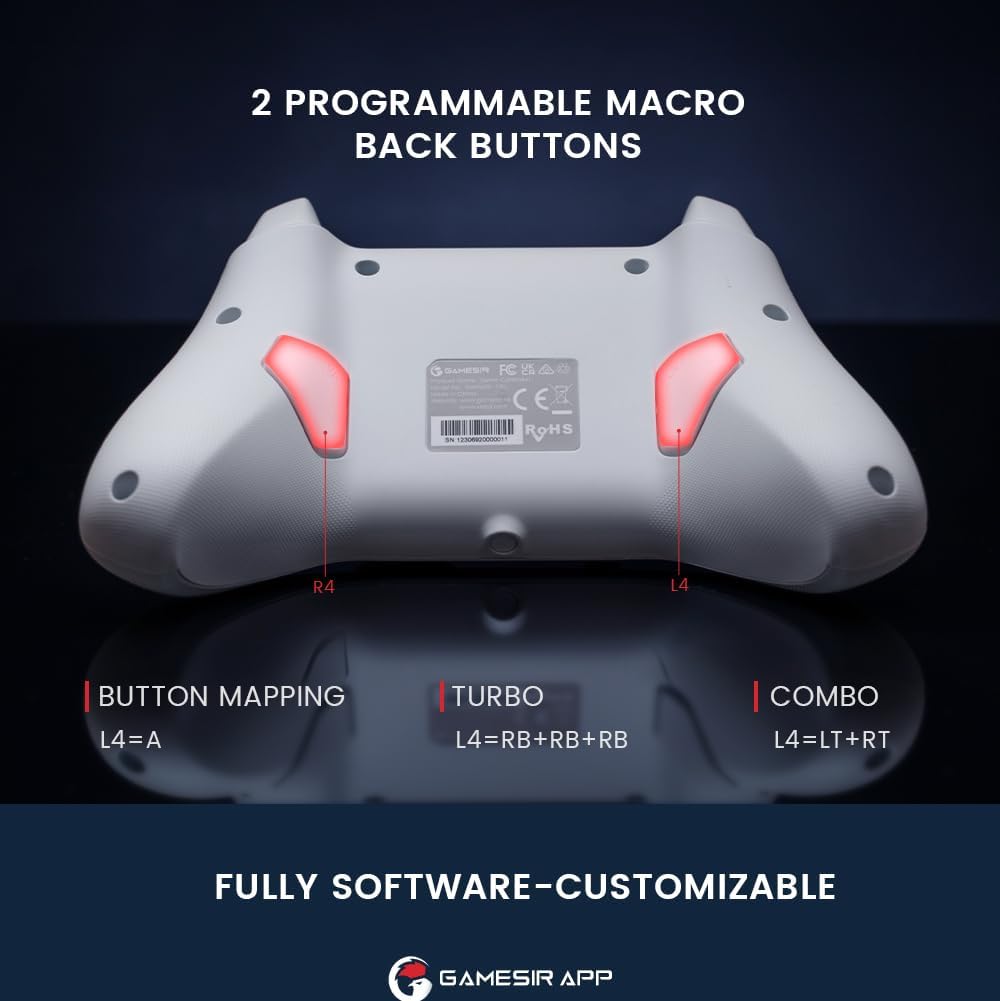
Image: Rear view of the controller highlighting the L4 and R4 programmable macro back buttons.
4.4 Multi-function M Button
The 'M' button provides quick access to various settings without needing the app:
- M + LT/RT: Switch between Hair Trigger (fast) and Linear Trigger (regular) modes.
- M + LS/RS: Adjust stick deadzone settings.
- M + D-pad Up/Down: Adjust vibration intensity.
- M + A: Change ABXY button layout (e.g., Switch layout vs. Xbox layout).

Image: Diagram showing the multi-function M button and its combinations for various settings.
4.5 Motion Control
The controller supports motion controls, allowing for interactive gameplay in compatible Nintendo Switch titles. Tilt, shake, or rotate the controller to interact with your games.

Image: Controller shown with dynamic lines indicating motion control in action during gameplay.
4.6 GameSir App Customization
For advanced customization, download the GameSir App. The app allows you to:
- Customize button mappings.
- Adjust stick deadzone.
- Set trigger travel distance.
- Fine-tune vibration intensity.
- Update controller firmware.

Image: Screenshots of the GameSir App interface showing options for button mapping, stick, triggers, and vibration settings.
5. Maintenance
- Cleaning: Use a soft, dry cloth to clean the controller. Avoid using harsh chemicals or abrasive materials.
- Storage: Store the controller in a cool, dry place away from direct sunlight and extreme temperatures.
- Battery Care: Do not attempt to replace the internal battery. If the controller will not be used for an extended period, charge it periodically to maintain battery health.
6. Troubleshooting
- Controller Not Connecting:
- Ensure the controller is fully charged.
- Verify Bluetooth is enabled on your device and the controller is in pairing mode.
- If using 2.4G wireless, ensure the receiver is properly inserted and the controller is in 2.4G mode.
- Try restarting both the controller and your device.
- Input Lag or Unresponsive Controls:
- Ensure there are no obstructions or excessive distance between the controller and your device.
- Minimize interference from other wireless devices.
- For critical gaming, consider using the USB-C wired connection for the lowest latency.
- Stick Drift or Inaccurate Movement:
- The Hall Effect joysticks are designed to prevent drift. If you experience issues, ensure the controller firmware is up to date via the GameSir App.
- Check the stick deadzone settings in the GameSir App and ensure it is set to 0 for optimal responsiveness.
- Rumble Motor Noise:
- Some users may notice a high-pitched squeal from the rumble motors. If this is distracting, the vibration intensity can be adjusted or disabled via the multi-function M button or the GameSir App.
- LED Indicator Too Bright:
- The LED brightness can be adjusted through the GameSir App.
- GameSir App Not Recognizing Controller:
- Ensure Bluetooth is enabled and the controller is paired with your mobile device.
- Check for app updates and controller firmware updates.
- Verify that the app has necessary permissions on your mobile device.
7. Specifications
| Feature | Detail |
|---|---|
| Brand | GameSir |
| Model Name | GameSir T4 Cyclone |
| Compatible Devices | Android, iOS, Nintendo Switch, PC, Steam Deck |
| Controller Type | Joystick |
| Connectivity Technology | Bluetooth, 2.4G Wireless (receiver sold separately), USB C |
| Additional Features | Wireless, Hall Effect Joysticks, Hall Effect Triggers, Programmable Back Buttons, Motion Control |
| Button Quantity | 16 |
| Hardware Platform | Desktop, Gaming Console, Laptop, Smartphone, Tablet |
| Power Source | Wireless (Rechargeable Battery) |
| Battery Capacity | 860 mAh |
| Playing Time | Approx. 25 hours |
| Item Weight | 400 g |
| Item Dimensions (L x W x H) | 6.14 x 4.21 x 2.48 inches |
8. Official Product Video
Video: An official overview of the GameSir T4 Cyclone and Pro Wireless Controllers, demonstrating features and compatibility.
9. Warranty and Support
GameSir products come with a limited warranty. For detailed warranty information, please refer to the warranty card included with your product or visit the official GameSir website. For technical support, troubleshooting assistance, or to download the GameSir App and firmware updates, please visit the GameSir support page or contact customer service.
GameSir App: The GameSir App is essential for unlocking the full customization potential of your controller and for keeping its firmware updated. It is available for download on Google Play and the Apple App Store.


