
1. Introduction
Thank you for choosing the SriHome 4MP Battery-Powered WiFi Doorbell Camera. This device is designed to provide enhanced security and convenience for your home, offering a combination of doorbell, monitoring, and peephole functionalities. It features a 4MP lens for clear video, intelligent PIR detection, and remote access via a mobile application.

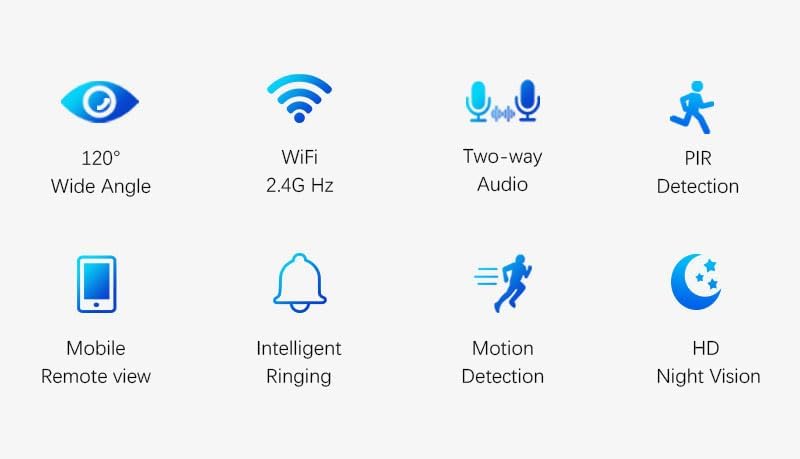
Key features include:
- 120° Wide Angle View
- 2.4GHz WiFi Connectivity
- Two-way Audio Communication
- PIR Motion Detection
- Mobile Remote Viewing
- Intelligent Ringing
- HD Night Vision
2. Product Components
Familiarize yourself with the different parts of your SriHome Doorbell Camera:

- PIR Sensor: Detects motion.
- Infrared Sensor: For night vision functionality.
- HD Lens: Captures 4MP video.
- Microphone: For two-way audio.
- Button: The main doorbell button.
- Indicator Light: Shows device status.
- Speaker: For audio output.
- Reset Button: To reset the device to factory settings.
- ON/OFF Switch: Powers the device on or off.
- Power Port: For charging the battery.
- TF Card Slot: For local video storage.
- Battery Compartment: Houses the rechargeable batteries.
3. Setup Guide
3.1 Battery Installation and Charging
- Open the battery compartment cover on the back of the doorbell.
- Insert the two Lithium-ion batteries (included) into the compartment, ensuring correct polarity.
- Close the battery compartment cover.
- Connect the doorbell to a power source using the provided USB cable and adapter to fully charge the batteries before first use. The indicator light will show charging status.
3.2 App Download and Account Registration
- Download the SriHome mobile application from your device's app store (iOS App Store or Android Google Play).
- Open the app and follow the on-screen instructions to register a new account or log in if you already have one.
3.3 Device Pairing
- Ensure your doorbell camera is powered on and within range of your 2.4GHz Wi-Fi network.
- In the SriHome app, tap the '+' icon to add a new device.
- Select 'Doorbell Camera' or the appropriate device type.
- Follow the in-app instructions to connect the doorbell to your Wi-Fi network. This typically involves scanning a QR code generated by the app with the doorbell camera.
- Once connected, you will receive a confirmation in the app.
3.4 Installation
- Choose a suitable location near your front door, ensuring a clear view and good Wi-Fi signal.
- Mount the doorbell using the provided screws and mounting bracket.
- Ensure the doorbell is securely attached.
4. Operating Instructions
4.1 Live View and Two-Way Audio
Access the live video feed from your doorbell camera anytime through the SriHome app. When someone rings the doorbell or motion is detected, you will receive a notification on your mobile phone. You can then view the live feed and communicate with visitors using the two-way audio feature.

4.2 PIR Intelligent Alarm
The doorbell camera is equipped with a Passive Infrared (PIR) sensor that detects motion. When motion is detected, or the doorbell is pressed, the app will send a push notification to your phone, allowing you to monitor your doorstep remotely.

4.3 Wide Viewing Angle
The camera offers a 120° wide viewing angle, providing a broad perspective of your doorstep and surrounding area, minimizing blind spots.

4.4 Indoor Chime (Ding Dong)
When the doorbell button is pressed, the indoor chime (if connected) will sound, and your mobile phone will also receive a notification via the SriHome app.

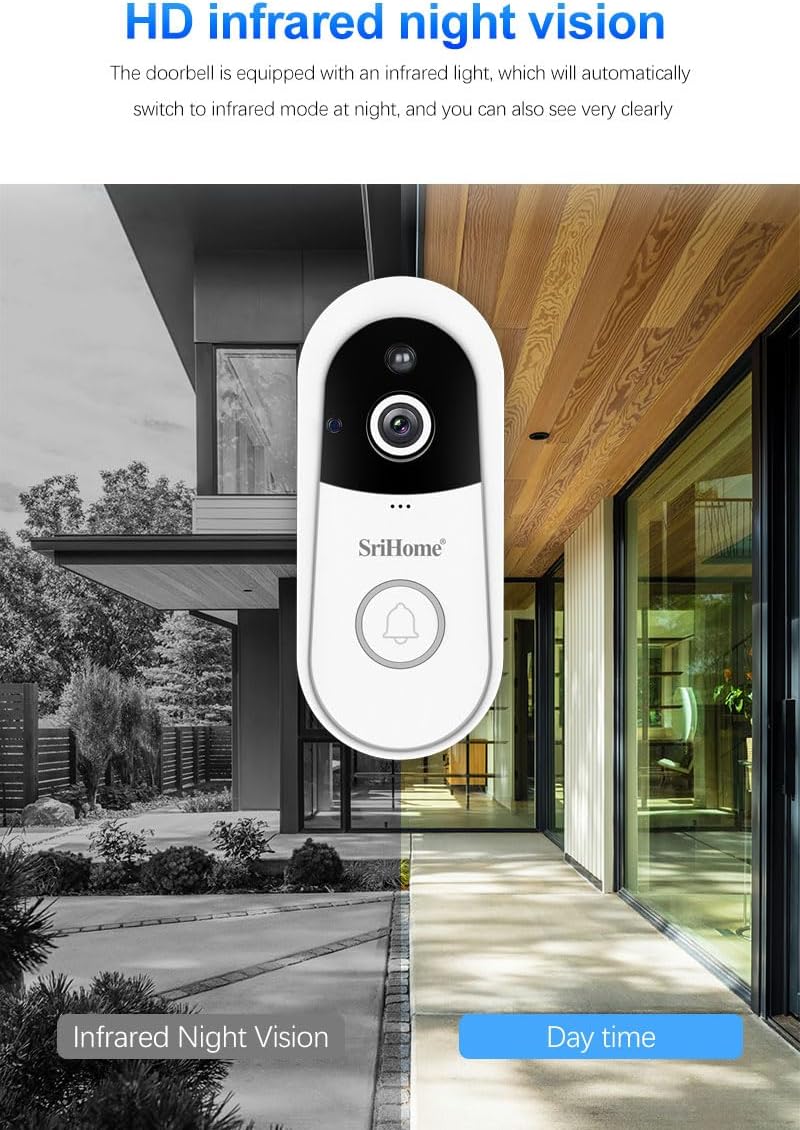
4.5 HD Infrared Night Vision
The doorbell camera is equipped with infrared lights, enabling automatic switching to night vision mode in low-light conditions. This ensures clear visibility even in complete darkness.
5. Maintenance
5.1 Battery Management
The doorbell camera is powered by rechargeable Lithium-ion batteries. When the battery level is low, you will receive a notification via the app. Recharge the batteries using the provided USB cable and a standard 5V USB power adapter. Ensure the device is powered off during prolonged periods of inactivity to conserve battery life.
5.2 TF Card Storage
The doorbell supports local video storage via a TF (microSD) card. Insert a compatible TF card (not included) into the designated slot. The camera will automatically record events to the card. Regularly check the storage capacity and back up important footage. Format the TF card periodically through the app settings to maintain optimal performance.
5.3 Cleaning
Wipe the camera lens and body with a soft, dry cloth. Avoid using harsh chemicals or abrasive cleaners that could damage the device.
6. Troubleshooting
- Device not powering on: Ensure batteries are correctly installed and fully charged. Check the ON/OFF switch.
- Cannot connect to Wi-Fi: Verify your Wi-Fi network is 2.4GHz. Ensure the doorbell is within Wi-Fi range. Restart your router and the doorbell, then attempt pairing again.
- No notifications: Check app notification settings on your phone and within the SriHome app. Ensure the doorbell has a stable internet connection.
- Poor video quality: Ensure the camera lens is clean. Check your Wi-Fi signal strength; a weak signal can affect video streaming quality.
- PIR detection not working: Check PIR sensitivity settings in the app. Ensure there are no obstructions blocking the sensor.
- Two-way audio issues: Ensure microphone and speaker permissions are granted to the app on your phone. Check volume settings.
If problems persist, try resetting the device to factory settings using the reset button and re-pairing it with the app.
7. Specifications
| Feature | Specification |
|---|---|
| Model Number | DH004 |
| Manufacturer | Shenzhen Sricctv |
| Camera Resolution | 4 Megapixels |
| Battery Type | 2 Lithium-ion (included) |
| Connectivity | 2.4GHz WiFi |
| Storage | TF Card (MicroSD) |
| Motion Detection | PIR Sensor |
| Viewing Angle | 120° Wide Angle |
| Night Vision | HD Infrared |
| Package Dimensions | 17.6 x 9.8 x 7 cm |
| Package Weight | 360 grams |
8. Warranty and Support
8.1 Warranty Information
SriHome products typically come with a limited warranty. Please refer to the warranty card included in your product packaging or visit the official SriHome website for detailed warranty terms and conditions. Keep your proof of purchase for warranty claims.
8.2 Customer Support
For technical assistance, troubleshooting, or any product-related inquiries, please contact SriHome customer support. You can usually find contact information (email, phone, or support portal) on the official SriHome website or within the SriHome mobile application.

