1. Introduction
Thank you for purchasing the Ledwood XTREM140 Portable Bluetooth Speaker. This manual provides important information regarding the setup, operation, maintenance, and troubleshooting of your device. Please read this manual thoroughly before using the product to ensure proper functionality and to prevent damage.
The Ledwood XTREM140 is a robust and versatile portable speaker designed for outdoor and indoor use. Its waterproof design (IPX5) allows for use in various environments, and the integrated LED light show enhances your audio experience.
2. Safety Information
Please observe the following safety precautions to prevent damage to the device or injury to yourself:
- Do not expose the speaker to extreme temperatures or direct sunlight for prolonged periods.
- Do not immerse the speaker in water. While it is IPX5 water-resistant, it is not designed for submersion.
- Do not attempt to disassemble or modify the speaker. This will void the warranty and may cause damage.
- Keep the speaker away from strong magnetic fields.
- Use only the provided charging cable and accessories.
- Clean the speaker with a soft, dry cloth. Do not use abrasive cleaners or solvents.
3. Package Contents
Ensure all items are present in the package:
- Ledwood XTREM140 Portable Bluetooth Speaker
- USB-C Charging Cable
- 3.5mm AUX Audio Cable
- User Manual (this document)
- FestiNight Ouni LED Light (if included with your model)
4. Product Overview
Familiarize yourself with the components and controls of your Ledwood XTREM140 speaker.
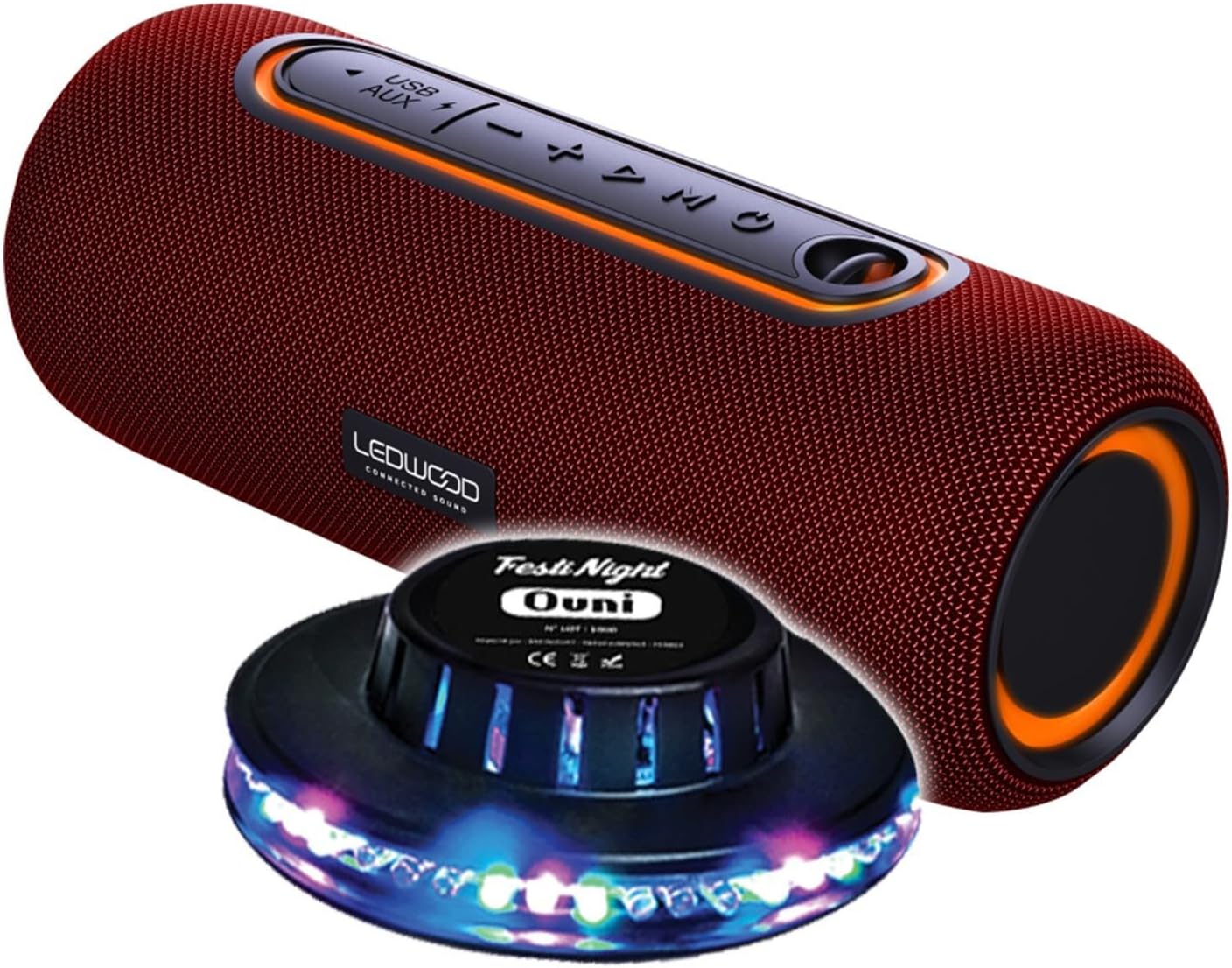
Figure 1: Ledwood XTREM140 Portable Bluetooth Speaker with included FestiNight Ouni LED light. The speaker is red with black accents and control buttons on top. The light is a black disc with multi-colored LEDs.

Figure 2: Ledwood XTREM140 Portable Bluetooth Speaker shown with its integrated carrying strap. The speaker is cylindrical, red, with control buttons on the top surface.
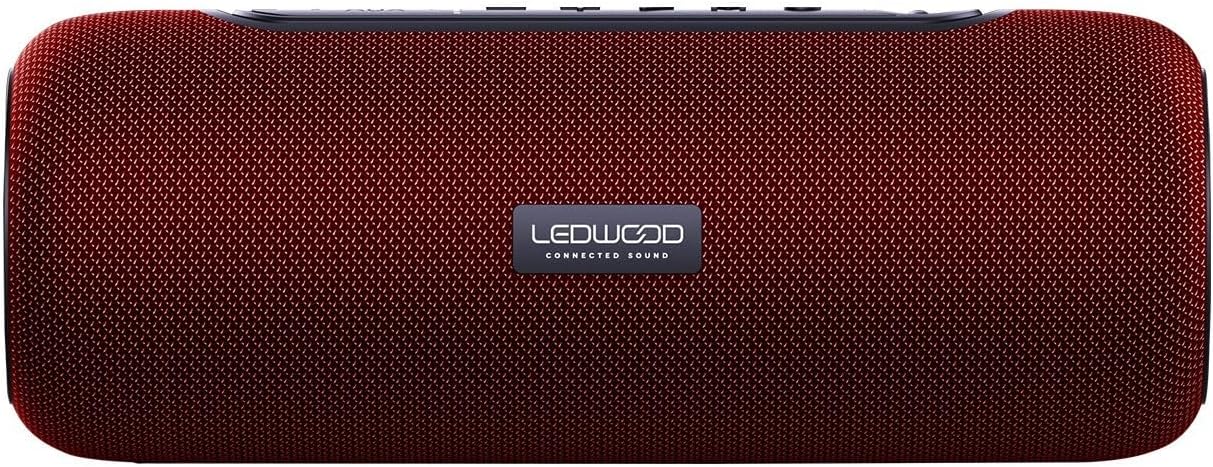
Figure 3: Top view of the Ledwood XTREM140 Portable Bluetooth Speaker, highlighting the control panel. From left to right, buttons include USB/AUX port, minus volume/previous track, play/pause, plus volume/next track, and mode button. There is also a power button.

Figure 4: A collage showing the FestiNight Ouni LED light projecting various colors and patterns. The light is a black disc with LEDs around its circumference, creating dynamic light effects.
4.1. Control Panel
- Power Button: Press and hold to turn on/off.
- Mode Button (M): Press to switch between Bluetooth, AUX, and USB modes.
- Play/Pause Button (►▮▮): Press to play or pause audio. In call mode, press to answer/end calls.
- Volume Down / Previous Track (-): Press to decrease volume. Press and hold to go to the previous track.
- Volume Up / Next Track (+): Press to increase volume. Press and hold to go to the next track.
- USB Port: For USB playback.
- AUX Port: For wired audio connection via 3.5mm jack.
- USB-C Charging Port: For charging the speaker.
5. Setup
5.1. Charging the Speaker
- Connect the provided USB-C charging cable to the speaker's USB-C charging port.
- Connect the other end of the USB-C cable to a USB power adapter (not included) or a computer's USB port.
- The charging indicator light will illuminate. Once fully charged, the light may change color or turn off. A full charge provides approximately 6 hours of playback.
5.2. Initial Power On
Press and hold the Power Button for a few seconds until you hear an audible prompt or see an indicator light, indicating the speaker is powered on.
6. Operating Instructions
6.1. Bluetooth Connection
- Ensure the speaker is powered on and in Bluetooth mode (indicated by a specific sound or light). If not, press the Mode Button (M) to switch to Bluetooth mode.
- On your device (smartphone, tablet, computer), enable Bluetooth and search for available devices.
- Select "XTREM140" from the list of found devices.
- Once connected, you will hear a confirmation sound. You can now play audio through the speaker.
6.2. AUX Mode
- Connect one end of the 3.5mm AUX audio cable to the speaker's AUX port.
- Connect the other end to the audio output jack of your device.
- Press the Mode Button (M) to switch to AUX mode.
- Audio will now play through the speaker from your connected device.
6.3. USB Playback
- Insert a USB flash drive containing audio files into the speaker's USB port.
- Press the Mode Button (M) to switch to USB mode.
- The speaker will automatically begin playing audio files from the USB drive.
6.4. True Wireless Stereo (TWS) Function
The TWS function allows you to pair two XTREM140 speakers together for a stereo sound experience.
- Ensure both XTREM140 speakers are powered on and in Bluetooth pairing mode.
- On one of the speakers, press and hold the Play/Pause Button for a few seconds until you hear a pairing sound. The speakers will automatically connect to each other.
- Once paired, connect your device to one of the speakers via Bluetooth as described in section 6.1.
- Both speakers will now play audio in stereo.
6.5. FestiNight Ouni LED Light Operation
If your package includes the FestiNight Ouni LED light, connect it to a USB power source. The light will automatically project multi-colored patterns, synchronizing with the music if placed near the speaker (no direct connection required for synchronization).
7. Maintenance
7.1. Cleaning
Wipe the speaker with a soft, dry, lint-free cloth. Do not use liquid cleaners, aerosols, or solvents.
7.2. Storage
When not in use for extended periods, store the speaker in a cool, dry place, away from direct sunlight and extreme temperatures. It is recommended to fully charge the speaker before storing it for a long time and to recharge it every few months to maintain battery health.
8. Troubleshooting
| Problem | Possible Cause | Solution |
|---|---|---|
| Speaker does not turn on. | Battery is depleted. | Charge the speaker using the provided USB-C cable. |
| No sound from the speaker. | Volume is too low or muted. Incorrect mode selected. Device not connected. | Increase volume on both the speaker and your connected device. Press the Mode button to select the correct input (Bluetooth, AUX, USB). Ensure Bluetooth is paired or AUX/USB cable is properly connected. |
| Bluetooth connection fails. | Speaker is too far from the device. Interference. Speaker not in pairing mode. | Move the speaker closer to your device. Avoid obstacles. Ensure the speaker is in Bluetooth pairing mode. Forget the device on your phone and re-pair. |
| Poor audio quality. | Low battery. Device volume too high (distortion). Interference. | Charge the speaker. Adjust volume levels. Move away from other electronic devices. |
| TWS pairing fails. | Speakers are too far apart. One speaker is already connected to a device. | Ensure both speakers are close to each other and not connected to any other Bluetooth device before initiating TWS pairing. |
9. Specifications
| Feature | Detail |
|---|---|
| Model Name | XTREM140 |
| Bluetooth Version | 5.0 |
| Water Resistance Rating | IPX5 |
| RMS Power Output | 10W RMS |
| Total Admissible Power | 100W |
| Speaker Drivers | 2 x 3.5 inch (9cm) |
| Battery Life | Up to 6 Hours |
| Battery Capacity | 5V, 2000mAh |
| Frequency Response | 80Hz-16KHz |
| Connectivity | Bluetooth, USB, 3.5mm Jack (AUX) |
| Special Features | TWS Function, Vocal Assistance, Multicolored UFO LED Light (FestiNight Ouni) |
| Dimensions (L x H x D) | 24.2cm x 9.2cm x 9.2cm (9.53 x 3.62 x 3.62 inches) |
| Weight | 1.6 Kilograms (3.53 lbs) |
10. Warranty Information
Ledwood products are covered by a limited warranty from the date of purchase. This warranty covers defects in materials and workmanship under normal use. It does not cover damage caused by misuse, accident, unauthorized modification, or external causes.
For specific warranty terms and conditions, please refer to the warranty card included with your product or contact Ledwood customer support.
11. Customer Support
If you encounter any issues or have questions not covered in this manual, please contact Ledwood customer support:
- Website: www.ledwood.fr (Please check the official Ledwood website for the most up-to-date contact information.)
- Email: Refer to the product packaging or official website for support email.
- Phone: Refer to the product packaging or official website for support phone number.
When contacting support, please have your product model (XTREM140) and purchase details ready.


