
1. Introduction
The REVODATA 5MP POE Mini IP Camera (Model: I706-P-A-TS) is a compact, high-definition security camera designed for indoor surveillance. It features UltraHD 5MP resolution, a built-in microphone for one-way audio, and Power Over Ethernet (POE) functionality, simplifying installation by delivering both power and data through a single Ethernet cable. This manual provides detailed instructions for setting up, operating, and maintaining your camera.

Image 1.1: The REVODATA 5MP POE Mini IP Camera, a compact black rectangular security camera with a lens on the front, mounted on an adjustable stand.
Key Features:
- UltraHD 5MP Quality: CMOS 1/3'' Image Sensor & 5.0 Megapixel (2880 x 1620P) at 20 fps for clear and smooth images/videos.
- POE Functionality: Supports 48V 802.3af Power Over Ethernet, allowing power and data transmission via a single Cat5/6 cable. Also supports 12V 2A auxiliary power.
- Mini Size: Compact dimensions (5.3 x 4.5 x 4 cm) for discreet installation.
- 3.6mm Lens: Fixed lens offering a 75° view angle.
- Built-in Microphone: Captures one-way audio from the camera's surroundings.
- Motion Detection: Smart motion detection with smartphone alarm notifications.
- H.265/H.264 Compression: Efficient video compression for reduced bandwidth and storage.

Image 1.2: An overview graphic highlighting the camera's main features: HD 5MP resolution, motion detection capabilities, a built-in one-way audio microphone, a 3.6mm fixed lens providing a 75-degree field of view, and Power Over Ethernet (POE) connectivity.
2. Package Contents
Please verify that all items listed below are included in your package. If any items are missing or damaged, please contact customer support.
- 1 x REVODATA 5MP POE Mini IP Camera
- 1 x User Manual
- 1 x Screws Set (for mounting)
Note: A power unit (12V 2A) is NOT included in the package. If not using POE, a separate power adapter is required.
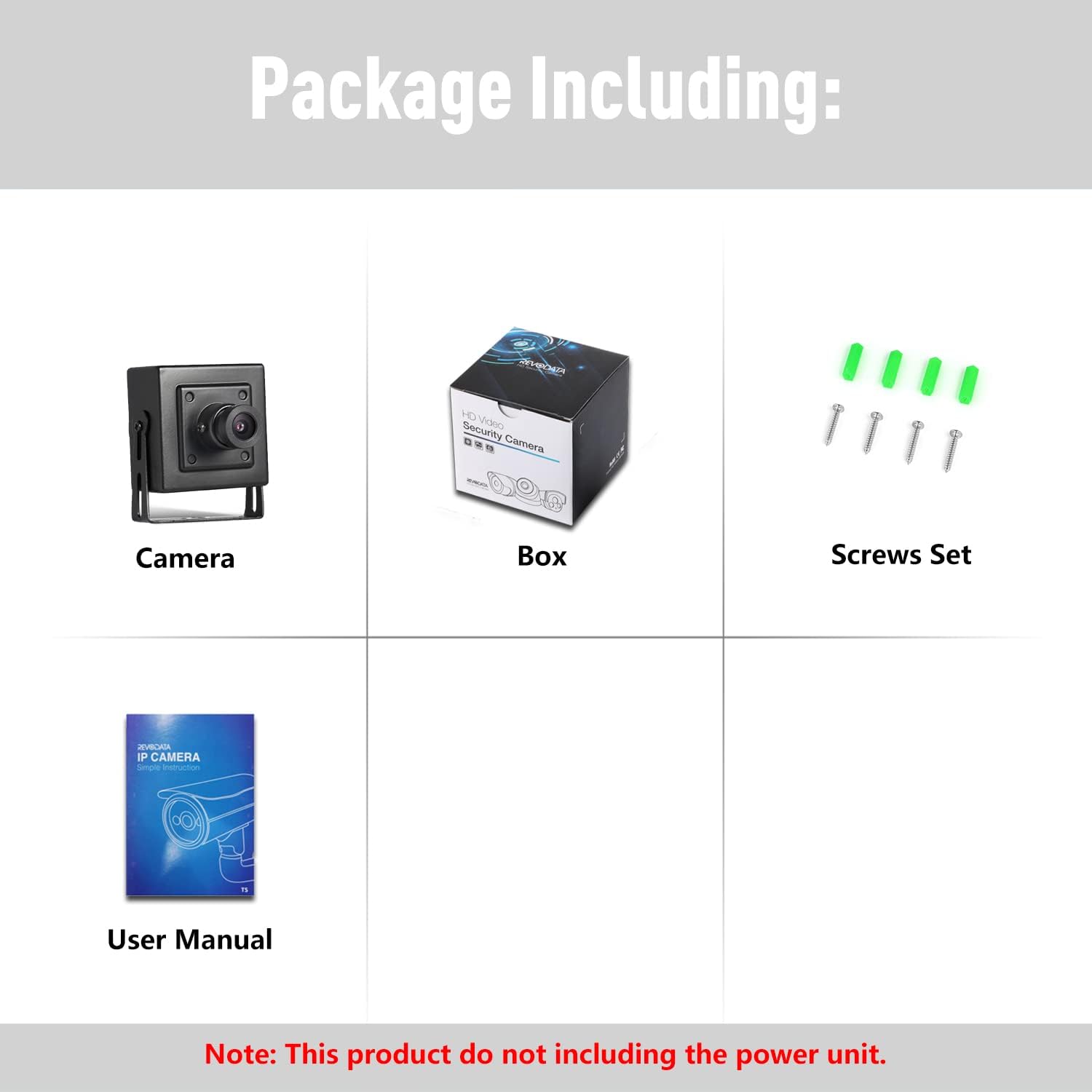
Image 2.1: The package contents, including the camera, user manual, screws set, and product box. A power unit is not included.
3. Product Components
Familiarize yourself with the different parts of your REVODATA IP Camera:

Image 3.1: This image illustrates the camera's dimensions (52mm height, 44mm width, 40mm depth) and highlights key components such as the 3.6mm lens, microphone, mounting brackets, RJ45 port (for POE), and auxiliary 12V 2A power supply port.
- 3.6mm Lens: The primary optical component for capturing video.
- Microphone: Built-in for one-way audio capture.
- Mounting Brackets: Adjustable brackets for secure installation.
- RJ45 Port: Ethernet port for network connection and Power Over Ethernet (POE).
- Auxiliary Power Port: For connecting a 12V 2A DC power supply if POE is not used.
- Screw Hole: For securing the camera to a surface.
- Metal Shell: Durable housing for the camera components.
4. Installation
4.1 Mounting the Camera
The camera is designed for indoor use and can be mounted on a ceiling or wall. Use the included screws and anchors to secure the mounting brackets to your desired location. Adjust the camera angle as needed for optimal viewing.
4.2 Power and Network Connection
The camera supports two power options:
- Power Over Ethernet (POE): Connect a Cat5/6 Ethernet cable from a POE-enabled switch or POE injector to the camera's RJ45 port. This single cable will provide both power and network connectivity. Ensure your POE equipment supports the 802.3af standard.
- Auxiliary Power: If POE is not available, connect a 12V 2A DC power adapter (not included) to the camera's auxiliary power port. Then, connect a standard Ethernet cable from your router/switch to the camera's RJ45 port for network access.
5. Initial Setup
5.1 Network Configuration
By default, the camera may be set to a static IP address. To access the camera's web interface or connect it to your network, you may need to temporarily adjust your PC's IP address to be in the same subnet as the camera's default IP. Refer to the included simple instruction manual for the default IP address and login credentials.
Once connected, you can configure the camera's network settings (e.g., change to DHCP, set a new static IP) via its web interface.
5.2 Software and App Installation
To view and manage your camera, you can use the dedicated mobile app or PC software:
- Smartphone App: Download the 'TSEye' app from your smartphone's app store (available for Android and iOS). Follow the in-app instructions to add your camera.
- PC Software (VMS): VMS software is available for Windows operating systems. This software allows for comprehensive management and viewing on your computer. (Note: Not compatible with MAC OS or Linux).

Image 5.1: This image displays the user interface of the TSEye mobile application for smartphone viewing and the VMS software for PC viewing, showing live camera feeds and control options.
6. Operation
6.1 Live View and Recording
Once connected, you can access the live video feed through the mobile app or VMS software. The camera provides UltraHD 5MP resolution for clear visuals. You can initiate manual recordings or configure continuous recording via the software settings.

Image 6.1: A visual comparison demonstrating the superior clarity and detail of 5MP (2880 x 1620 Pixel) resolution compared to 1080P (1920 x 1080 Pixel) resolution, showcasing the camera's UltraHD capability.

Image 6.2: Two images showing the camera's performance in different lighting conditions: a clear, well-lit view during the day and a detailed, visible image at night, demonstrating its low-light capabilities.
6.2 Audio Monitoring
The built-in microphone allows for one-way audio monitoring. You can listen to the sounds from the camera's environment through the app or VMS software. Adjust microphone volume settings as needed within the software.
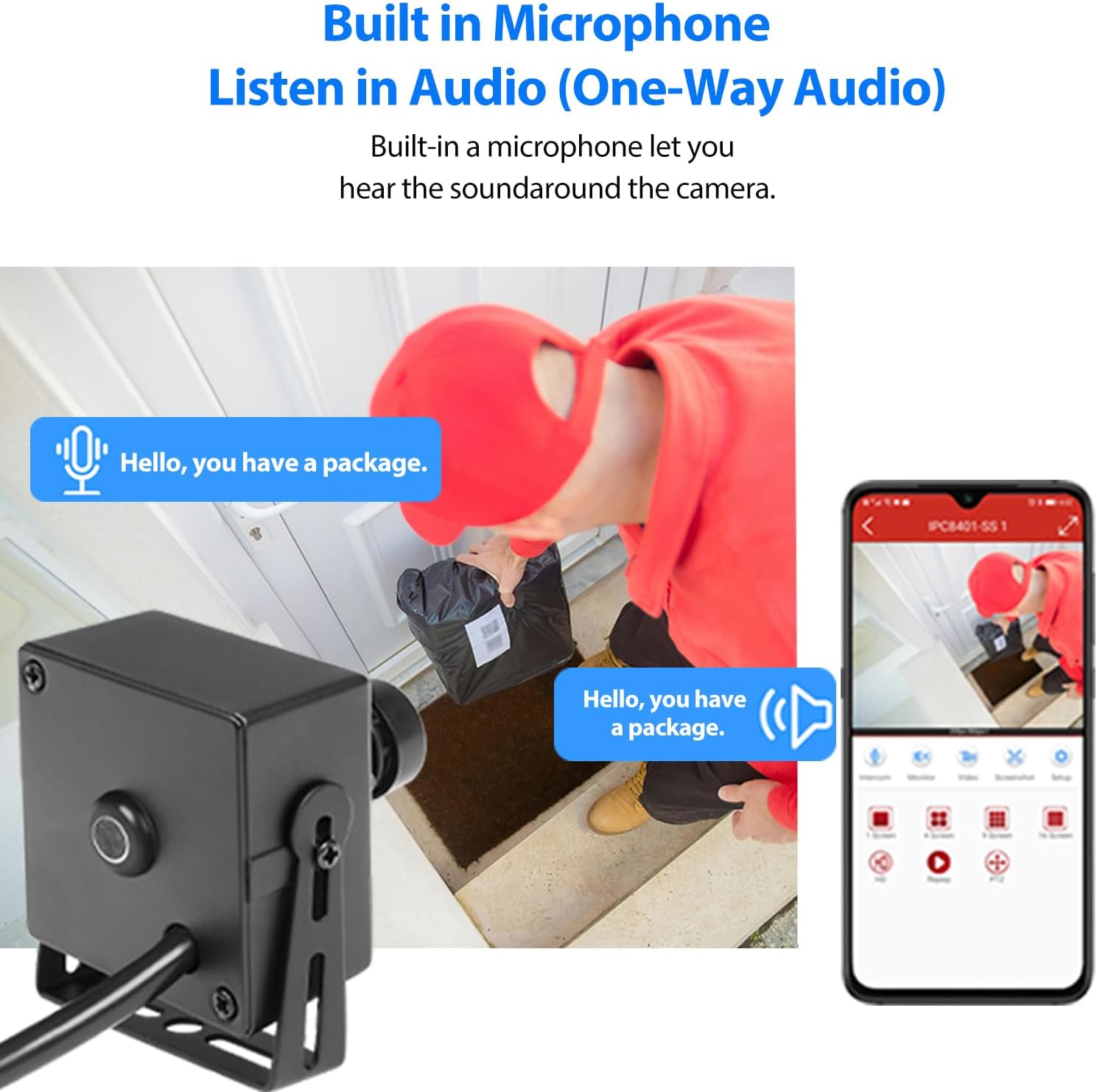
Image 6.3: This image shows the camera's built-in microphone, illustrating its ability to capture one-way audio, useful for monitoring sounds in the camera's vicinity, such as a delivery person speaking.
6.3 Motion Detection
Configure motion detection settings through the camera's web interface or the VMS software. You can define detection zones, sensitivity levels, and set up alarm notifications to be sent to your smartphone when motion is detected.

Image 6.4: This image illustrates the smart motion detection feature, where the camera detects movement within its field of view and sends an alarm notification to a connected smartphone.
6.4 Official Product Video
Video 6.1: This video provides a visual overview of the REVODATA 5MP POE Mini IP Camera, showcasing its compact design and highlighting the built-in microphone feature.
7. Specifications
| Feature | Specification |
|---|---|
| Model Name | I706-P-A-TS |
| Video Capture Resolution | 5 MP (2880 x 1620P) |
| Frame Rate | 20 fps |
| Lens | 3.6mm Fixed Lens |
| Viewing Angle | 75 Degrees |
| Connectivity Technology | Wired (Ethernet) |
| Power Source | POE (802.3af) or 12V 2A DC |
| Indoor/Outdoor Usage | Indoor |
| Dimensions (L x W x H) | 2.09 x 1.77 x 1.57 inches (5.3 x 4.5 x 4 cm) |
| Item Weight | 6.3 ounces |
| Material | Metal |
| Compatible Devices | Smartphone, PC (Windows) |
| Video Compression | H.265/H.264 |
8. Troubleshooting
This section addresses common issues you might encounter with your camera.
8.1 Camera Not Powering On / No Video
- Check POE Connection: Ensure your POE switch or injector is active and provides 802.3af standard power. Verify the Ethernet cable is securely connected at both ends.
- Check Auxiliary Power: If using a 12V 2A power adapter, ensure it is properly connected and functioning.
- Cable Integrity: Inspect the Ethernet cable for any damage. Try a different cable if necessary.
8.2 Cannot Access Camera / Network Issues
- Default IP Address: The camera may default to a static IP. Consult the simple instruction manual for the default IP and ensure your PC is on the same subnet for initial configuration.
- DHCP Settings: If your network uses DHCP, ensure the camera is configured to obtain an IP address automatically.
- Firewall/Antivirus: Temporarily disable any firewall or antivirus software on your PC that might be blocking access to the camera.
8.3 Camera Runs Hot
- Ventilation: Ensure the camera is installed in a location with adequate airflow and not in an enclosed space that could trap heat.
- Operating Environment: Verify the ambient temperature is within the specified operating range (up to 60°C).
8.4 Image Quality Appears Low (Not 5MP)
- Resolution Settings: Check the camera's resolution settings in the web interface or VMS software. Ensure it is set to 5MP (2880x1620).
- Network Bandwidth: Insufficient network bandwidth can affect streaming quality. Ensure your network can support the 5MP video stream.
- Lighting Conditions: While the camera performs well in low light, extreme darkness or glare can impact image clarity.
9. Care and Maintenance
- Cleaning: Use a soft, dry cloth to clean the camera lens and body. Do not use harsh chemicals or abrasive cleaners.
- Environment: Keep the camera in a dry environment and avoid exposure to extreme temperatures or direct water spray.
- Firmware Updates: Periodically check the manufacturer's website for any available firmware updates to ensure optimal performance and security.
10. Warranty and Support
For specific warranty information regarding your REVODATA 5MP POE Mini IP Camera, please refer to the warranty card included with your product or contact the seller/manufacturer directly. Warranty terms and conditions may vary by region and retailer.
For technical support, software downloads, or further assistance, please visit the official REVODATA website or contact their customer service department. Contact information is typically provided in the product packaging or on the manufacturer's website.

