
1. Product Overview
The SUPVAN T50M Series Thermal Label Tape is designed for use with compatible SUPVAN T50M label makers. This specific variant measures 1.96 inches by 1.18 inches (50mm x 30mm) and contains 250 labels per roll. It features a durable, multi-layer synthetic material that ensures longevity and performance in various environments.
Key Features:
- Smart RFID Auto-Detection: Enables your label maker to instantly recognize the label size, minimizing errors and simplifying usage.
- SUPVAN Genuine Quality: Constructed from multi-layer synthetic material, offering resistance to water, oil, and extreme temperatures.
- 5-Year Extended Durability: Designed for long-lasting performance and label integrity.
- High-Tack Adhesive: Provides strong adhesion to various surfaces, preventing detachment.
- BPA-Free & High Safety: Complies with BPA-free standards, making it safe for labeling food, cosmetics, and other consumables.

Image 1.1: A single roll of SUPVAN T50M Series Thermal Label Tape, showing the white labels on a black core.

Image 1.2: A visual representation of the SUPVAN T50M Label Tape, highlighting its 2" x 1-3/16" dimensions and key features: waterproof, oilproof, BPA free, and scratch resistant.

Image 1.3: An illustration showcasing various SUPVAN label paper types, emphasizing compatibility with T50M Pro, T50M Plus, and other 2-inch label makers, along with features like waterproof, oil-proof, anti-stain, eco-friendly, strong adhesion, and no residue.
2. Setup and Installation
Proper installation of the label tape ensures optimal printing performance. Follow these steps to load your SUPVAN T50M Series Thermal Label Tape into your compatible label maker.
Loading the Label Tape:
- Ensure your SUPVAN T50M label maker is powered off.
- Locate the release button or latch on the side of your label maker. Press or slide it to open the label compartment cover.
- Carefully place the roll of SUPVAN T50M Series Thermal Label Tape into the compartment, ensuring the labels feed out from the bottom of the roll and the leading edge is positioned correctly for the printer mechanism. The smart RFID chip on the roll should align with the reader in the printer.
- Pull a small section of the label tape (approximately 1-2 inches) past the printer's output slot.
- Close the label compartment cover firmly until it clicks into place.
- Power on your label maker. The device should automatically detect the label type and size thanks to the RFID technology.
Connecting to the App:
To utilize the full functionality of your SUPVAN T50M label maker and print custom labels, you will need to connect it to the dedicated mobile application.
- Download the official SUPVAN label maker app from your device's app store (e.g., Apple App Store or Google Play Store). You may find a QR code on the label maker's packaging for direct download.
- Enable Bluetooth on your mobile device.
- Open the SUPVAN app and follow the on-screen instructions to pair your label maker. The app will guide you through the connection process.

Image 2.1: A SUPVAN T50M label maker on a wooden surface, surrounded by various printed labels including barcodes, ingredient lists, and decorative text, demonstrating its versatility.

Image 2.2: A SUPVAN T50M label maker alongside several rolls of different colored and shaped labels, illustrating its use with 2-inch thermal label makers and highlighting its broad compatibility.
3. Operating Instructions
Once your SUPVAN T50M Series Thermal Label Tape is loaded and your label maker is connected to the app, you can begin creating and printing labels.
Creating and Printing Labels:
- Open the SUPVAN app on your mobile device.
- Select the desired label template or create a new custom label. The app offers various fonts, symbols, and design options.
- Enter the text or data you wish to print on your label.
- Review the label preview in the app to ensure accuracy and desired layout.
- Tap the "Print" button within the app. The label maker will then print your label.
- Once printed, gently tear the label along the perforated edge of the label maker.
- Peel the backing off the label and apply it to your desired surface.
Recommended Uses:
- Home Organization: Labeling storage bins, pantry items, spice jars, and cables.
- Office & Business: Organizing files, documents, inventory, and shipping packages.
- Personal Items: Labeling school supplies, lunch containers, and personal belongings.

Image 3.1: A collage demonstrating diverse applications of SUPVAN T50M labels, including labeling oil bottles, spice jars, meal prep containers, and seasoning shakers.
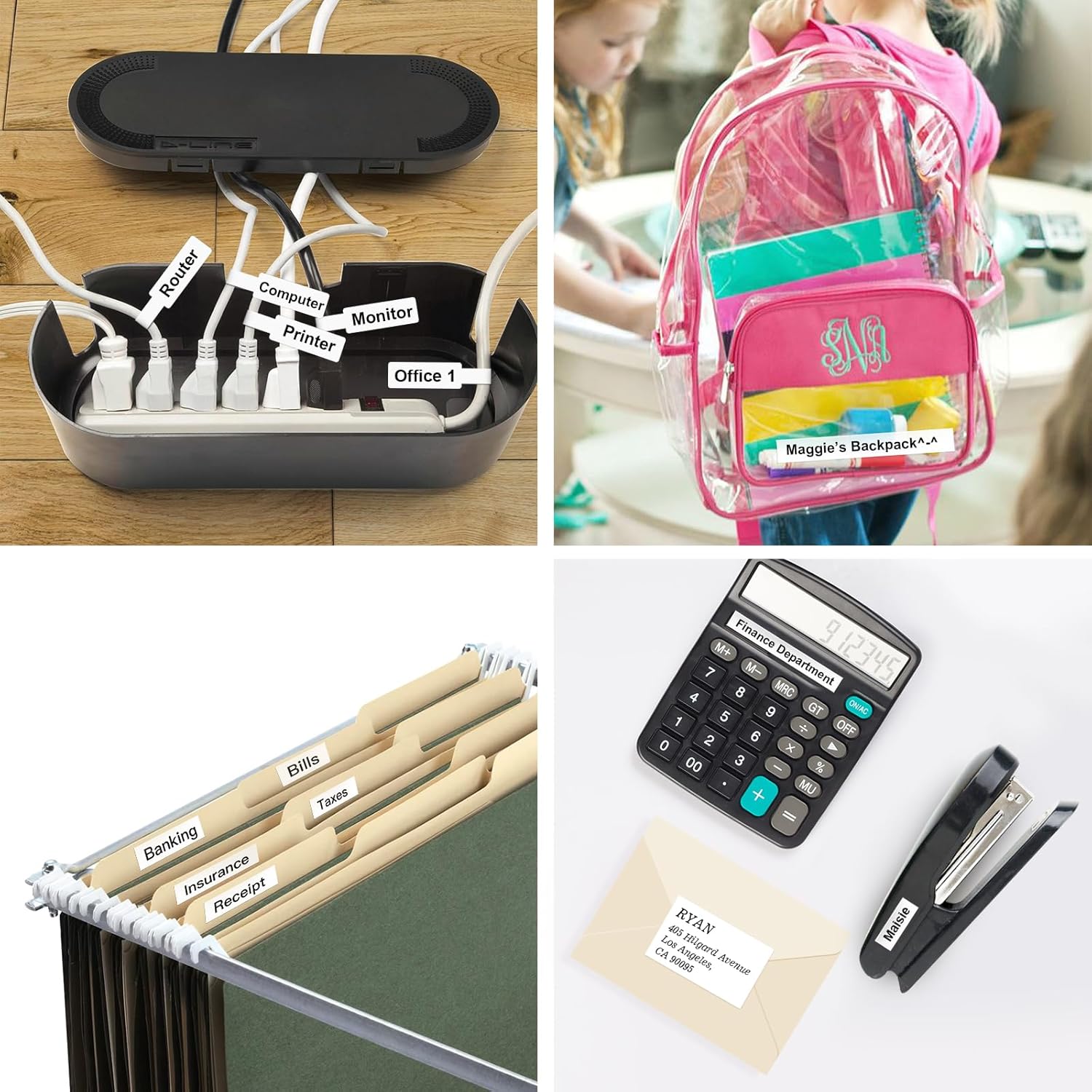
Image 3.2: Another collage illustrating practical uses of SUPVAN T50M labels for organization, such as labeling cables, backpacks, file folders, and office supplies.

Image 3.3: A collage showcasing how SUPVAN T50M labels can be used for small business needs, including brand/product info, 'Thank You' labels, price/barcode/QR labels, and address labels.

Image 3.4: A label reading "Olive Oil" affixed to a bottle being washed under running water, illustrating the strong waterproof and oilproof capabilities of the SUPVAN T50M labels.

Image 3.5: Stacked food storage containers with clear SUPVAN T50M labels displaying dates, emphasizing how the labels help maintain clarity and neatness in food organization.

Image 3.6: A visual summary of SUPVAN label paper features, including waterproof, oil-proof, no trace left upon removal, and scratch resistance, demonstrated through various scenarios.

Image 3.7: A display of various label applications, such as for small businesses, logos, addresses, and kitchen organization, highlighting the versatility of SUPVAN labels.
4. Maintenance
To ensure the longevity and optimal performance of your SUPVAN T50M Series Thermal Label Tape and your label maker, follow these simple maintenance guidelines:
- Storage: Store unused label rolls in a cool, dry place away from direct sunlight and extreme temperatures. This helps preserve the adhesive quality and printability.
- Handling: Avoid touching the printing surface of the labels directly, as oils from your skin can affect print quality.
- Cleaning the Label Maker: Periodically clean the print head and feed rollers of your label maker according to its specific instruction manual. Use a soft, lint-free cloth, possibly dampened with isopropyl alcohol, to remove any dust or adhesive residue.
- Avoid Obstructions: Ensure no foreign objects are present in the label compartment or output slot, as this can cause jams or damage.
5. Troubleshooting
If you encounter issues while using your SUPVAN T50M Series Thermal Label Tape, consider the following common troubleshooting steps:
- Poor Print Quality:
- Ensure the label roll is inserted correctly and feeding smoothly.
- Clean the print head of your label maker.
- Check if the label tape is expired or has been stored improperly.
- Labels Not Feeding:
- Verify the label roll is seated properly in the compartment.
- Ensure the compartment cover is fully closed.
- Check for any jams or obstructions in the feed path.
- Label Maker Not Detecting Tape:
- Confirm the label tape is a genuine SUPVAN T50M Series product with RFID auto-detection.
- Re-insert the label roll, ensuring the RFID chip aligns with the reader.
- Restart the label maker and the mobile app.
- Labels Not Sticking:
- Ensure the application surface is clean, dry, and free of dust or oil.
- Apply firm, even pressure when adhering the label.
- Check the label tape's expiration date; adhesive quality can degrade over time.
For further assistance, please refer to your specific SUPVAN T50M label maker's user manual or contact SUPVAN customer support.
6. Specifications
| Feature | Detail |
|---|---|
| Label Size | 1.96'' × 1.18'' (50mm × 30mm) |
| Labels per Roll | 250 |
| Label Color | Black on White |
| Material | Multi-layer Synthetic |
| Adhesive Type | High-tack |
| Special Features | Waterproof, Oilproof, BPA-free, Smart RFID Auto-Detection, Scratch Resistant |
| Durability | 5-year extended durability |
| Product Dimensions (Roll) | 1.96 x 1.96 x 2.3 inches |
| Item Weight (Roll) | 2.46 ounces |
7. Warranty and Support
SUPVAN T50M Series Thermal Label Tape is manufactured to high-quality standards. For information regarding product warranty, returns, or technical support, please refer to the documentation included with your SUPVAN label maker or visit the official SUPVAN website. Customer satisfaction is a priority, and support resources are available to assist you with any inquiries or issues.
For direct support, please visit: SUPVAN Official Store on Amazon


