
Introduction
This manual provides essential information for setting up, operating, maintaining, and troubleshooting your ASUS Zenbook 14" OLED Touchscreen Laptop (Model: UM3402YA-WS51T). Please read this manual thoroughly to ensure proper use and to maximize the lifespan of your device.
The ASUS Zenbook 14" OLED Touchscreen Laptop is designed for productivity and entertainment, featuring a stunning 14-inch OLED touchscreen display, a powerful AMD Ryzen 5 7530U processor, 8GB of RAM, and a fast 256GB SSD. It comes pre-installed with Windows 11 Home and offers advanced connectivity options.
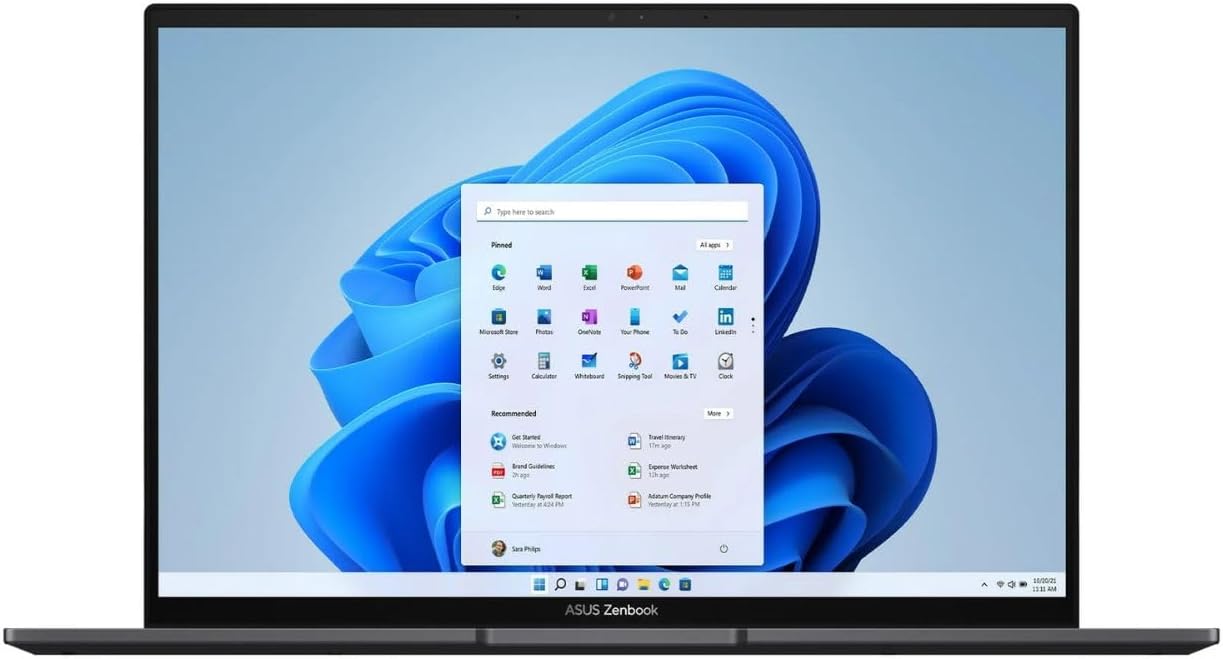
Figure 1: ASUS Zenbook 14" OLED Laptop with Windows 11 Interface.
This image shows the laptop open, displaying the Windows 11 operating system desktop, highlighting the vibrant OLED screen.
Setup
- Unboxing: Carefully remove the laptop and all accessories from the packaging. Ensure all components are present: laptop, power adapter, and documentation.
- Connecting Power:
- Connect the power adapter to the laptop's power input port.
- Plug the power cord into a grounded electrical outlet.
- Allow the battery to charge for at least 30 minutes before first use, or until the battery indicator shows sufficient charge.
- First Boot:
- Open the laptop lid. The laptop may power on automatically. If not, press the power button located on the keyboard.
- Follow the on-screen instructions to complete the Windows 11 Home setup process, including language selection, network connection, and user account creation.
Operating Instructions
Keyboard and Touchpad
The ASUS Zenbook features an ASUS ErgoSense keyboard and a large touchpad for comfortable and precise input. The touchpad also integrates a virtual numeric keypad for convenient data entry.

Figure 2: Keyboard and Touchpad Layout.
This image provides a top-down view of the laptop's keyboard, highlighting the backlit keys and the large touchpad with its integrated virtual numeric keypad.
Display Features
Your Zenbook is equipped with a 14-inch 2.8K (2880 x 1800) OLED NanoEdge touchscreen display. This display offers vibrant colors, deep blacks, and excellent contrast, making it ideal for various tasks. The touchscreen allows for intuitive interaction with Windows 11.

Figure 3: OLED Display Certifications.
This image showcases the laptop's OLED display and various certifications, including TÜV Rheinland for low blue light and VESA DisplayHDR True Black 500, indicating high visual quality and eye comfort.
Connectivity
The Zenbook 14 OLED provides a comprehensive set of I/O ports for versatile connectivity:
- USB 3.2 Gen 2 Type-A: For connecting standard USB devices.
- USB-C 3.2 Gen 2: Versatile ports supporting data transfer, power delivery, and display output.
- HDMI 2.1: For connecting external displays or projectors.
- Audio Combo Jack: For headphones or headsets.
- MicroSD Card Reader: For expanding storage or transferring files from memory cards.
Wireless connectivity includes Wi-Fi 6E for fast and reliable internet access and Bluetooth 5 for connecting wireless peripherals.

Figure 4: Connectivity Ports.
This image displays the side profiles of the laptop, clearly labeling the USB 3.2 Gen 2 Type-A port on one side and the MicroSD card reader, USB-C 3.2 Gen 2 ports, audio combo jack, and HDMI 2.1 port on the other side.
Maintenance
- Cleaning:
- Use a soft, lint-free cloth slightly dampened with water or a screen cleaner to clean the display. Avoid harsh chemicals.
- For the keyboard and chassis, use a soft, dry cloth. A can of compressed air can be used to remove dust from between keys.
- Battery Care:
- Avoid completely discharging the battery frequently.
- If storing the laptop for an extended period, charge the battery to about 50-60% before turning it off.
- Use only the original ASUS power adapter.
- Software Updates: Regularly check for and install updates for Windows 11 and ASUS drivers/utilities to ensure optimal performance and security.
- Storage Management: Periodically clean up unnecessary files and applications to maintain sufficient free space on the 256GB SSD for optimal system performance.
Troubleshooting
| Problem | Possible Cause | Solution |
|---|---|---|
| Laptop does not power on. | Low battery or power adapter issue. | Ensure power adapter is securely connected to both laptop and outlet. Allow battery to charge for a few minutes before attempting to power on again. |
| Display is blank or flickering. | Display driver issue, external display conflict, or power saving mode. | Press Fn + F7 (or the display toggle key) to cycle display modes. Update graphics drivers. Restart the laptop. |
| Wi-Fi connection issues. | Wi-Fi adapter off, incorrect password, or router issue. | Ensure Wi-Fi is enabled in Windows settings. Re-enter Wi-Fi password. Restart your router and laptop. |
| Slow performance. | Too many applications running, low storage space, or outdated drivers. | Close unnecessary applications. Free up disk space. Update Windows and drivers. |
If you encounter issues not covered here or if solutions do not resolve the problem, please refer to the ASUS support website or contact customer service.
Specifications
| Feature | Detail |
|---|---|
| Brand | ASUS |
| Model Name | UM3402YA-WS51T |
| Screen Size | 14 Inches |
| Screen Resolution | 2880 x 1800 pixels |
| Processor | AMD Ryzen 5 7530U (2 GHz base speed) |
| RAM Memory Installed Size | 8 GB DDR4 |
| Hard Disk Size | 256 GB SSD |
| Operating System | Windows 11 Home |
| Graphics Card Description | Integrated |
| Wireless Type | 802.11ax (Wi-Fi 6E) |
| Color | Black |
| Item Weight | 5.85 pounds |
| Product Dimensions (LxWxH) | 12.34 x 8.69 x 0.67 inches |
Warranty and Support
Your ASUS Zenbook 14" OLED Touchscreen Laptop comes with a standard manufacturer's warranty. Please refer to the warranty card included in your product packaging for specific terms and conditions, including warranty duration and coverage details.
For technical support, driver downloads, FAQs, and service inquiries, please visit the official ASUS support website:
When contacting support, please have your product model number (UM3402YA-WS51T) and serial number ready.


