
KOKODI Blue
KOKODI Kids Smart Phone Instruction Manual
Model: Blue (B0C8HWWP4Q)
Brand: KOKODI
1. Introduction
Welcome to the KOKODI Kids Smart Phone experience! This device is designed to provide a safe and engaging digital environment for children aged 3 and above, fostering learning and creativity through various pre-installed applications and features. This manual will guide you through the setup, operation, and maintenance of your new KOKODI Kids Smart Phone.

The KOKODI Kids Smart Phone, featuring a vibrant blue color and a playful dinosaur design on its protective case.
2. Safety Information
Your child's safety is our top priority. Please read and adhere to the following safety guidelines:
- This product is designed for children aged three years and above.
- Ensure the device is used under adult supervision, especially during initial setup and exploration of features.
- Keep the device away from water and excessive moisture. It is not waterproof.
- Do not attempt to disassemble or repair the device yourself. Contact customer support for assistance.
- Use only the provided charging cable and adapter to prevent damage to the battery or device.
- Avoid prolonged exposure to loud volumes to protect your child's hearing.
- The device has been tested and complies with CPC and CPSIA regulatory standards for safety.
3. What's in the Box
Upon unboxing your KOKODI Kids Smart Phone, please verify that all the following items are included:
- KOKODI Kids Smart Phone Toy (Blue)
- Premium Silicone Case (pre-installed)
- 8GB SD Card (pre-installed)
- USB Charging Cable
- User Manual (this document)
4. Key Features
The KOKODI Kids Smart Phone is packed with features designed for educational play and entertainment:
4.1 All-in-One Kids Phone Toy
This device offers a comprehensive suite of applications tailored for toddlers, including photo and video capabilities, ABC learning, story playback, and painting activities. It also includes features to help children manage time and develop good habits.

The KOKODI Kids Smart Phone's interface, displaying a variety of pre-installed applications for learning and play.
4.2 Effortless Photo and Video Capture
Equipped with dual HD cameras, the phone features automatic subject locking for people, pets, and birds, making it easy for kids to capture moments. It includes 23 funny stickers to enhance photos and videos. The 2.8-inch sensitive touchscreen simplifies recording and playback.

A parent and child enjoying the camera's funny sticker feature on the KOKODI Kids Smart Phone.
4.3 Pre-loaded Educational Content
The device comes with 13 pre-installed educational puzzle games with easy, normal, and hard modes. It supports thousands of music tracks and hundreds of stories, which can be pre-downloaded onto the large memory for offline enjoyment.

A visual representation of the diverse educational games pre-loaded on the KOKODI Kids Smart Phone, designed to enhance logical thinking and cognitive skills.
4.4 Durable Design
The KOKODI Kids Smart Phone is built for everyday use, featuring a premium silicone case that provides all-around protection against accidental drops and bumps. All buttons and ports are easily accessible.
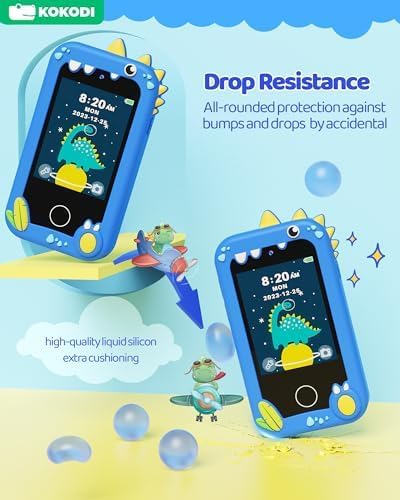
Two KOKODI Kids Smart Phones, highlighting the protective silicone case that ensures drop resistance.
5. Setup Guide
5.1 Charging the Device
Before first use, fully charge the KOKODI Kids Smart Phone. Connect the provided USB charging cable to the phone's charging port and the other end to a compatible USB power adapter (not included) or a computer's USB port. The charging indicator will show the charging status.
5.2 Powering On/Off
To power on the device, press and hold the Power Button located on the side until the screen lights up. To power off, press and hold the Power Button again until the power-off options appear on the screen, then select 'Power Off'.
5.3 SD Card Installation (Pre-installed)
The 8GB SD card comes pre-installed in your KOKODI Kids Smart Phone. This provides ample storage for photos, videos, music, and stories. No additional installation is required for initial use.
6. Operating Instructions
6.1 Navigating the Interface
The KOKODI Kids Smart Phone features a responsive touchscreen. Swipe left or right to navigate between application screens. Tap on an icon to open an application. The 'Home' button (if present, usually a physical button or on-screen icon) will return you to the main screen.
6.2 Camera Functions
Open the 'Camera' application to take photos or record videos. The device has both front and rear cameras. Use the on-screen controls to switch between cameras, apply funny stickers, and start/stop recording. The auto-focus feature helps capture clear images.
6.3 Playing Games
Access the 'Games' application to choose from 13 pre-installed educational puzzle games. Select your preferred difficulty level: Easy, Normal, or Hard. Follow the on-screen instructions to play.
6.4 Music and Story Playback
The device supports music and story playback. You can pre-download content onto the 8GB SD card. Use the 'Music' or 'Story' applications to browse and play audio files. Adjust volume using the dedicated volume buttons on the side of the device.

A child sleeping while the KOKODI Kids Smart Phone plays a story, illustrating the device's ability to provide calming audio content.
6.5 Time Management Features
The KOKODI Kids Smart Phone includes applications to help children develop time management skills. Explore features like 'Daily' routines, 'Timer', 'Stopwatch', 'Habits' tracking, and 'Alarm' settings.

An overview of the time management tools available on the KOKODI Kids Smart Phone, including daily planners, timers, stopwatches, habit trackers, and alarms.
6.6 Connecting to a Computer
You can connect the KOKODI Kids Smart Phone to a computer using the USB cable to transfer music, photos, and videos. The device will appear as a removable storage device on your computer, allowing you to manage files on the SD card.

The KOKODI Kids Smart Phone connected to a laptop, demonstrating the ease of transferring music, photos, and stories to and from the device.
6.7 Customizing Wallpapers
Personalize your KOKODI Kids Smart Phone by changing the phone and lock screen wallpapers. Navigate to the 'Settings' menu to find the wallpaper options and choose from a variety of pre-loaded designs.

A selection of the over 22 phone wallpapers and up to 12 lock screen wallpapers available for customization on the KOKODI Kids Smart Phone.
7. Maintenance
To ensure the longevity and optimal performance of your KOKODI Kids Smart Phone, follow these maintenance tips:
- Cleaning: Use a soft, dry cloth to wipe the screen and body of the device. Do not use liquid cleaners or abrasive materials.
- Storage: Store the device in a cool, dry place away from direct sunlight and extreme temperatures.
- Battery Care: Avoid fully draining the battery frequently. Charge the device regularly, even if not in use for extended periods.
- Software Updates: Check the manufacturer's website or product page for any available software updates to ensure the best performance and features.
8. Troubleshooting
If you encounter any issues with your KOKODI Kids Smart Phone, please refer to the following common problems and solutions:
| Problem | Possible Solution |
|---|---|
| Device does not turn on. | Ensure the battery is charged. Connect to a charger and wait a few minutes before attempting to power on again. If unresponsive, try pressing the reset button (if available, usually a small pinhole). |
| Screen is unresponsive. | Restart the device. If the issue persists, ensure the screen is clean and free of debris. |
| Cannot transfer files to/from computer. | Ensure the USB cable is securely connected to both the phone and the computer. Try a different USB port or cable. Check if the phone is in 'Media Transfer Protocol' (MTP) mode if prompted. |
| Sound is not working or too low. | Check the volume settings on the device. Ensure the speaker is not obstructed. |
| Games or apps are slow/lagging. | Close any background applications. Restart the device. Ensure there is sufficient storage space on the SD card. |
9. Specifications
Detailed technical specifications for the KOKODI Kids Smart Phone:
- Product Dimensions: 3.5 x 1.5 x 5.9 inches
- Item Weight: 7.8 ounces
- Model Number: Blue
- Batteries: 1 A battery required (included)
- Manufacturer: KOKODI
- Screen: 2.8-inch Touchscreen
- Camera: Dual HD Cameras (Front & Rear)
- Storage: 8GB SD Card (included)
- Connectivity: USB for file transfer (No Wi-Fi required for operation)

An annotated diagram highlighting the physical features and dimensions of the KOKODI Kids Smart Phone.
10. Warranty and Support
KOKODI products are designed with quality and durability in mind. For specific warranty information, please refer to the documentation included with your purchase or visit the official KOKODI website. For technical support or any inquiries, please contact KOKODI customer service through their official channels.
You may also consider registering your product for any extended warranty offers, as mentioned in some customer reviews.
Ask a question about this manual
Ask about setup, troubleshooting, compatibility, parts, safety, or missing instructions. Manuals+ will review the question and use this page’s manual context to help answer it.