
Introduction
This manual provides detailed instructions for the setup, operation, and maintenance of your PDP Wired Xbox Gaming Controller. Designed for seamless compatibility with Xbox Series X|S, Xbox One, and Windows 10/11 PCs, this controller offers a reliable and responsive gaming experience.
The Atomic Black controller features a durable design, an 8-foot detachable cable for extended reach, and a built-in 3.5mm audio jack for private gaming sessions. Utilize the free PDP Control Hub App to customize button mapping, trigger configuration, and dead zones to suit your personal play style.
Product Features
- USB Connectivity: Gamepad connects to PC, Xbox Series X, Xbox One via USB for easy setup and use.
- Headphone Jack: Built-in headphone jack allows for private gaming sessions without disturbing others.
- 16 Buttons: Includes 16 buttons for quick access to all functions during gameplay.
- Compatible Devices: Works with Windows, Xbox Series X, Xbox One for versatile gaming experience.
- Durable Construction: Made from durable materials for long-lasting use and enjoyment.
- 8-foot Detachable Cable: Provides ample room for comfortable gaming.
- PDP Control Hub App: Customize button re-mapping, trigger configuration, and dead zones.
- Audio Controls: Adjust game and chat audio directly from the D-pad.
- Mic Mute: Double tap the "Function" button to mute your microphone.
- Dedicated Share Button: Easily capture and share images and videos.
Setup Guide
Connecting to Xbox Series X|S or Xbox One:
- Locate an available USB port on your Xbox console.
- Connect the USB end of the controller's 8-foot detachable cable into the USB port on your console.
- Connect the other end of the cable (USB-C) to the port on the top of your PDP Wired Controller.
- The controller will automatically power on and connect to your console. The Xbox button on the controller will illuminate when connected.
Connecting to Windows PC (Windows 10/11):
- Locate an available USB port on your Windows PC.
- Connect the USB end of the controller's 8-foot detachable cable into the USB port on your PC.
- Connect the other end of the cable (USB-C) to the port on the top of your PDP Wired Controller.
- Your PC should automatically detect and install the necessary drivers. If prompted, allow the installation.
- The controller will be ready for use once drivers are installed.
Initial Setup and Customization (Optional):
For advanced customization, download the free PDP Control Hub App from the Microsoft Store on your Xbox console or Windows PC. This app allows you to:
- Re-map buttons to your preferred layout.
- Re-configure trigger sensitivity.
- Adjust dead zones for analog sticks and triggers.
- Run diagnostics to ensure optimal performance.
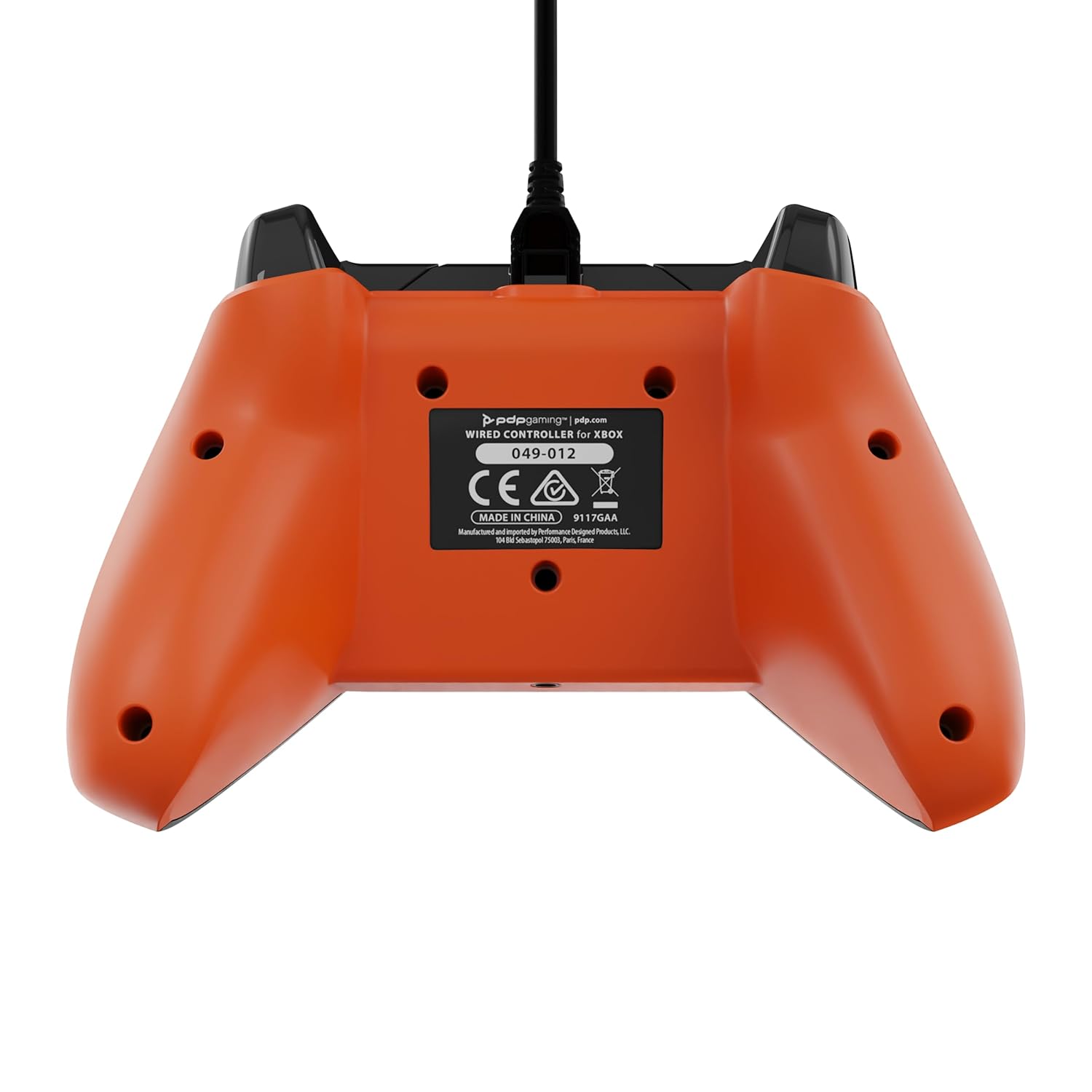
Image: The PDP Control Hub App interface, demonstrating options for customizing trigger settings and dead zones.
Operating Instructions
Basic Controls:
The PDP Wired Controller features standard Xbox controller button layouts. Refer to your game's specific control scheme for detailed button functions.

Image: Front view of the PDP Wired Xbox Gaming Controller, highlighting the layout of buttons, joysticks, and D-pad.
Audio Controls:
Adjust game and chat audio levels directly using the audio controls located on the D-pad. This allows for quick adjustments without interrupting your gameplay.
- Volume Up/Down: Use the dedicated buttons near the D-pad to increase or decrease overall volume.
- Game/Chat Balance: Adjust the balance between game audio and chat audio to prioritize what you hear.
- Mic Mute: Double-tap the "Function" button (located below the Xbox button) to quickly mute or unmute your microphone.
Using the 3.5mm Audio Jack:
Plug any standard 3.5mm headset into the audio jack located at the bottom of the controller for immersive private gaming and clear communication.

Image: A user demonstrating the use of the 3.5mm audio jack on the controller with a connected headset.
Share Button:
The dedicated Share button (located centrally below the Xbox button) allows you to quickly capture screenshots and record game clips. Press once for a screenshot, hold for a game clip.
Maintenance
Cleaning Your Controller:
- Always disconnect the controller from your console/PC before cleaning.
- Use a soft, dry cloth to wipe down the surface of the controller.
- For stubborn dirt, lightly dampen the cloth with water or a mild, non-abrasive cleaner. Avoid excessive moisture.
- Do not use harsh chemicals, solvents, or abrasive materials, as these can damage the controller's finish.
- Use a cotton swab or compressed air to clean around buttons and joysticks if dust or debris accumulates.
Storage:
Store your controller in a cool, dry place away from direct sunlight and extreme temperatures. Avoid placing heavy objects on the controller to prevent damage to the joysticks or buttons.
Cable Care:
The 8-foot detachable cable is designed for durability. To prolong its life, avoid sharp bends, kinks, or excessive pulling. Always grasp the connector when plugging or unplugging the cable, not the cable itself.
Troubleshooting
Controller Not Responding:
- Check Cable Connection: Ensure the USB cable is securely plugged into both the controller and the console/PC. Try unplugging and re-plugging both ends.
- Try Different USB Port: Connect the controller to a different USB port on your console or PC.
- Restart Console/PC: A system restart can often resolve connectivity issues.
- Test on Another Device: If possible, test the controller on another compatible Xbox console or Windows PC to determine if the issue is with the controller or the original device.
Audio Issues (No Sound/Mic Not Working):
- Check Headset Connection: Ensure your 3.5mm headset is fully inserted into the controller's audio jack.
- Verify Mic Mute: Double-tap the "Function" button to ensure your microphone is not muted.
- Adjust Audio Settings: Use the D-pad audio controls to adjust volume and game/chat balance. Check system audio settings on your Xbox or PC.
- Test Headset: Try your headset with another device to confirm it is working correctly.
- Update Drivers (PC): Ensure your PC's audio drivers are up to date.
Buttons or Joysticks Not Responding Correctly:
- Clean Controller: Dust or debris might be interfering with button presses. Refer to the Maintenance section for cleaning instructions.
- Recalibrate (PDP Control Hub App): Use the PDP Control Hub App to recalibrate joysticks and triggers, and check button functionality.
- Software Glitch: Restarting your game or console/PC can sometimes resolve temporary input issues.
Controller Disconnects Randomly:
- Secure Cable: Ensure the detachable cable is firmly seated in both the controller and the console/PC. A loose connection can cause intermittent disconnections.
- Avoid Cable Strain: Do not pull or stretch the cable during use. Ensure it has enough slack.
- USB Port Issue: Try a different USB port on your console/PC.
Specifications
| Feature | Detail |
|---|---|
| Model Number | 049-012-GO |
| Connectivity | Wired USB (8-foot detachable cable) |
| Compatibility | Xbox Series X|S, Xbox One, Windows 10/11 PC |
| Audio | 3.5mm Headphone Jack, On-board Audio Controls |
| Buttons | 16 Buttons (Standard Xbox layout, mappable via app) |
| Dimensions (L x W x H) | 3.86 x 6.5 x 2.28 inches |
| Weight | 0.01 ounces (approx. 0.37 grams) |
| Manufacturer | PDP |
| First Available Date | February 10, 2023 |
Warranty and Support
For warranty information and technical support, please visit the official PDP website or contact their customer service. Keep your proof of purchase for warranty claims.
Online Support: www.pdp.com/support
PDP Control Hub App: Available for free download on the Microsoft Store for Xbox and Windows PC.


