
1. Introduction to Your Google Pixel 7a
This manual provides essential information for setting up, operating, and maintaining your Google Pixel 7a 5G smartphone. The Pixel 7a is designed to offer a seamless and intelligent user experience, powered by the Google Tensor G2 chip and advanced camera capabilities.
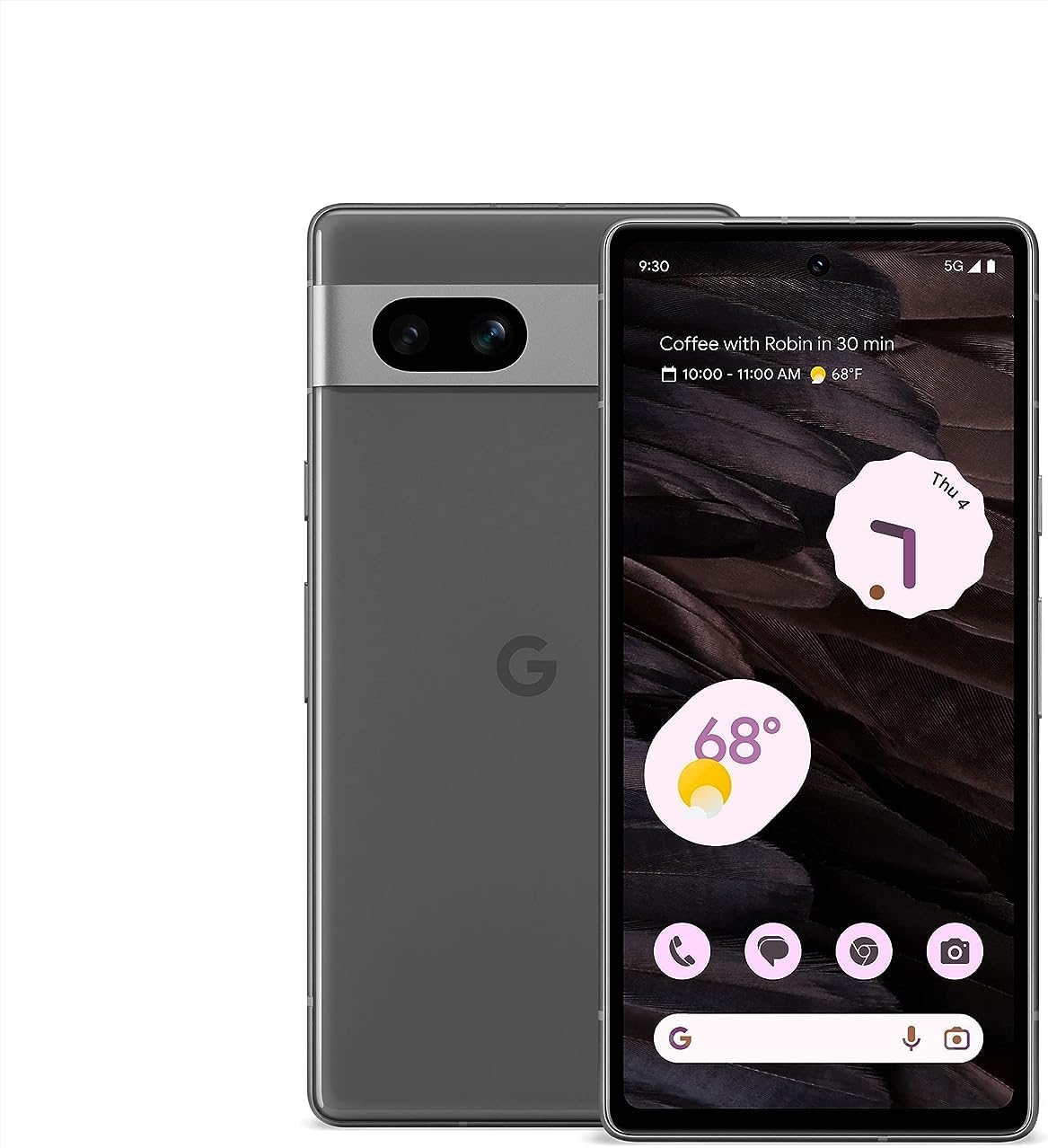
Image 1.1: Front and back view of the Google Pixel 7a 5G smartphone. The device features a sleek design with a prominent camera bar on the rear.
Your Pixel 7a comes equipped with features like advanced image processing for clear photos, enhanced security, and intelligent call management. This guide will help you get the most out of your device.
2. Initial Setup
Follow these steps to set up your new Google Pixel 7a.
2.1. Unboxing and Device Overview
Carefully remove all items from the packaging. The box typically contains the Pixel 7a smartphone and a USB-C to USB-C cable. Other accessories may vary.
2.2. Inserting Your SIM Card
- Locate the SIM card tray on the side of your Pixel 7a.
- Insert the SIM ejector tool (if provided, or a small paperclip) into the small hole on the SIM tray. Press firmly until the tray pops out.
- Place your nano-SIM card into the tray with the gold contacts facing down. Ensure it fits securely.
- Gently push the SIM tray back into the phone until it clicks into place.
2.3. Powering On and Initial Configuration
- Press and hold the Power button (located on the right side) until the Google logo appears.
- Follow the on-screen prompts to select your language, connect to a Wi-Fi network, and copy data from an old device (optional).
- Sign in with your Google Account or create a new one. This is essential for accessing Google services and the Play Store.
- Set up a screen lock (PIN, pattern, password, fingerprint, or face unlock) for security.
3. Operating Your Pixel 7a
This section covers the primary functions and features of your smartphone.
3.1. Making Calls and Sending Messages
- Phone App: Tap the Phone icon to make calls. Use the dial pad or select a contact.
- Messages App: Tap the Messages icon to send and receive text messages.
- Call Assist: The Google Assistant can screen calls from unknown numbers, show optimal times to call businesses, and wait on hold for you. This feature enhances call management.

Image 3.1: Illustration of the Call Assist feature, highlighting its ability to screen calls, suggest optimal call times, and wait on hold.
3.2. Camera Features
The Pixel 7a camera system offers advanced capabilities for capturing high-quality photos and videos, even in challenging conditions.
- Photo Unblur: Improves the clarity of blurry images.
- Magic Eraser: Removes unwanted objects or distractions from your photos.
- Night Sight: Enhances photos taken in low-light environments, capturing more detail and color.

Image 3.2: Visual examples of Photo Unblur, Magic Eraser, and Night Sight features in action, demonstrating their effects on images.
3.3. Security and Privacy
Your Pixel 7a integrates multiple layers of security to protect your data and online activity.
- Google Tensor G2 & Titan M2: The custom Google Tensor G2 chip and the dedicated Titan M2 security chip work together to provide robust hardware-level security.
- VPN by Google One: Helps secure your internet connection across various apps and browsers.
- Security & Privacy Hub: Access and manage all your security settings from one central location.

Image 3.3: Screenshot of the Pixel 7a's Security & privacy settings, showing options for app security, device lock, Google Security Checkup, and Find My Device.
3.4. Live Translate
The Live Translate feature allows for real-time language translation, facilitating communication across different languages.
- Face-to-face conversations: Translate spoken language in real-time.
- Messaging apps: Translate text within your messaging applications.
- Camera translation: Use your camera to translate text from signs, menus, and documents.

Image 3.4: A person using the Google Pixel 7a to translate a conversation in real-time, demonstrating the Live Translate feature.
4. Maintenance and Care
Proper care ensures the longevity and optimal performance of your Pixel 7a.
4.1. Battery Management and Charging
- Adaptive Battery: Your Pixel 7a's battery is designed to last over 24 hours with typical usage.
- Extreme Battery Saver: Activate this mode to extend battery life up to 72 hours by limiting app activity and features.
- Wireless Charging: The device supports wireless charging for convenience. Place the phone on a compatible wireless charger.
- Wired Charging: Use the provided USB-C cable and a compatible power adapter for wired charging.

Image 4.1: The Google Pixel 7a being charged wirelessly on a charging stand, illustrating its wireless charging capability.
4.2. Software Updates
Google regularly releases software updates that include security patches, bug fixes, and new features. Ensure your device is updated to maintain optimal performance and security.
- To check for updates: Go to Settings > System > System update.
- It is recommended to perform updates over a Wi-Fi connection and with sufficient battery charge.
4.3. Cleaning Your Device
Use a soft, lint-free cloth to clean the screen and body of your phone. Avoid abrasive materials or harsh chemicals.
5. Troubleshooting Common Issues
This section addresses common problems you might encounter with your Pixel 7a.
- Device not turning on: Ensure the battery is charged. Connect the phone to a charger for at least 15 minutes, then try powering it on again.
- Apps crashing or freezing:
- Close and restart the app.
- Clear the app's cache and data (Settings > Apps > See all apps > [App Name] > Storage & cache).
- Update the app from the Google Play Store.
- Poor battery life:
- Check battery usage in Settings to identify power-hungry apps.
- Reduce screen brightness and screen timeout.
- Disable unnecessary features like GPS, Bluetooth, or Wi-Fi when not in use.
- Enable Adaptive Battery or Extreme Battery Saver.
- Network connectivity issues (Wi-Fi/Cellular):
- Toggle Wi-Fi or cellular data off and on.
- Restart your phone.
- Reset network settings (Settings > System > Reset options > Reset Wi-Fi, mobile & Bluetooth).
- Fingerprint sensor not working:
- Ensure your finger is clean and dry.
- Re-register your fingerprints in Settings > Security & privacy > Device unlock > Fingerprint Unlock.
If issues persist, consider performing a factory reset (back up your data first) or contacting Google Support.
6. Technical Specifications
Key technical specifications for the Google Pixel 7a:
| Feature | Specification |
|---|---|
| Model Name | Pixel 7a |
| Operating System | Android |
| CPU Model | Google Tensor G2 |
| RAM | 8 GB |
| Memory Storage Capacity | 128 GB |
| Screen Size | 6.1 Inches |
| Resolution | 1080 x 2400 pixels |
| Battery Capacity | 4385 Milliamp Hours |
| Item Weight | 6.7 ounces |
| Product Dimensions | 5.89 x 2.87 x 0.35 inches |
| Special Features | Always On Display, Wireless Charging |
| Wireless Carrier | Unlocked |

Image 6.1: Diagram illustrating the Google Tensor G2 chip, the core processor of the Pixel 7a, emphasizing its role in efficiency, security, and media quality.
7. Warranty and Support
For information regarding your device's warranty, please refer to the warranty card included with your purchase or visit the official Google support website. As this is a renewed product, warranty terms may differ from new devices. Please consult your seller for specific warranty details.
For technical assistance, troubleshooting, or further inquiries, please visit the official Google Pixel Support page or contact your retailer.
- Google Support: support.google.com/pixelphone
- Seller Support: Contact the seller from whom you purchased this renewed device for specific support related to your purchase.


