
1. Introduction
This manual provides essential instructions for the setup, operation, maintenance, and troubleshooting of your Qulose Keyboard Case for Surface Go (3/2/1). Please read this manual thoroughly before using the product to ensure optimal performance and longevity.
2. Package Contents
Verify that all items are present in your package:
- Qulose Surface Go Keyboard Case
- USB Type-C Charging Cable
- User Manual (this document)
3. Compatibility
This keyboard case is specifically designed for the following Microsoft Surface Go models:
- Surface Go 1 (10 inch)
- Surface Go 2 (10.5 inch)
- Surface Go 3 (10.5 inch)
Important:
- This keyboard case is not compatible with Surface Pro models (e.g., Surface Pro 3, 4, 5, 6, 7, 7+, 8, 9, X).
- Please confirm your tablet model before attempting installation.
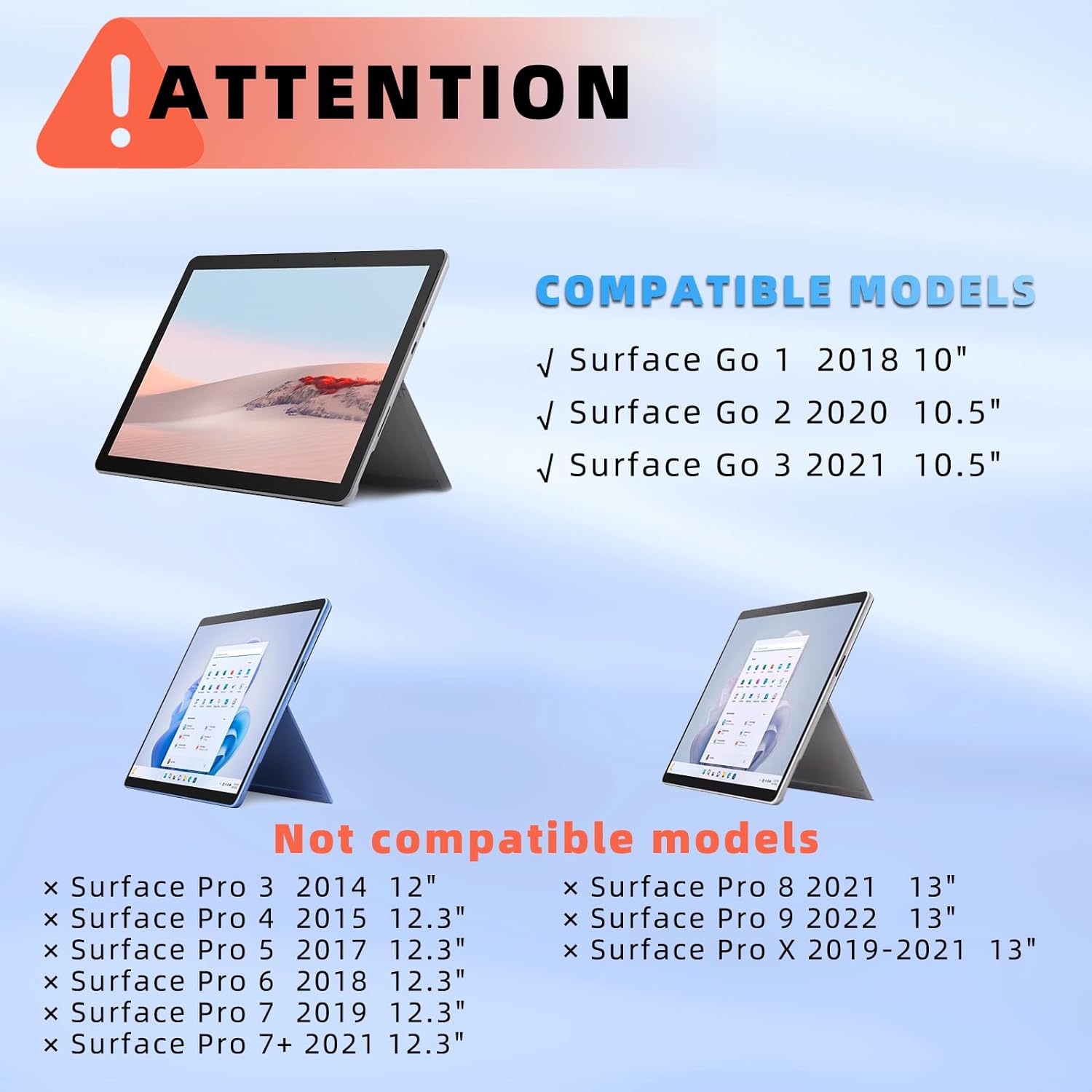
Figure 3.1: Compatible and Incompatible Surface Models
4. Setup Guide
4.1. Charging the Keyboard
The keyboard features a built-in rechargeable 500mAh Li-ion battery. Use the provided USB Type-C cable to charge the keyboard. A full charge typically takes approximately 3 hours.
- Connect the USB Type-C end of the cable to the keyboard's charging port.
- Connect the USB-A end to a compatible USB power adapter (not included) or a computer's USB port.
- The charging indicator light will illuminate during charging and turn off when fully charged.

Figure 4.1: Keyboard Charging Port and Battery Information
4.2. Installing Your Surface Go into the Case
Follow these steps to securely install your Surface Go tablet into the protective case:
- Slide your Surface Go tablet from the spine of the back case all the way towards the bottom. Press the device until it snaps securely into place.
- Open the tablet's built-in kickstand.
- Press the kickstand against the back case until it is fully snapped in place.
- Adjust the kickstand to the angle that works best for you.

Figure 4.2: Surface Go Case Installation Steps
4.3. Removing Your Surface Go from the Case
To remove your Surface Go tablet from the case:
- Open your Surface Go tablet kickstand (with the protective case attached).
- Hold the tablet on one side and gently push the built-in kickstand off the back cover. The back cover piece is held in place by two buckles.
- Remove your Surface Go tablet from the upper side of the case.
- Finish the removal process.

Figure 4.3: Surface Go Case Removal Steps
4.4. Bluetooth Pairing
Follow these steps to connect your keyboard to your Surface Go via Bluetooth:
- Turn on the power switch located on the side of the keyboard. The Bluetooth LED indicator will blink.
- Press the "Fn" + "C" keys simultaneously on the keyboard to activate Bluetooth pairing mode. The Bluetooth indicator will start flashing rapidly.
- On your Surface Go, go to Settings > Bluetooth & devices and ensure Bluetooth is turned ON.
- Select "Bluetooth Keyboard" from the list of available devices to pair. Once connected, the Bluetooth indicator will stop flashing.

Figure 4.4: Bluetooth Connection Steps
5. Operating Instructions
5.1. Keyboard Backlight Control
The keyboard features 7-color backlighting with 3 adjustable brightness levels.
- To adjust brightness: Press Fn + F7. Each press cycles through Low (ON), Increase Brightness, and OFF.
- To change backlight color: Press Fn + 💡 (the light bulb key). Each press cycles through the 7 available colors.

Figure 5.1: Backlight Control
5.2. Trackpad Usage and Gestures
The integrated trackpad supports various gestures for precise navigation and control.
- To lock/unlock the trackpad: Press Fn + Alt. This prevents accidental touches during typing.

Figure 5.2: Trackpad Lock/Unlock and Basic Gestures
Detailed Trackpad Gestures:
| Gesture | Function |
|---|---|
| Drag your finger | Move the cursor |
| One-finger click | Left mouse button click |
| Two-finger click | Right mouse button click |
| Tap, tap and hold, then drag | Left-click on a selected item and drag |
| Two fingers slide | Mouse wheel (scroll) |
| Three fingers click | Search |
| Swipe up with three fingers | Switch to the previous view window |
| Swipe down with three fingers | Return to the home page |
| Swipe left/right with three fingers | Switch between active windows |
| Two fingers stretch | Zoom in/out |
| Four fingers click | Open the Action Center |
Table 5.1: Trackpad Gesture Guide
5.3. Function Keys
The keyboard includes a row of practical function keys for easier control of your device.
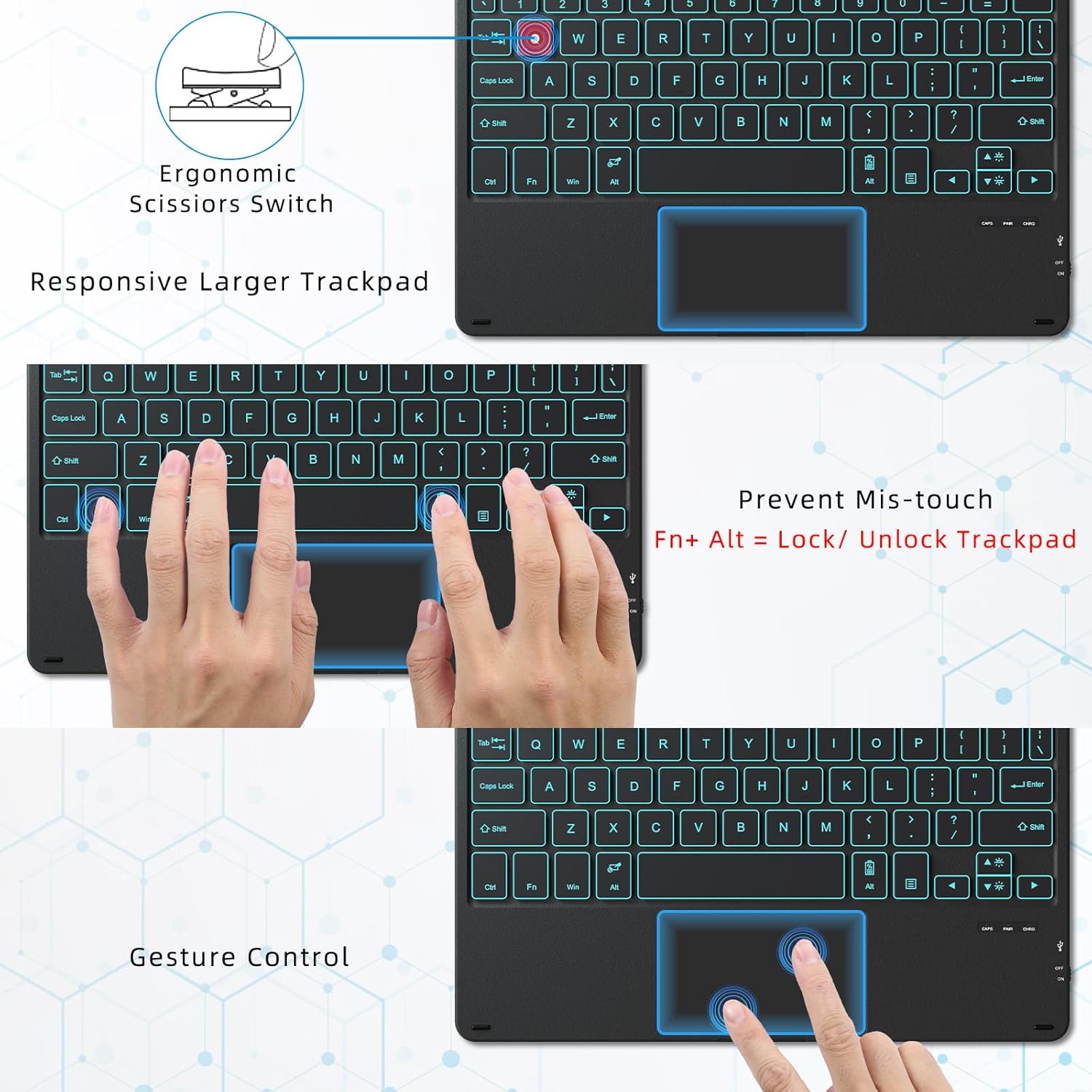
Figure 5.3: Keyboard Function Keys Layout
5.4. Auto Sleep Mode
To conserve battery life, the keyboard automatically enters sleep mode if not used for 15 minutes. To reactivate, press any key for 5 seconds.
6. Maintenance
Proper care ensures the longevity of your keyboard case:
- Cleaning: Use a soft, damp cloth to wipe the exterior of the case and keys. Avoid harsh chemicals or abrasive materials.
- Storage: When not in use for extended periods, ensure the keyboard is fully charged and stored in a cool, dry place.
- Protection: The durable PC case protects your tablet from scratches and minor bumps. However, avoid dropping the device from significant heights.
7. Troubleshooting
If you encounter issues with your Qulose Keyboard Case, refer to the following common solutions:
- Keyboard Not Connecting/Pairing:
- Ensure the keyboard is charged and powered on.
- Verify Bluetooth is enabled on your Surface Go.
- Press Fn + C to put the keyboard into pairing mode.
- Forget the device in your Surface Go's Bluetooth settings and attempt to re-pair.
- Ensure the keyboard is within the 33-foot Bluetooth range.
- Backlight Not Working/Adjusting:
- Press Fn + F7 to cycle through brightness levels (Low, High, Off).
- Press Fn + 💡 to change backlight colors.
- Ensure the keyboard has sufficient battery charge.
- Trackpad Not Responding:
- The trackpad might be locked. Press Fn + Alt to toggle the trackpad lock/unlock function.
- Ensure your Surface Go's operating system is up to date.
- Try restarting both the keyboard (turn off/on) and your Surface Go.
- Keyboard Entering Sleep Mode Too Quickly:
- The keyboard is designed to enter sleep mode after 15 minutes of inactivity to save power. This is normal operation. Press any key for 5 seconds to wake it up.
8. Specifications
| Feature | Detail |
|---|---|
| Product Dimensions | 9.65 x 7.35 x 0.26 inches |
| Item Weight | 1.15 pounds (13.93 oz for keyboard only) |
| Manufacturer | Qulose |
| Batteries | 1 Lithium Ion battery (included) |
| Compatible Devices | Surface Go 3, Surface Go 2, Surface Go 1 |
| Connectivity Technology | Bluetooth |
| Keyboard Description | Bluetooth Keyboard with Trackpad |
| Special Features | 7-color backlight, ergonomic design, rechargeable, magnetic detachable |
| Color | Black |
| Keyboard Backlighting | 7 colors, 3 brightness levels |
| Charging Port | USB Type-C |
| Bluetooth Range | Up to 33 feet (10 meters) |
9. Warranty and Support
Qulose products are designed for reliability and performance. For any product-related inquiries, technical support, or warranty claims, please contact Qulose customer service through the platform where you purchased the product. Please retain your proof of purchase for warranty validation.