
1. Product Overview
The hohem iSteady MT2 Kit is a versatile 3-axis gimbal stabilizer designed for a wide range of cameras, including mirrorless cameras, pocket cameras, action cameras, and smartphones. It features advanced stabilization technology, an integrated AI tracker, and a magnetic fill light to enhance your filming experience.

Image: The hohem iSteady MT2 Kit Gimbal Stabilizer shown with a mirrorless camera, smartphone, pocket camera, and action camera, illustrating its multi-device compatibility.
2. Package Contents
Verify that all items are present in your package:
- iSteady MT2 Gimbal Stabilizer (1)
- Fill Light with AI Vision Sensor (1)
- Tripod (1)
- L-Bracket (Arca-Swiss) (1)
- Thumb Screw (2)
- Storage Bag (1)
- User Manual (1)
- Mobile Phone Quick Release Plate (Arca-Swiss) (1)
- Type A - C Gimbal Charging Cable (1)
- Camera Control Cable (7)
- Thumb Screw Wrench (1)
- Adapter for Action Camera (1)

Image: An illustration detailing all accessories and components included in the iSteady MT2 Kit, such as the gimbal, AI tracker, cables, and mounting plates.
3. Setup Instructions
3.1 Attaching the Camera/Smartphone
The iSteady MT2 Kit features a Multi 4.0 quick installation system for efficient mounting and switching between horizontal and vertical orientations.
- Select the appropriate quick release plate: Use the L-Bracket (Arca-Swiss) for cameras or the Mobile Phone Quick Release Plate (Arca-Swiss) for smartphones. An Adapter for Action Camera is also provided.
- Attach the plate to your device: Securely fasten the chosen quick release plate to your camera or smartphone.
- Mount the device onto the gimbal: Slide the quick release plate with your device into the gimbal's mounting slot until it clicks into place.
- Switching between orientations: To switch between landscape and portrait mode, remove the camera with the L-bracket, rotate it 90 degrees, and reattach it to the gimbal. This process takes approximately 3 seconds.

Image: A visual guide showing a camera mounted horizontally and then vertically on the iSteady MT2 Kit, highlighting the quick 3-second transition.
3.2 Balancing the Gimbal
Proper balancing is crucial for optimal performance and battery life. Adjust the gimbal arms until your camera remains level in all axes when powered off.
3.3 Connecting Camera Control Cables
Use the provided camera control cables to connect your camera to the gimbal for integrated control functions. Refer to the compatibility list in the specifications section to select the correct cable for your camera model.
3.4 Attaching the AI Vision Sensor and Magnetic Fill Light
The AI Vision Sensor and Magnetic Fill Light can be attached to the designated magnetic points on the gimbal for enhanced functionality.
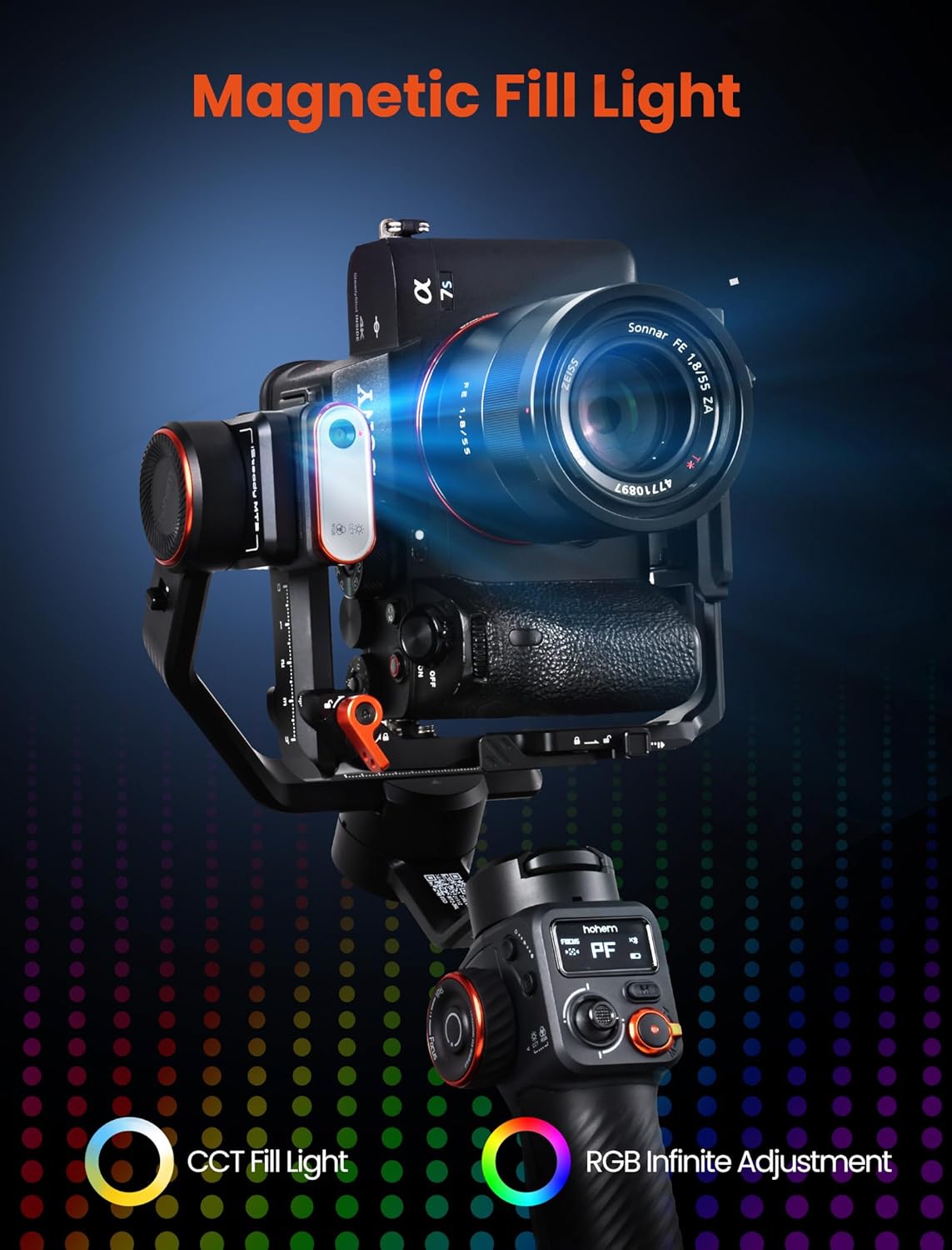
Image: A detailed view of the magnetic fill light and AI vision sensor attached to the gimbal, ready for use.
4. Operating Instructions
4.1 Power On/Off and Basic Controls
Press and hold the power button to turn the gimbal on or off. The OLED screen will display the current mode and battery status.
- Shortcut Trigger: One key to activate sports mode, quickly return to center, or enter full lock mode.
- Multifunctional Wheel: Controls horizontal roll rotation, adjusts picture vignette, and CCT & RGB double dimming for the fill light.
- Memory A/B Button: Intelligently records shooting trajectories, allows quick setting of starting points, moving time delay, and direct shooting.

Image: A detailed view of the gimbal's control interface, highlighting the shortcut trigger, multifunctional wheel, and memory A/B buttons for quick adjustments and mode changes.
4.2 AI Tracking Functionality
The integrated AI tracker automatically identifies and follows subjects, keeping them centered in the frame. This feature is ideal for solo content creation.
- Gesture Control: Use specific hand gestures to start or suspend AI tracking. For example, an 'OK' gesture might start tracking, while an open palm might suspend it.
- AI Custom Composition: Frame your shots with gestures to define the desired composition, and the AI will maintain it as you move.

Image: A woman in a kitchen setting, demonstrating the AI tracker's ability to keep her in frame while she moves, indicated by a red tracking box.

Image: A woman demonstrating gesture control for the AI tracking feature, making an 'OK' sign to initiate or pause tracking.
4.3 Stabilization (iSteady 7.0 Anti-shake Algorithm)
The iSteady MT2 Kit utilizes the iSteady 7.0 anti-shake algorithm, providing a 30% increase in stability for smooth footage, even during dynamic movements.

Image: A side-by-side comparison showing blurred footage from a handheld camera next to clear, stable footage captured with the iSteady MT2 Kit, featuring a skateboarder in motion.
4.4 Magnetic Fill Light Operation
The magnetic fill light offers CCT (Correlated Color Temperature) and RGB (Red, Green, Blue) adjustment options to control lighting effects and enhance the atmosphere of your shots.

Image: The magnetic fill light attached to the gimbal, illustrating its capability to produce both CCT and RGB lighting effects for creative illumination.
4.5 Bluetooth Control
Connect your camera or smartphone via Bluetooth to the gimbal for seamless photo and video capture control directly from the gimbal's buttons.

Image: A hand interacting with the gimbal's control panel, with a Bluetooth icon displayed on the screen, signifying wireless control capabilities.
4.6 Shooting Modes and Features
- Vertical Shooting: Supports vertical video mode setups, including screen flip options for cameras like the Sony ZV-E10, enabling effortless selfies and vlogging.
- 360° Inception: The stabilizer supports 360-degree rotation left and right, and 290-degree tilt, allowing for dynamic, multi-angle shots.
- Low Angle Shot: Easily switch to briefcase handle mode for smooth low-angle shots. (Note: Briefcase Handle is not included and can be purchased separately).
- Creative Modes: Explore panoramic shots, dolly zoom effects, and timelapse videos.

Image: A woman capturing a selfie with a camera mounted vertically on the iSteady MT2 Kit, demonstrating the screen flip feature for easy self-monitoring.

Image: A visual representation of the gimbal's 360-degree inception mode, showing a spiral staircase to illustrate the dynamic rotational capabilities.
5. Power Management
The gimbal offers extended battery life and reverse charging capabilities.
- Battery Life: Up to 17 hours of operation on a single charge.
- Fast Charge: Achieves a full charge in approximately 3 hours.
- Reverse Charging: The gimbal can act as a power bank to charge your smartphone or other devices.

Image: The iSteady MT2 Kit gimbal connected to a camera, illustrating its long-lasting 17-hour battery life, 3-hour fast charging, and reverse charging capabilities.
6. Maintenance
To ensure the longevity and optimal performance of your hohem iSteady MT2 Kit, follow these maintenance guidelines:
- Cleaning: Use a soft, dry cloth to clean the gimbal body. Avoid using liquid cleaners or solvents.
- Storage: Store the gimbal in its provided storage bag in a cool, dry place when not in use.
- Battery Care: For long-term storage, charge the battery to approximately 50-60% every three months to prevent deep discharge.
- Avoid Impact: Protect the gimbal from drops and impacts, which can damage the motors and internal components.
7. Troubleshooting
7.1 Automatic Calibration
If the stabilizer appears slightly tilted after manual leveling, you can perform an automatic calibration:
- Procedure: Simply press the 'M' button five times in quick succession. The gimbal will automatically calibrate itself.

Image: A visual guide demonstrating how to initiate automatic calibration by pressing the 'M' button five times, with the gimbal adjusting its position.
7.2 Common Issues
- Gimbal not powering on: Ensure the battery is sufficiently charged. Connect the charging cable and try again.
- Unstable footage: Re-balance the camera on the gimbal. Perform an automatic calibration. Ensure the camera's weight is within the gimbal's payload capacity.
- AI tracking not working: Ensure the AI Vision Sensor is properly attached and unobstructed. Check lighting conditions; extreme low light or heavy backlighting can affect performance. Use clear hand gestures.
- Bluetooth connection issues: Ensure Bluetooth is enabled on both the gimbal and your device. Try re-pairing the devices.
8. Specifications
| Feature | Specification |
|---|---|
| Product Dimensions | 12.2 x 8.85 x 4.13 inches |
| Item Weight | 1.44 pounds |
| Model Number | iSMT2K |
| Batteries | 1 A battery required |
| Manufacturer | hohem Technology Co., LTD. |
| Color | Black |
| Compatible Devices | Action Camera, Compact Camera, Mirrorless Camera, Smartphone |
| Payload Capacity | Up to 2.64 pounds |
| Camera Width Support | Max 5.27 inches |
| Camera Height Support | Max 3.96 inches |
| Camera Thickness + Lens Length Support | Max 6.94 inches |
| UPC | 195221000912 |
8.1 Camera Compatibility
The hohem iSteady MT2 Kit is compatible with a wide range of cameras. Below is a list of some compatible models:
| Brand | Compatible Models |
|---|---|
| Sony | α7S III, α7R III, α7R IV, α7R V, α7C, α7 III (α7M3), α7 IV (α7M4), α7 II, α6100, α6400, α6600, α1, α9, α9 II, FX3, RX100 VII, ZV-1, ZV-E1, ZV-E10 |
| Canon | EOS RP, EOS 200D, EOS R, M50, EOS R5, M50 Mark II, EOS R6, M6 Mark II, EOS R7, PowerShot G7 X Mark III |
| Nikon | Z FC, Z6 II, Z7 II, Z50 |

Image: A compatibility chart listing various camera models from Sony, Canon, and Nikon that are supported by the iSteady MT2 Kit.
9. Warranty and Support
9.1 Warranty Information
Please refer to the official hohem website or your purchase documentation for detailed warranty terms and conditions. Typically, hohem products come with a limited warranty covering manufacturing defects.
9.2 Customer Support
For technical assistance, troubleshooting, or service inquiries, please contact hohem customer support. You can find contact information on the official hohem website or through the retailer where you purchased the product.
An official User Manual (PDF) is available for download: Download User Manual (PDF)
Visit the official hohem store for more products and information: hohem Official Store


