
VIRAN C21pro
VIRAN C21pro Military Smart Watch User Manual
Model: C21pro
1. Introduction
This manual provides comprehensive instructions for the VIRAN C21pro Military Smart Watch. It covers setup, operation, maintenance, and troubleshooting to ensure optimal performance and user experience. Please read this manual thoroughly before using your device.

Image 1: Front view of the VIRAN C21pro Military Smart Watch, displaying a digital watch face with health and activity metrics.
2. Setup Guide
2.1 Unboxing and Initial Charge
Upon receiving your VIRAN C21pro Smart Watch, carefully unbox the device and its accessories. Before first use, ensure the watch is fully charged.
- Connect the charging cable to the charging port on the back of the watch.
- Plug the USB end of the cable into a standard USB power adapter (not included) or a computer's USB port.
- The watch display will indicate charging status. A full charge typically takes approximately 2 hours.

Image 2: The VIRAN C21pro Smart Watch displaying a charging icon, indicating its 410mAh battery capacity and long standby time.
2.2 App Installation and Pairing
To unlock the full functionality of your smart watch, download and install the companion application on your smartphone.
- Scan the QR code provided in the watch's packaging or search for the official VIRAN app in your smartphone's app store (compatible with Android 6.0/iOS 9.0 and above).
- Open the app and follow the on-screen instructions to create an account or log in.
- Enable Bluetooth on your smartphone.
- In the app, navigate to the device pairing section and select your VIRAN C21pro Smart Watch from the list of available devices.
- Confirm the pairing request on both your watch and smartphone.

Image 3: The VIRAN C21pro Smart Watch screen showing various application icons, including a voice assistant, indicating its smart features.
3. Operating Instructions
3.1 Basic Navigation
- Touch Screen: Swipe left, right, up, or down to navigate through menus and features. Tap to select.
- Side Buttons: The watch features multiple side buttons. Typically, one button serves as a power/home button, while others may be customizable for quick access to sports modes or other functions. Refer to the on-screen prompts for specific button assignments.
- Crown: Rotate the crown to scroll through lists or adjust settings. Press the crown to return to the watch face or confirm selections.
Video 1: A demonstration of the VIRAN C21pro Smart Watch's user interface, showcasing touch screen navigation and various app icons. This video illustrates the ease of interaction with the device's features.
3.2 Bluetooth Call Functionality
The VIRAN C21pro supports Bluetooth calling, allowing you to answer or dial calls directly from your wrist.
- Ensure your watch is paired and connected to your smartphone via Bluetooth.
- When a call comes in, the watch will display the caller ID. Tap the green icon to answer or the red icon to reject.
- To dial a call, navigate to the "Telephone" or "Dialpad" app on your watch and enter the number, or select a contact from your synced phonebook.

Image 4: The VIRAN C21pro Smart Watch displaying an incoming call interface, demonstrating its Bluetooth call feature.
3.3 Health Monitoring
The watch continuously monitors various health metrics.
- Heart Rate: Access the heart rate monitor from the main menu to view real-time heart rate data.
- Blood Pressure: Use the blood pressure monitoring feature for periodic readings. For accurate results, remain still during measurement.
- Blood Oxygen (SpO2): Measure your blood oxygen saturation levels.
- Sleep Tracking: The watch automatically tracks your sleep patterns, providing data on sleep duration and quality.

Image 5: A composite image showing the VIRAN C21pro Smart Watch displaying heart rate, blood pressure, and blood oxygen levels, highlighting its comprehensive health monitoring capabilities.
3.4 Sport Modes
The watch offers over 100 sport modes to track your physical activities.
- Navigate to the "Sport" menu to select your desired activity (e.g., walking, running, cycling, swimming).
- The watch will record data such as steps, distance, calories burned, and heart rate during your workout.
- Review your workout data in the companion app for detailed analysis.

Image 6: A visual representation of the VIRAN C21pro Smart Watch's multiple sport modes, including icons for various activities like running, cycling, and swimming, alongside tracked metrics.
4. Maintenance
4.1 Cleaning Your Watch
- Regularly clean your watch and strap to prevent skin irritation and maintain functionality.
- Wipe the watch with a soft, damp, lint-free cloth. Avoid harsh chemicals or abrasive materials.
- For the strap, use mild soap and water, then rinse thoroughly and dry completely before wearing.
4.2 Water Resistance
The VIRAN C21pro has a 5ATM IP68 waterproof rating, allowing submersion up to 50 meters. It is suitable for swimming and showering. However, avoid hot water, steam, or prolonged exposure to high-velocity water.
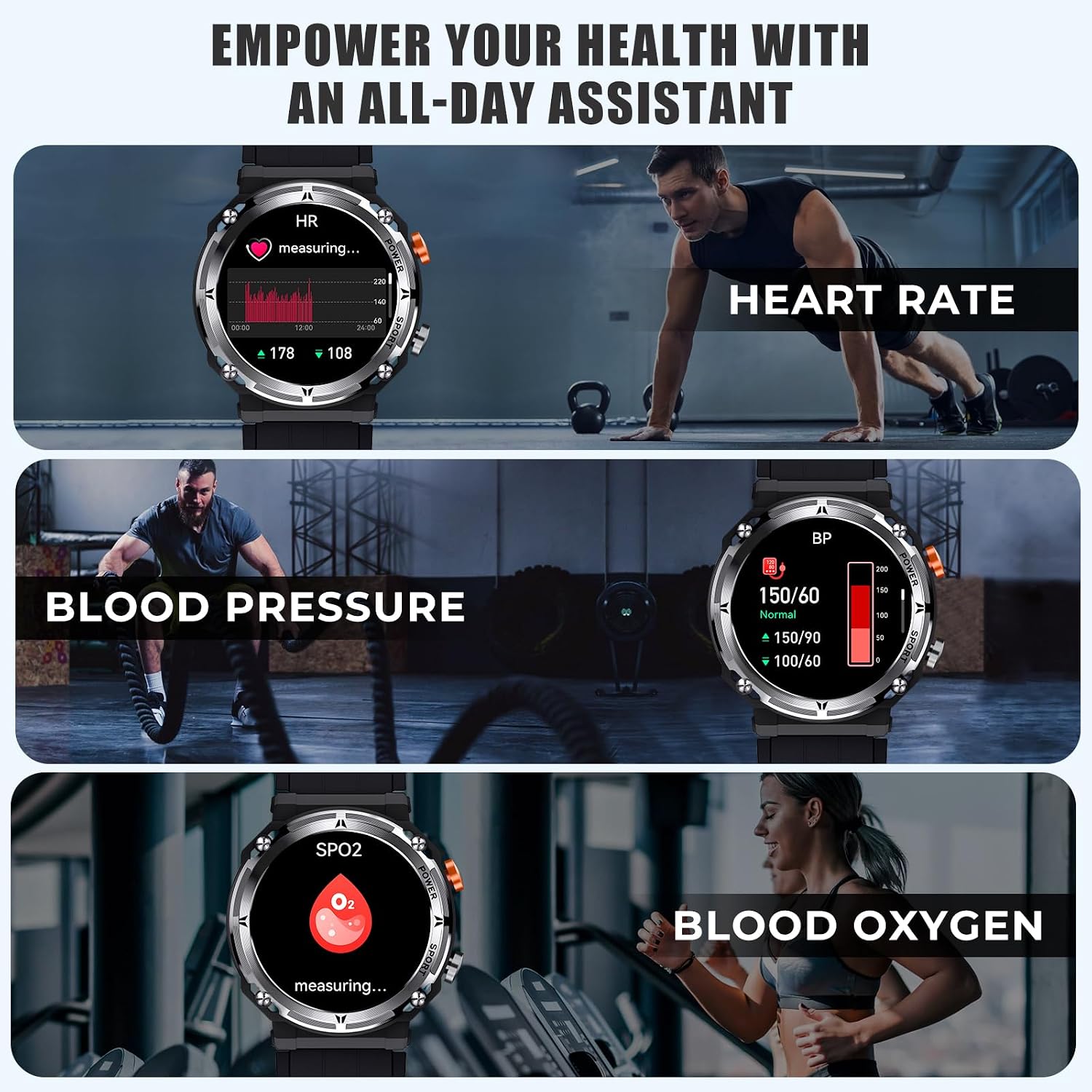
Image 7: The VIRAN C21pro Smart Watch being worn by a swimmer, illustrating its 5ATM IP68 waterproof rating and suitability for water activities.
Video 2: A demonstration of the VIRAN C21pro Smart Watch's durability, including water submersion and impact resistance tests. This video highlights the watch's military-grade toughness and waterproof capabilities.
5. Troubleshooting
| Issue | Possible Cause | Solution |
|---|---|---|
| Watch not turning on | Low battery, software glitch | Charge the watch for at least 30 minutes. If still unresponsive, perform a hard reset by pressing and holding the power button for 10-15 seconds. |
| Unable to pair with phone | Bluetooth off, app issue, watch not discoverable | Ensure Bluetooth is enabled on your phone and the watch. Restart both devices. Reinstall the companion app. Make sure the watch is in pairing mode. |
| Inaccurate health data | Improper fit, sensor obstruction, movement during measurement | Ensure the watch is worn snugly on your wrist, one finger-width above the wrist bone. Clean the sensor on the back of the watch. Remain still during measurements. |
| Short battery life | Frequent use of power-intensive features, high screen brightness | Reduce screen brightness. Limit continuous heart rate monitoring. Turn off unnecessary notifications. Disable "Always-On Display" if active. |
6. Specifications
- Model: C21pro
- Display: 1.39 Inches HD, 360*360 resolution
- Battery Capacity: 410mAh Lithium Ion
- Battery Life: 5-7 days (daily use), 40 days (standby)
- Waterproof Rating: 5ATM IP68 (up to 50 meters)
- Connectivity: Bluetooth 5.2
- Compatibility: Android 6.0/iOS 9.0 and above
- Memory Storage Capacity: 128 MB
- Special Features: Activity Tracker, Blood Pressure Monitor, Heart Rate Monitor, Blood Oxygen Monitor, Sleep Monitor, 100+ Sport Modes, Bluetooth Call, AI Voice Assistant
- Item Weight: 110 Grams (3.88 ounces)
- Manufacturer: VIRAN
7. Warranty Information
The VIRAN C21pro Military Smart Watch comes with a 1-year warranty from the date of purchase. This warranty covers manufacturing defects and malfunctions under normal use. It does not cover damage caused by misuse, accidents, unauthorized modifications, or normal wear and tear.
Please retain your proof of purchase for warranty claims.
8. Customer Support
For any inquiries, technical assistance, or warranty claims, please contact VIRAN customer support:
- Online Support: Visit the official VIRAN store on Amazon: VIRAN Amazon Store
- Service Hours: 24/7 online customer service is available.
Ask a question about this manual
Ask about setup, troubleshooting, compatibility, parts, safety, or missing instructions. Manuals+ will review the question and use this page’s manual context to help answer it.