
1. Introduction
Thank you for choosing the SOLAKAKA SM66 Dual Mode Wireless Mouse. This manual provides detailed instructions for setting up, operating, and maintaining your device. Please read this manual thoroughly before use to ensure optimal performance and longevity of your mouse.
2. Package Contents
- SOLAKAKA SM66 Dual Mode Wireless Mouse
- USB-C Charging Cable
- 2.4GHz USB Receiver (stored in the mouse)
- User Manual

Image: The SOLAKAKA SM66 mouse, USB-C charging cable, and user manual are included in the package.
3. Product Overview
Familiarize yourself with the components of your SOLAKAKA SM66 mouse:

Image: A detailed diagram illustrating the various buttons and features of the SM66 mouse.
- Left Button: Standard left-click function.
- Right Button: Standard right-click function.
- Scroll Wheel: For vertical scrolling and middle-click.
- DPI Button: Adjusts cursor sensitivity (DPI).
- Side Button 1 (Forward): Navigates forward in web browsers or applications.
- Side Button 2 (Backward): Navigates backward in web browsers or applications.
- ON/OFF Switch: Powers the mouse on or off.
- Signal Indicator (BT1/BT2/2.4GHz): Displays current connection mode and status.
- Mode Switch Button: Toggles between 2.4GHz and Bluetooth modes (BT1, BT2).
- 2.4GHz Receiver Compartment: Stores the USB receiver.
- Optical Sensor: Tracks mouse movement.
4. Setup and Connection
4.1. Charging the Mouse
The mouse features a built-in rechargeable 500mAh Lithium-ion battery. Use the provided USB-C cable to charge the mouse. You can continue to use the mouse while it is charging.
- Connect the USB-C end of the cable to the charging port on the front of the mouse.
- Connect the USB-A end to a USB power source (e.g., computer, wall adapter).
- The indicator light will show charging status.

Image: The mouse connected to a USB-C charging cable, indicating its rechargeable nature.
4.2. 2.4GHz Wireless Connection
This mode uses the included USB receiver for a stable 2.4GHz wireless connection.
- Locate the 2.4GHz USB receiver in its compartment on the bottom of the mouse.
- Plug the USB receiver into an available USB port on your computer.
- Turn on the mouse using the ON/OFF switch on the bottom.
- Short press the Mode Switch Button on the bottom of the mouse to select the 2.4GHz mode. The corresponding indicator light will illuminate.
- Your computer should automatically detect and connect to the mouse.

Image: Instructions for connecting the mouse via 2.4GHz mode, showing the USB receiver.
4.3. Bluetooth Connection (BT5.0 / BT3.0)
The mouse supports two Bluetooth channels (BT1 and BT2) for connecting to multiple devices.
- Turn on the mouse using the ON/OFF switch on the bottom.
- Long press the Mode Switch Button on the bottom of the mouse until the indicator light for BT1 or BT2 flashes rapidly. This indicates pairing mode.
- On your device (laptop, PC, tablet, mobile phone), go to Bluetooth settings.
- Search for available devices and select "SM66 BT5.0" or "SM66 BT3.0" to connect.
- Once connected, the indicator light will stop flashing and remain solid.
- To connect a second device, repeat the process, selecting the other Bluetooth channel (BT1 or BT2) by long-pressing the Mode Switch Button.

Image: Visual guide for establishing a Bluetooth connection with the SM66 mouse.
Video: An official demonstration of the SOLAKAKA SM66 Dual Mode Wireless Mouse, highlighting its features and connectivity options.
5. Operating Instructions
5.1. DPI Adjustment
The mouse offers 5 adjustable DPI levels: 800, 1200, 1600, 2400, and 4800. To change the DPI:
- Press the DPI Button (located on the top of the mouse, behind the scroll wheel) to cycle through the available DPI settings.
- Each press will change the cursor sensitivity, allowing you to find your preferred speed.

Image: A visual representation of the mouse's 5-level DPI adjustment feature.
5.2. Silent Buttons
The SM66 mouse is designed with silent buttons, reducing click noise by 99%. This feature is ideal for quiet environments such as libraries, offices, or late-night use.
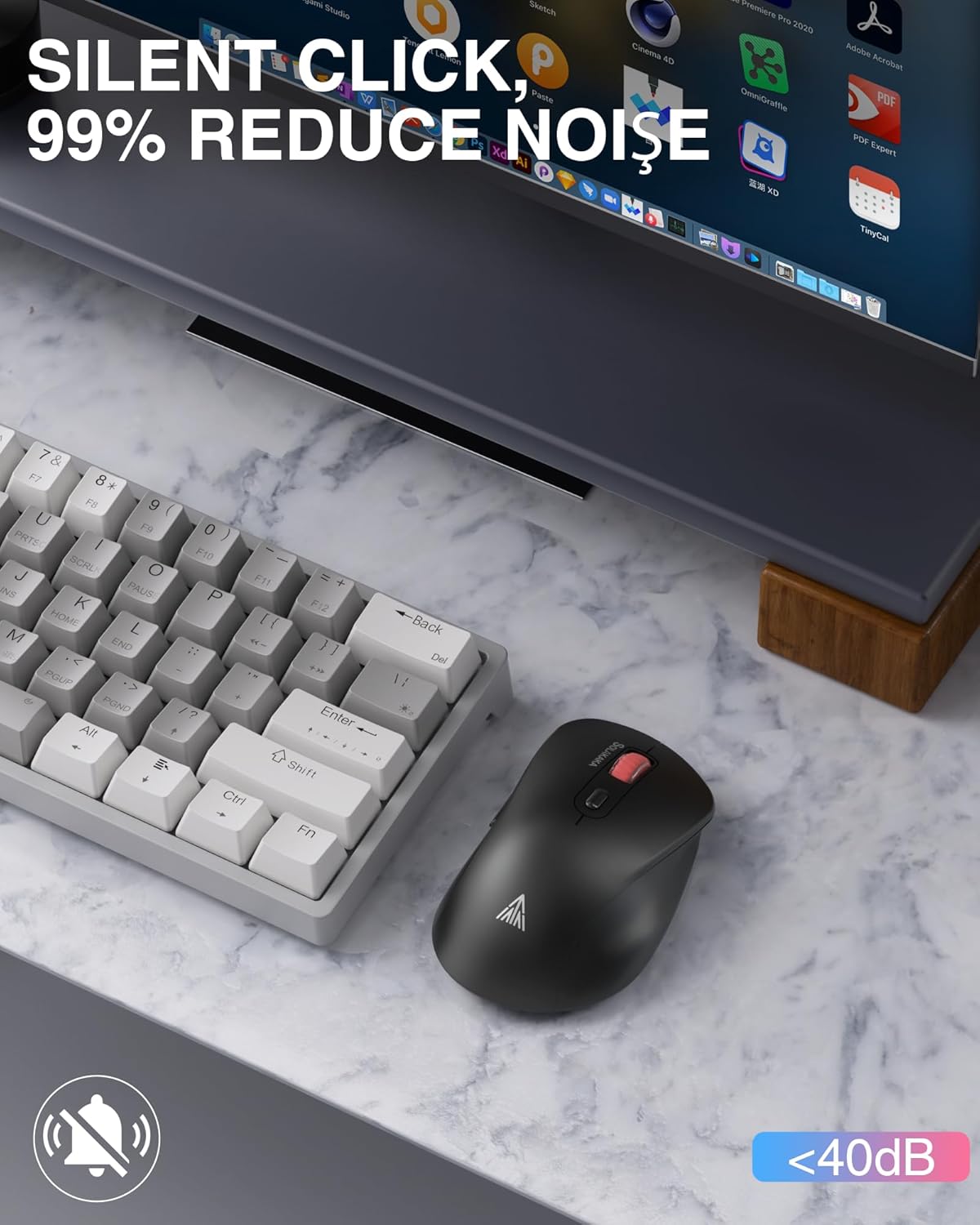
Image: The mouse positioned next to a keyboard, emphasizing its silent click capability.
5.3. Multi-Device Switching
Easily switch between up to three connected devices (one 2.4GHz and two Bluetooth) using the Mode Switch Button on the bottom of the mouse.
- Short press the Mode Switch Button to cycle through the connected devices.
- The Signal Indicator will show which mode (2.4GHz, BT1, or BT2) is currently active.

Image: The SM66 mouse shown with a laptop, tablet, and mobile phone, demonstrating its multi-device connectivity.
5.4. Power Saving Mode
The mouse features a smart sleep design to conserve battery life. If inactive for 3 minutes, it will enter sleep mode.
- To wake the mouse, simply click any button.
Image: A reminder about the mouse's smart sleep feature and low power indication.
6. Maintenance
Proper maintenance ensures the longevity and performance of your mouse.
- Cleaning: Use a soft, dry cloth to clean the mouse. Avoid harsh chemicals or abrasive materials.
- Battery Care: Charge the mouse when the cursor shows delayed movement due to low power. Avoid fully depleting the battery frequently.
- Surface Use: For optimal tracking, use the mouse on a mouse pad. Before use, remove any protective film from the mouse's non-slip feet.
7. Troubleshooting
| Problem | Possible Cause | Solution |
|---|---|---|
| Mouse not responding | Mouse is off, low battery, incorrect connection mode, receiver not plugged in (2.4GHz), Bluetooth not paired. | Turn on the mouse. Charge the mouse. Switch to the correct connection mode. Plug in the 2.4GHz receiver. Re-pair Bluetooth. |
| Cursor movement is delayed or erratic | Low battery, unsuitable surface, interference. | Charge the mouse. Use on a mouse pad. Move closer to the receiver/device, reduce interference from other wireless devices. |
| Cannot connect via Bluetooth | Mouse not in pairing mode, device Bluetooth off, already connected to another device. | Long press mode switch button to enter pairing mode. Ensure device Bluetooth is on. Disconnect from other devices or use a different BT channel. |
| Side buttons not working | Application does not support side buttons, driver issue. | Test in a different application (e.g., web browser). Ensure your operating system drivers are up to date. |
8. Specifications
| Feature | Detail |
|---|---|
| Model | SM66 |
| Connectivity | 2.4GHz Wireless, Bluetooth (BT5.0, BT3.0) |
| DPI Levels | 800, 1200, 1600, 2400, 4800 |
| Buttons | 7 (Left, Right, Scroll Wheel, DPI, 2 Side Buttons, Mode Switch) |
| Special Features | Silent Clicks, Ergonomic Design, Rechargeable |
| Battery | 500mAh Rechargeable Lithium-ion |
| Charging Port | USB-C |
| Working Distance | Up to 10 meters (32 feet) |
| Weight | 3.84 ounces |
| Dimensions | 4.8 x 3.31 x 1.85 inches |
| Compatibility | Windows, macOS, Android, iOS, etc. |
9. Warranty and Support
For warranty information or technical support, please refer to the product packaging or contact SOLAKAKA customer service directly. Keep your purchase receipt for warranty claims.


