
Introduction
The SiOnyx Aurora is a full-color digital night vision camera designed for outdoor enthusiasts. It utilizes patented ultra-low-light sensor technology to provide clear, full-color images in near-moonless starlight conditions. This manual provides essential information for setting up, operating, and maintaining your Aurora camera to ensure optimal performance and longevity.

Image: The SiOnyx Aurora Full-Color Digital Night Vision Camera alongside its durable protective case.
Key Features
- Clear-Color Night Vision: Patented ultra-low-light sensor technology enables full-color vision in conditions as low as 2 millilux, enhancing visibility in darkness.
- Enhanced Navigation: Integrated GPS, compass, and accelerometer with a heads-up display for real-time data overlays, improving situational awareness.
- Rugged Durability: Weather-resistant build capable of operating in temperatures from -20°C to +50°C, dust-resistant, water-resistant, and designed to withstand a 1-meter drop.
- Versatile Application: Ideal for various outdoor activities, allowing users to detect man-sized targets up to 150 meters away.
- Ample Storage: Includes a 32 GB SD Card for recording hours of footage.

Image: The SiOnyx Aurora provides clear visibility even on near-moonless nights, capturing details in ultra-low light conditions.
Setup
Initial Setup
Before first use, ensure the battery is fully charged. The camera comes with a rechargeable battery and a charging cable.
Battery Installation
- Locate the battery compartment cover on the device.
- Open the cover and insert the provided rechargeable battery, ensuring correct polarity.
- Close the battery compartment cover securely.
SD Card Installation
The SiOnyx Aurora supports a 32 GB SD card for storing photos and videos.
- Locate the SD card slot, typically near the battery compartment.
- Insert the 32 GB SD card into the slot until it clicks into place. Ensure the card is oriented correctly.
- To remove, gently press the card inward until it springs out.
Operating Instructions
Power On/Off
- To power on, press and hold the power button (usually marked with ⏻) until the display illuminates.
- To power off, press and hold the power button again until the display shuts down.
Mode Selection (Day, Twilight, Night)
The Aurora camera features different viewing modes optimized for various light conditions:
- Day Mode: For use in bright daylight conditions.
- Twilight Mode: Optimized for low-light conditions, such as dawn or dusk.
- Night Mode: Provides enhanced visibility in extremely dark environments, utilizing the full capabilities of the ultra-low-light sensor.
Use the mode selection dial or buttons (refer to device markings) to switch between these modes.
Focus Adjustment
Adjust the focus ring on the objective lens to achieve a clear image. Rotate the ring until the image appears sharp in the viewfinder.
Recording Video and Capturing Photos
- To capture a photo, press the dedicated photo button (often marked with a camera icon).
- To start video recording, press the video record button (often marked with a video camera icon). Press again to stop recording.

Image: A user demonstrating the handheld use of the SiOnyx Aurora camera, highlighting its ergonomic design for versatile use.
GPS and Compass Functionality
The Aurora features an integrated GPS and compass. These functions provide real-time location and directional data, which can be displayed on the heads-up display for enhanced navigation.

Image: The SiOnyx Aurora's enhanced vision and awareness features, including integrated GPS and compass, provide crucial data overlays for seamless navigation.
Wi-Fi Connectivity
The camera can connect to a mobile device via Wi-Fi, allowing for remote control, live viewing, and transfer of captured media. Download the official SiOnyx app from your device's app store for full functionality.
Maintenance
Cleaning
- Use a soft, lint-free cloth to clean the camera body. For stubborn dirt, a slightly damp cloth can be used, followed by a dry cloth.
- For lenses, use a lens cleaning solution and a microfiber cloth specifically designed for optics. Avoid abrasive materials.
Storage
Store the camera in its protective case in a cool, dry place away from direct sunlight and extreme temperatures.
Battery Care
- Fully charge the battery before extended storage.
- Avoid completely draining the battery frequently to prolong its lifespan.
- If storing for long periods, charge the battery to about 50% every few months.
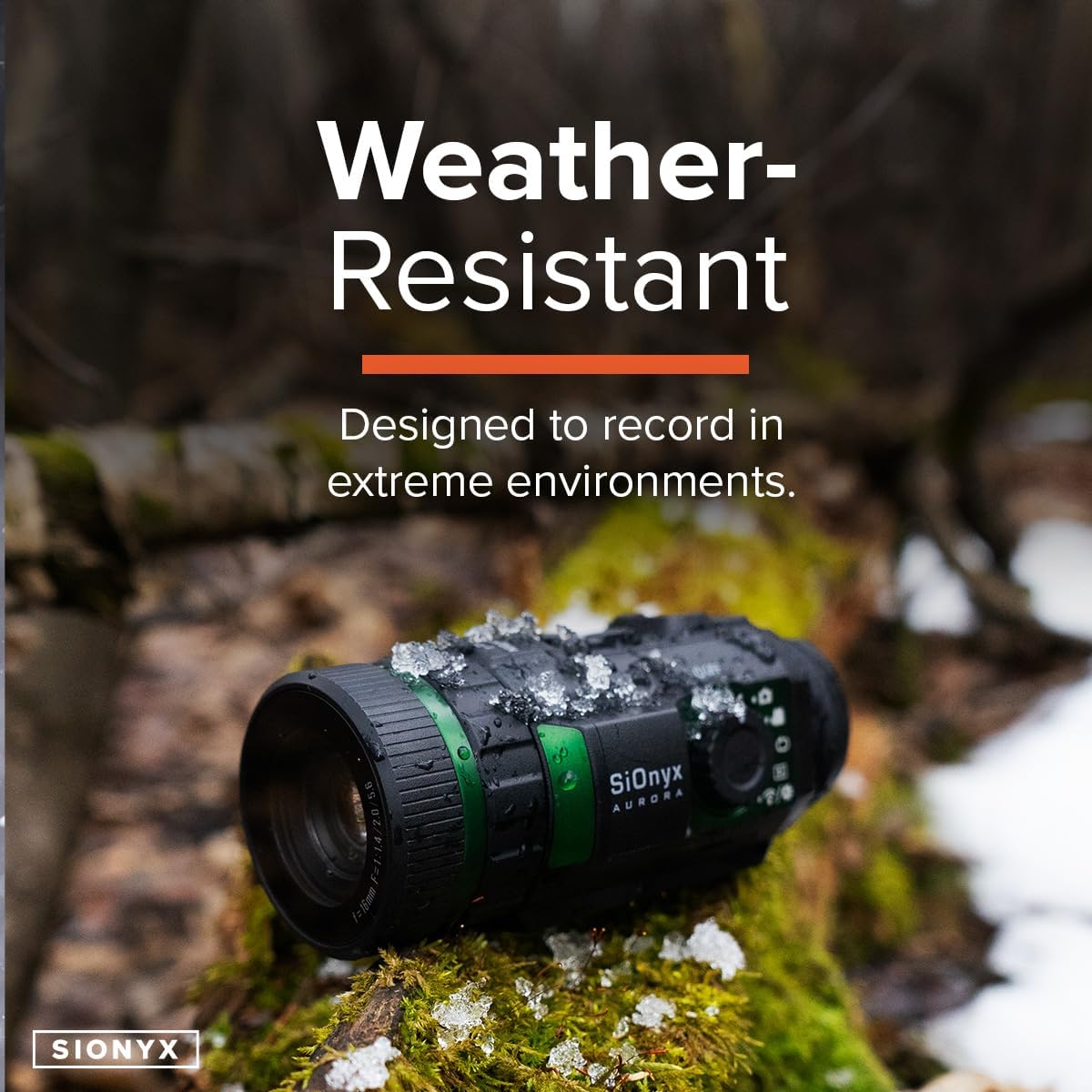
Image: The SiOnyx Aurora camera, designed to be weather-resistant, shown in a snowy environment, demonstrating its durability in extreme conditions.
Troubleshooting
| Problem | Possible Cause | Solution |
|---|---|---|
| Camera does not power on. | Low or depleted battery; improperly installed battery. | Charge the battery fully. Ensure the battery is inserted with correct polarity. |
| Image is blurry. | Improper focus; dirty lens. | Adjust the focus ring. Clean the objective lens with a suitable lens cloth. |
| Cannot record or save files. | SD card full or not inserted correctly; corrupted SD card. | Check SD card insertion. Delete old files or replace SD card. Format SD card if necessary (this will erase all data). |
| Wi-Fi connection issues. | Out of range; app not updated; interference. | Ensure device is within Wi-Fi range. Update the SiOnyx app. Try connecting in a different location. |
Specifications
| Attribute | Detail |
|---|---|
| Brand | SiOnyx |
| Model Name | Aurora |
| Model Number | CDV-100C |
| Color | Aurora |
| Style | Digital |
| Item Weight | 9.8 Ounces |
| Material | Black, rugged, weather-resistant material |
| Objective Lens Diameter | 16 Millimeters |
| Magnification Minimum | 1.0 |
| Compatible Devices | Camera |
| Mounting Type | Weaver Mount |
| Night Vision | Yes |
| UPC | 811251020095 |
| Item Package Dimensions L x W x H | 10.28 x 7.8 x 4.25 inches |
| Item Dimensions L x W x H | 9.1 x 11 x 4.6 inches |
Warranty Information
For detailed warranty information, please refer to the official SiOnyx website or the warranty card included with your product. Standard return policies may apply as per retailer terms.
Support
For technical support, frequently asked questions, or additional resources, please visit the official SiOnyx support page.


