
T-Mobile RT717
Franklin Wireless T9 Mobile Hotspot User Manual
Model: RT717
Introduction
The Franklin Wireless T9 Mobile Hotspot is a 4G LTE mobile Wi-Fi device designed to provide portable internet access. It supports multi-band connectivity and can connect up to 15 devices simultaneously, offering a smooth and reliable connection. Its compact design makes it suitable for travel. This device features a micro USB port for charging and includes a removable 2450mAh Lithium-Ion battery. It operates on a Qualcomm MDM9207-0 processor with a Linux 3.18 operating system. Please note, this device is locked to the T-Mobile network and is not compatible with CDMA carriers such as Sprint or Verizon.
What's in the Box
Upon opening the package, please verify that all the following components are included:
- Franklin Wireless T9 Mobile Hotspot (Model RT717)
- Removable Li-Ion Battery (2450mAh)
- Micro USB Charging Cable
Product Overview
Familiarize yourself with the physical features of your Franklin Wireless T9 Mobile Hotspot.

Front View: Shows the T-Mobile branding and the OLED screen which displays important information such as signal strength, network type, and battery level.
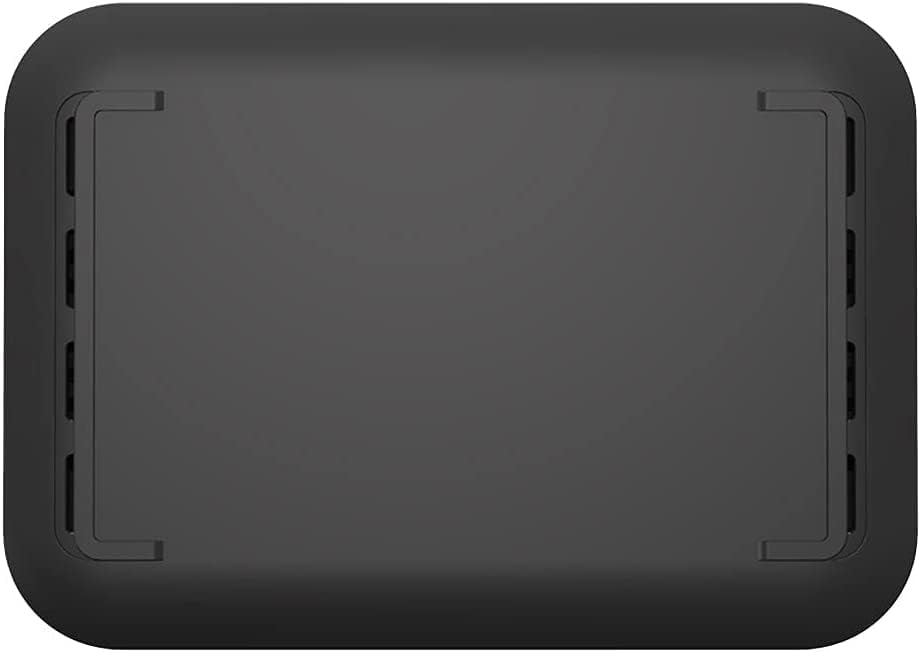
Back View: Displays the removable battery cover and ventilation design.

Side View: Highlights the micro USB charging port located on the side of the device.
Setup
- Insert Battery: Remove the back cover of the hotspot. Align the battery contacts with the terminals inside the compartment and gently press the battery into place. Replace the back cover.
- Charge Battery: Connect the micro USB cable to the hotspot's charging port and the other end to a compatible USB power adapter or computer USB port. Charge the device fully before first use. The OLED screen will indicate charging status.
- Power On: Press and hold the Power button (usually located on the side or top) until the T-Mobile logo appears on the screen.
- Initial Setup (if prompted): Follow any on-screen instructions for initial setup, which may include setting up Wi-Fi name (SSID) and password.
Operating Instructions
Connecting Devices to the Hotspot
- Turn on the Hotspot: Ensure your Franklin Wireless T9 is powered on.
- Access Wi-Fi Information: The Wi-Fi network name (SSID) and password (Wi-Fi Key) are typically displayed on the hotspot's OLED screen or on a label inside the battery compartment.
- Connect from Your Device:
- On your Wi-Fi enabled device (smartphone, tablet, laptop), go to the Wi-Fi settings.
- Scan for available networks.
- Select the network name (SSID) corresponding to your Franklin T9 hotspot.
- Enter the Wi-Fi password when prompted.
- Your device should now be connected to the internet via the hotspot.
Managing Connections
The hotspot can support up to 15 connected devices simultaneously. Monitor connected devices and data usage through the hotspot's web interface (usually accessible by typing a specific IP address, e.g., 192.168.0.1, into a web browser while connected to the hotspot's Wi-Fi network).
OLED Screen Indicators
- Signal Strength: Bars indicating the strength of the 4G LTE cellular signal.
- Network Type: Displays 4G LTE or other network indicators.
- Wi-Fi Status: Icon indicating if Wi-Fi is active and if devices are connected.
- Battery Level: Icon showing the current battery charge.
- Messages/Notifications: May display alerts or data usage information.
Maintenance
- Cleaning: Use a soft, dry cloth to clean the exterior of the device. Avoid using liquid cleaners or aerosols.
- Battery Care: To prolong battery life, avoid exposing the device to extreme temperatures. If the device will not be used for an extended period, store it with a partial charge (around 50%).
- Software Updates: Periodically check for firmware updates through the hotspot's web interface to ensure optimal performance and security.
- Storage: Store the hotspot in a cool, dry place away from direct sunlight and moisture when not in use.
Troubleshooting
| Problem | Possible Solution |
|---|---|
| No Power / Device Not Turning On | Ensure the battery is correctly inserted and fully charged. Connect the device to a power source and try again. |
| Cannot Connect to Wi-Fi Network | Verify the Wi-Fi name (SSID) and password are correct. Ensure the hotspot is powered on and within range. Restart both the hotspot and the connecting device. |
| No Internet Connection | Check the signal strength indicator on the hotspot's screen. If signal is weak or absent, move to an area with better coverage. Ensure your T-Mobile account is active and has data. Restart the hotspot. |
| Slow Internet Speed | Reduce the number of connected devices. Move closer to the hotspot. Check for network congestion in your area. |
| Hotspot Overheating | Ensure the device is in a well-ventilated area. Avoid placing it on soft surfaces that can block vents. Disconnect from power if charging and allow it to cool down. |
Specifications
| Feature | Detail |
|---|---|
| Model Name | Franklin T9 |
| Item Model Number | RT717 |
| Processor | Qualcomm MDM9207-0 |
| Operating System | Linux 3.18 |
| RAM | 256MB |
| Connectivity Technology | 4G LTE (150Mbps), UMTS, HSDPA, HSPA+ |
| LTE Bands Supported | 2/4/5/12/25/26/66 |
| Wi-Fi Standard | 802.11 b/g/n/ac |
| Frequency Band Class | Dual-Band |
| Max Connected Devices | Up to 15 |
| Battery | Removable 2450mAh Li-Ion |
| Display | OLED screen |
| Charging Port | Micro USB |
| Item Weight | 9.1 ounces |
| Package Dimensions | 6 x 3.5 x 2 inches |
| Special Feature | WPS |
Warranty and Support
For warranty information and technical support, please refer to the documentation provided by T-Mobile at the time of purchase or visit the official T-Mobile support website. Keep your purchase receipt as proof of purchase for warranty claims.
Online Support: www.t-mobile.com/support
Related documentsRT717


Ask a question about this manual
Ask about setup, troubleshooting, compatibility, parts, safety, or missing instructions. Manuals+ will review the question and use this page’s manual context to help answer it.