
Introduction
This manual provides detailed instructions for the setup, operation, and maintenance of your TISHLED G502 Typewriter Mechanical Keyboard. Please read this manual thoroughly before using the product to ensure proper functionality and longevity.

Image: The TISHLED G502 Typewriter Mechanical Keyboard, showcasing its retro design with round keycaps and a teal finish.
Package Contents
- TISHLED G502 Typewriter Mechanical Keyboard
- USB-C Cable
- User Manual (this document)
Setup and Connection
The TISHLED G502 keyboard supports three connection modes: Wireless 2.4GHz, Bluetooth 5.0, and USB-C Wired. It is compatible with Windows, macOS, iOS, and Android systems.
1. USB-C Wired Connection
- Turn on the keyboard.
- Connect the provided USB-C cable to the keyboard and your computer.
- Press Fn + 2 to switch to the wired channel. The keyboard will be ready for use.
2. Wireless 2.4GHz Connection
- Turn on the keyboard.
- The keyboard defaults to 2.4GHz pairing mode upon startup.
- Insert the 2.4GHz USB receiver into an available USB port on your device.
- Press Fn + 4 to enter 2.4GHz mode. The indicator light will flash quickly, then remain solid for 2 seconds if connected. If no device is connected, the light will turn off, and the keyboard will enter sleep mode.
3. Bluetooth Connection
The keyboard can connect to up to three Bluetooth devices.
- Turn on the keyboard.
- Press and hold Fn + 1, Fn + 2, or Fn + 3 for 3 seconds to initiate Bluetooth pairing for the desired channel. The indicator light will flash quickly.
- On your device (PC, Mac, smartphone, iPad, tablet), open Bluetooth settings and search for "BOW4.0/BOW5.0".
- Select the keyboard to connect. The indicator light will remain solid for 2 seconds upon successful connection. If no device is connected, the light will turn off, and the keyboard will enter sleep mode.

Image: A diagram illustrating the steps for Bluetooth pairing, 2.4GHz wireless connection, and USB-C wired connection, including key combinations.
Switching Devices and Systems
- Switching Connected Devices: After connecting multiple devices, switch between them by pressing Fn + 1/2/3/4/5 (1, 2, 3 for Bluetooth; 4 for 2.4GHz; 5 for Wired).
- Switching Operating Systems: Press Fn + Q for Mac, Fn + W for Windows, Fn + E for iOS, and Fn + R for Android. This ensures correct key mapping for your operating system.
Operating Instructions
Backlight Control
The keyboard features a warm white LED backlight with 7 lighting effects.
- Press Fn + \ to cycle through lighting effects.
- Press Fn + BackSpace to turn the backlight off.
- Press Fn + ↑ to increase backlight brightness.
- Press Fn + ↓ to decrease backlight brightness.
- Press Fn + ← to slow down backlight speed.
- Press Fn + → to increase backlight speed.

Image: A diagram illustrating the key combinations for controlling the keyboard's backlight, including turning it on/off, changing effects, and adjusting brightness and speed.
Multimedia and Function Keys
The keyboard features dedicated function keys for various multimedia and system controls. These functions are accessed by pressing the Fn key in combination with the corresponding F-key.

Image: A table-like diagram detailing the functions of Fn key combinations (Fn+F1 to Fn+F12, Fn+PrtSc, Fn+Pause) for Mac, Windows, iOS, and Android operating systems.
- Fn + Esc: Lock Fn, multimedia and F key switch
- Fn + F1: Brightness -
- Fn + F2: Brightness +
- Fn + F3: Multi-screen display (Win + Tab)
- Fn + F4: Last song
- Fn + F5: Play/Pause
- Fn + F6: Next song
- Fn + F7: Mute
- Fn + F8: Volume down
- Fn + F9: Volume up
- Fn + F10: Search
- Fn + F11: App Toggle (Alt + Tab)
- Fn + F12: Language switching
- Fn + PrtSc: Sleep/Screen Off (Win + L)
- Fn + Pause: Ins
Hot-Swappable Switches
The G502 keyboard features hot-swappable switches, allowing you to change mechanical switches without soldering. This enables customization with various switch types (e.g., red, blue, brown, black switches) to suit your preference.
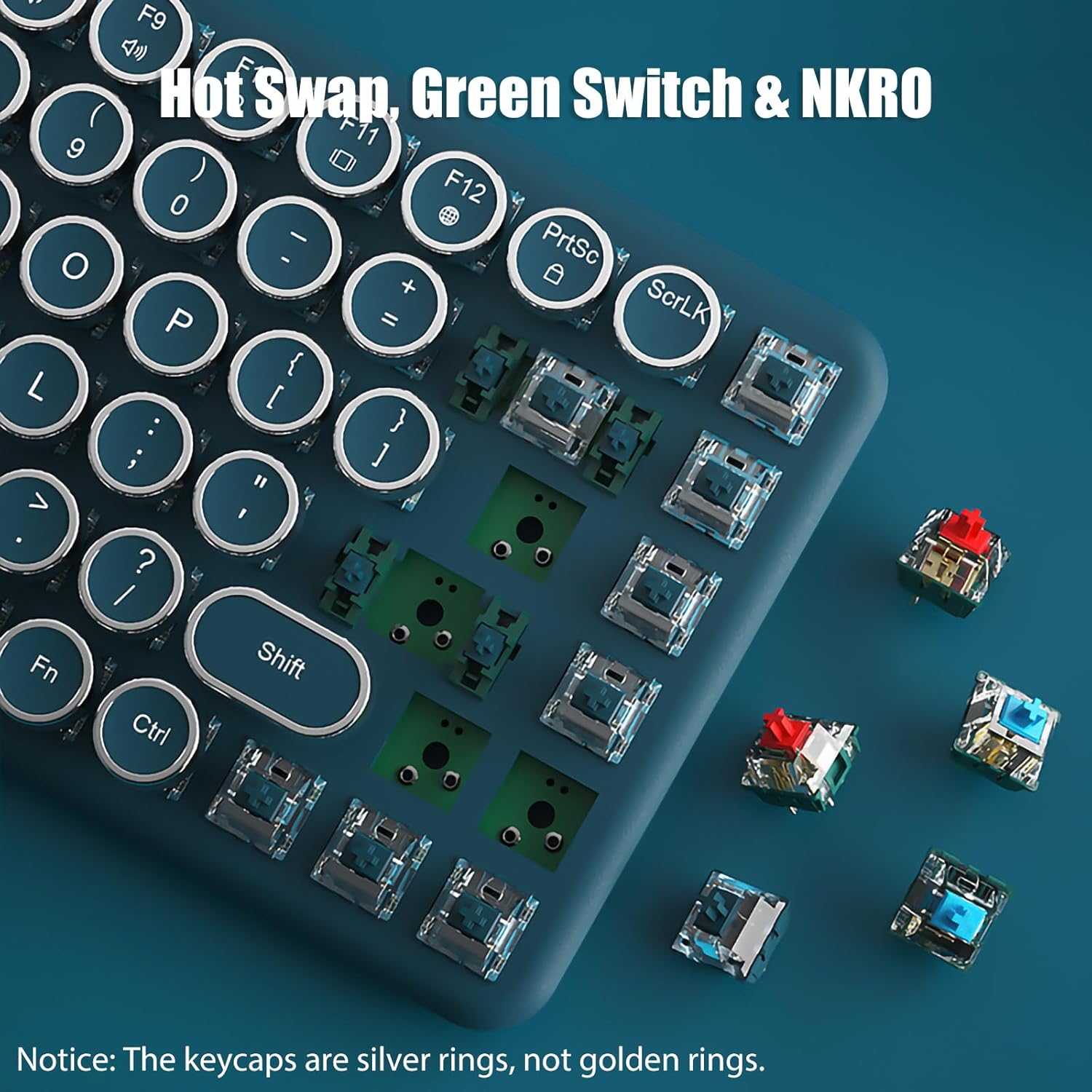
Image: A detailed view of the keyboard's hot-swappable design, with keycaps and switches detached, illustrating how different switch types can be easily installed.
N-Key Rollover (NKRO)
All 84 keys on the G502 keyboard are anti-ghosting, meaning every keystroke is registered accurately, even when multiple keys are pressed simultaneously. This feature is beneficial for fast typing and gaming.
Power Management and Sleep Modes
The keyboard is equipped with a 3000mAh lithium battery and energy-saving technology to maximize battery life.
- Shallow Sleep Mode: The keyboard enters this mode after 2 minutes of inactivity to conserve power.
- Deep Sleep Mode: The keyboard enters this mode after 15 minutes of inactivity.
- Battery Life: Up to 20 days with the backlight off.
- Power Ratio Check: Press Fn + Del. The number keys F1 to F10 will light up to indicate the remaining battery capacity. For example, if F1 and F2 are lit, it means 20% battery capacity remains.

Image: The TISHLED G502 keyboard highlighting its 3000mAh battery and up to 20 days of standby time with the backlight off, demonstrating its power efficiency.
Maintenance
Regular maintenance helps ensure the longevity and optimal performance of your keyboard.
- Cleaning: Use a soft, dry cloth to wipe the surface of the keyboard. For deeper cleaning, you may use a can of compressed air to remove dust and debris from between the keycaps. Avoid using harsh chemicals or abrasive materials.
- Keycap and Switch Replacement: Due to the hot-swappable design, individual switches can be replaced if they malfunction. Gently pull the keycap off using a keycap puller (not included), then use a switch puller (not included) to remove the switch. Align the pins of the new switch with the sockets and press firmly until it clicks into place. Reattach the keycap.
- Storage: When not in use for extended periods, store the keyboard in a cool, dry place away from direct sunlight and extreme temperatures.
Troubleshooting
If you encounter issues with your TISHLED G502 keyboard, refer to the following common solutions:
| Problem | Possible Cause / Solution |
|---|---|
| Keyboard not connecting via Bluetooth/2.4GHz. |
|
| Keys are not responding or typing incorrectly. |
|
| Backlight is not working or behaving unexpectedly. |
|
| Short battery life. |
|
Specifications
| Feature | Detail |
|---|---|
| Model Number | G502 |
| Connectivity | Wireless 2.4GHz, Bluetooth 5.0, USB-C Wired |
| Keyboard Type | Mechanical, Hot-Swappable Green Switches |
| Key Rollover | NKRO (N-Key Rollover) |
| Keycaps | Retro Round Keycaps (Silver Rings) |
| Backlight | Warm White LED, 7 Effects |
| Battery Capacity | 3000mAh Lithium Ion |
| Battery Life (Backlight Off) | Up to 20 days |
| Product Dimensions | 12.4"L x 5"W x 1.7"H (31.5cm x 12.7cm x 4.3cm) |
| Item Weight | 1.65 pounds (0.75 kg) |
| Compatible Devices | PC, Mac, Smartphone, iPad, Tablet |
| Color | Teal (with silver keycap rings) |
Warranty and Support
For warranty information and customer support, please refer to the purchase documentation or contact the seller directly. TISHLED offers various protection plans that may be available for purchase separately.
You can visit the official TISHLED store for more information: TISHLED Store