
1. Introduction
This manual provides detailed instructions for the proper use and maintenance of your ORDRO HDR-AC3 4K Camcorder. The HDR-AC3 is a versatile video camera designed for capturing high-quality footage with features such as 4K resolution, IR night vision, Wi-Fi connectivity, and support for various accessories. Please read this manual thoroughly before operating the device to ensure optimal performance and longevity.
2. What's in the Box
Carefully unpack your ORDRO HDR-AC3 camcorder and verify that all items listed below are present:
- Camera body
- Wide angle lens
- Lens hood
- Handheld stabilizer
- Remote control
- Battery charger
- 2 x Batteries (Lithium Ion)
- Lens cap
- Pouch and strap
- USB cable
- HDMI cable

Image: The ORDRO HDR-AC3 4K Camcorder shown with its primary accessories, including the external microphone, wide-angle lens, and handheld stabilizer.
3. Setup
3.1 Battery Installation and Charging
- Insert the included Lithium Ion battery into the battery compartment located on the bottom of the camcorder. Ensure it clicks into place securely.
- Connect the battery charger to a power outlet and then to the camcorder. The charging indicator light will illuminate.
- Charge the battery for approximately 3 hours before initial use, especially when using the IR night vision function.
3.2 Memory Card Installation
The camcorder requires a standard memory card (SD card) up to 128GB for recording. A memory card is not included and must be purchased separately.
- Locate the SD card slot on the side of the camcorder.
- Insert the memory card with the metal contacts facing the front of the camcorder until it clicks into place.
- To remove, gently press the card inward until it springs out.
3.3 Attaching Accessories
3.3.1 External Microphone
The ORDRO external microphone enhances audio quality by reducing noise from up to 20 meters away.
- Mount the external microphone onto the camcorder's hot shoe.
- Connect the microphone to the camcorder using the mini USB/microphone adapter cable.
- Set the microphone switch to the "+10dB" position for optimal performance.
3.3.2 Wide Angle Lens
The professional 2-in-1 0.39x wide-angle lens (with macro lens) expands your shooting range.
- Carefully screw the wide-angle lens onto the front of the camcorder's main lens.
- For macro shots, detach the front part of the wide-angle lens to use the macro lens.

Image: Illustration of how to attach the wide-angle lens and use the macro lens for close-up photography. The wide-angle lens provides a broader field of view compared to the normal view.
3.3.3 Handheld Stabilizer
Attach the handheld stabilizer to improve image stability during recording.
- Secure the camcorder to the mounting plate of the handheld stabilizer.
- Adjust the stabilizer for balance to reduce camera shake.
4. Operating Instructions
4.1 Power On/Off and Basic Recording
- To power on, press and hold the Power button.
- To start recording, press the Record button. The recording indicator will illuminate.
- To stop recording, press the Record button again.
- The camcorder supports various resolutions: 2880x2160 at 24fps (4K), 2K at 30fps, 1080P at 60FPS, and 720P at 120FPS. Adjust settings via the menu.
4.2 Pause Function
The pause function allows you to temporarily stop recording and resume in the same file without creating a new one.
- During recording, press the "PHOTO" button to pause.
- Press the "PHOTO" button again to resume recording.
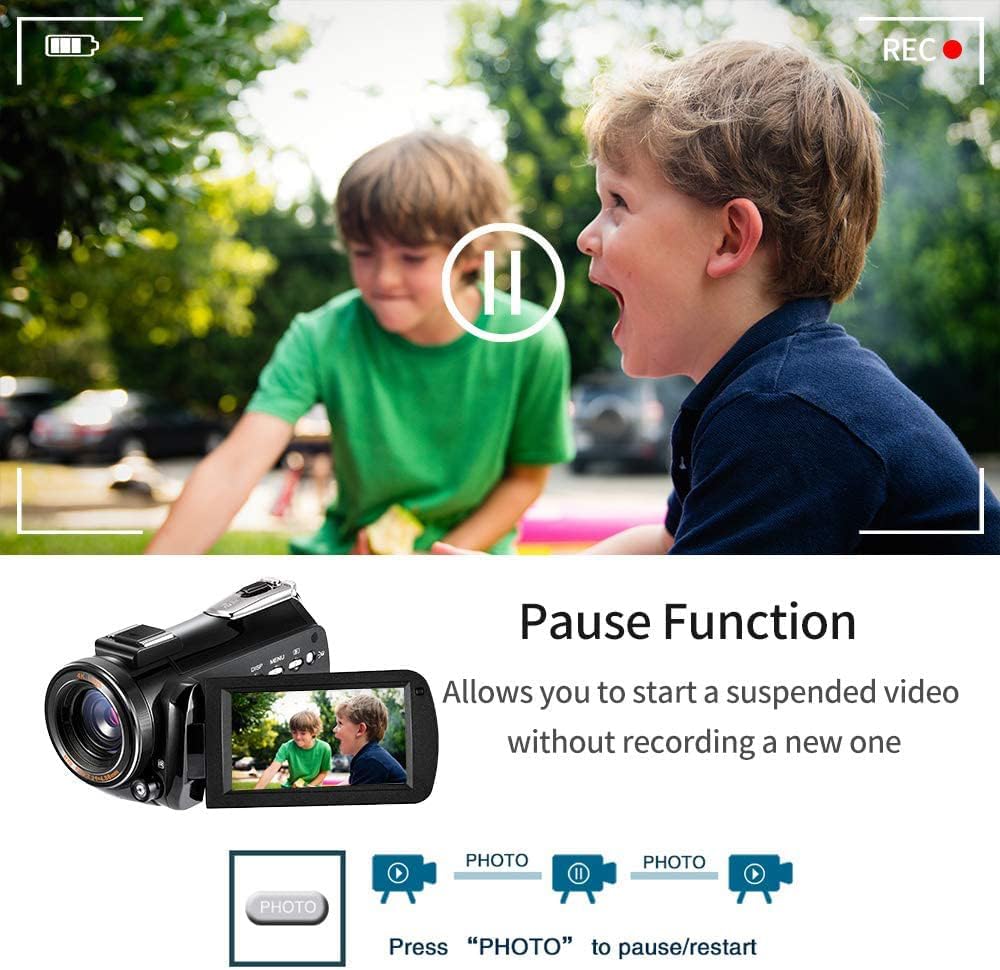
Image: The camcorder screen displaying a paused recording, with an explanation of how to use the 'PHOTO' button to pause and resume video capture.
4.3 IR Night Vision
The built-in and external IR night vision light enables clear video and photo capture in low-light environments up to 33 feet.
- Ensure the battery is sufficiently charged (recommended 3 hours of charging).
- Press the IR button (typically a red button near the lens) to activate night vision mode.
- The screen will display a monochrome image, indicating IR mode is active.

Image: A comparison showing a scene without IR Night Vision (dark) and with IR Night Vision (illuminated), demonstrating the camcorder's ability to record in darkness. The IR button is highlighted on the camcorder.
4.4 Time-Lapse Function
Capture extended events in a condensed video sequence using the time-lapse function.
- Navigate to the camcorder's menu and select the Time-Lapse setting.
- Choose your desired interval and duration.
- Start recording. The camcorder will automatically capture frames at set intervals.
4.5 Wi-Fi Connectivity and Remote Control
Connect your camcorder to a smartphone or tablet via Wi-Fi for remote viewing and control.
- Download the "D Video" application from your device's app store.
- Enable the Wi-Fi function on the camcorder via its menu. The Wi-Fi name and password will appear on the camcorder screen.
- On your smartphone/tablet, connect to the camcorder's Wi-Fi network using the provided credentials.
- Open the "D Video" app to remotely view, capture, and control the camcorder.
Note: The effective Wi-Fi distance is less than 9.8 feet. The camcorder's Wi-Fi cannot connect to a router.

Image: A user monitoring a baby via the camcorder's Wi-Fi feature on a tablet, demonstrating remote viewing and shooting capabilities within a 9.8-foot range.
4.6 Multifunction Modes
The camcorder offers several versatile modes for different uses:
- Recording While Charging: Connect a power bank via USB cable for extended recording sessions.
- Webcam Function: Connect the camcorder to a computer via USB cable. Press the "PHOTO" key to enter PC camera mode.
- Playback (HDMI Output): Connect the camcorder to a 4K TV using an HDMI cable to view ultra HD video effects directly on a larger screen.
- MSDC Mode (File Transfer): Connect the camcorder to a computer via USB cable. Select "MSDC" mode and press the "PHOTO" key to enter removable disk mode for easy file transfer.

Image: Four panels illustrating the camcorder's multifunctionality: recording while charging, use as a webcam, HDMI output for playback on a TV, and MSDC mode for file transfer to a computer.
5. Maintenance
5.1 Cleaning
- Use a soft, dry cloth to clean the camcorder body.
- For the lens, use a specialized lens cleaning cloth and solution. Avoid touching the lens surface with your fingers.
- Do not use harsh chemicals or abrasive cleaners.
5.2 Storage
- Store the camcorder in a cool, dry place away from direct sunlight and extreme temperatures.
- Remove the battery if the camcorder will not be used for an extended period.
- Use the provided pouch and strap for protection during storage and transport.
6. Troubleshooting
If you encounter issues with your ORDRO HDR-AC3 camcorder, please refer to the following common problems and solutions:
| Problem | Possible Cause | Solution |
|---|---|---|
| Camcorder does not power on | Battery is depleted or not inserted correctly. | Ensure battery is fully charged and correctly inserted. Try using the power cord directly. |
| Cannot record video | Memory card is full, not inserted, or corrupted. | Insert a compatible memory card. Check if the card has sufficient space. Format the card if necessary (this will erase all data). |
| Poor video quality | Lens is dirty, lighting conditions are poor, or settings are incorrect. | Clean the lens. Ensure adequate lighting. Adjust resolution and exposure settings. |
| IR Night Vision not working | Insufficient battery charge. | Ensure the battery has been charged for at least 3 hours before using IR Night Vision. |
| Wi-Fi connection issues | Device is out of range or incorrect password. | Ensure your smartphone/tablet is within 9.8 feet of the camcorder. Verify the Wi-Fi password displayed on the camcorder screen. |
7. Specifications
Key technical specifications for the ORDRO HDR-AC3 4K Camcorder:
- Brand: ORDRO
- Model: HDR-AC3
- Video Capture Resolution: 4K (2880x2160@24fps), 2K (30fps), 1080P (60FPS), 720P (120FPS)
- Photo Sensor Technology: CMOS (IMX258, 13.0MP, max 24.0MP by interpolation)
- Flash Memory Type: SDXC (supports up to 128GB)
- Video Capture Format: MP4
- Supported Audio Format: AAC, MP3
- Screen Size: 3.1 Inches
- Connectivity Technology: Wi-Fi
- Special Features: Night Vision, Time Lapse, Compact, Digital Camera, Real-time
- Batteries: 1 Lithium Ion battery required (included)
- Item Weight: Approximately 3.56 pounds
- Color: Black
8. Warranty and Support
For warranty information or technical support, please refer to the documentation included with your purchase or contact ORDRO customer service through their official website or the retailer where the product was purchased. Keep your proof of purchase for warranty claims.


