
1. Product Overview
This manual provides detailed instructions for the installation and operation of your SIXTOP Android Car Stereo. This unit is designed for Mazda 3 vehicles manufactured between 2006 and 2012, offering a range of modern features to enhance your driving experience.
Key Features:
- Wireless Apple Carplay & Android Auto
- 9-inch HD Capacitive Touch Screen (1024*600 resolution)
- FM/RDS Radio
- Bluetooth Connectivity
- Built-in GPS Navigation
- WiFi Connectivity
- Mirror Link Functionality
- Steering Wheel Control (SWC) Support
- AHD Backup Camera Included
- 26 Customizable UI Themes
- Split Screen Function
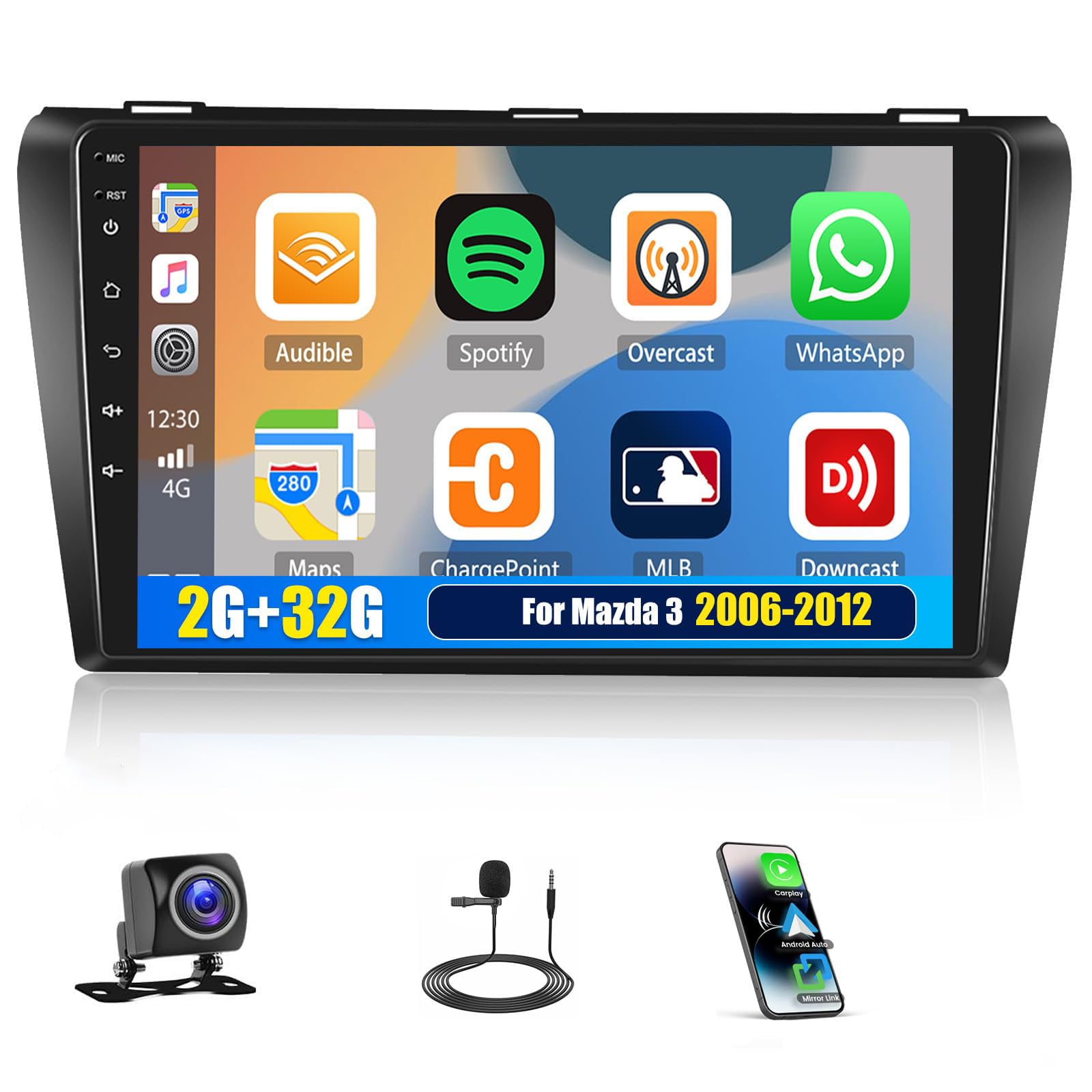
Image 1.1: SIXTOP Android Car Stereo installed in a Mazda 3 dashboard, showing the modern interface and a comparison with the original radio setup.
2. Setup and Installation
This section guides you through the physical installation and initial setup of your car stereo.
2.1 Package Contents
Before installation, verify that all components are present in the package:

Image 2.1: Detailed view of the package contents, including the 9-inch head unit, RCA cable, GPS antenna, rear camera, power cable, original USB cable, rear camera input cable, USB cable, Canbus, installation tool, mounting bracket, microphone, and user manual.
2.2 Wiring Diagram
Follow the wiring diagram carefully for proper connection. Ensure all cables are securely connected to their respective ports.

Image 2.2: General wiring diagram for the car stereo, illustrating connections for power, camera, and monitor. The reverse control wire (marked "Reverse" or "Back") should connect to the positive pole of the car's reversing light, and the black wire to GND.
2.3 Amplifier and RCA Cable Connections
For vehicles with an original amplifier, specific connections are required:
- Select the corresponding AUX FR OUT/AUX FL OUT on the power cable according to your original car interface and connect them to the RCA FR/RCA FL on the RCA cable.
- Connect the power cable amplifier wire to the corresponding amplifier wire on the RCA cable to ensure amplifier functions properly.
- If the original car has an amplifier, break a port in the red wire ACC line, and then connect the original amplifier control line to the red wire ACC.

Image 2.3: Detailed connection instructions for vehicles equipped with an original amplifier, showing RCA cable and power cable modifications.
3. Operating Instructions
Learn how to use the various features of your SIXTOP Android Car Stereo.
3.1 Wireless Apple Carplay & Android Auto
Synchronize your phone's apps, navigation, music, and contacts to the car stereo. Supports voice control via your phone's assistant.
- Ensure your mobile phone's WiFi is enabled.
- Connect your phone via Bluetooth to the car stereo.
- Open the "ZLINK5" app on the stereo to automatically connect.

Image 3.1: Display of Wireless Apple Carplay and Android Auto interfaces, demonstrating app integration and navigation capabilities.
Video 3.1: Demonstrates the connection process for Wireless Carplay and Android Auto, including Bluetooth pairing and app synchronization.
3.2 Mirror Link
Project your mobile phone's screen onto the car stereo display. This is ideal for viewing downloaded videos or other content from your phone.
- Select the "ZLINK5" app and switch to the "Mirror Link" connection.
- For iPhone, set up Personal Hotspot and connect the stereo to it. Then select Screen Mirroring on your iPhone and choose "zlink-airplay".
- For Android, connect via Bluetooth, turn on Personal Hotspot, and connect the stereo to it. Open the mirroring app on your phone and click "Start Mirroring".

Image 3.2: Example of a smartphone screen being mirrored onto the car stereo, allowing for larger display of mobile content.
Video 3.2: Illustrates the steps for iPhone and Android wireless mirroring, including hotspot setup and screen projection.
3.3 WiFi and GPS Navigation
Connect to WiFi to download apps, stream music, and watch videos. The built-in GPS allows for offline navigation via downloaded maps or online navigation when connected to WiFi.

Image 3.3: Demonstrates WiFi connectivity for app downloads and online content, alongside GPS navigation with map display.
3.4 FM/RDS Radio and Bluetooth
Enjoy news, music, and traffic information via the FM/RDS radio. Bluetooth enables hands-free calls, phonebook synchronization, and mobile music playback.

Image 3.4: Displays the FM/RDS radio interface and Bluetooth features, including music playback and call management.
3.5 Steering Wheel Controls
Control the car audio system using your vehicle's original steering wheel buttons for convenience and safety.

Image 3.5: Illustration of how steering wheel controls can be used to operate the car stereo, enhancing driving safety.
3.6 Reversing Display (Backup Camera)
The included AHD waterproof backup camera provides a clear reversing image, automatically switching when reverse gear is engaged.

Image 3.6: The AHD backup camera and a screenshot of its display on the car stereo, showing parking guidelines.
3.7 Split Screen Function
Operate two applications simultaneously on the screen. Click the rectangle at the top of the screen, select a browse page, and drag it to either the left or right side of the screen.
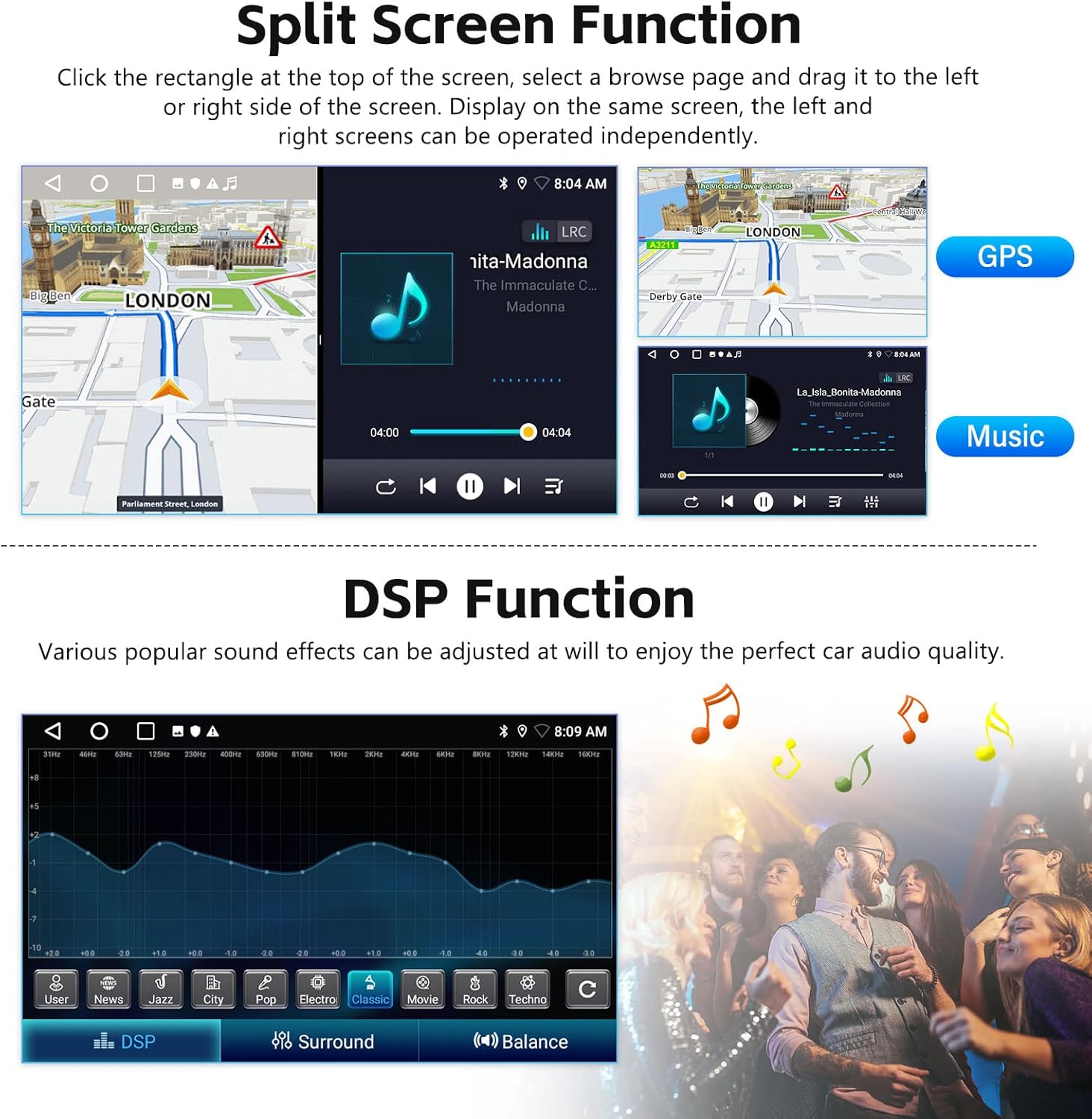
Image 3.7: Example of the split screen feature, displaying GPS navigation on one side and music playback on the other.
3.8 Customizable UI Themes
Personalize your car stereo's appearance with 26 different desktop themes. Long-press a blank space on the homepage to change to your preferred theme.

Image 3.8: A selection of the 26 desktop themes available for customizing the car stereo's user interface.
3.9 DSP Function (Digital Sound Processor)
Adjust various sound effects to optimize your car's audio quality.
Image 3.9: The DSP interface showing equalizer settings for fine-tuning audio output.
4. Maintenance
To ensure the longevity and optimal performance of your SIXTOP Android Car Stereo, follow these maintenance guidelines:
- Screen Cleaning: Use a soft, lint-free cloth to gently wipe the touch screen. For stubborn smudges, slightly dampen the cloth with water or a screen-safe cleaner. Avoid harsh chemicals or abrasive materials.
- Temperature Control: Avoid exposing the unit to extreme temperatures for extended periods. While designed for automotive use, prolonged exposure to direct sunlight in a parked car or very cold conditions can affect performance.
- Software Updates: Periodically check for available software updates to ensure you have the latest features and bug fixes. Refer to the system settings for update options.
- Cable Connections: Occasionally check all wiring connections to ensure they remain secure, especially after driving on rough terrain.
5. Troubleshooting
If you encounter issues with your car stereo, refer to the following common troubleshooting steps:
- No Power: Check all power connections. Ensure the car's ignition is on. Verify fuses in both the vehicle and the stereo's wiring harness.
- No Sound: Check speaker connections. Ensure the volume is not muted or set too low. Verify audio output settings.
- Touch Screen Unresponsive: Try restarting the unit. If the issue persists, a factory reset might be necessary (note: this will erase all personal settings).
- Bluetooth Connection Issues: Ensure Bluetooth is enabled on both the stereo and your phone. Delete previous pairings and attempt to re-pair. Ensure your phone is discoverable.
- GPS Not Working: Ensure the GPS antenna is properly installed and has a clear view of the sky. Check GPS settings within the stereo.
- Backup Camera Display Issues: Ensure the camera is properly connected. Verify the camera resolution setting in Factory Settings is set to AHD/25. Ensure the two short wires on the camera are connected.
- Wireless Carplay/Android Auto Disconnects: Ensure a stable Bluetooth connection. Check for strong WiFi signal from your phone's hotspot. Restart both the phone and the car stereo.
For persistent issues, please contact customer support.
6. Specifications
Detailed technical specifications for your SIXTOP Android Car Stereo and included AHD Camera.
6.1 Android Radio Specifications
| Feature | Specification | Feature | Specification |
|---|---|---|---|
| Memory (RAM)+Storage (ROM) | 2GB (RAM)+32GB (ROM) | Screen Resolution | 1024*600 |
| Work Temperature | -20℃~75℃ | Power Output | 4*45W |
| Reversing Input | AHD/CVBS | Radio Band | FM/RDS |
| Video Format | MKV/RMVB/AVI/MP4/MDV etc. | Audio Format | APE/FLAC/WAV/MP3/WMA etc. |
| Language Support | Chinese/English/French/Italian/Korean/Japanese/Arabic/Spanish/Portuguese/Russian/Turkish/Vietnamese/Hebrew/Polish/German | Factory Setting Keyword | 000000 |
| Picture Format | PNG/JPEG/JPG/GIF/WBMP/BNP etc. | Video Output | NO |
6.2 AHD Camera Specifications
| Feature | Specification | Feature | Specification |
|---|---|---|---|
| Image Sensor | 140A | TV System | NTSC / PAL Option |
| Effective Pixels | 1280 x 720 Pixels | Power | DC 12V |
| Video Cable Length | About 6M | Power Supply Cable Length | About 1.5M |
| Low-light Level Night Vision | 15m distance for night | Electronic Shutter | 1/50 to 1/100,000 seconds, 1/60 to 1/100,000 seconds |
7. Warranty Information
Your SIXTOP Android Car Stereo comes with a 1-Year Warranty from the date of purchase. This warranty covers manufacturing defects and ensures a 1-Year Replacement for eligible issues. Please retain your proof of purchase for warranty claims.
8. Support
For any questions, technical assistance, or support, please contact us:
- Online Support Email: SIXTOP123@163.com
- Technical Support: We offer Lifetime Technical Support for your product.
- Amazon Seller Support: You can also contact the seller, xinshunhang, directly through your Amazon order details for assistance.


