
Newmight NM-C921
Newmight 9-in-1 USB C Docking Station User Manual
Model: NM-C921
Brand: Newmight
Introduction
The Newmight 9-in-1 USB C Docking Station is a versatile and powerful solution designed to expand the connectivity of your USB-C enabled devices. It transforms a single USB-C port into multiple essential connections, including three HDMI outputs for triple display setups, high-speed USB 3.0 data ports, a USB-C data port, a 100W Power Delivery charging port, and convenient SD/TF card reader slots. This docking station is engineered to enhance productivity and streamline your workspace by providing seamless plug-and-play functionality.

Image: The Newmight 9-in-1 USB C Docking Station, showcasing its compact design and multiple ports, including HDMI, USB-A, USB-C, and card reader slots, along with connected cables and memory cards.
Product Layout and Ports
The Newmight 9-in-1 docking station features a comprehensive array of ports designed for maximum utility:
- 3 x HDMI Ports: Supports video output up to 4K@30Hz for triple display configurations.
- 2 x USB 3.0 Data Ports: Provides high-speed data transfer up to 5Gbps for connecting peripherals like mice, keyboards, and USB drives.
- 1 x USB-C 3.0 Data Port: Offers 5Gbps data transfer for USB-C devices.
- 1 x 100W PD Charging Port: Allows for fast charging of your laptop (up to 85W output) while using the hub. Requires an external charger.
- 1 x SD Card Reader Slot: For reading standard SD cards.
- 1 x TF (Micro SD) Card Reader Slot: For reading Micro SD cards. Both SD and TF slots can be used simultaneously with speeds up to 104MB/s.

Image: A detailed diagram illustrating the various ports of the Newmight docking station, including 3 HDMI ports, 2 USB 3.0 ports, a USB-C data port, a USB-C charging port, and SD/TF card slots.
Setup Instructions
Follow these steps to set up your Newmight 9-in-1 USB C Docking Station:
- Connect the Docking Station to your Laptop: Plug the integrated USB-C cable of the docking station into a compatible USB-C (Thunderbolt 3/4) port on your laptop. Ensure your laptop's USB-C port supports video output (DP Alt Mode).
- Connect HDMI Displays: Connect your HDMI monitors to the HDMI ports on the docking station using HDMI cables. The docking station supports up to three external displays.
- Connect Power Adapter (Optional but Recommended): For stable performance and to charge your laptop, connect your laptop's USB-C power adapter to the 100W PD charging port on the docking station.
- Connect USB Peripherals: Plug your USB devices (e.g., mouse, keyboard, USB drive) into the USB 3.0 ports.
- Insert SD/TF Cards: If needed, insert your SD or TF cards into the respective slots for data access.
Video: An official product video demonstrating the setup process of the Newmight 9-in-1 Docking Station, including connecting to a laptop, HDMI monitors, and other peripherals.
Operating Instructions
Display Modes
The docking station supports various display modes depending on your operating system:
For Windows OS:
- Mirror Mode: All connected external monitors will display the same content as your laptop screen.
- Extend Mode (MST): This mode allows each connected external monitor to display different content, extending your desktop workspace. You can achieve triple monitor setups (laptop screen + 2 external, or 3 external monitors with different content).
- Resolution Support: Up to 4K@60Hz for a single monitor, 4K@30Hz for dual monitors, and 1080P@60Hz for triple monitors.
- Note: If one of the monitors does not work, you may need to manually reduce the resolution of the monitor to enable simultaneous display of all three monitors. This is often related to your laptop's configuration.

Image: Visual representation of Mirror Mode and Extend Mode 1 & 2 for Windows operating systems, demonstrating how the Newmight docking station supports various multi-monitor configurations.
For macOS Devices:
- Mirror Mode Only: Due to macOS limitations, this docking station can only support Mirror mode, meaning all connected external monitors will display the same content. It cannot extend to three different screens.

Image: Visual representation of Mirror Mode for macOS with the Newmight docking station, explicitly stating that extending to different screens is not supported due to macOS limitations.
Data Transfer
The USB 3.0 ports and USB-C 3.0 data port support transfer speeds up to 5Gbps, allowing you to transfer large files and HD movies in seconds. The SD/TF card reader supports speeds up to 104MB/s, ideal for photographers and video editors.

Image: A close-up of the Newmight docking station's USB 3.0 ports, illustrating their 5Gbps data transfer capability and compatibility with various USB devices like thumb drives, keyboards, mice, and external hard drives.
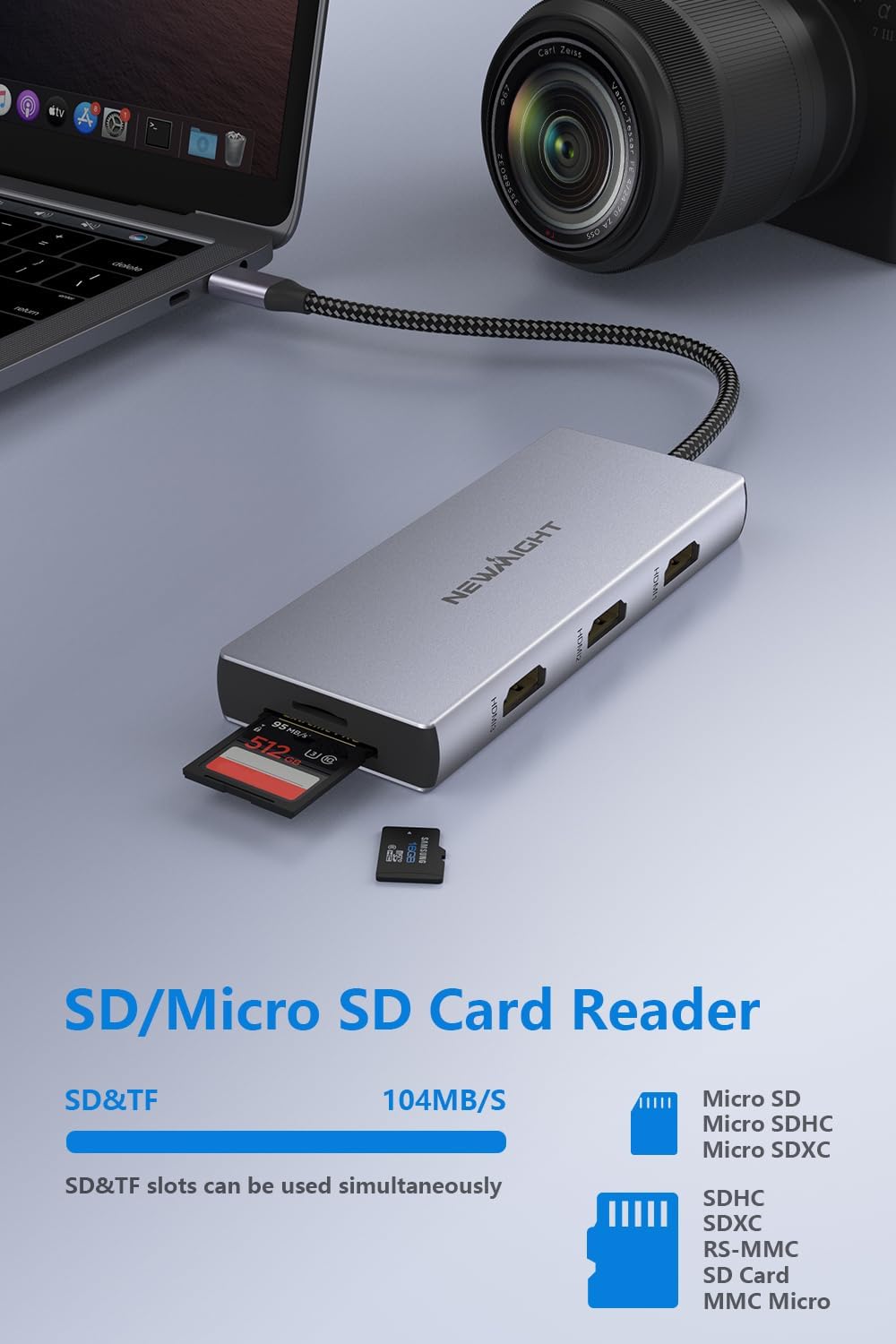
Image: The Newmight docking station with an SD card inserted, highlighting the SD/Micro SD card reader functionality and its 104MB/s transfer speed, compatible with various card types.
Power Delivery
The dedicated 100W PD charging port ensures your laptop receives fast and efficient power while connected to the docking station. This eliminates the need for a separate power adapter for your laptop, keeping your workspace tidy.

Image: The Newmight docking station connected to a laptop and a power source, illustrating its 100W Power Delivery capability for fast charging.
Compatibility
The Newmight 9-in-1 USB C Docking Station is widely compatible with USB-C devices that support video output or DisplayPort Alternate Mode (DP Alt Mode). This includes, but is not limited to:
- MacBook Pro (2015-2023)
- MacBook Air (2018-2022)
- iPhone 15/Pro Max
- Dell XPS 13/15
- Lenovo Yoga series
- Samsung Galaxy S21/S22/S23 series
- Other laptops and devices with a full-featured USB-C port.
Important Note: This docking station ONLY works with devices where the USB Type-C Port supports video output or DP Alt Mode. Please verify your device's USB-C port capabilities before use.

Image: A visual guide to the multi-device compatibility of the Newmight docking station, showing it can connect to tablets, laptops, mobile phones, and gaming consoles, and output to displays, TVs, and projectors.
Specifications
| Feature | Detail |
|---|---|
| Model Number | NM-C921 |
| Ports | 3 x HDMI, 2 x USB 3.0 Type-A, 1 x USB 3.0 Type-C, 1 x USB-C PD (100W), 1 x SD Card Reader, 1 x TF Card Reader |
| HDMI Resolution | Single: 4K@60Hz; Dual: 4K@30Hz; Triple: 1080P@60Hz |
| USB 3.0 Data Transfer Speed | Up to 5Gbps |
| SD/TF Card Reader Speed | Up to 104MB/s |
| Power Delivery | Up to 100W (85W output to host) |
| Product Dimensions | 4.72 x 1.77 x 0.55 inches |
| Item Weight | 3.52 ounces |
| Color | Grey |
| Manufacturer | Newmight |
| Country of Origin | China |
Troubleshooting
- No Display/Flickering Screen:
- Ensure your laptop's USB-C port supports video output (DP Alt Mode).
- Try reducing the resolution of the external monitor(s), especially in triple display setups, as some laptop configurations may require lower resolutions.
- Check all HDMI cable connections. Try different HDMI cables if possible.
- Ensure your laptop is receiving sufficient power, especially when using multiple displays. Connect the 100W PD charger to the docking station.
- For macOS, remember that only Mirror mode is supported for multiple external displays.
- USB Devices Not Recognized:
- Ensure the docking station is securely connected to your laptop.
- Try connecting the USB device directly to your laptop to confirm it's working.
- Disconnect and reconnect the USB device to the docking station.
- Ensure the docking station is receiving adequate power, especially for high-power USB devices.
- Slow Data Transfer Speed:
- Ensure you are using USB 3.0 compatible devices and cables to achieve 5Gbps speeds.
- Verify that your laptop's USB-C port supports USB 3.0 or higher speeds.
- Docking Station Gets Warm:
- It is normal for the docking station to become warm during operation, especially when multiple ports are in use or when charging. This is due to power conversion and data processing. Ensure adequate ventilation around the device.
Safety Information
- Do not expose the device to liquids, moisture, or extreme temperatures.
- Avoid dropping or subjecting the device to strong impacts.
- Do not attempt to disassemble, repair, or modify the device. This will void the warranty and may cause damage or injury.
- Keep out of reach of children.
- Use only compatible and certified cables and power adapters.
Warranty and Support
Newmight products come with a standard manufacturer's warranty. For detailed warranty information, technical support, or customer service inquiries, please refer to the contact information provided on the official Newmight website or your purchase platform.
You can also refer to the official User Manual (PDF) available at: Newmight 9-in-1 USB C Docking Station User Manual PDF
Related documentsNM-C921

Ask a question about this manual
Ask about setup, troubleshooting, compatibility, parts, safety, or missing instructions. Manuals+ will review the question and use this page’s manual context to help answer it.