
Introduction
Thank you for purchasing the ELECOM Wireless Mouse EX-G Bluetooth Silent S-size 5-button Multi-pairing, model M-XGS30BBSKBK. This ergonomic mouse is designed to provide a comfortable and strain-free experience, developed in collaboration with orthopedic surgeons. It features silent clicks, multi-pairing capabilities, and an antimicrobial surface for enhanced hygiene. This manual will guide you through the setup, operation, and maintenance of your new mouse.

Image: The ELECOM EX-G Bluetooth Silent Mouse, model M-XGS30BBSKBK.
Key Features
- Ergonomic Design: Co-developed with orthopedic surgeons, the EX-G series mouse is shaped to fit the natural curve of your hand, minimizing strain on wrist and finger muscles. This design has been certified by the AskDoctors evaluation service, with 99% of 100 doctors recommending it.
- Silent Click Switches: Equipped with Panasonic silent switches for left and right clicks, as well as the scroll wheel, allowing for quiet operation in any environment, such as during web conferences or in shared workspaces.
- Multi-pairing Functionality: Connects to up to two Bluetooth-compatible devices simultaneously. Easily switch between paired devices with a dedicated button.
- Antimicrobial Surface: The mouse body and printed parts are treated with an antimicrobial coating to inhibit bacterial growth, keeping the mouse clean.
- 5-Button Design: Includes left click, right click, scroll wheel, and two side buttons (forward/back) for enhanced navigation and productivity.

Image: Comparison of the ergonomic EX-G mouse design (right) with a traditional mouse (left), illustrating the natural hand position.
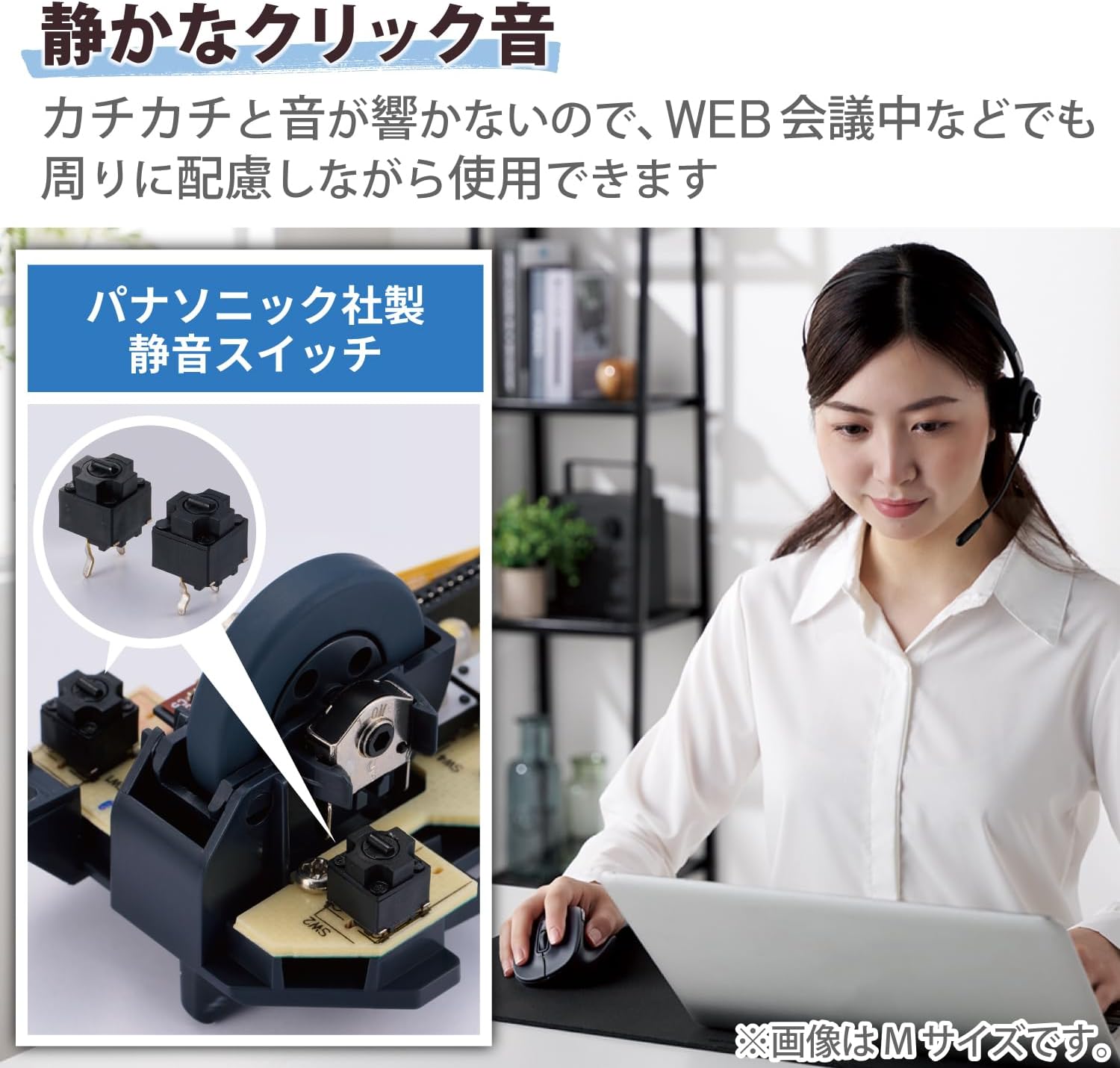
Image: A close-up of the internal Panasonic silent click switches and a user operating the mouse quietly.

Image: Illustration of the multi-pairing feature, showing indicator lights (white for device 1, green for device 2) for switching connections.

Image: Various color models of the EX-G mouse, highlighting the antimicrobial surface treatment.

Image: Diagram illustrating the functions of the 5 buttons: Left Click, Right Click, Double Click, Forward, and Back.
Setup
1. Battery Installation
- Open the battery cover located on the underside of the mouse.
- Insert one AAA alkaline battery (included) into the battery compartment, ensuring correct polarity (+/-).
- Close the battery cover securely.
2. Bluetooth Pairing
- Turn on the mouse using the power switch on the bottom.
- Press and hold the pairing button on the bottom of the mouse until the LED indicator starts flashing (e.g., white for device 1, green for device 2).
- On your computer or device (Windows, macOS, Android, iOS, iPadOS, ChromeOS), navigate to the Bluetooth settings.
- Search for available Bluetooth devices and select "ELECOM EX-G" or a similar name.
- Follow any on-screen prompts to complete the pairing process. The LED indicator on the mouse will stop flashing and remain solid when successfully paired.
- To pair a second device, repeat steps 2-5, ensuring the mouse is in the correct pairing mode (e.g., green LED for device 2).
Operating Instructions
Basic Mouse Functions
- Left Click: Primary selection and activation.
- Right Click: Opens context menus.
- Scroll Wheel: Scrolls content vertically. Pressing the scroll wheel often acts as a middle click.
- Forward/Back Buttons: Located on the side, these buttons allow for quick navigation in web browsers and file explorers.
Switching Between Paired Devices
If you have paired the mouse with two devices, press the device switching button (usually located near the pairing button on the bottom or a dedicated button on top) to toggle between Device 1 (white LED) and Device 2 (green LED).
DPI Adjustment
The mouse has a maximum sensitivity of 2000 dpi. While there isn't a dedicated DPI switch mentioned, sensitivity can typically be adjusted through your operating system's mouse settings for personalized control.
Maintenance
Cleaning
- Wipe the mouse surface with a soft, dry cloth.
- For stubborn dirt, lightly dampen the cloth with water or a mild, non-abrasive cleaner. Avoid harsh chemicals.
- Do not allow liquids to enter the mouse body.
Battery Replacement
When the mouse performance degrades or the indicator light suggests low battery, replace the AAA battery following the installation steps in the Setup section.
Troubleshooting
- Mouse not responding:
- Check if the power switch on the bottom of the mouse is ON.
- Ensure the battery is correctly installed and not depleted. Replace if necessary.
- Verify that the mouse is paired with the correct device (check the LED indicator for Device 1 or 2).
- Try re-pairing the mouse with your device.
- Erratic cursor movement:
- Clean the optical sensor on the bottom of the mouse.
- Ensure you are using the mouse on a suitable surface. Avoid highly reflective or transparent surfaces.
- Check for interference from other wireless devices.
- Scroll wheel issues (e.g., scrolling in the wrong direction, jumping):
- This can sometimes indicate a hardware issue. Ensure the scroll wheel is clean and free of debris.
- If the issue persists, contact customer support.
- Cannot connect to a second device:
- Ensure the mouse is in the correct pairing mode for the second device (green LED).
- Confirm your device's Bluetooth is enabled and discoverable.
Specifications
| Brand | ELECOM |
| Model Number | M-XGS30BBSKBK |
| Color | Black |
| Connectivity Technology | Bluetooth |
| Special Features | Ergonomic Design, Silent, Multi-pairing, Wireless |
| Movement Detection Technology | Optical |
| Number of Buttons | 5 |
| Hand Orientation | Right-handed |
| Compatible Devices | Bluetooth(R) HOGP compatible Windows OS, Android, macOS, iOS, iPadOS, ChromeOS devices |
| Operating Systems | Android 12, Chrome OS, Windows 11/10, iPadOS 16, macOS Ventura 13 |
| Number of Batteries | 1 AAA battery (included) |
| Hardware Platform | Mac, PC, Tablet |
| Power Source | Battery Powered |
| Mouse Max Sensitivity | 2000 dpi |
| Product Weight | 82 grams |
| Product Dimensions (L x W) | 10.8 cm x 7.1 cm |
| Unit Count | 1 unit |
| Recommended Uses | Office, Gaming |
Size Guide (S-size)
The S-size mouse is designed to fit hands where the length from the tip of the middle finger to the base of the palm is approximately 165mm.

Image: Diagram showing the S-size mouse dimensions (Length 108mm, Width 71mm, Height 52mm) and a hand measurement guide for optimal fit.
Warranty and Support
This ELECOM product comes with a 2-year warranty from the date of purchase. Please retain your proof of purchase for warranty claims.
For technical support, troubleshooting assistance, or warranty service, please visit the official ELECOM website or contact their customer service department. You can find more information and support resources on the ELECOM Brand Store on Amazon.


