
Introduction
This manual provides comprehensive instructions for the JOVELL DVD-168 HD 1080P Multi-Region DVD Player. It covers essential information regarding product setup, operation, maintenance, and troubleshooting to ensure optimal performance and user satisfaction. Please read this manual thoroughly before using the device.
Package Contents
Verify that all items listed below are included in your package. If any items are missing or damaged, please contact customer support.
- 1 x JOVELL DVD-168 DVD Player
- 1 x Remote Control (Batteries not included)
- 1 x HDMI Cable
- 1 x AV Cable
- 1 x User Manual
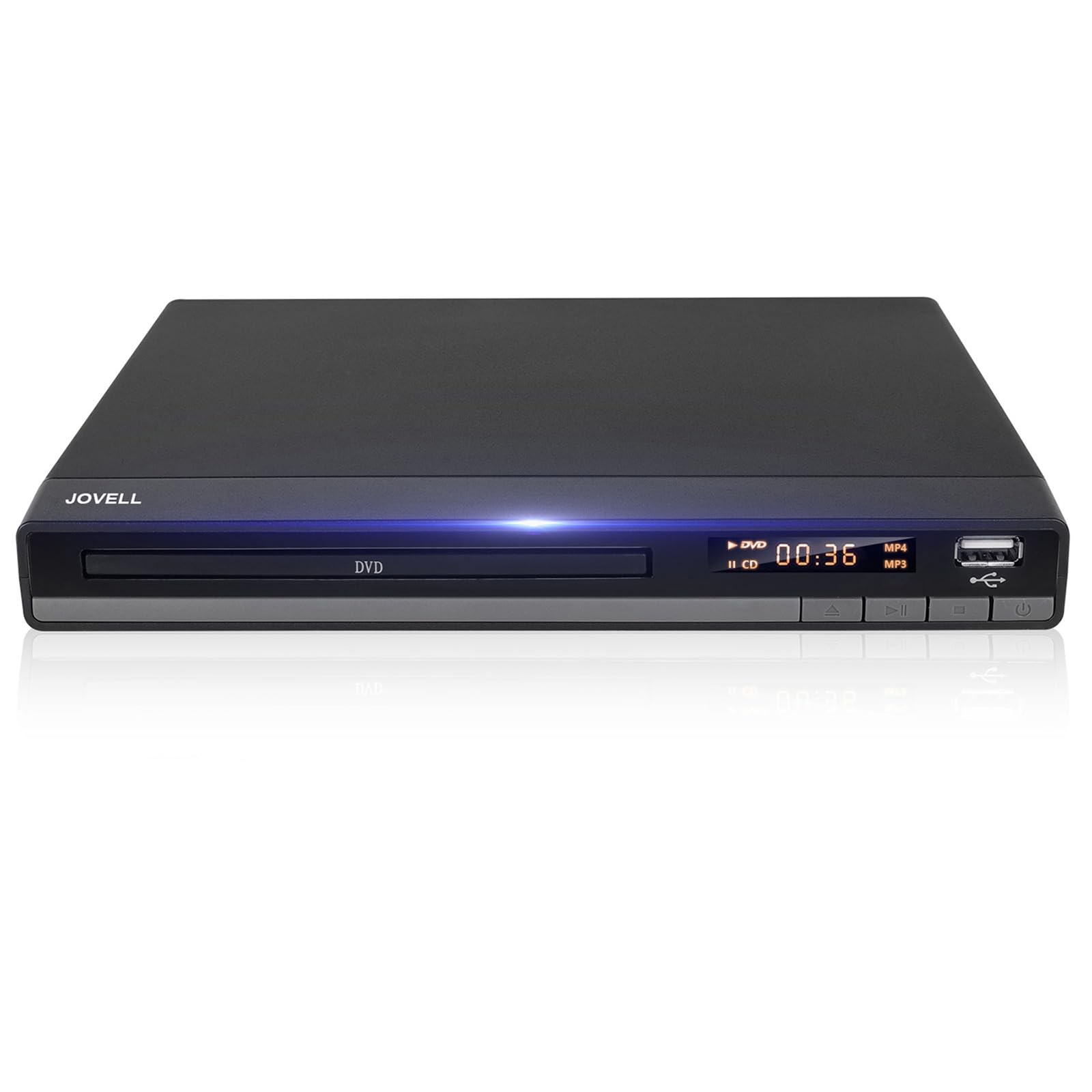
Image: The JOVELL DVD-168 DVD Player, its remote control, HDMI cable, and AV cable.
Key Features
- HDMI 1080P Compatibility: Enhances standard definition content to Full HD quality for an immersive viewing experience.
- Multifunctional Player: Functions as a DVD player, CD player, and U-disk file player.
- USB 2.0 Port: Built-in port for direct playback of digital media files. Supports video formats 720*480/576 (AVI/MPG/MPEG4/VOB). Note: Supports USB 2.0 flash drives up to 32GB. Does not support USB 3.0 or MP4 files via USB.
- All Regions Free: Plays DVDs from any region (1-6, except CPRM). Supports disc formats: CD, DVD, DVD-R/+R, DVD-RW/+RW, CD-R/-RW, VCD, SVCD. Note: Does not support Blu-ray discs.
- Multiple Output Options: Includes 1 HDMI output for connection to TVs or projectors, and 1 composite audio/video output for TV synchronization.
Setup Guide
1. Connecting to a Television
The DVD player offers two primary connection methods: HDMI and RCA (composite video/audio).
HDMI Connection (Recommended for HD Quality)
- Ensure both the DVD player and your TV are powered off.
- Connect one end of the provided HDMI cable to the HDMI OUT port on the back of the DVD player.
- Connect the other end of the HDMI cable to an available HDMI input port on your TV. Note the HDMI input number (e.g., HDMI 1, HDMI 2).
RCA Connection (Standard Definition)
- Ensure both the DVD player and your TV are powered off.
- Connect the yellow plug of the provided AV cable to the VIDEO OUT (yellow) port on the DVD player.
- Connect the white plug to the AUDIO L (white) port and the red plug to the AUDIO R (red) port on the DVD player.
- Connect the other ends of the yellow, white, and red plugs to the corresponding VIDEO IN and AUDIO IN ports on your TV.
2. Power Connection
- Plug the power cord of the DVD player into a standard electrical outlet.
3. Remote Control Battery Installation
- Open the battery compartment on the back of the remote control.
- Insert two AAA batteries (not included), ensuring correct polarity (+/-).
- Close the battery compartment.
Operating Instructions
1. Powering On/Off
Press the POWER button on the front panel of the DVD player or on the remote control to turn the unit on or off.
2. Disc Playback
- Press the OPEN/CLOSE button on the front panel or remote control to open the disc tray.
- Place a DVD, CD, VCD, or SVCD disc onto the disc tray with the label side facing up.
- Press the OPEN/CLOSE button again to close the disc tray.
- The player will automatically begin playback. If a menu appears, use the arrow keys and ENTER button on the remote to navigate.
3. USB Playback
- Insert a USB 2.0 flash drive (up to 32GB) into the USB port on the front of the DVD player.
- The player should automatically detect the USB device and display a menu. If not, press the USB button on the remote control.
- Use the arrow keys and ENTER button on the remote to browse and select your desired media files (AVI, MPG, MPEG4, VOB).
4. Remote Control Functions
The remote control provides full functionality for the DVD player. Key buttons include:
- POWER: Turns the player on/off.
- OPEN/CLOSE: Opens and closes the disc tray.
- PLAY/PAUSE: Starts or pauses playback.
- STOP: Stops playback.
- SKIP (◀◀ / ▶▶): Skips to the previous or next track/chapter.
- FF/REW (◀◀◀ / ▶▶▶): Fast forward or rewind.
- MENU/TITLE: Accesses disc menus or titles.
- SETUP: Enters the system setup menu.
- VOLUME (+/-): Adjusts the audio volume.
- USB: Switches to USB input mode.
Maintenance
1. Cleaning the Unit
Wipe the exterior of the DVD player with a soft, dry cloth. Do not use liquid cleaners or abrasive materials, as they may damage the finish.
2. Disc Handling
Handle discs by their edges. Avoid touching the playing surface. Store discs in their cases to prevent scratches and dust accumulation. Clean dirty discs with a soft, lint-free cloth, wiping from the center outwards.
Troubleshooting
If you encounter issues with your DVD player, refer to the following common problems and solutions:
| Problem | Possible Cause / Solution |
|---|---|
| No power | Ensure the power cord is securely plugged into both the player and the electrical outlet. Check if the outlet is functional. |
| No picture on TV | Verify that the HDMI or AV cables are correctly connected to both the player and the TV. Ensure the TV input source is set to the correct HDMI or AV input. |
| No sound | Check audio cable connections. Ensure TV volume is not muted or too low. Check audio settings on the DVD player and TV. |
| Disc not playing | Ensure the disc is clean and free of scratches. Verify the disc type is supported (not Blu-ray). Ensure the disc is inserted correctly with the label side up. |
| Remote control not working | Check and replace batteries if necessary. Ensure there are no obstructions between the remote and the player's IR sensor. |
| USB device not recognized | Ensure the USB drive is formatted as FAT32 and is a USB 2.0 device (up to 32GB). Check if the files are in supported formats (AVI/MPG/MPEG4/VOB). |
Specifications
- Brand: JOVELL
- Model: DVD-168
- Product Dimensions: 22.61 x 17.53 x 3.81 cm
- Product Weight: 1 kg
- Scanner Resolution: 1920 x 1080 (1080P)
- Compatible Devices: Television
- Special Feature: Region-Free (except CPRM)
- Audio Output Mode: Digital
- Connector Types: HDMI, RCA, USB
- Supported Media Types: CD, DVD, VCD, SVCD, CD-R/-RW, DVD-R/+R, DVD-RW/+RW
- Input Video Compatibility: PAL
- Number of Channels: 5
Warranty and Support
This JOVELL DVD-168 DVD Player comes with a 24-month warranty from the date of purchase. For any product-related inquiries, technical assistance, or warranty claims, please contact our customer service. We offer 24-hour customer service to assist you.
Please retain your purchase receipt as proof of purchase for warranty purposes.