
Sercom LTE2122GR
Sercom 4G Hub Router User Manual
Model: LTE2122GR | Brand: Sercom
1. Introduction
The Sercom 4G Hub Router is a high-performance wireless gateway designed to provide fast and reliable internet connectivity using 4G LTE networks. With its advanced Category 18 LTE capabilities, dual-band Wi-Fi, and multiple Ethernet ports, it is ideal for home and small office environments requiring robust internet access. This manual will guide you through the installation, configuration, and troubleshooting of your device.
2. Package Contents
Please verify that all items listed below are present in your package:
- Sercom 4G Hub Router (LTE2122GR)
- Power Adapter
- Ethernet Cable
- 2 x External SMA Antennas
- Quick Start Guide (if applicable)

Image: The Sercom 4G Hub Router packaging, showing the product box with branding and model information.
3. Product Overview
3.1 Front Panel Indicators
The front panel of the router features several LED indicators that provide information about the device's status:
- Power: Indicates the power status of the router.
- Internet: Shows the status of the internet connection.
- WiFi: Indicates the status of the Wi-Fi network.
- Phone: Indicates the status of the RJ11 phone port.
- LTE Strength: Displays the strength of the 4G LTE signal.

Image: Front view of the Sercom 4G Hub Router, clearly showing the LED indicators for Power, Internet, WiFi, Phone, and LTE Strength.
3.2 Rear Panel Ports
The rear panel of the router contains all the necessary ports for connectivity:
- Power Port: Connects to the power adapter.
- RJ11 Phone Port: For connecting a telephone (functionality depends on SIM card and service provider).
- LAN/WAN Gigabit Ethernet Ports (x2): For connecting wired devices or an external modem.
- External Antenna Connectors (x2): For attaching the included SMA antennas to enhance 4G signal reception.

Image: Rear view of the Sercom 4G Hub Router, displaying the power port, RJ11 phone port, two Gigabit Ethernet ports, and two external antenna connectors.
3.3 External Antennas
The router comes with two external SMA antennas to improve 4G signal reception, especially in areas with weaker coverage.
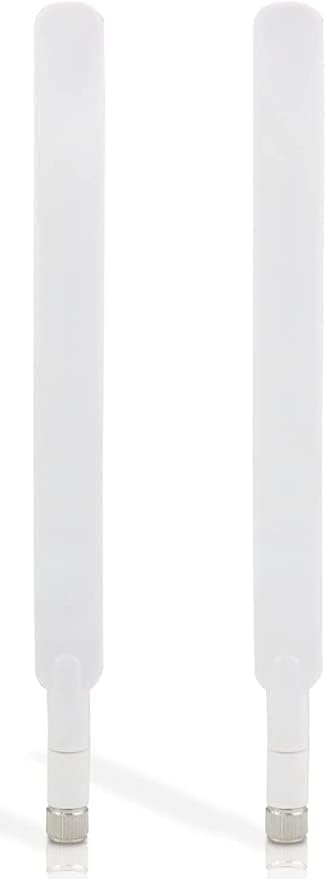
Image: A close-up of the two external SMA antennas included with the Sercom 4G Hub Router.
4. Setup
Follow these steps to set up your Sercom 4G Hub Router:
- Insert SIM Card: Locate the SIM card slot, usually on the side or bottom of the router. Insert your active 4G SIM card into the slot until it clicks into place. Ensure the SIM card is correctly oriented.
- Attach Antennas: Screw the two external SMA antennas onto the corresponding connectors at the rear of the router. Tighten them gently by hand.
- Connect Power: Connect the power adapter to the router's power port and then plug the adapter into a power outlet. The Power LED on the front panel should illuminate.
- Power On: Press the power button (if available) or wait for the router to automatically power on. The router will begin its startup sequence.
- Check Indicators: Once powered on, observe the front panel LEDs. The Internet and LTE Strength indicators should eventually turn solid, indicating a successful connection to the 4G network.
- Connect Devices:
- Wi-Fi: On your computer or mobile device, search for available Wi-Fi networks. Select the router's SSID (network name) and enter the Wi-Fi password. These details are typically found on a label on the bottom or back of the router.
- Ethernet: Connect an Ethernet cable from one of the router's LAN ports to your computer or other wired network device.
5. Operating Instructions
5.1 Accessing the Router's Web Interface
To configure advanced settings, access the router's web-based management interface:
- Ensure your device is connected to the router via Wi-Fi or Ethernet.
- Open a web browser (e.g., Chrome, Firefox, Edge).
- In the address bar, type the router's default IP address (commonly
192.168.1.1or192.168.0.1) and press Enter. The exact IP address is usually printed on a label on the router. - Enter the default username and password when prompted. These are also typically found on the router's label. It is highly recommended to change the default password for security reasons.
5.2 Wi-Fi Configuration
From the web interface, you can customize your Wi-Fi settings:
- Change the Wi-Fi Network Name (SSID) for both 2.4GHz and 5GHz bands.
- Modify the Wi-Fi password (WPA2-PSK is recommended for security).
- Enable or disable guest Wi-Fi networks.
- Adjust Wi-Fi channel and bandwidth for optimal performance.
5.3 Network Settings
The web interface allows for various network configurations:
- View 4G connection status and signal strength.
- Configure LAN settings, including DHCP server.
- Set up port forwarding or VPN passthrough if needed.
6. Maintenance
To ensure the longevity and optimal performance of your Sercom 4G Hub Router, consider the following maintenance tips:
- Placement: Place the router in a central location, away from obstructions, large metal objects, and other electronic devices that may cause interference. Elevate it if possible.
- Cleaning: Regularly clean the router's exterior with a soft, dry cloth. Avoid using liquid cleaners or aerosols. Ensure ventilation holes are free from dust.
- Firmware Updates: Periodically check the manufacturer's website for firmware updates. Keeping the firmware updated can improve performance, add new features, and enhance security.
- Restarting: If you experience connectivity issues, try restarting the router by unplugging the power adapter for 10 seconds and then plugging it back in.
7. Troubleshooting
If you encounter issues with your router, refer to the following common problems and solutions:
| Problem | Possible Cause | Solution |
|---|---|---|
| No Power LED | Power adapter not connected or faulty. | Ensure power adapter is securely connected to the router and a working power outlet. Try a different outlet. |
| No Internet Connection (Internet LED off/red) | No active SIM card, poor 4G signal, or SIM card issues. | Ensure SIM card is correctly inserted and active. Check LTE Strength LED. Move router to an area with better signal. Contact your mobile network provider. |
| Cannot connect to Wi-Fi | Incorrect Wi-Fi password, Wi-Fi disabled, or signal interference. | Verify Wi-Fi password. Check Wi-Fi LED on router. Restart router. Reduce distance to router or remove obstructions. |
| Slow Internet Speed | Poor 4G signal, network congestion, or too many connected devices. | Check LTE Strength LED. Limit number of active devices. Try restarting the router. Consider upgrading your data plan if consistently slow. |
8. Specifications
Detailed technical specifications for the Sercom 4G Hub Router (LTE2122GR):
| Feature | Description |
|---|---|
| Model | LTE2122GR |
| Mobile Connectivity | 4G LTE Category 18 |
| 4G Download Speed | Up to 600 Mbps |
| 4G Upload Speed | Up to 100 Mbps |
| 4G Bands Supported | LTE bands 1, 3, 7, 20, 32 & 42 |
| External Antennas | Yes, 2x SMA connectors |
| Wi-Fi Connectivity | 802.11a/b/g/n/ac Dual-Band |
| Max Wi-Fi Devices | Up to 64 devices |
| Ethernet Ports | 2 x Gigabit Ethernet (RJ45) |
| Phone Port | 1 x RJ11 |
| Dimensions (L x W x H) | 27.7 x 18.1 x 7.0 cm |
| Weight | 700g |
| Color | White |
| Special Features | Access Point Mode, Guest Mode, WPS |
9. Warranty and Support
Your Sercom 4G Hub Router is covered by a manufacturer's warranty. For specific warranty terms and conditions, please refer to the documentation included with your purchase or visit the official Sercom support website.
Extended warranty options may be available from third-party providers, such as the 1-Year or 2-Year Extended Warranty by Salama Care. These plans offer additional coverage beyond the standard manufacturer's warranty.
For technical support, troubleshooting assistance, or service inquiries, please contact Sercom customer support through their official channels. Ensure you have your product model number (LTE2122GR) and serial number ready when contacting support.
Ask a question about this manual
Ask about setup, troubleshooting, compatibility, parts, safety, or missing instructions. Manuals+ will review the question and use this page’s manual context to help answer it.