
Introduction
This manual provides detailed instructions for setting up, operating, and maintaining your RAPOO E9350G Multi-Device Wireless Keyboard. Please read this manual thoroughly before use to ensure optimal performance and longevity of your device.

Image: The RAPOO E9350G keyboard, showcasing its full layout and slim profile.
1. Setup
1.1 Charging the Keyboard
The RAPOO E9350G keyboard features a built-in rechargeable battery. Before first use, or when the battery is low, connect the keyboard to a power source using the provided USB Type-C cable.
- Connect the Type-C end of the cable to the charging port on the keyboard.
- Connect the other end of the cable to a USB power adapter (not included) or a computer's USB port.
- A full charge typically takes approximately 1 hour and 15 minutes.
- The keyboard can operate for 3-4 days on a full charge, depending on usage.

Image: The RAPOO E9350G keyboard being charged via its Type-C port, with a battery icon indicating charge status.
1.2 Connecting to Devices (Multi-Mode)
The E9350G supports multi-device connectivity, allowing you to connect up to four devices simultaneously via Bluetooth and 2.4G wireless.
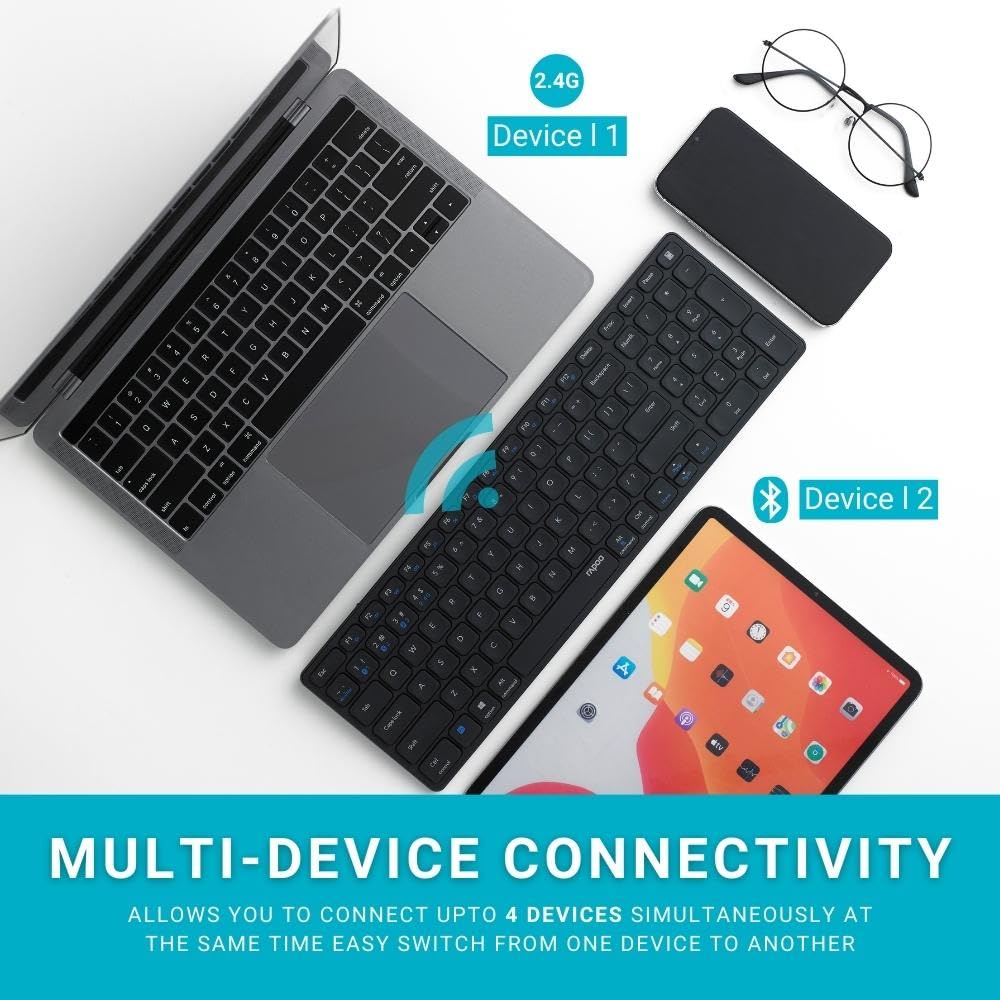
Image: Diagram illustrating the multi-device connectivity of the RAPOO E9350G keyboard with a laptop, tablet, and smartphone.
2.4G Wireless Connection (Device 1)
- Locate the 2.4G USB receiver (usually stored in the keyboard's battery compartment or packaging).
- Plug the USB receiver into an available USB port on your computer or device.
- Turn on the keyboard using the power switch.
- Press the Fn + 2.4G key combination to switch to 2.4G mode. The indicator light will confirm the connection.
Bluetooth Connection (Devices 2, 3, 4)
The keyboard supports up to three Bluetooth connections.
- Turn on the keyboard using the power switch.
- Press and hold Fn + 1, Fn + 2, or Fn + 3 for approximately 3 seconds to enter Bluetooth pairing mode for the desired channel. The indicator light will flash rapidly.
- On your device (e.g., smartphone, tablet, laptop), go to Bluetooth settings and search for new devices.
- Select "RAPOO E9350G" from the list of available devices to pair.
- Once paired, the indicator light on the keyboard will stop flashing and remain solid for a few seconds before turning off.
- Repeat these steps for additional Bluetooth devices using different Fn key combinations (Fn+2, Fn+3).
1.3 Switching Between Connected Devices
To switch between your connected devices, simply press the corresponding key combination:
- Fn + 2.4G: Switch to the device connected via the 2.4G USB receiver.
- Fn + 1: Switch to the first Bluetooth-connected device.
- Fn + 2: Switch to the second Bluetooth-connected device.
- Fn + 3: Switch to the third Bluetooth-connected device.
2. Operating Instructions
2.1 Multimedia Hotkeys
The E9350G keyboard includes dedicated multimedia hotkeys for quick access to various functions. These keys are typically accessed by pressing the Fn key in combination with the F-keys (F1-F12).
- Fn + F1-F12: Access various multimedia and system functions such as media playback control (play/pause, next/previous track), volume adjustment (mute, volume up/down), and other system shortcuts. Refer to the key legends for specific functions.
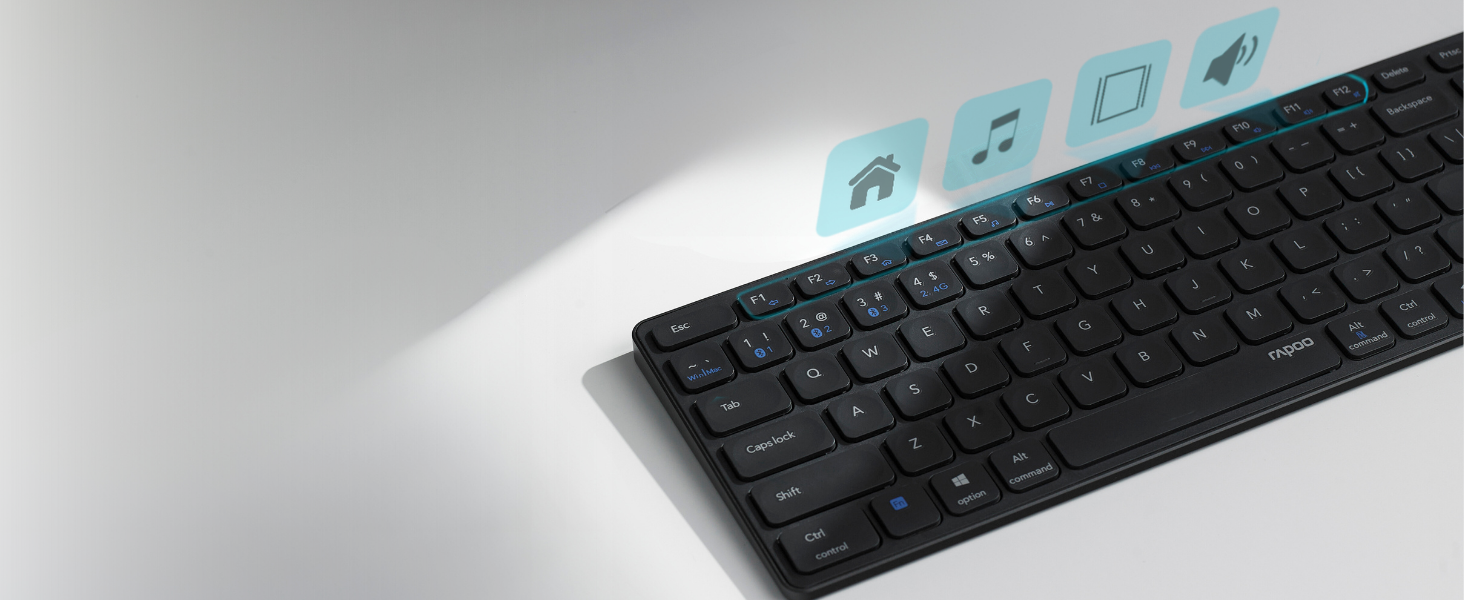
Image: A close-up view of the keyboard highlighting the multimedia function keys and their icons.
2.2 Windows and Mac OS Support
The keyboard is designed to be compatible with both Windows and Mac operating systems. A dedicated key allows you to switch between the layouts.
- Press the Win/Mac key (usually located near the left Ctrl key) to toggle between Windows and Mac key layouts. This adjusts the functionality of certain keys like Alt/Option and Ctrl/Command to match the respective operating system conventions.

Image: The RAPOO E9350G keyboard with a highlighted "Win/Mac" key, indicating its dual operating system compatibility.
3. Maintenance
3.1 Cleaning the Keyboard
To maintain the keyboard's appearance and functionality:
- Disconnect the keyboard from all devices and turn it off before cleaning.
- Use a soft, lint-free cloth slightly dampened with water or a mild cleaning solution.
- Avoid excessive moisture and do not spray cleaners directly onto the keyboard.
- For debris between keys, use compressed air.
The keyboard features a spill-resistant design, offering protection against minor liquid splashes. However, it is not waterproof. Avoid submerging the keyboard in liquids.

Image: Water splashing on the RAPOO E9350G keyboard, demonstrating its spill-resistant feature.
3.2 Battery Care
- Charge the keyboard regularly to maintain battery health.
- Avoid fully discharging the battery frequently.
- If storing the keyboard for an extended period, charge it to about 50% and turn it off.
4. Troubleshooting
| Problem | Possible Solution |
|---|---|
| Keyboard not connecting via Bluetooth. |
|
| 2.4G wireless connection issues. |
|
| Keys are not responding or typing incorrectly. |
|
| Keyboard frequently disconnects. |
|
5. Specifications
| Feature | Detail |
|---|---|
| Model | E9350G |
| Connectivity | Bluetooth, 2.4G RF Wireless |
| Multi-Device Support | Up to 4 devices (1 x 2.4G, 3 x Bluetooth) |
| Operating System Compatibility | Android, iOS, Mac, Windows |
| Keyboard Type | Membrane with Scissor Key Structure |
| Charging Port | USB Type-C |
| Battery Life | 3-4 days (typical usage) |
| Dimensions (LxWxH) | 34.3 x 11.4 x 1.9 cm |
| Weight | 312 g |
| Material | Aluminum alloy base |
| Color | Dark Grey |
6. Warranty and Support
The RAPOO E9350G keyboard comes with a 3-year warranty from the date of purchase. Please retain your proof of purchase for warranty claims.
Manufacturer Information:
RAPOO, Shenzhen RAPOO Technology Co. Limited
Address: 22, Jinxiu Road East, Pingshan District, Shenzhen, China
Importer Information (India):
Supertron Electronics PVT LTD
For technical support or warranty service, please contact your local RAPOO authorized service center or the retailer where the product was purchased.


