
1. Introduction
This manual provides comprehensive instructions for the setup, operation, and maintenance of your JOOAN Dual 3MP PTZ Security Camera. Designed for indoor use, this camera offers advanced features such as dual lenses for monitoring two areas simultaneously, 5G/2.4G dual-band WiFi connectivity, and intelligent monitoring capabilities to enhance your home security or pet/baby monitoring.
Key Features:
- Dual Lenses: Monitor two distinct areas simultaneously with independent views.
- Dual-Band WiFi: Supports both 5GHz and 2.4GHz WiFi networks for flexible connectivity.
- High Resolution: Captures clear 3MP video footage.
- Night Vision: Offers Color, Infrared, and Smart Color night vision modes.
- PTZ Functionality: Pan 355°, Tilt 90° for wide area coverage and 8X digital zoom.
- Auto Tracking: Automatically follows detected motion.
- Two-Way Audio & One-Touch Call: Communicate remotely and allow family members to call you with a single button press.
- Flexible Storage: Supports secure cloud storage and local SD card storage (up to 256GB).
2. Package Contents
Please verify that all items are present in your package:
- 1 x JOOAN Dual Lens Camera
- 1 x Power Adapter (5V)
- 1 x Power Cord (3 meters)
- 1 x Screws Bag
- 1 x Mounting Bracket
- 1 x User Manual (this document)
- 1 x Warning Sign
3. Product Overview
Familiarize yourself with the components of your JOOAN Dual 3MP PTZ Security Camera.

Figure 3.1: Front view of the JOOAN Dual 3MP PTZ Security Camera alongside a smartphone displaying its dual camera feed. The camera features two distinct lenses, one at the top and one at the bottom, allowing for simultaneous monitoring of two different areas. The smartphone screen shows two live feeds, labeled CAM1 and CAM2, demonstrating the camera's dual monitoring capability.

Figure 3.2: The JOOAN Dual 3MP PTZ Security Camera mounted on a wall, illustrating its Pan 355° and Tilt 90° capabilities. Blue arrows indicate the range of motion for both horizontal (pan) and vertical (tilt) adjustments. A smartphone screen below shows the camera's live view with directional controls, demonstrating remote control over its movement to cover a wide area.
4. Setup
4.1 Initial Setup
- Power On: Connect the camera to a power source using the provided 5V adapter and 3-meter power cord. The camera will power on automatically.
- Reset Camera: Locate the reset button, typically found near the camera's head. Press and hold the reset button for approximately 5-10 seconds until you hear a voice prompt indicating the camera is resetting. This prepares the camera for a new connection.
- Download App: Download the free "cam720" app from your device's app store (available on iOS and Android).
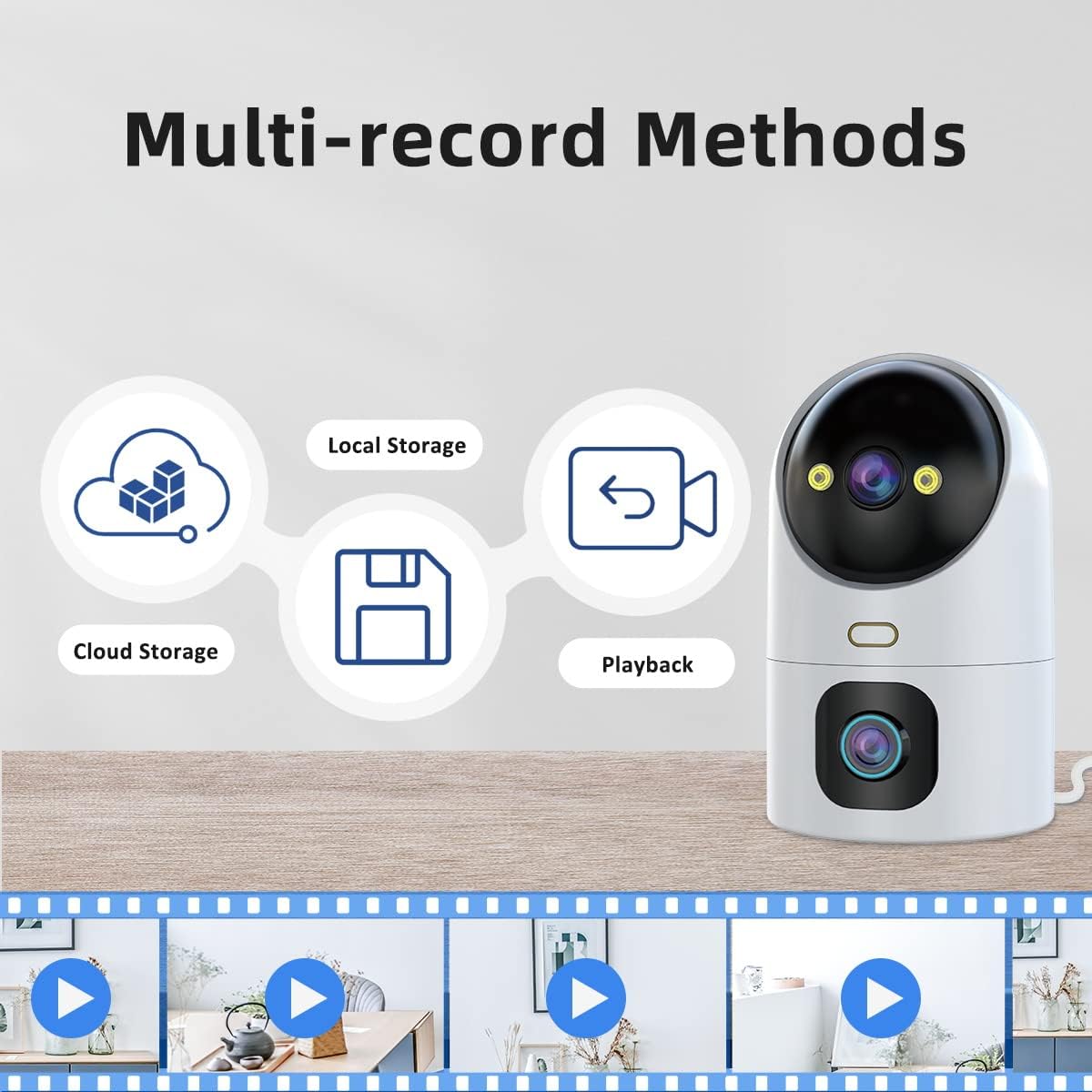
Figure 4.1: The cam720 app interface for remote access and multi-user support. The image shows two individuals viewing the camera feed on their smartphones, emphasizing the ease of access and sharing. Logos for Android, iOS, and Windows indicate broad compatibility for the cam720 application.
- Add Camera to App: Open the cam720 app and follow the on-screen instructions to add your camera. Search for the device (it will typically appear as "JAA-**").
- Connect to WiFi: Enter your WiFi network password when prompted. The camera supports both 5GHz and 2.4GHz WiFi networks. Ensure your mobile device is connected to the same WiFi network during the initial setup process.
4.2 Mounting Options
The JOOAN camera offers versatile installation options to suit your needs:
- Wall-Mounted: Use the included bracket and screws to securely mount the camera on a wall.
- Ceiling-Mounted: The camera can also be mounted to the ceiling for an overhead view.
- Flat Surface: Place the camera on any flat surface such as a table, shelf, or desk.
5. Operating Instructions
5.1 App Usage (cam720)
The cam720 app is your primary interface for controlling and monitoring your camera.
- Remote Access: View live feeds and control camera functions from anywhere using your smartphone.
- Multi-Users: Share access to the camera feed with family members or trusted individuals.
- Two-Way Audio: Use the built-in microphone and speaker to communicate with people or pets near the camera.
- One-Touch Call: The camera features a dedicated button that, when pressed, initiates a call to your connected smartphone, allowing for immediate communication.

Figure 5.1: A hand pressing the 'phone' button on the JOOAN camera, triggering a call notification on a smartphone. This illustrates the camera's one-touch call feature, enabling immediate two-way communication between the camera's location and the remote smartphone user.
5.2 Video Monitoring
Leverage the camera's advanced monitoring capabilities:
- Dual Lenses: The camera's dual lens design allows you to monitor two different areas simultaneously within the same app interface.

Figure 5.2: The JOOAN camera demonstrating its 'One Device = Two Cameras' capability. The image shows the physical camera with two lenses, and a smartphone screen displaying two separate live feeds (Camera1 and Camera2) from different perspectives within a room, highlighting the dual monitoring functionality.
- Pan/Tilt/Zoom (PTZ): Control the camera's viewing angle remotely. Pan horizontally up to 355° and tilt vertically up to 90° to cover a wide area. Utilize the 8X digital zoom for closer inspection.
- Auto Tracking: Enable auto tracking to have the camera automatically follow detected motion within its field of view.
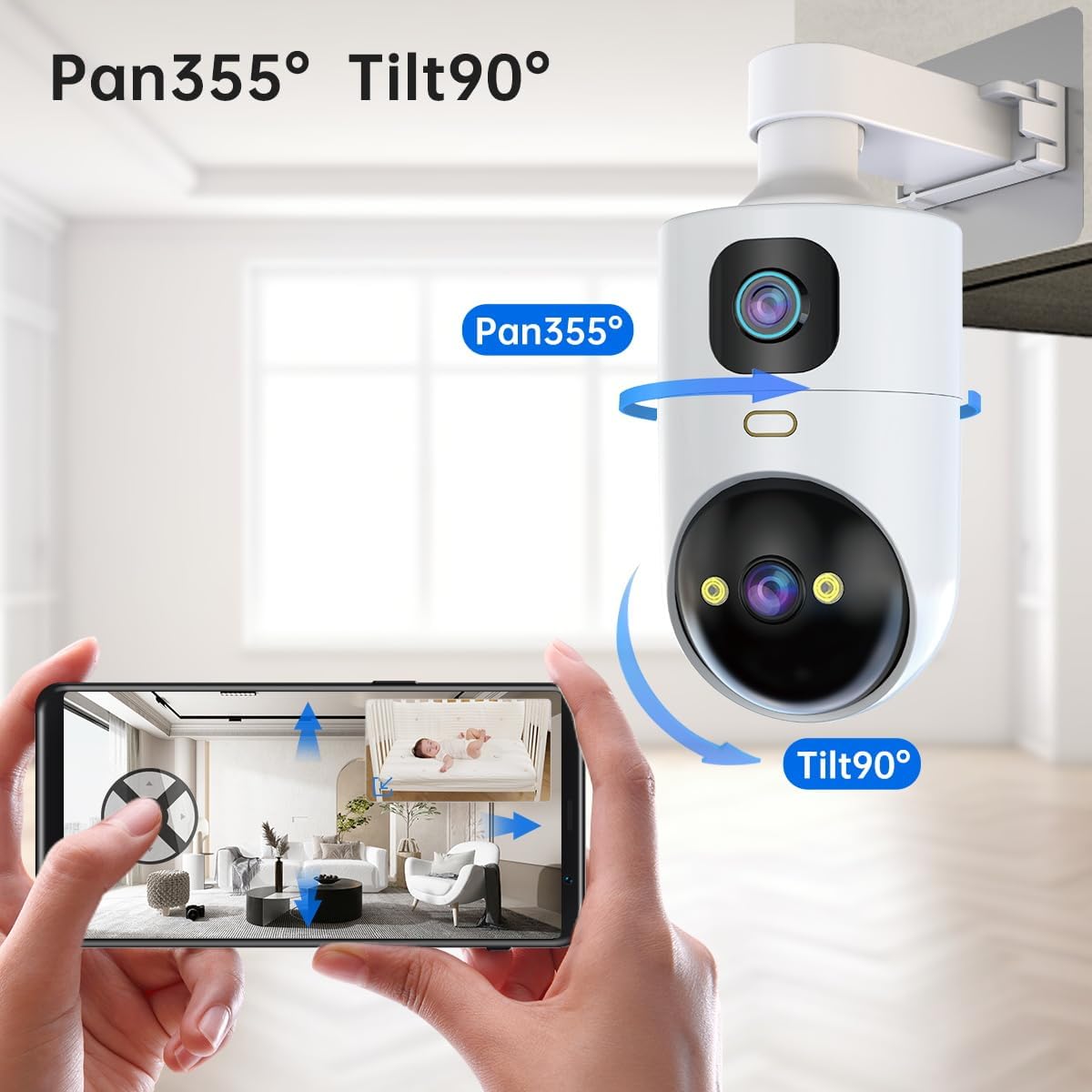
Figure 5.3: An illustration of the camera's Auto Tracking and Timed Cruise features. The camera is positioned in a room, with red markers indicating three preset monitoring points (Preset bit 1, 2, 3). Light rays emanating from the camera show its ability to pan and track movement across these areas, demonstrating its automated surveillance capabilities.
5.3 Night Vision Modes
The camera offers three distinct night vision modes for optimal visibility in low-light conditions:
- Full Color Light: Provides a full-color image in low light using integrated floodlights.
- Infrared Normal Light: Uses infrared LEDs for a clear black-and-white image in complete darkness.
- Smart Color Light: Automatically switches to color night vision when motion is detected, otherwise remaining in infrared mode.

Figure 5.4: Visual representation of the three night vision modes: Full Color Light, Infrared Normal Light, and Smart Color Light. Each mode is depicted with an example image showing the camera's view in different low-light scenarios, highlighting the distinct visual output of each setting.
5.4 Recording and Storage
Your camera supports multiple recording and storage methods:
- Cloud Storage: Securely store video footage in the cloud. Access up to 30 days of video history. Subscription may be required after initial trial.
- SD Card Storage: Insert a microSD card (not included) into the camera for local storage. Supports up to 256GB capacity.
- Recording Modes: Choose between continuous recording or alarm-triggered recording (motion detection).
- Playback: Easily review recorded footage through the cam720 app.

Figure 5.5: An illustration detailing the multiple recording methods available for the JOOAN camera: Cloud Storage, Local Storage (via SD card), and Playback. Icons represent each storage type, and a filmstrip at the bottom shows various recorded moments, indicating the camera's ability to capture and store video for later review.
6. Maintenance
To ensure optimal performance and longevity of your JOOAN camera, follow these maintenance guidelines:
- Cleaning: Gently wipe the camera lens and body with a soft, dry cloth. Avoid using harsh chemicals or abrasive materials that could scratch the lens or damage the finish.
- Firmware Updates: Periodically check the cam720 app for available firmware updates. Keeping your camera's firmware up-to-date ensures you have the latest features, security patches, and performance improvements.
- Power Cycle: If the camera experiences minor issues, try unplugging it from the power source for 10 seconds and then plugging it back in. This can often resolve temporary glitches.
7. Troubleshooting
If you encounter issues with your JOOAN camera, refer to the following common problems and solutions:
| Problem | Possible Cause | Solution |
|---|---|---|
| Camera won't connect to WiFi | Incorrect WiFi password; Camera too far from router; Incorrect WiFi band (2.4GHz vs 5GHz); Router issues. | Double-check WiFi password. Move camera closer to router. Ensure your router supports both 2.4GHz and 5GHz, and that the camera is connecting to the correct band. Reset the camera and try setup again. Restart your router. |
| No video feed in app | Camera offline; Network issues; App glitch. | Check if the camera is powered on. Verify your internet connection. Restart the cam720 app. Power cycle the camera. |
| Poor video quality | Insufficient bandwidth; Dirty lens; Low light conditions. | Ensure stable and strong WiFi signal. Clean the camera lens. Adjust night vision settings if applicable. |
| Two-way audio not working | Microphone/speaker muted in app; App permissions. | Check audio settings in the cam720 app to ensure microphone and speaker are enabled. Grant necessary microphone permissions to the app on your smartphone. |
| SD card not recording | SD card full or corrupted; Incorrect formatting; Recording settings. | Check SD card status in app. Format the SD card via the app (this will erase data). Ensure recording settings (continuous/alarm) are configured correctly. Replace SD card if corrupted. |
If the problem persists after trying these solutions, please contact customer support.
8. Specifications
| Feature | Specification |
|---|---|
| Model Name | W5-U (HS-01-Rotate) |
| Indoor/Outdoor Usage | Indoor |
| Video Capture Resolution | 3 MP |
| Connectivity Protocol | Wi-Fi (5GHz & 2.4GHz) |
| Power Source | Corded Electric (5V Adapter) |
| Mounting Type | Wall Mount, Ceiling Mount, Flat Surface |
| Viewing Angle | Pan 355 Degrees, Tilt 90 Degrees |
| Night Vision Range | 20 Meters |
| Material | Acrylonitrile Butadiene Styrene (ABS) |
| Item Dimensions (L x W x H) | 3.74 x 3.66 x 6.89 inches |
| Item Weight | 15.8 ounces |
| Max Flash Memory Supported | 256 GB (Micro SD Card) |
| Video Encoding | H.264 |
| Alert Type | Audio and Motion |
| Control Method | App (cam720) |
9. Warranty Information
JOOAN products are manufactured with high-quality standards. For specific warranty terms and conditions, please refer to the warranty card included with your product or visit the official JOOAN website. Keep your purchase receipt as proof of purchase for any warranty claims.
10. Customer Support
If you require further assistance or have questions not covered in this manual, please contact JOOAN customer support through the following channels:
- Official Website: Visit the JOOAN official website for FAQs, support resources, and contact information.
- In-App Support: The cam720 app may offer a support or feedback section where you can submit inquiries.
Please have your product model (HS-01-Rotate) and purchase details ready when contacting support.


