
1. Product Overview
This manual provides instructions for the CarlinKit CarPlay Ai Box, Model 8G+128G - Ultra. This device upgrades your wired CarPlay system to a wireless Android 13 platform, enabling wireless CarPlay and Android Auto, along with access to various applications and enhanced navigation features. It features an 8GB RAM and 128GB ROM for smooth performance and ample storage.
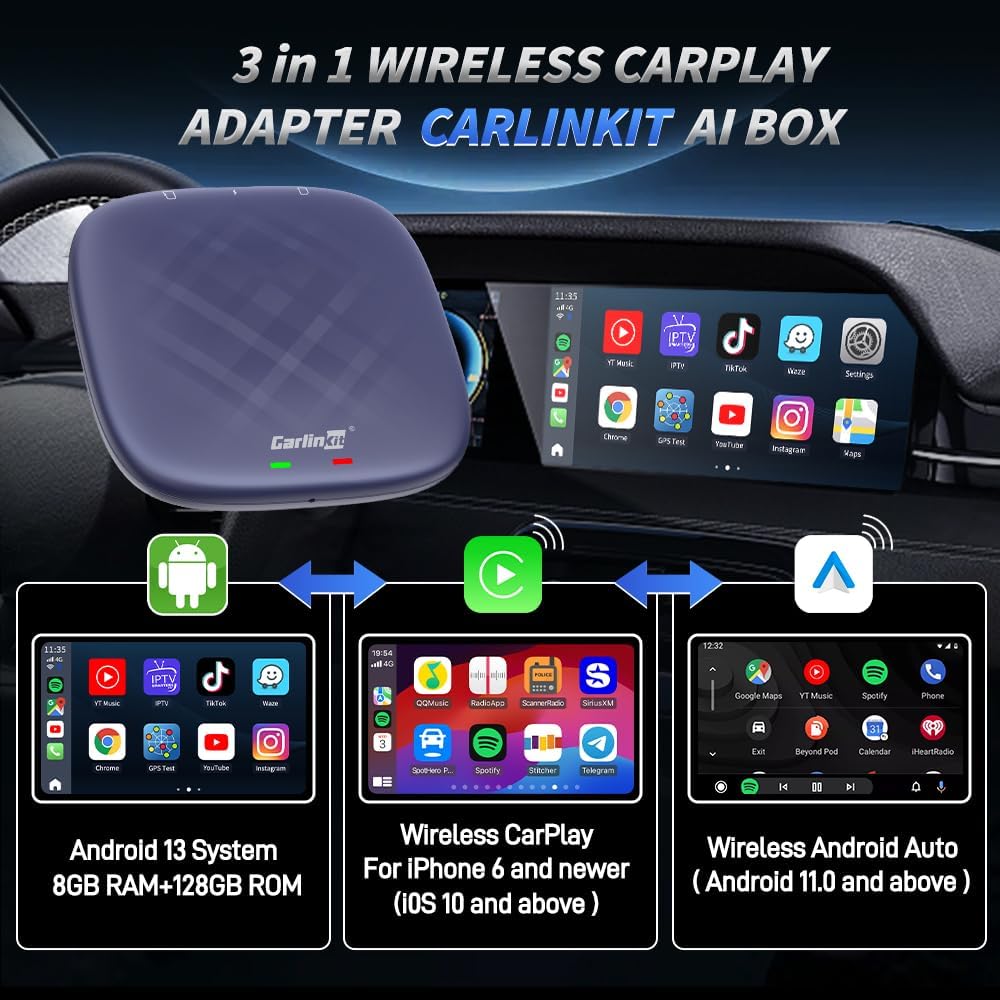
Figure 1: CarlinKit Ai Box 3-in-1 Wireless Adapter Overview
2. Package Contents
Verify that all items are present in your package:
- CarlinKit CarPlay Ai Box (8G+128G - Ultra)
- Type-C to Type-C Cable
- USB-A to Type-C Cable
- Instruction Manual

Figure 2: Package Contents
3. Compatibility Requirements
Before installation, please ensure your vehicle and mobile device meet the following requirements:
- Vehicle Compatibility: Must have a built-in wired CarPlay touch screen system.
- Incompatible Vehicles: Not compatible with BMW and Tesla models.
- Limited Compatibility: Nissan/Changan vehicles may experience compatibility issues. Please purchase with caution.
- iPhone Compatibility: iPhone 6 and above, running iOS 10.0 and above.
- Android Phone Compatibility: Android phones running Android 11.0 and above.

Figure 3: Vehicle Compatibility Notes
4. Setup and Installation
Follow these steps to set up your CarlinKit CarPlay Ai Box:
- Connect the Device: Plug the CarlinKit Ai Box into your car's USB port. Select the appropriate cable (Type-C to Type-C or USB-A to Type-C) based on your car's port. The device's indicator lights will flash upon successful connection.
- Initial Recognition: When connecting for the first time, your car's infotainment system will adapt to the device's resolution and may reboot. This is normal.
- Access AutoKit App: Once the device is recognized and the system has loaded, tap the "AutoKit" icon on your car's screen to access the product's wireless CarPlay/Android Auto connectivity interface.
- Wireless CarPlay Connection (for iPhone users):
- On your iPhone, go to Settings and enable Wi-Fi and Bluetooth.
- In the Bluetooth settings, find and pair with the CarlinKit Ai Box's Bluetooth signal (e.g., "AutoKit-TBox Plus").
- Confirm the pairing request on your iPhone and allow CarPlay access. Wireless CarPlay will become available.
Video 1: Wireless CarPlay Operation Tutorial
- Wireless Android Auto Connection (for Android users):
- On your Android phone, enable Wi-Fi and Bluetooth.
- In the Bluetooth settings, find and pair with the CarlinKit Ai Box's Bluetooth signal (e.g., "AutoKit-TBox Plus").
- Confirm the pairing request on your Android phone. Wireless Android Auto will become available.
Video 2: Wireless Android Auto Operation Tutorial
- SIM/TF Card Insertion (Optional): For 4G network access or expanded storage, insert a Nano SIM card (metal face down) and/or a Micro SD card into the designated slots on the device. Ensure correct orientation to avoid damage.
- Hotspot Connection (Optional): To provide internet access to the device via your mobile phone, enable your phone's personal hotspot. On the car screen, navigate to WLAN settings and connect to your phone's hotspot.

Figure 4: Connecting the Ai Box to Car USB

Figure 5: SIM/TF Card Slots
Video 3: SIM/TF Card Insertion Tutorial

Figure 6: Hotspot Connection Method
5. Operating Instructions
The CarlinKit Ai Box provides a full Android 13 system on your car's display, offering a range of functionalities:
- App Access: Download and use various applications from the Google Play Store, including navigation, music, and video streaming services.
- Video Streaming & Gaming: Enjoy platforms like Netflix, YouTube, and TikTok directly on your car's screen. The device also supports connecting game controllers for in-car gaming.
- Navigation: Utilize built-in GPS, Glonass, and BeiDou satellite positioning for accurate navigation with your preferred map applications.
- Voice Assistant Control: Use voice commands (e.g., "Hey Google", "Hey Siri") for navigation, calls, music, and other functions, ensuring a hands-free experience.
- Retain Original Car Features: The device integrates seamlessly with your car's existing controls, including touch screen, touchpad, steering wheel buttons, and OEM knobs.
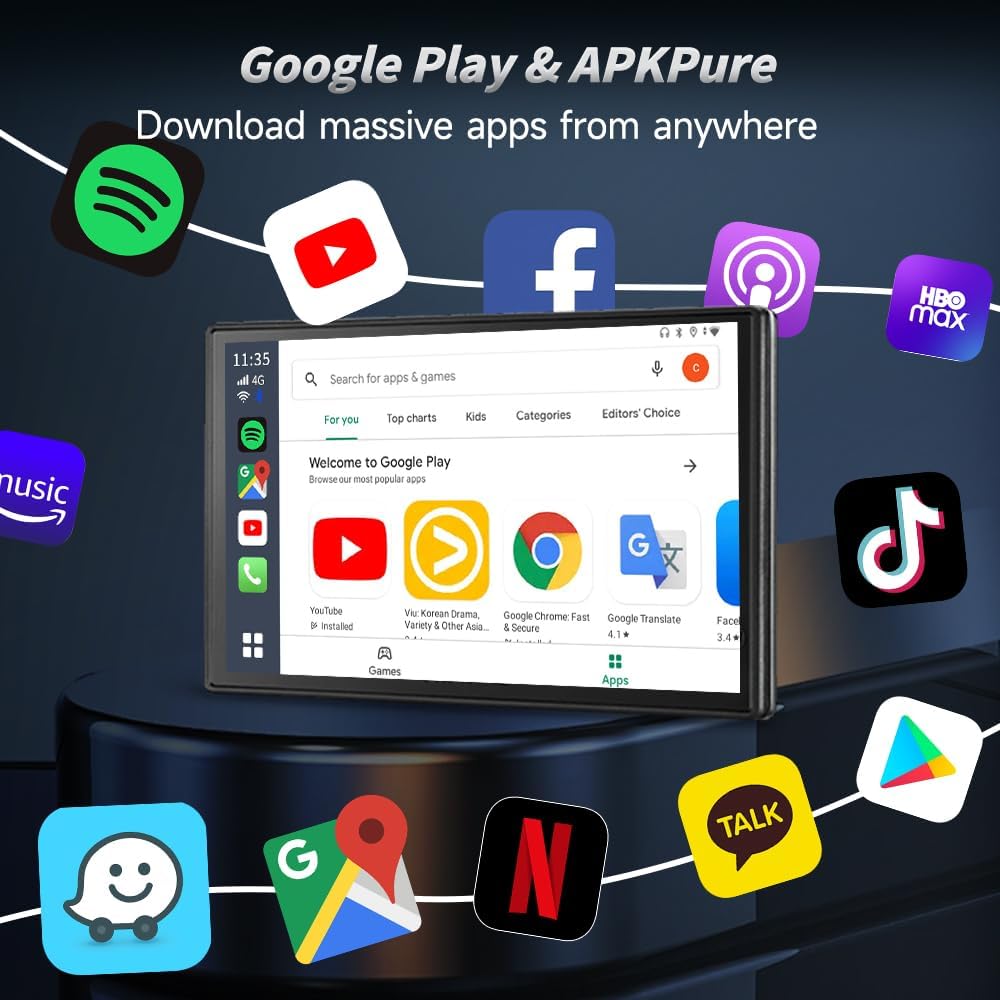
Figure 7: Google Play Store on Car Screen

Figure 8: Video Streaming and Gaming
Video 4: Next Gen Chip Big Memory Flawless Video Experience More

Figure 9: GPS Navigation Functionality

Figure 10: Voice Assistant Control

Figure 11: Original Car Feature Retention
6. Product Specifications
| Feature | Detail |
|---|---|
| Brand | Carlinkit |
| Model Name | 8G+128G - Ultra |
| Operating System | Android 13 |
| Processor | Qualcomm SM6225 2.0 GHz 11nm |
| Memory | 8GB RAM + 128GB ROM |
| Connectivity Technology | Bluetooth (4.2 BLE + 5.0 BLE), Wi-Fi (802.11 a/b/g/n/ac, 2.4G+5G) |
| Supported Satellite Navigation System | GPS, Glonass, BeiDou |
| Human-Interface Input | Touchscreen |
| Item Weight | 0.16 Kilograms |
| Included Components | Packing box, Type-C to Type-C Cable, USB-A to Type-C Cable, instructions |

Figure 12: Internal Components and Specifications
7. Troubleshooting
If you encounter issues, please refer to the following common solutions:
- Connection Issues: Ensure the device is securely plugged into the correct USB port. Verify your car supports wired CarPlay. Check your phone's Wi-Fi and Bluetooth settings to ensure they are enabled and correctly paired.
- Slow Performance: Close any unused applications running in the background on the Ai Box. Ensure a stable internet connection if streaming content.
- No Sound: Check volume levels on both the car's infotainment system and the CarlinKit Ai Box. Ensure the correct audio source is selected in your car's system.
- App Compatibility: Not all Android applications are optimized for car screens. Some apps may not function as expected or may require specific screen resolutions.
- Device Rebooting: If the device reboots unexpectedly, try restarting your car's infotainment system. If issues persist, ensure the device firmware is up to date.
8. Warranty and Customer Support
CarlinKit is committed to providing excellent after-sales support:
- Hardware Warranty: Enjoy a 365-day hardware warranty for non-human damage.
- Return Policy: A 90-day return and exchange policy is available.
- Software & Technical Services: Benefit from free lifetime software upgrades and technical support.
- Contact Support: If you encounter any problems or have questions, please contact the seller directly. To expedite assistance, include the product name and ASIN (B0C7M9RT2W) in your message.
Video 5: CarlinKit Methods for After-Sales Contact


