
1. Product Overview
The BoxWave USB-A to USB-C PortChanger adapter is designed to convert a traditional USB Type-A port into a versatile USB Type-C port. This enables compatibility with newer USB-C devices for both charging and data transfer functions. The adapter supports On-The-Go (OTG) functionality, allowing your device to act as a host for USB-C accessories.
This product comes in a convenient 5-pack, providing multiple adapters for various uses. Its compact size and durable aluminum alloy construction ensure portability and long-lasting performance.
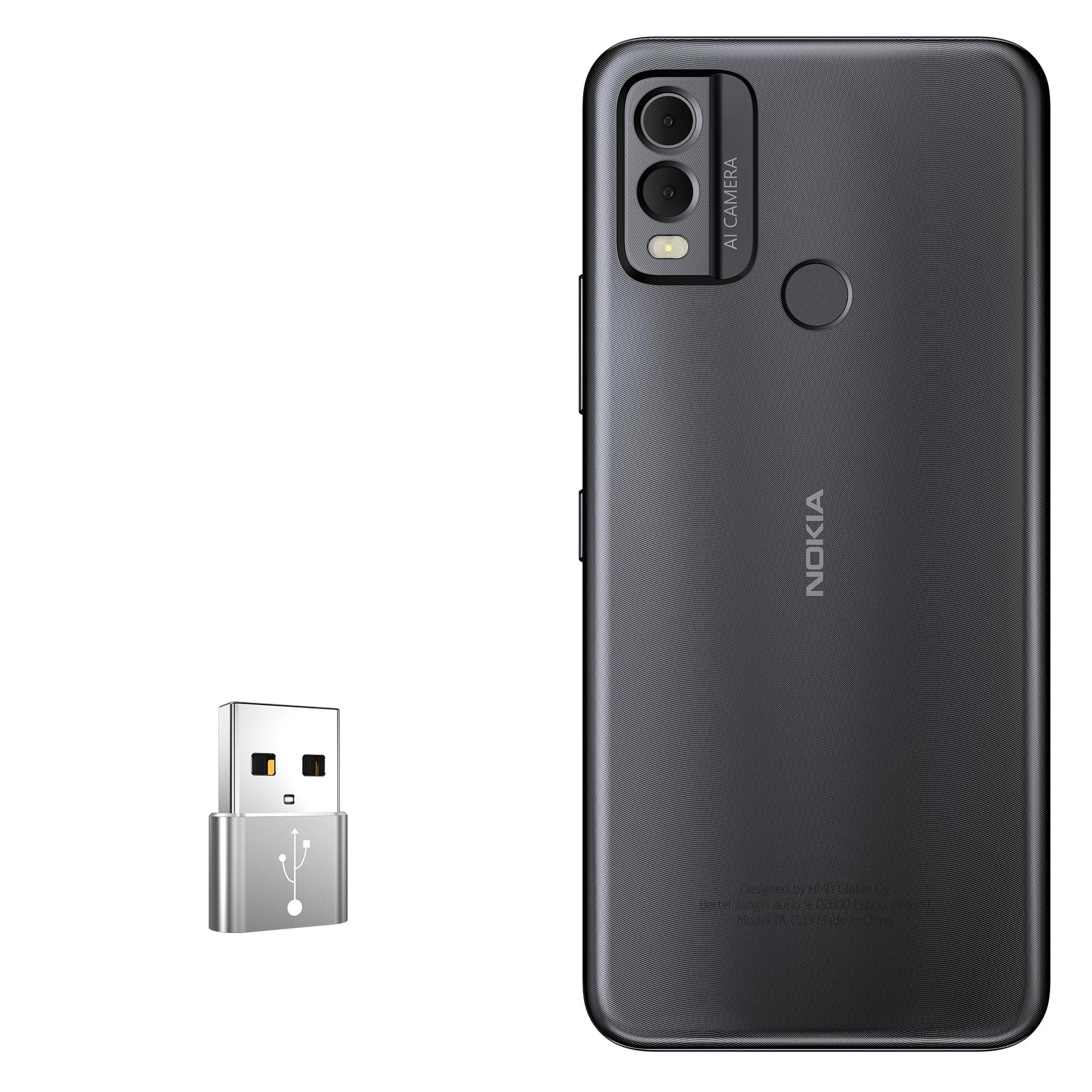
Image 1.1: A single BoxWave USB-A to USB-C PortChanger adapter in metallic silver.
2. Setup Instructions
The BoxWave PortChanger adapter is designed for plug-and-play operation, requiring no additional drivers or software installation.
- Identify Ports: Locate an available USB Type-A port on your charging device (e.g., wall charger, power bank) or data host device (e.g., computer, smartphone with OTG support).
- Connect Adapter: Insert the USB Type-A (male) end of the PortChanger adapter into the USB Type-A port.
- Connect USB-C Device/Cable: Plug your USB Type-C charging cable or USB Type-C accessory (e.g., flash drive, headphones) into the USB Type-C (female) end of the adapter.

Image 2.1: Diagram illustrating the USB-A male plug and USB-C female interface of the adapter.
3. Operating Instructions
3.1 Charging Your Device
- Connect the BoxWave PortChanger adapter to a USB-A power source (e.g., USB wall charger, computer USB-A port).
- Plug your USB-C charging cable into the USB-C female port of the adapter.
- Connect the other end of the USB-C cable to your device (e.g., Nokia C22). Your device should begin charging.

Image 3.1: Visual guide for connecting the adapter to a USB charger and a USB-C charging cable.
3.2 Data Transmission (OTG Functionality)
The adapter supports On-The-Go (OTG) functionality, allowing data transfer between a USB-A host device and a USB-C accessory.
- Connect the BoxWave PortChanger adapter to a USB-A port on your host device (e.g., laptop, smartphone with OTG support).
- Plug your USB-C accessory (e.g., USB-C flash drive, external hard drive, USB-C headphones) into the USB-C female port of the adapter.
- Your host device should recognize the connected USB-C accessory, allowing you to transfer data or use the accessory as intended.

Image 3.2: Example of data transmission between a laptop and a smartphone using the adapter.
4. Maintenance
- Cleaning: Use a soft, dry cloth to clean the adapter. Avoid using liquid cleaners or abrasive materials.
- Storage: Store the adapter in a cool, dry place away from direct sunlight and extreme temperatures.
- Handling: Avoid dropping or subjecting the adapter to strong impacts, which could damage its internal components or connectors.
- Moisture: Keep the adapter away from water and other liquids to prevent electrical damage.
5. Troubleshooting
- Adapter Not Recognized:
- Ensure the adapter is fully inserted into the USB-A port.
- Try connecting the adapter to a different USB-A port on your device or a different host device.
- Ensure your USB-C device/cable is properly connected to the adapter.
- Device Not Charging:
- Verify that the USB-A power source is functional.
- Check if your USB-C charging cable is working correctly by testing it directly with a USB-C charger.
- Ensure your device is compatible with the power output of the USB-A source.
- Data Transfer Issues:
- Confirm that your host device (e.g., smartphone) supports USB OTG functionality.
- Ensure the USB-C accessory is functioning correctly.
- Try restarting both the host device and reconnecting the adapter and accessory.
6. Specifications
| Feature | Description |
| Product Name | Type-C Adapter |
| Model | PortChanger |
| USB Type | USB 2.0 Male (USB-A) to Type-C Female |
| Function | Data Transfer and Charging (OTG compatible) |
| Material | High-grade Aluminum Alloy |
| Color | Metallic Silver (other colors may be available) |
| Dimensions (Approx.) | 20mm (Length) x 14mm (Width) x 7mm (Thickness) |
| Weight | 0.3 ounces (approx. 8.5 grams) |
| Application | Laptops, Smartphones, and other devices with USB-A ports |

Image 6.1: Detailed specifications and dimensions of the BoxWave PortChanger adapter.
7. Warranty and Support
BoxWave provides limited third-party technical support for the Nokia C22 when used with this adapter. This support is available for up to 3 inquiries via electronic messaging. Please note that BoxWave is not affiliated with or endorsed by Nokia.
For further assistance or inquiries, please contact BoxWave customer support through their official channels.