
TMEZON MZ-M710+MZ-D10
TMEZON WLAN Video Intercom System User Manual
Model: MZ-M710+MZ-D10
Product Overview
The TMEZON WLAN Video Intercom System provides a comprehensive solution for home security and communication. This 2-wire system features a 1080P camera doorbell and a 7-inch IP touchscreen monitor, enabling remote access and control via a smartphone application. Key functionalities include two-way audio, remote unlocking, motion detection, and automatic video recording.

Image: The TMEZON WLAN Video Intercom System, showcasing the indoor monitor, outdoor doorbell unit, a set of RFID unlock cards, and a smartphone displaying the live view and unlock function via the app.
Setup and Installation
1. Package Contents
- 7-inch LCD Touchscreen Monitor (Indoor Unit)
- 1080P Mini Doorbell Camera (Outdoor Unit)
- RFID Unlock Cards (8 included)
- Mounting Hardware
- Power Adapter
- User Manual (this document)
2. Physical Installation
The system utilizes a 2-wire connection for communication between the indoor monitor and the outdoor doorbell. Ensure proper wiring according to the provided wiring diagram (not included in this manual, refer to the separate installation guide if available). Mount the outdoor doorbell unit in a suitable location, ensuring it is protected from direct heavy rain, although it is IP65 weatherproof. Install the indoor monitor at a convenient height within your home.
3. Network Connection
Connect the indoor monitor to your 2.4GHz Wi-Fi network. This connection is essential for remote access and app functionality. Follow the on-screen prompts on the monitor to configure the Wi-Fi settings.
4. App Setup (TuyaSmart)
Download the "TuyaSmart" application from your smartphone's app store (available on App Store and Google Play). Register an account and add your TMEZON intercom system to the app by following the in-app instructions. This typically involves scanning a QR code displayed on the indoor monitor.

Image: A smartphone screen showing the TuyaSmart app with a live video feed from the doorbell camera and a prominent unlock icon, demonstrating remote live view and unlocking capabilities.
Operating Instructions
1. Answering Calls and Two-Way Audio
When a visitor presses the doorbell, the indoor monitor will ring, and your smartphone will receive an APP notification. You can answer the call from either the monitor or the app. The system supports two-way audio, allowing you to speak with the visitor.

Image: A person interacting with the indoor monitor, which displays a live video feed. Speech bubbles indicate a two-way audio conversation, with one bubble saying "Amy, are you home?" and the other "Yes, come in!".
2. Door Unlocking Methods
The TMEZON intercom system offers three methods for unlocking your door:
- App Unlock: Remotely unlock the door from anywhere using the TuyaSmart app on your smartphone.
- RFID Card Unlock: Swipe one of the included RFID cards against the outdoor doorbell unit to unlock the door.
- Monitor Unlock: Unlock the door directly from the 7-inch touchscreen monitor indoors.

Image: A composite image illustrating the three unlocking methods: unlocking via the smartphone app, unlocking by swiping an RFID card on the outdoor doorbell, and unlocking directly from the indoor monitor's touchscreen.
3. Automatic Snapshot and Video Recording
When a visitor presses the doorbell, the camera automatically captures a snapshot or records a video. These files are saved to a Micro SD card (up to 256GB, not included) inserted into the indoor monitor. You can review these recordings at any time via the smartphone app.

Image: The indoor monitor with a Micro SD card inserted into its slot, accompanied by a visual representation of a filmstrip, indicating video recording and playback capabilities.
4. Motion Detection
The system features intelligent motion detection. If motion is detected near the outdoor doorbell, you will receive a notification on your phone, and a video or image will be recorded to the SD card. The camera has a 126° wide-angle view.
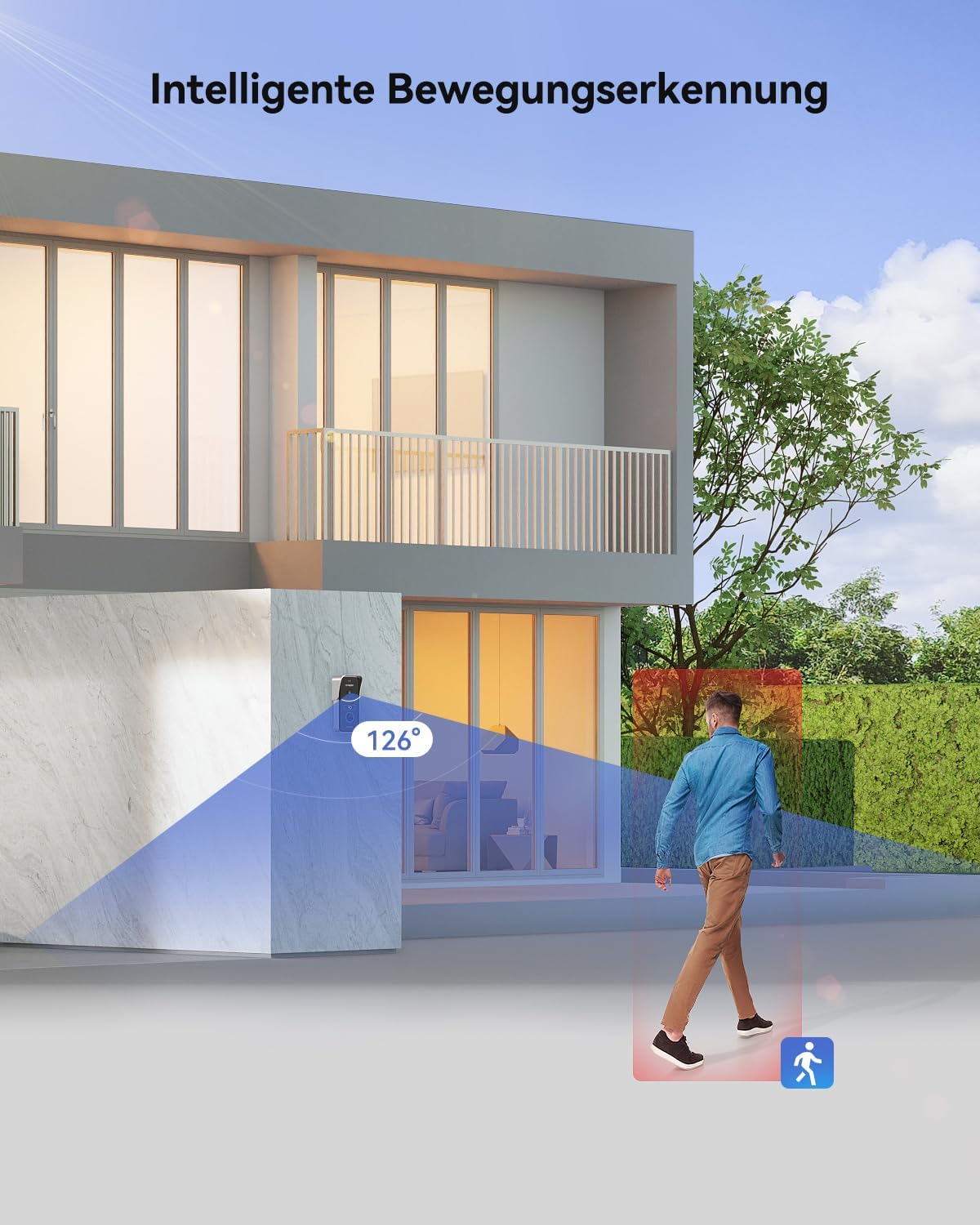
Image: An illustration depicting the intelligent motion detection feature, showing a person walking into the 126-degree detection zone of the outdoor doorbell camera, triggering an alert.
5. Sharing Device with Family
You can create a family group within the TuyaSmart app to share access to the intercom system with family members. This allows multiple users to receive live views and notifications via the app.
Maintenance
- Cleaning: Use a soft, dry cloth to clean the monitor screen and outdoor unit. Avoid abrasive cleaners or solvents.
- Firmware Updates: Periodically check the TuyaSmart app for available firmware updates for your device to ensure optimal performance and security.
- SD Card Management: Regularly back up important recordings from the Micro SD card and format it periodically to maintain recording efficiency.
- Outdoor Unit Care: While IP65 weatherproof, ensure the outdoor unit's lens is clear of dirt or obstructions for optimal image quality.
Troubleshooting
| Problem | Possible Cause | Solution |
|---|---|---|
| Monitor or App frequently disconnects. | Unstable Wi-Fi connection; interference; temporary system glitch. |
|
| No picture or frozen picture. | Poor connection between indoor and outdoor units; camera malfunction; software issue. |
|
| Doorbell not ringing or notifications not received. | Notification settings disabled; app not running in background; network issue. |
|
| RFID cards not unlocking. | Card not properly registered; card damaged; reader malfunction. |
|
Specifications
| Feature | Detail |
|---|---|
| Model Number | MZ-M710+MZ-D10 |
| Monitor Display | 7-inch LCD Touchscreen |
| Camera Resolution | 1080P HD |
| Camera Viewing Angle | 126° Wide-angle |
| Night Vision | Built-in Infrared Sensor |
| Connectivity | 2-wire system, 2.4GHz Wi-Fi |
| Unlocking Methods | APP, RFID Card, Monitor Touchscreen |
| Storage | Micro SD Card (up to 256GB, not included) |
| Weatherproof Rating | IP65 (Outdoor Unit) |
| Voltage | 24 Volt |
| Item Weight | 1.42 Kilograms |
| Packaging Dimensions | 29.7 x 19.6 x 10.4 cm |

Image: A diagram illustrating the physical dimensions of both the indoor monitor (236mm x 143mm) and the outdoor doorbell unit (128mm height, 26mm depth, 57mm width).

Image: A split image demonstrating the 1080P camera's performance during day and night, showing a clear color image in daylight and a clear black-and-white image with infrared illumination at night.
Warranty and Support
For specific warranty information regarding your TMEZON WLAN Video Intercom System, please refer to the warranty card included with your product or contact TMEZON customer support directly. Support contact details can typically be found on the manufacturer's official website or within the TuyaSmart application's help section.
No official product video URLs were provided in the product data, therefore no videos could be embedded in this manual.
Related documentsMZ-M710+MZ-D10

Ask a question about this manual
Ask about setup, troubleshooting, compatibility, parts, safety, or missing instructions. Manuals+ will review the question and use this page’s manual context to help answer it.