
Jectse Jectsehtin20gcvm-11
Jectse MP3 Player with Bluetooth User Manual
Model: Jectsehtin20gcvm-11
1. Introduction
This manual provides detailed instructions for the operation and maintenance of your Jectse MP3 Player. This portable device features a 2.4-inch full-touch screen, 4GB internal storage, Bluetooth 5.0 connectivity, FM radio, E-book reader, and voice recording capabilities. Please read this manual thoroughly before using the device to ensure proper functionality and longevity.
2. Safety Information
- Do not expose the device to extreme temperatures, direct sunlight, or high humidity.
- Avoid dropping or subjecting the device to strong impacts.
- Do not disassemble or attempt to repair the device yourself. This will void the warranty.
- Use only the provided charging cable and certified power adapters.
- Listen at moderate volume levels to prevent hearing damage.
- Keep the device away from water and other liquids.
3. Package Contents
Verify that all items are present in the package:
- Jectse MP3 Player
- Wired Headphones
- USB Charging Cable

Image: The Jectse MP3 Player, along with its included wired headphones and USB charging cable, laid out on a surface.
4. Product Overview
The Jectse MP3 Player features a compact design with a 2.4-inch touch screen for intuitive navigation. The device includes physical buttons on the side for power, volume control, and other functions. A built-in speaker is located on the back.

Image: Front view of the Jectse MP3 Player displaying its colorful touch screen interface with icons for Music, Video, Dictionary, Recorder, Settings, Applications, Folder, Listening, FM Radio, and Ebook.
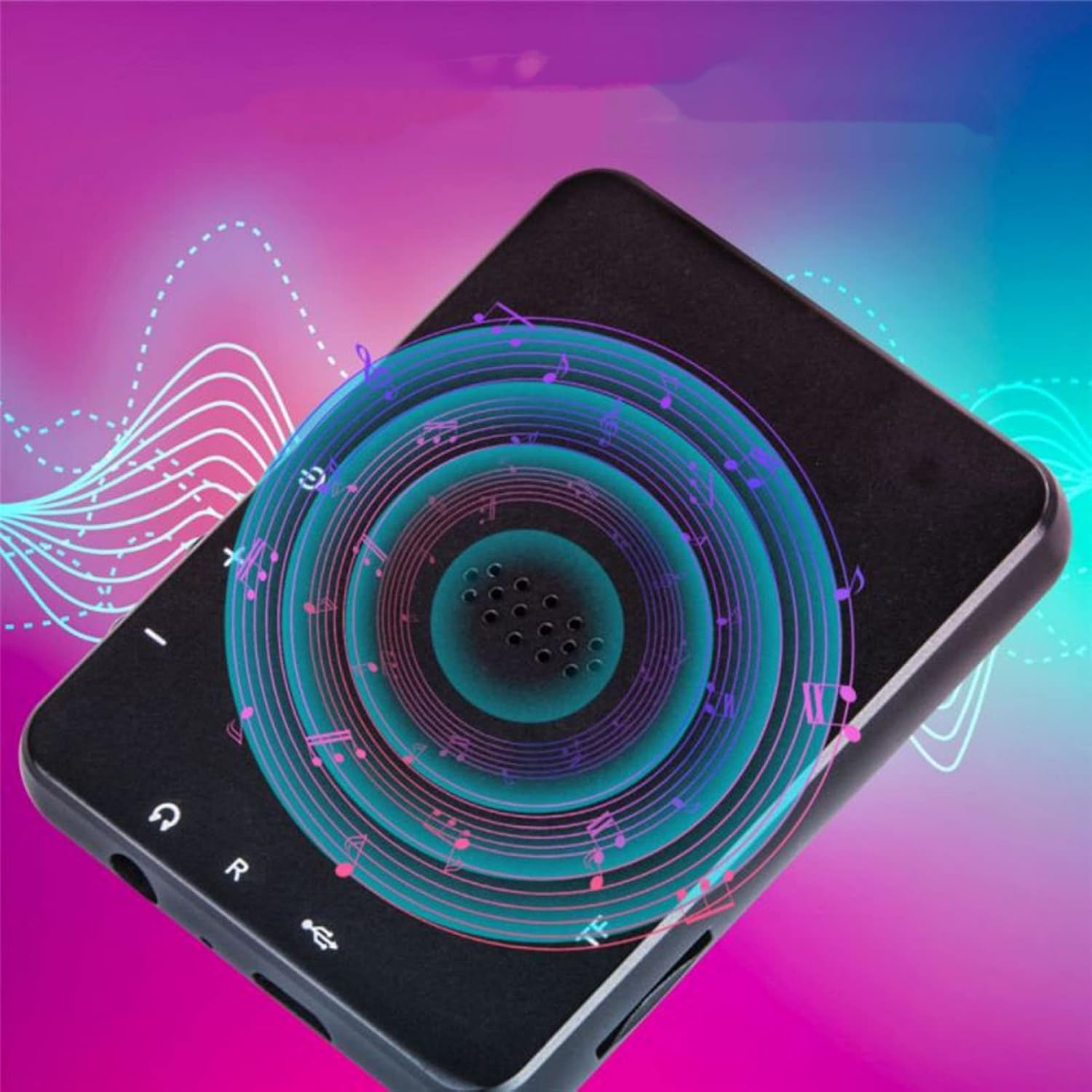
Image: Back view of the Jectse MP3 Player, showing the speaker grille and side buttons for power and volume, with a visual representation of sound waves emanating from the speaker.
5. Setup
5.1. Charging the Device
Before first use, fully charge the MP3 player. Connect the provided USB charging cable to the device's charging port and plug the other end into a USB power adapter (not included) or a computer's USB port. The battery indicator on the screen will show charging status.
5.2. Inserting a Memory Card (Optional)
The device has 4GB of internal storage. To expand storage, insert a microSD card (up to 256GB, not included) into the memory card slot. Ensure the card is inserted correctly until it clicks into place.
5.3. Connecting Headphones
Plug the wired headphones into the 3.5mm audio jack on the device. Alternatively, you can connect Bluetooth headphones (see section 6.2).
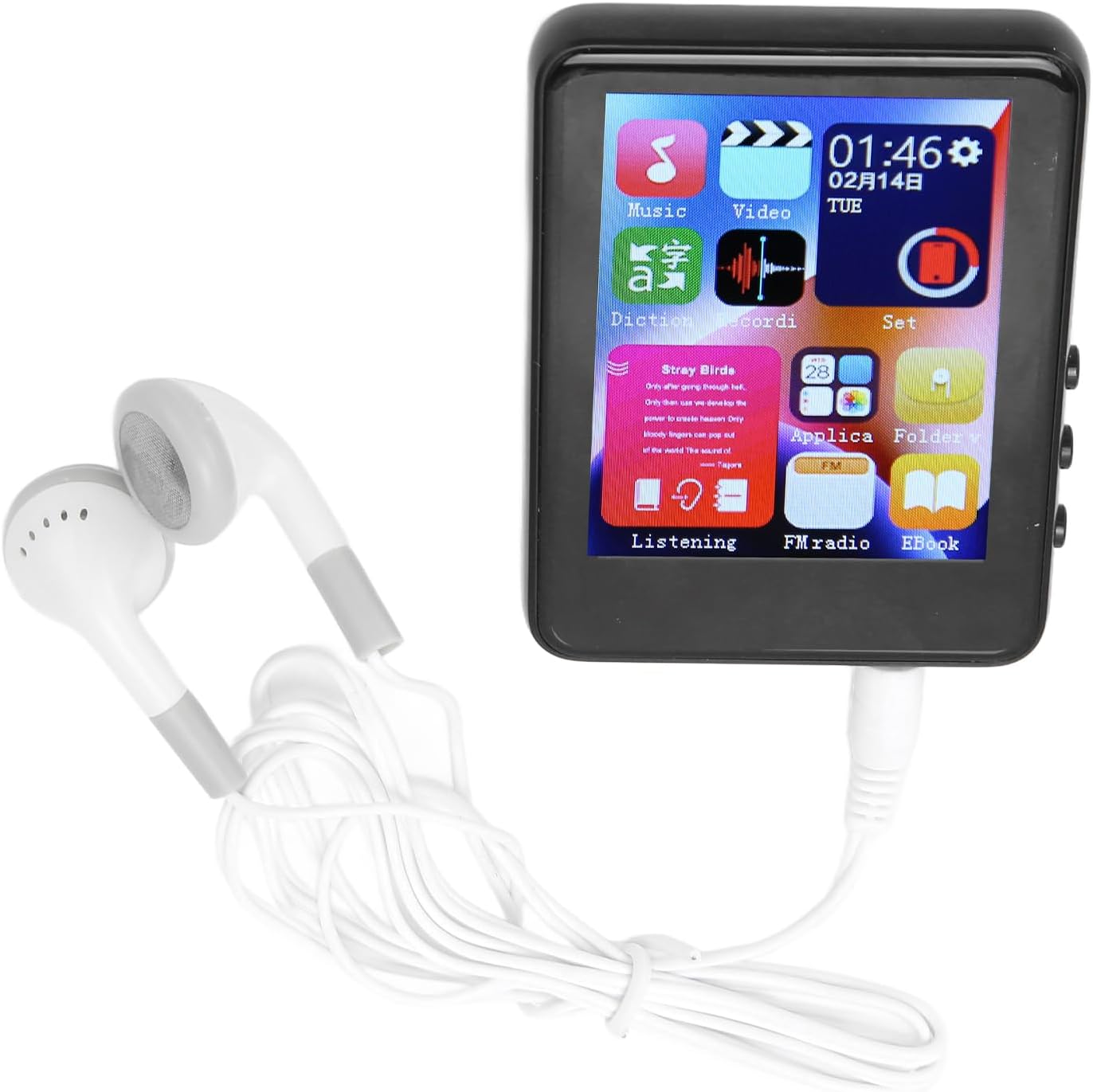
Image: The Jectse MP3 Player with white wired headphones plugged into its audio jack, ready for use.
5.4. Powering On/Off
- To Power On: Press and hold the power button on the side of the device until the screen lights up.
- To Power Off: Press and hold the power button until a power-off option appears on the screen, then confirm.
6. Operating Instructions
6.1. Navigation
The device features a full-touch screen. Swipe left/right or up/down to navigate through menus and applications. Tap an icon to open an application or select an option. Use the back arrow or swipe gestures (if available) to return to the previous screen.
6.2. Music Playback
The player supports MP3, APE, FLAC, WMA, WAV, and AAC audio formats. Transfer music files from your computer to the device's internal storage or an inserted memory card.
- Tap the 'Music' icon on the home screen.
- Browse your music library by artist, album, genre, or folder.
- Tap a song to begin playback.
- Use the on-screen controls for play/pause, skip tracks, and volume adjustment.

Image: The Jectse MP3 Player showing a music playback screen with album art and controls, while a person enjoys music with wireless earbuds.
6.3. Bluetooth Connection
Connect your MP3 player to Bluetooth headphones or speakers for wireless audio.
- Go to 'Settings' and select 'Bluetooth'.
- Turn Bluetooth 'On'.
- Ensure your Bluetooth audio device is in pairing mode.
- Select your device from the list of available devices to pair.
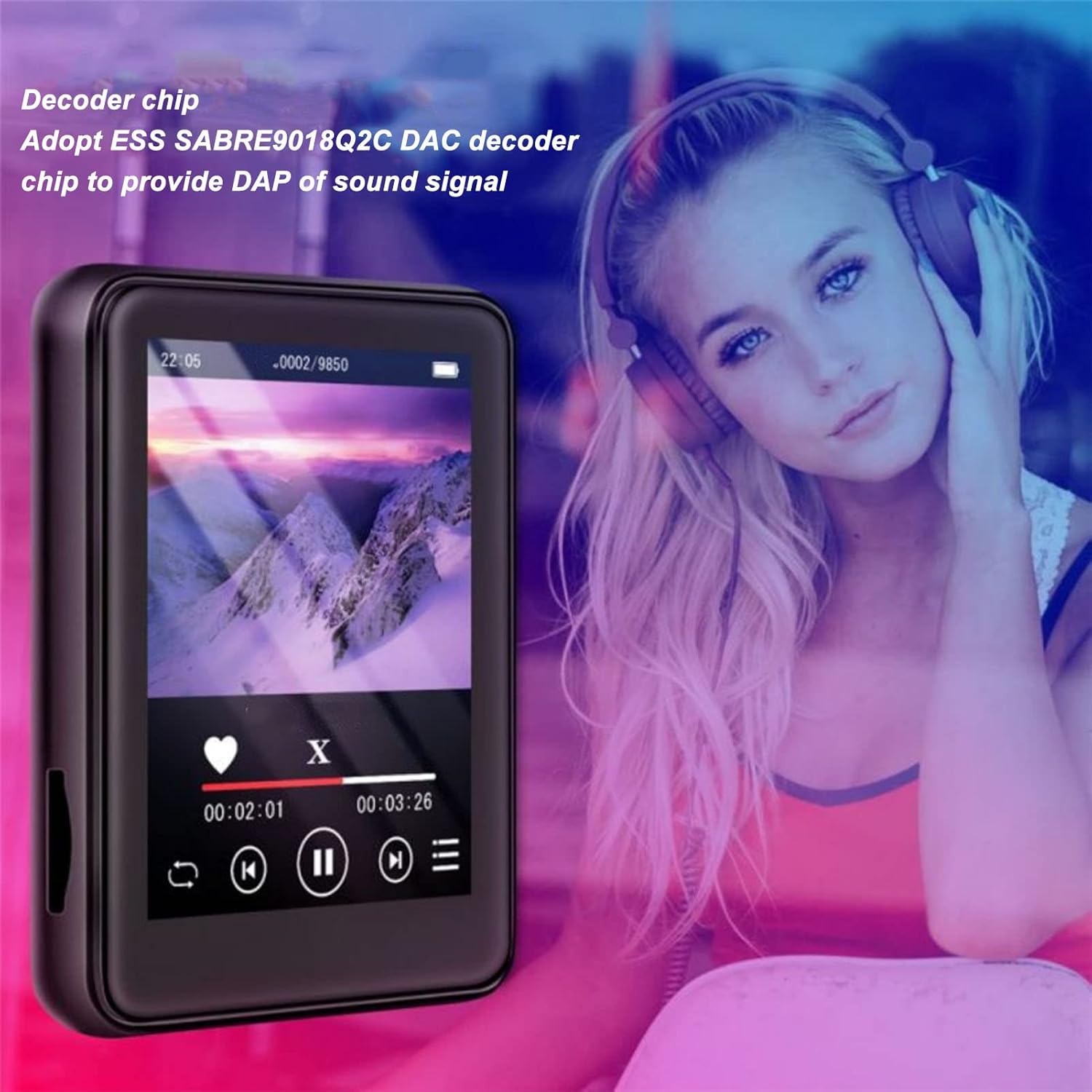
Image: The Jectse MP3 Player displaying a video or music interface, with text highlighting its ESS SABRE9018Q2C DAC decoder chip for high-quality sound. A person wearing over-ear headphones is visible in the background.
6.4. FM Radio
Listen to FM radio stations using the built-in tuner. Wired headphones must be connected as they act as the antenna.
- Tap the 'FM Radio' icon.
- Perform an automatic scan to find available stations.
- Tune to your desired station using the on-screen controls.
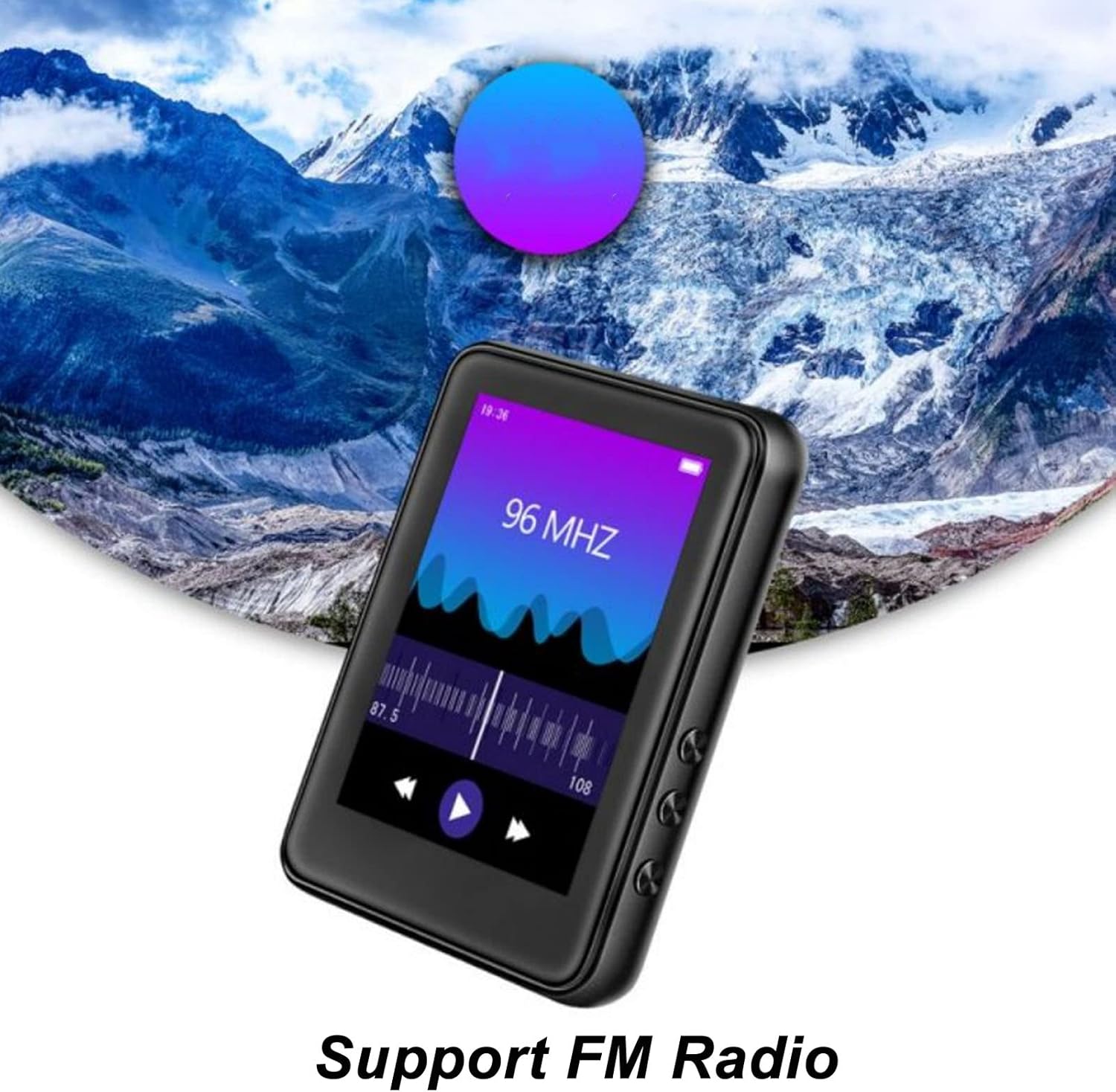
Image: The Jectse MP3 Player showing its FM Radio interface, tuned to 96 MHz, with a visual representation of radio waves and controls.
6.5. E-Books
Read TXT and LRC format e-books on your device.
- Tap the 'Ebook' icon.
- Select the e-book you wish to read.
- Swipe the screen to turn pages.
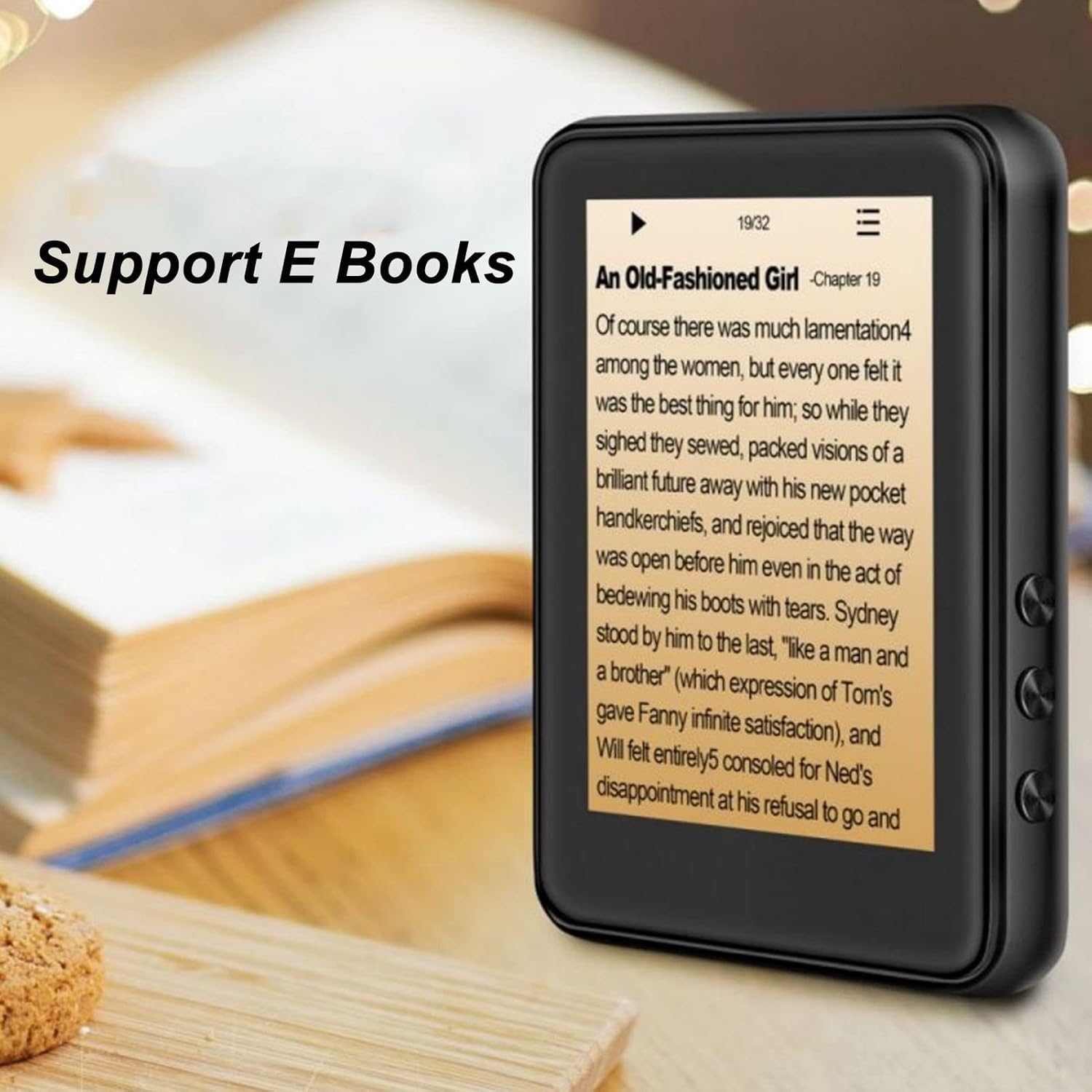
Image: The Jectse MP3 Player displaying an e-book titled 'An Old-Fashioned Girl - Chapter 19' on its screen, with text content visible.
6.6. Voice Recorder
Record audio using the built-in microphone.
- Tap the 'Recorder' icon.
- Tap the record button to start recording.
- Tap the stop button to end and save the recording.

Image: The Jectse MP3 Player showing its voice recorder interface with a red record button and a timer, positioned in a meeting room setting.
6.7. Video Playback
The device supports MP4 video playback. Transfer compatible video files to the device's storage.
- Tap the 'Video' icon.
- Select the video file you wish to play.
- Use the on-screen controls for playback.
7. Maintenance
- Cleaning: Use a soft, dry cloth to clean the device. Do not use liquid cleaners or abrasive materials.
- Storage: Store the device in a cool, dry place when not in use.
- Battery Care: To prolong battery life, avoid fully discharging the battery frequently. Charge the device regularly, even if not in use for extended periods.
- Software Updates: Check the manufacturer's website for any available firmware updates to ensure optimal performance.
8. Troubleshooting
-
Device does not power on:
Ensure the battery is charged. Connect the device to a charger for at least 30 minutes before attempting to power on again.
-
No sound:
Check the volume level. Ensure headphones are properly connected or Bluetooth headphones are paired and connected. Test with different headphones if possible.
-
Cannot connect to Bluetooth:
Ensure Bluetooth is enabled on both the MP3 player and the target device. Make sure the target device is in pairing mode and within range. Try restarting both devices.
-
Device freezes or is unresponsive:
Press and hold the power button for approximately 10-15 seconds to force a restart.
-
Files not appearing on device:
Ensure files are in supported formats. Verify that files were transferred correctly to the internal storage or memory card. Check if the memory card is properly inserted.
9. Specifications
| Feature | Specification |
|---|---|
| Model | Jectsehtin20gcvm-11 |
| Screen | 2.4 Inches TFT Screen |
| Onboard Storage | 4GB |
| Memory Card Support | Up to 256GB (microSD, not included) |
| Bluetooth Version | Bluetooth 5.0 |
| Supported Audio Formats | MP3, APE, FLAC, WMA, WAV, AAC |
| Supported Photo Formats | JPEG, BMP |
| Supported E-Book Formats | TXT, LRC |
| FM Radio Frequency | 87Hz-108Hz |
| Signal-to-Noise Ratio | ≥ 90db |
| Battery Type | Built-in 500mAh Polymer Lithium Battery |
| Operating System Compatibility | Windows 98/ME/2K/XP/Vista/Win7, OS X 10 |
| Item Weight | 4.5 ounces |
| Package Dimensions | 5.12 x 3.15 x 1.18 inches |
10. Warranty and Support
For warranty information and technical support, please refer to the documentation provided with your purchase or visit the official Jectse website. Keep your proof of purchase for warranty claims.
Ask a question about this manual
Ask about setup, troubleshooting, compatibility, parts, safety, or missing instructions. Manuals+ will review the question and use this page’s manual context to help answer it.