
MEDION E14223 (MD62560)
MEDION E14223 (MD62560) 14-inch Laptop User Manual
Model: E14223 (MD62560)
1. Introduction
This user manual provides essential information for the safe and efficient operation of your new MEDION E14223 (MD62560) 14-inch laptop. Please read this manual thoroughly before using the device to ensure proper setup, usage, and maintenance. Keep this manual for future reference.
Your MEDION laptop comes equipped with an Intel Celeron N4120 processor, 4 GB of RAM, a 128 GB SSD, Intel HD Graphics, and runs on Windows 11 Home S Mode.
2. Safety Information
Observe the following safety guidelines to prevent damage to your device or injury to yourself:
- Do not expose the laptop to extreme temperatures, humidity, or direct sunlight.
- Avoid placing heavy objects on the laptop.
- Use only the original power adapter provided with the device.
- Do not attempt to disassemble or repair the laptop yourself. Refer to qualified service personnel.
- Keep liquids away from the device to prevent electrical shock or damage.
- Ensure proper ventilation to prevent overheating. Do not block ventilation openings.
3. Package Contents
Please check that all items are present in the package:
- MEDION E14223 (MD62560) 14-inch Laptop
- Power Adapter
- Documentation (Quick Start Guide, Warranty Information)
If any item is missing or damaged, please contact your retailer or MEDION customer support.
4. Product Overview
4.1 Components and Features
Familiarize yourself with the main components of your MEDION laptop:
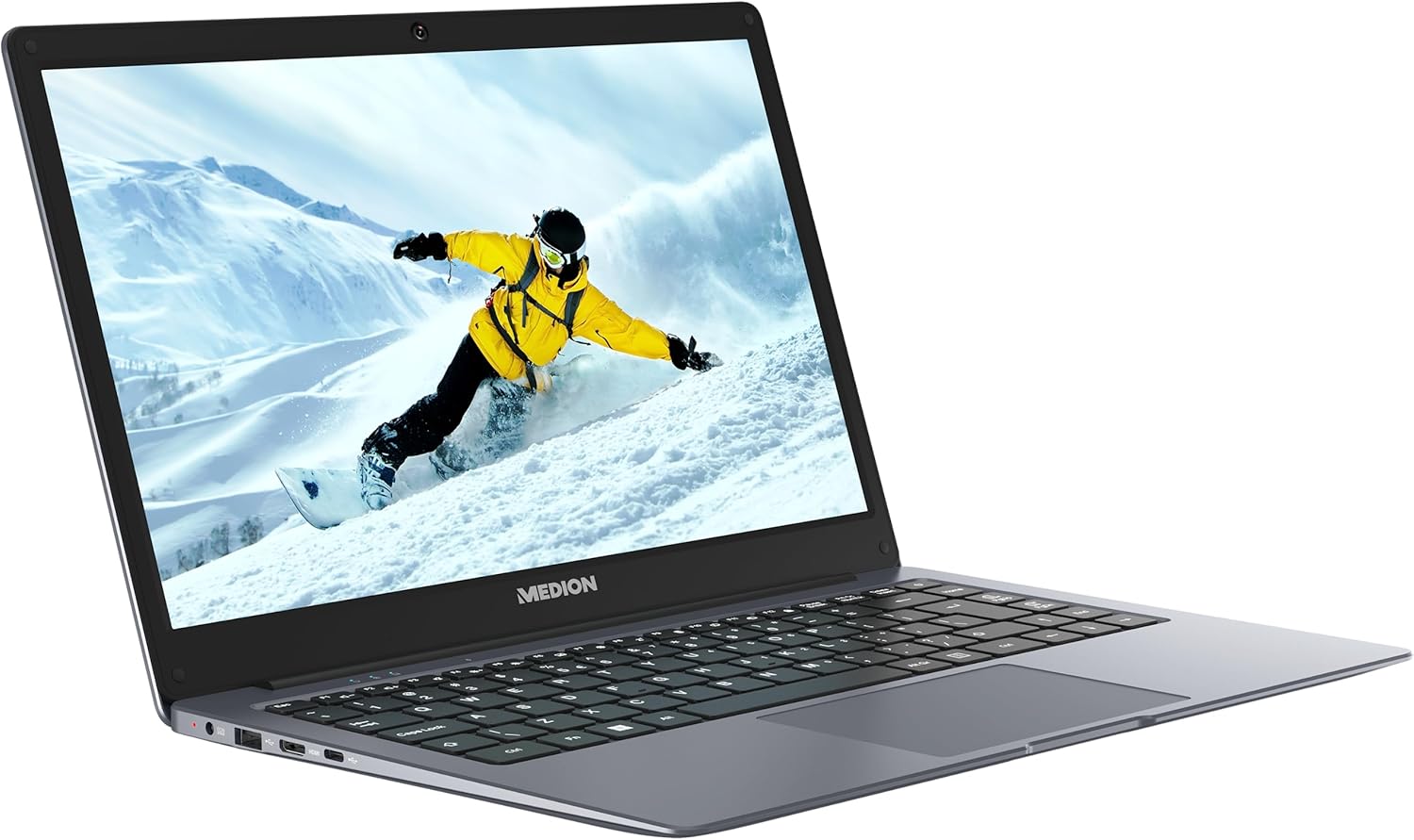
Figure 4.1: Front view of the MEDION E14223 laptop, showcasing its sleek design and display.
- Display: 14-inch LCD screen for clear visuals.
- Keyboard: Full-size keyboard for comfortable typing.
- Touchpad: Precision touchpad for intuitive navigation.
- Webcam: Integrated webcam for video calls and conferencing.
- Microphones: Built-in microphones for audio input.

Figure 4.2: Top-down view of the MEDION E14223 laptop, highlighting the keyboard layout and touchpad.
4.2 Ports and Connectors
The laptop features various ports for connecting external devices:

Figure 4.3: Side view of the MEDION E14223 laptop, illustrating the available connectivity ports.
- USB 2.0 Ports (x2): For connecting older USB devices.
- USB 3.0 Ports (x2): For high-speed data transfer with compatible USB devices.
- HDMI Ports (x3): For connecting to external displays or projectors.
- Ethernet Port (x1): For wired network connection.
- Audio Jack: For connecting headphones or external speakers.
5. Setup
5.1 Initial Setup
- Charge the Battery: Before first use, connect the power adapter to the laptop and a power outlet. Allow the battery to charge fully. The charging indicator light will show the status.
- Power On: Open the laptop lid and press the power button, usually located above the keyboard or on the side.
- Windows 11 Home S Mode Setup: Follow the on-screen instructions to complete the initial Windows 11 setup. This includes selecting your region, language, connecting to a Wi-Fi network, and setting up your Microsoft account.
- Connect to Wi-Fi: During setup, you will be prompted to connect to a wireless network. Select your network from the list and enter the password. If you skip this step, you can connect later via Windows settings.
6. Operating Instructions
6.1 Basic Operation
- Powering On/Off: Press the power button to turn on. To shut down, click the Start button, then Power > Shut down.
- Using the Touchpad: The touchpad functions as a mouse. Tap to click, use two fingers to scroll, and pinch to zoom.
- Keyboard Functions: The keyboard includes standard alphanumeric keys and function keys (F1-F12) that often have secondary functions (e.g., volume control, screen brightness) when pressed with the Fn key.
- Connecting External Devices: Insert USB devices into the appropriate USB ports. Connect external monitors using an HDMI cable. Bluetooth devices can be paired via Windows Settings > Bluetooth & devices.
- Windows 11 Home S Mode: This operating system is streamlined for security and performance. It exclusively runs apps from the Microsoft Store and requires Microsoft Edge for safe browsing. If you need to install apps from outside the Microsoft Store, you can switch out of S Mode, but this is a one-way process.
7. Maintenance
7.1 Care and Cleaning
- Screen Cleaning: Use a soft, lint-free cloth slightly dampened with water or a screen cleaner. Do not spray liquid directly onto the screen.
- Chassis Cleaning: Wipe the laptop's exterior with a soft, dry cloth. For stubborn dirt, use a slightly damp cloth.
- Battery Care: To prolong battery life, avoid fully discharging the battery frequently. Store the laptop in a cool, dry place if not used for extended periods.
- Software Updates: Regularly check for and install Windows updates to ensure your system has the latest security patches and performance improvements. Go to Settings > Windows Update.
- Storage Management: Periodically check your SSD storage usage. Delete unnecessary files and uninstall unused applications to maintain optimal performance.
8. Troubleshooting
8.1 Common Issues and Solutions
| Problem | Possible Solution |
|---|---|
| Laptop does not power on. | Ensure the power adapter is securely connected and the outlet is working. Check if the battery is charged. |
| Screen is blank or flickering. | Adjust screen brightness using function keys. Restart the laptop. If connected to an external monitor, disconnect it. |
| Wi-Fi connection issues. | Check if Wi-Fi is enabled (Fn + Wi-Fi key). Restart your router. Forget and reconnect to the network in Windows settings. |
| Slow performance. | Close unnecessary applications. Check for Windows updates. Ensure sufficient free space on the SSD. |
| Cannot install apps outside Microsoft Store. | This is a characteristic of Windows 11 Home S Mode. To install other apps, you must switch out of S Mode via Windows Settings. This action is irreversible. |
9. Specifications
9.1 Technical Specifications
| Feature | Specification |
|---|---|
| Model Number | 30035746 |
| Processor | Intel Celeron N4120 (up to 3.4 GHz) |
| RAM | 4 GB |
| Storage | 128 GB SSD |
| Display | 14-inch LCD (35.5 cm) |
| Resolution | 3840 x 2160 pixels |
| Graphics | Intel HD Graphics (Integrated) |
| Operating System | Windows 11 Home S Mode (64-bit) |
| USB Ports | 2x USB 2.0, 2x USB 3.0 |
| HDMI Ports | 3x HDMI |
| Ethernet Port | 1x Ethernet |
| Wireless Connectivity | Wi-Fi 802.11ac, Bluetooth |
| Weight | 2.15 kg |
| Dimensions (Package) | 53.6 x 34.9 x 8.2 cm |
10. Warranty and Support
10.1 Warranty Information
Your MEDION E14223 (MD62560) laptop is covered by a limited warranty. Please refer to the warranty card included in your package for detailed terms and conditions, including the warranty period and coverage.
10.2 Customer Support
For technical assistance, troubleshooting, or service inquiries, please visit the official MEDION website or contact their customer support. Have your product model number and serial number ready when contacting support.
For more information, visit: www.medion.com
Related documentsE14223 (MD62560)


Ask a question about this manual
Ask about setup, troubleshooting, compatibility, parts, safety, or missing instructions. Manuals+ will review the question and use this page’s manual context to help answer it.