
MONSTER Tulpar T7 V20.6.5
Monster Tulpar T7 V20.6.5 Gaming Laptop User Manual
Model: Tulpar T7 V20.6.5
Introduction
This manual provides essential information for the setup, operation, maintenance, and troubleshooting of your Monster Tulpar T7 V20.6.5 Gaming Laptop. Please read this guide thoroughly to ensure optimal performance and longevity of your device.
1. Setup and First Use
1.1 Unboxing
Carefully remove all components from the packaging. Ensure the following items are present:
- Monster Tulpar T7 V20.6.5 Gaming Laptop
- Power Adapter and Cable
- User Manual (this document)
- Monster Notebook Bag (Included Component)

Figure 1.1: The Monster Tulpar T7 V20.6.5 Gaming Laptop. This image shows the laptop open, displaying its 17.3-inch screen and backlit keyboard.
1.2 Connecting Power
Connect the power adapter to the laptop's power input port and then plug the power cable into a wall outlet. It is recommended to fully charge the battery before the first use.
1.3 Initial Boot and Windows Setup
Press the power button to turn on the laptop. Follow the on-screen instructions to complete the Windows 11 Home operating system setup. This includes setting up your region, language, network connection, and user account.
2. Operating Your Laptop
2.1 Keyboard and Touchpad
The laptop features a full-size keyboard with a numeric keypad and a precision touchpad. The keyboard includes backlighting for improved visibility in low-light conditions.

Figure 2.1: Top-down view of the laptop's keyboard and screen. Note the green backlit keys and the large touchpad.
2.2 Display Settings
Your laptop is equipped with a 17.3-inch Full HD (1920 x 1080 pixels) display with a 144Hz refresh rate. To adjust display settings:
- Right-click on the desktop.
- Select "Display settings".
- Adjust resolution, refresh rate, and scaling as needed.
2.3 Audio
The laptop features high-quality audio. Connect headphones or external speakers to the audio jack for an enhanced experience. Adjust volume through the Windows sound settings or dedicated function keys.
2.4 Connectivity
The laptop supports various connectivity options:
- Wi-Fi: Connect to wireless networks.
- Bluetooth: Pair with wireless peripherals.
- USB Ports: 1x USB 2.0, 2x USB 3.0 for external devices.
- HDMI: 1x HDMI port for external displays.
- Ethernet: 1x Ethernet port for wired network connection.

Figure 2.2: Rear and bottom view of the laptop, illustrating the various connectivity ports and ventilation.
3. Maintenance
3.1 Cleaning
Regularly clean your laptop to prevent dust buildup and maintain performance:
- Use a soft, lint-free cloth for the screen and chassis.
- For stubborn marks, slightly dampen the cloth with water or a screen cleaner.
- Use compressed air to clear dust from keyboard keys and ventilation grilles.
- Caution: Do not spray liquids directly onto the laptop.
3.2 Software Updates
Keep your operating system and drivers updated to ensure system stability and optimal performance. Windows Update will handle OS updates, and you can check the Monster support website for the latest driver releases.
3.3 Battery Care
To prolong battery life:
- Avoid extreme temperatures.
- Do not frequently discharge the battery completely.
- If storing the laptop for an extended period, ensure the battery is charged to around 50-60%.
4. Troubleshooting
This section addresses common issues you might encounter.
4.1 Laptop Does Not Power On
- Ensure the power adapter is securely connected to both the laptop and a working power outlet.
- Verify the power outlet is functional by plugging in another device.
- If the battery is completely drained, allow it to charge for at least 30 minutes before attempting to power on.
4.2 Display Issues
- No image on screen: Connect an external monitor to check if the issue is with the laptop's internal display.
- Flickering or distorted image: Update your graphics drivers. Reduce the display refresh rate in Windows settings to see if the issue persists.
4.3 Performance Slowdown
- Close unnecessary applications running in the background.
- Check for and remove any malware or viruses.
- Ensure sufficient free space on the 1TB SSD.
- Monitor CPU and GPU temperatures; excessive heat can lead to throttling. Ensure ventilation is clear.
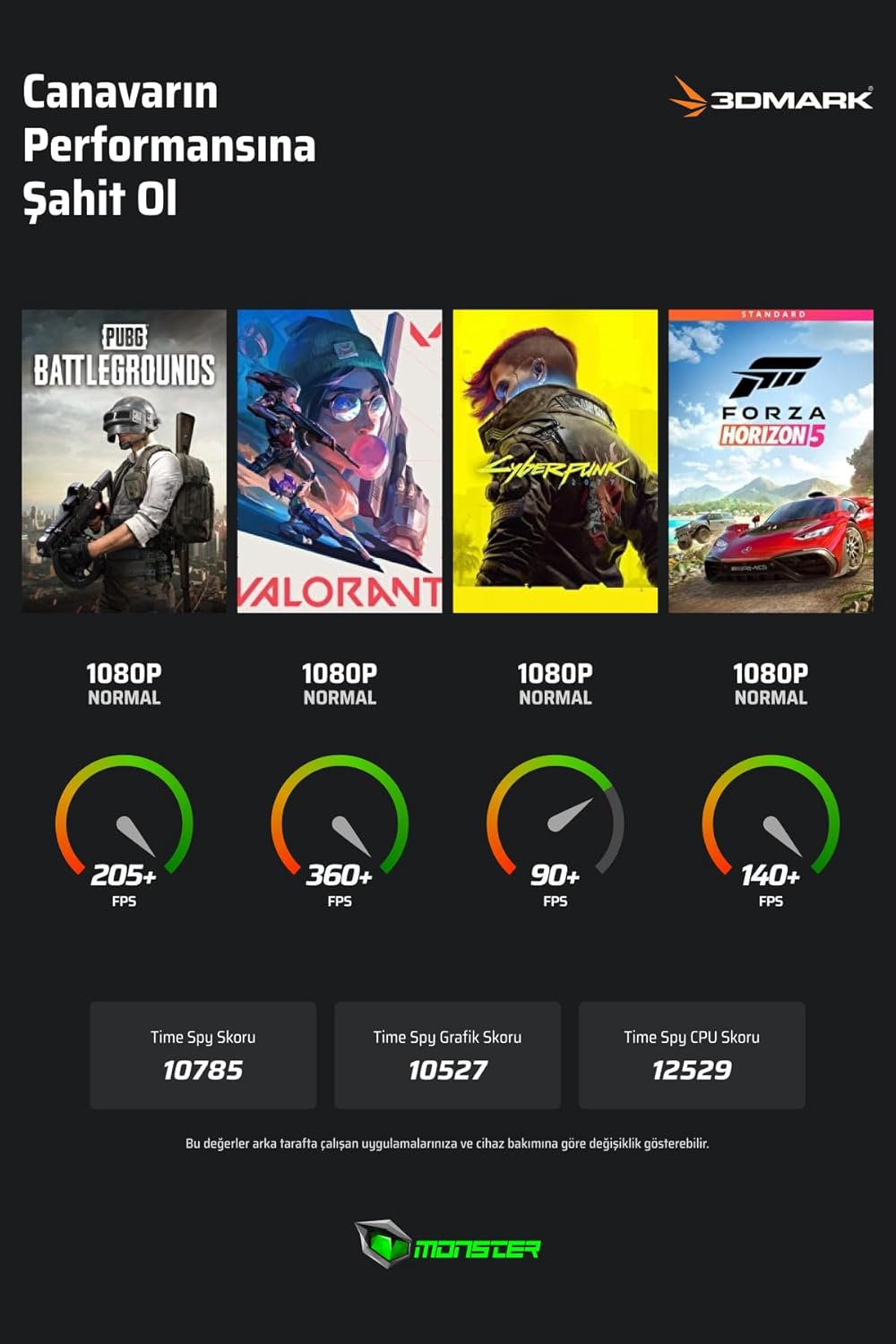
Figure 4.1: Performance benchmarks for the Monster Tulpar T7 V20.6.5, showcasing expected FPS in various games and 3DMark scores. This illustrates the laptop's high performance capabilities.
5. Specifications
| Feature | Detail |
|---|---|
| Model Name | Tulpar T7 V20.6.5 |
| Processor | Intel Core i7-13700H (up to 5 GHz, 14 Cores) |
| Graphics Card | NVIDIA GeForce RTX 4060 8GB GDDR6 (115W TGP, up to 140W with Dynamic Boost) |
| RAM | 32GB DDR4 SDRAM (3200 MHz), expandable up to 64GB |
| Storage | 1TB SSD (Solid State Drive) |
| Display | 17.3-inch FHD (1920 x 1080) LED, 144Hz Refresh Rate, Anti-Glare Coating |
| Operating System | Windows 11 Home |
| Connectivity | Bluetooth, Wi-Fi, 1x USB 2.0, 2x USB 3.0, 1x HDMI, 1x Ethernet |
| Dimensions (LxWxH) | 39 x 26 x 30 cm |
| Color | Black |
| Special Features | Anti Glare Coating, Backlit Keyboard, High Quality Audio |
6. Warranty and Support
6.1 Warranty Information
Your Monster Tulpar T7 V20.6.5 Gaming Laptop comes with a standard warranty. An additional +1 Year Extended Warranty applies to products with Monster Notebook. Please refer to your purchase documentation for specific warranty terms and conditions.

Figure 6.1: Visual representation of included benefits: Lifetime Maintenance Warranty, Monster Backpack, and Norton 360 for Gamers.
6.2 Technical Support
For technical assistance, driver downloads, or service requests, please visit the official Monster Notebook support website or contact their customer service. Keep your product model number (Tulpar T7 V20.6.5) and purchase details ready when contacting support.
Online Resources: Monster Notebook Support
Related documentsTulpar T7 V20.6.5


Ask a question about this manual
Ask about setup, troubleshooting, compatibility, parts, safety, or missing instructions. Manuals+ will review the question and use this page’s manual context to help answer it.