
1. Introduction
This manual provides detailed instructions for the installation, operation, and maintenance of your XTRONS 10.25 Inch IPS Touch Screen Car Stereo. This unit is specifically designed for BMW 5 Series E60, E61, and M5 models manufactured between 2005 and 2008, equipped with the CCC (Car Communication Computer) system.
The XTRONS car stereo integrates advanced Android 13 functionality, GPS navigation, and multimedia capabilities while retaining your vehicle's original features.
1.1 Applicable Models
This unit is compatible with the following BMW 5 Series models:
- BMW 5 Series E60 (2005-2008) with CCC System
- BMW 5 Series E61 (2005-2008) with CCC System
- BMW 5 Series M5 (2005-2008) with CCC System
Important Note:
If your car does not have an AUX-IN port, an adapter (e.g., ASIN: B0841Z1LTV) is required for proper audio integration. Ensure your vehicle has the CCC system, identifiable by a 10-pin LVDS port and a CD/DVD slot.

Figure 1.1: Applicable Models and System Identification. This image illustrates the visual difference before and after installation, and helps identify if your BMW has a CCC system (with 10-pin LVDS port and CD/DVD slot) or a CIC system (with 4-pin LVDS port and CD button), indicating compatibility.
2. Key Features
The XTRONS car stereo offers a range of advanced features to enhance your driving experience:
- Android 13 Operating System: Latest Android version with an Octa-core processor, 8GB DDR4 RAM, and 128GB Solid State ROM for responsive performance.
- 10.25-inch IPS Touch Screen: A 1920x720 HD full laminated display with a 178° viewing angle for clear visuals.
- Wireless CarPlay & Android Auto: Seamless integration with your smartphone for navigation, calls, and music. Supports both wireless and wired connections for Android Auto.
- Retains Original Car Functions: Maintains iDrive system control, original fiber optical sound system, radio, CD player, Bluetooth, steering wheel controls, and backup camera display.
- Built-in DSP (Digital Sound Processor): Customize your audio experience with equalizer, filter, and delay settings.
- Dual Wi-Fi Band: Supports 2.4GHz and 5GHz Wi-Fi for faster and more stable internet connectivity.
- Bluetooth 5.1: Enhanced stability and higher quality for hands-free calls and music streaming.
- 4G LTE Support: Integrated 4G antenna for mobile data connectivity.
- Multiple UI Themes: Choose from 4 different user interface themes, including XTRONS Q series special and BMW Style UI.
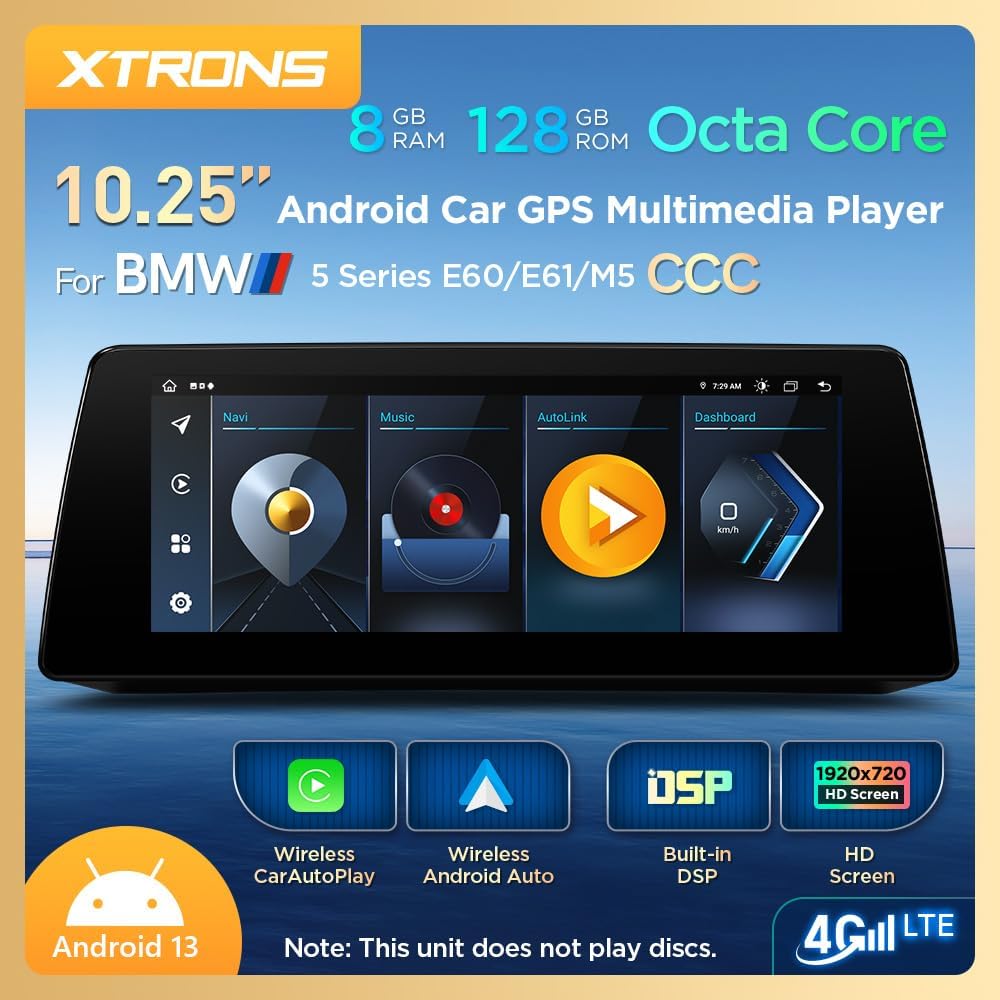
Figure 2.1: Overview of XTRONS Car Stereo Key Features. This image displays the main screen interface and highlights core specifications and functionalities such as Android 13, Wireless CarPlay, Android Auto, DSP, and 4G LTE connectivity.

Figure 2.2: Perfect Integration and Retained Original Functions. This image demonstrates how the new display integrates seamlessly into the BMW dashboard and confirms that essential vehicle functions like iDrive, amplifier, Bluetooth, radio, CD player, and backup camera are preserved.
3. Package Contents
Please verify that all items listed below are included in your package:
- 1 × ISO Wiring Harness
- 1 × Audio Cable
- 1 × 4G Antenna
- 1 × USB Cable
- 1 × GPS Antenna
- 1 × Fix Mount
- 1 × Tweezers
- 3 × Screws
- 1 × User Manual (this document)
- 1 × Installation Instructions

Figure 3.1: Included Accessories. This image displays all components provided in the product package, ensuring users can verify their contents against the list.
4. Installation Guide
Professional installation is recommended. Refer to the separate "Installation Instructions" document for detailed steps. Below is an overview of the wiring connections.
4.1 Wiring Connections
Carefully connect the provided wiring harness and antennas to the corresponding ports on the unit and your vehicle.

Figure 4.1: Wiring Harness Diagram. This diagram provides a visual guide to connecting the various cables and antennas to the main unit, including the LVDS port, USB ports, GPS antenna, 4G antenna, reverse camera input, microphone, and the main ISO wiring harness.
Key Connections:
- LVDS Port (1): Connects to the vehicle's original display cable.
- USB Ports (2, 3): For connecting USB devices, including for wired Android Auto.
- GPS Antenna (4): Connect for navigation functionality.
- 4G Antenna (5): Connect for mobile data access.
- REVERSE-IN (6): Connect to the reverse signal cable for automatic camera display.
- Microphone Port (7): For external microphone connection (if applicable).
- CAM IN (8): Connect for a reverse camera input.
- ACC (9): Accessory power.
- P-CAM (10): Power for camera.
- Audio OUT (11): Audio output. If your car has no audio AUX input, you will need an adapter.
- ISO Wiring Harness (13): Main power and speaker connections.
Important Note on Audio:
If your BMW 5 Series E60/E61/M5 does not have an AUX-IN port, you must purchase and install an AUX adapter (e.g., XTRONS ASIN: B0841Z1LTV) to enable audio output from the Android unit to your car's original sound system. Without this, you will not hear audio from the new unit.
5. Initial Setup
After successful installation, follow these steps for initial setup:
- Power On: Start your vehicle. The unit should power on automatically.
- Language Selection: On the first boot, you may be prompted to select your preferred language.
- Time and Date: Set the correct time zone and synchronize the time and date.
- Wi-Fi Connection: Go to Settings > Network & Internet > Wi-Fi. Connect to your home Wi-Fi or a mobile hotspot for internet access and app downloads.
- 4G LTE (Optional): If you have inserted a 4G SIM card (not included), ensure the 4G antenna is connected and configure network settings if necessary.
- Sound Output: Ensure the audio output is correctly routed to your car's AUX input. If using an AUX adapter, select the AUX source on your original BMW iDrive system.
- System Updates: Check for system updates via Settings > About device > System update to ensure you have the latest software.
6. Operating Instructions
6.1 Navigating the Interface
The unit features a touch-screen interface. You can also use your original iDrive controller to navigate the Android system. Swipe left/right to access different home screens or app drawers. Tap icons to open applications.
6.2 Wireless CarPlay & Android Auto
This unit supports both wireless CarPlay for iPhones and wireless/wired Android Auto for Android phones.
- Enable Bluetooth: On your phone and the car stereo, ensure Bluetooth is enabled.
- Pair Device: On the car stereo, go to the CarPlay or Android Auto application. Follow the on-screen instructions to pair your phone via Bluetooth.
- Connect: Once paired, your phone should automatically connect to CarPlay or Android Auto wirelessly. For wired Android Auto, connect your phone via a USB cable to one of the unit's USB ports.
- Functionality: Access navigation, music, calls, and messaging apps directly from the car stereo display.

Figure 6.1: Wireless CarPlay and Android Auto. This image demonstrates the user interfaces for both Apple CarPlay and Android Auto, highlighting their wireless connectivity via Bluetooth and the option for wired Android Auto via USB.
6.3 Digital Sound Processor (DSP)
The built-in DSP allows for advanced audio customization:
- Equalizer: Adjust frequency bands to fine-tune the sound profile (e.g., Flat, Pop, Rock, Jazz, Classic, User-defined).
- Filter: Set High-Pass Filter (HPF) and Low-Pass Filter (LPF) for front and rear speakers to optimize sound delivery.
- Delay: Adjust sound delay for each speaker to create a precise sound stage within the vehicle.

Figure 6.2: Built-in Professional DSP Interface. This image illustrates the various audio customization options available through the DSP, including a graphic equalizer, high-pass and low-pass filters, and time delay adjustments for individual speakers.
6.4 User Interface (UI) Themes
Personalize your display with different UI themes:
- Navigate to the Settings menu.
- Look for UI Theme or Display Settings.
- Select from the available themes, including XTRONS Q series special and BMW Style UI, to match your preference.

Figure 6.3: Available UI Themes. This image showcases four distinct user interface themes, allowing users to customize the visual appearance of their car stereo display.
6.5 Retaining Original iDrive Control
The unit fully retains the functionality of your original BMW iDrive controller. You can use the iDrive knob and buttons to navigate both the original BMW system and the new Android interface.
- Press the MENU button on the iDrive controller to switch between the original BMW system and the Android system.
- Use the knob to scroll and press to select items.
7. Maintenance
To ensure the longevity and optimal performance of your XTRONS car stereo, follow these maintenance guidelines:
- Screen Cleaning: Use a soft, lint-free cloth slightly dampened with water or a screen cleaner specifically designed for electronics. Avoid harsh chemicals or abrasive materials.
- Software Updates: Regularly check for and install system updates to benefit from new features, performance improvements, and security patches.
- Avoid Extreme Temperatures: Do not expose the unit to extreme heat or cold for extended periods.
- Protect from Liquids: Prevent any liquids from entering the unit.
- Ventilation: Ensure the unit's ventilation areas are not blocked to prevent overheating.
8. Troubleshooting
If you encounter issues with your unit, refer to the following common problems and solutions:
8.1 No Sound from Android System
- Check AUX Connection: Ensure the audio cable is correctly connected and the car's original system is set to the AUX input.
- AUX Adapter: Confirm if your vehicle requires an AUX adapter and if it is correctly installed and functioning.
- Volume Levels: Verify that the volume on both the Android unit and your car's original system is turned up.
8.2 Screen Too Bright at Night
- Brightness Settings: Adjust the screen brightness in the Android system settings. Look for a "Night Mode" or "Dimmer" option if available.
- Automatic Brightness: If an automatic brightness feature is enabled, ensure the light sensor is not obstructed.
8.3 Bluetooth Issues (e.g., Auto-Switching to Car's Bluetooth)
- Bluetooth Settings: Check the Bluetooth settings on the Android unit for options related to automatic switching or hands-free profiles.
- Manual Switching: If automatic switching fails, manually switch the audio output on your phone to the car's original Bluetooth system during a call.
- Re-pair Device: Try unpairing and re-pairing your phone's Bluetooth connection.
8.4 Steering Wheel Controls / iDrive Knob Not Working
- Wiring Check: Ensure all wiring harness connections, especially CANBUS related wires, are secure.
- System Settings: Verify that steering wheel control settings are correctly configured in the Android unit's settings.
8.5 Music Stops When Switching to Original CCC Interface
- This behavior is normal as the audio source switches back to the original BMW system. To continue listening to music from the Android unit, switch back to the Android interface.
8.6 Unit Does Not Power On
- Power Connections: Check all power connections, including the ISO wiring harness, for secure fitment.
- Vehicle Fuse: Inspect the vehicle's fuse box for any blown fuses related to the car stereo or accessory power.
9. Specifications
| Feature | Specification |
|---|---|
| Model Number | CCC |
| Display Size | 10.25 Inches |
| Resolution | 1920x720 |
| Operating System | Android 13 |
| Processor | Octa-core |
| RAM | 8GB DDR4 |
| ROM | 128GB Solid State |
| GPU | Mali-G52 |
| Connectivity Technology | Bluetooth 5.1, Cellular (4G LTE), USB, Wi-Fi (2.4GHz/5GHz) |
| Special Features | Touchscreen, Wireless CarPlay, Wireless/Wired Android Auto, Built-in DSP |
| Map Type | North America (pre-installed, if applicable) |
| Audio Output Mode | AUX, Stereo |
| Mounting Type | Dashboard Mount |
| Vehicle Service Type | Car (BMW 5 Series E60 E61 M5 CCC System) |
Figure 9.1: Product Dimensions. This image provides the physical measurements of the head unit, useful for installation planning.
10. Warranty & Support
10.1 Product Warranty
This XTRONS product comes with a 1-year warranty from the date of purchase. This warranty covers manufacturing defects and malfunctions under normal use. It does not cover damage caused by improper installation, misuse, accidents, or unauthorized modifications.
Please retain your proof of purchase for warranty claims.
10.2 Customer Support
For technical assistance, troubleshooting beyond this manual, or warranty inquiries, please contact XTRONS customer support through the retailer where you purchased the product or visit the official XTRONS website for contact information.
When contacting support, please have your product model number (CCC) and purchase details ready.