
1. Product Overview
The NEWCARE 4x1 4K@60Hz HDMI Switch allows you to connect up to four HDMI source devices to a single HDMI display. This device supports high-resolution video and advanced audio formats, providing a versatile solution for managing multiple entertainment or productivity devices.
Key Features:
- 4K@60Hz Resolution: Supports resolutions up to 4K@60Hz, 2K@120Hz, and 1080p@240Hz for clear and stable visuals.
- Advanced Audio/Video: Compatible with HDR10, Dolby Vision, and Dolby Atmos for immersive sound and vivid images.
- High Bandwidth: Offers up to 18Gbps bandwidth for smooth, lag-free performance.
- Multiple Switching Methods: Features remote control, manual button, and automatic switching options.
- Wide Compatibility: Works with various HDMI-enabled devices including gaming consoles (PS5, Xbox Series X/S, Switch), streaming devices (Roku, Fire Stick), Blu-ray players, laptops, and TVs.
2. Package Contents
Please verify that all items are present in your package:
- NEWCARE 4x1 HDMI Switch Unit
- IR Remote Control (requires 2 AAA batteries, not included)
- USB Power Cable
- User Manual

Image: Package contents of the NEWCARE 4x1 HDMI Switch.
3. Device Layout
Familiarize yourself with the ports and indicators on your HDMI switch:

Image: Front and back view of the HDMI switch with labeled ports and indicators.
- HDMI Output: Connects to your display (TV, monitor, projector).
- HDMI Inputs (IN 1-4): Connects to your source devices (gaming consoles, Blu-ray players, etc.).
- LED Indicators (1-4): Lights up to show the currently active input.
- Power LED: Indicates the device is powered on.
- IR Receiver: Receives signals from the remote control. Ensure it is not obstructed.
- Switch Button: Manually cycles through input sources.
- Micro-USB Power Port (5V): Connects to the provided USB power cable for power supply.
4. Setup Instructions
Follow these steps to set up your NEWCARE HDMI Switch:
- Connect Source Devices: Plug your HDMI source devices (e.g., PS5, Xbox, Roku) into the HDMI IN 1, IN 2, IN 3, and IN 4 ports on the HDMI switch using high-quality HDMI 2.0 cables.
- Connect Display: Connect your TV, monitor, or projector to the HDMI OUTPUT port on the switch using an HDMI 2.0 cable.
- Connect Power: Connect the provided USB power cable to the Micro-USB Power Port on the switch, and then plug the other end into a 5V USB power adapter (not included) or a USB port on your display/computer. The Power LED will illuminate.
- Insert Remote Batteries: Open the battery compartment of the remote control and insert 2 AAA batteries (not included), ensuring correct polarity.

Image: Connection diagram for the HDMI switch with multiple devices.
Video: An unboxing and setup demonstration of the NEWCARE HDMI Switch, showing the components and how to connect them.
5. Operating Instructions
The HDMI switch offers three methods for switching between input sources:
5.1. Manual Switching
Press the 'Switch' button on the front of the device to cycle through the HDMI input sources (IN 1 → IN 2 → IN 3 → IN 4 → IN 1). The corresponding LED indicator will light up to show the active input.
5.2. Remote Control Switching
Use the provided IR remote control to select your desired input directly. Press the '1', '2', '3', or '4' button on the remote to switch to the corresponding HDMI input. Ensure the remote's IR signal has a clear line of sight to the IR Receiver on the switch.
5.3. Automatic Switching
The device can automatically switch to the last active input source when a new device is powered on or an active signal is detected. Note that some input devices may not fully support this feature, requiring manual or remote switching.
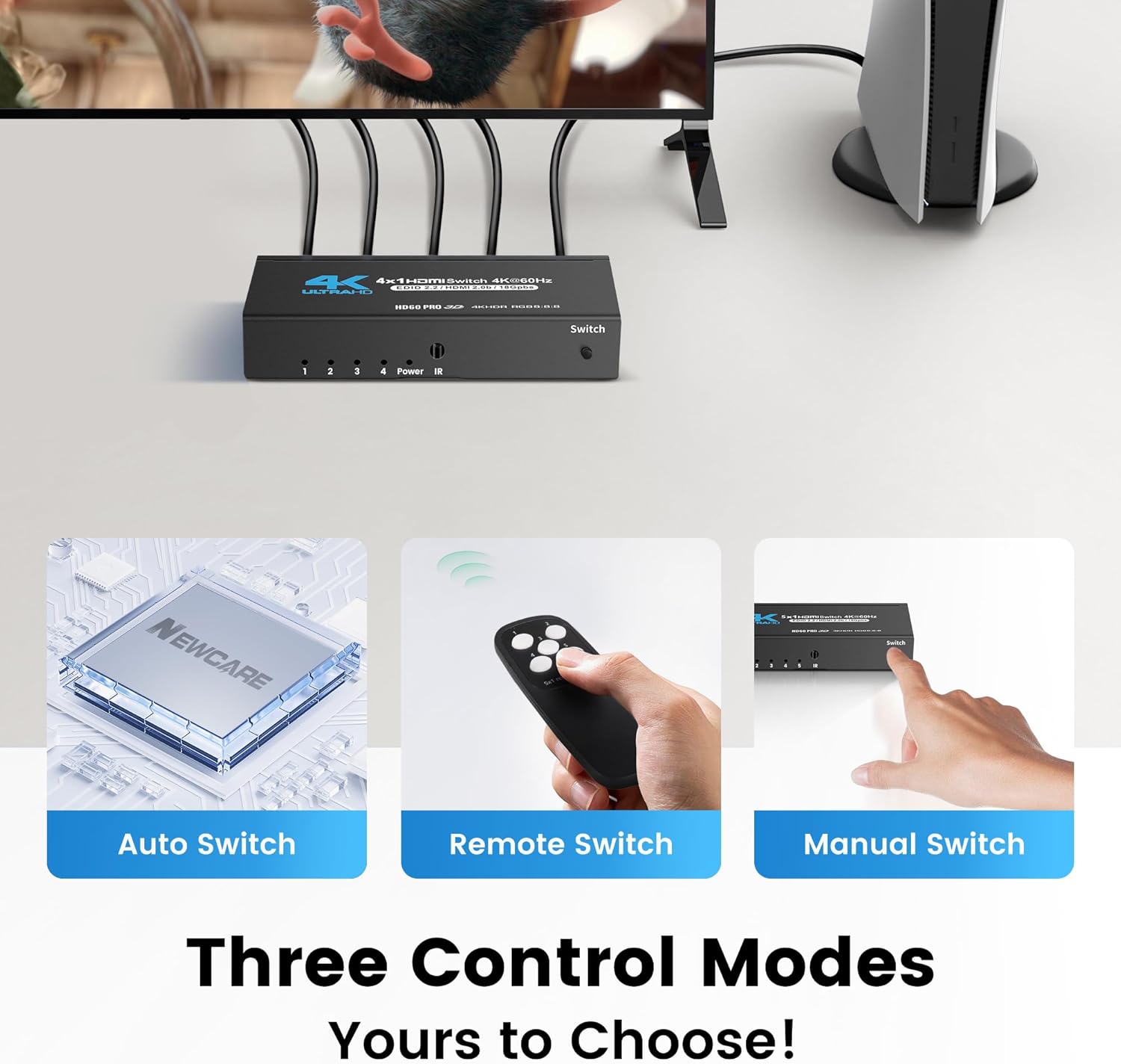
Image: Three control modes for the HDMI switch.
6. Maintenance
To ensure the longevity and optimal performance of your HDMI switch, follow these maintenance guidelines:
- Cleaning: Use a soft, dry cloth to clean the device. Avoid liquid cleaners or abrasive materials.
- Environment: Keep the switch in a dry, well-ventilated area, away from direct sunlight, high temperatures, and humidity.
- Cable Management: Ensure HDMI cables are not excessively bent or strained. Use appropriate cable lengths (HDMI 2.0 cables under 10ft/3m are recommended for best stability with 4K@60Hz).
- Power: Always use the provided USB power cable and a compatible 5V power adapter.
7. Troubleshooting
If you encounter issues with your HDMI switch, refer to the following troubleshooting tips:
- No Signal/Flickering Screen:
- Ensure all HDMI cables are securely connected to both the source devices, the switch, and the display.
- Verify that the HDMI cables used are high-quality HDMI 2.0 or higher, especially for 4K@60Hz signals. Cable length can affect signal quality; try shorter cables (under 10ft/3m) if experiencing issues.
- Check if the correct input source is selected on both the HDMI switch and your display.
- Try restarting the source device and the HDMI switch.
- Remote Control Not Working:
- Ensure the remote has fresh 2 AAA batteries installed with correct polarity.
- Make sure there are no obstructions between the remote control and the IR Receiver on the HDMI switch. The IR receiver needs to be exposed to receive signals.
- Try using the manual switch button on the device to confirm the switch itself is functional.
- Automatic Switching Not Functioning:
- Automatic switching relies on the source device's HDMI CEC (Consumer Electronics Control) capabilities. Not all devices fully support this feature.
- If auto-switching is inconsistent, use the manual button or remote control for reliable switching.
- Audio Issues (No Sound/Distorted Audio):
- Confirm that your display and audio system support the audio format being transmitted (e.g., Dolby Atmos).
- Check audio settings on your source device and display.
- Ensure HDMI cables are fully seated.
8. Specifications
| Feature | Specification |
|---|---|
| Model Number | HDMI Switch 4 in 1 Out |
| Inputs | 4 x HDMI |
| Output | 1 x HDMI |
| Max Resolution | 4K@60Hz, 2K@120Hz, 1080p@240Hz |
| HDMI Version | HDMI 2.0b |
| HDCP Version | HDCP 2.2 |
| Bandwidth | 18Gbps |
| Supported Technologies | HDR10, Dolby Vision, Dolby Atmos |
| Power Supply | Micro USB 5V |
| Item Weight | 8.8 ounces |
| Package Dimensions | 5.94 x 5.83 x 1.06 inches |
| Manufacturer | NEWCARE |
9. Warranty and Support
For warranty information and technical support, please refer to the documentation included with your product or visit the official NEWCARE website. Contact details for customer service are typically provided in the product packaging or on the manufacturer's support page.

