1. Introduction
This manual provides essential information for the installation, operation, and maintenance of your KiriNavi Qualcomm Car Radio. This advanced head unit features an Android 13 operating system, an 8-core CPU, 4GB RAM, and 64GB ROM, offering enhanced performance and a 12.1-inch 2K IPS touch screen. It integrates seamlessly with your vehicle's existing systems, providing modern connectivity and entertainment options.
Please read this manual thoroughly before installation and use to ensure proper functionality and to maximize your experience with the product.
2. Vehicle Compatibility
This KiriNavi car radio is specifically designed for the following Ford truck models:
- Ford F250 (2009-2012)
- Ford F350 (2009-2012)
- Ford F450 (2009-2016)
- Ford F650 (2009-2016)
Important Note:
This unit is compatible ONLY with vehicles that DO NOT have the SYNC 2 System. Please verify your vehicle's current AC control panel configuration to ensure compatibility. Refer to the image below for visual guidance.

Image: Visual guide for compatible (top) and incompatible (bottom) AC control panels. Units with the specified AC control (red X) are not compatible.
3. Package Contents
Upon opening the package, ensure all the following components are present:
- 1x KiriNavi Android Head Unit
- 1x GPS Antenna
- 1x Power Cable and other necessary cables and plugs
- 1x External Microphone
- 1x Backup Camera

Image: Overview of the head unit's rear connections and all included wiring harnesses and accessories.
4. Setup and Installation
The KiriNavi car radio is designed for a standard fit, eliminating the need for additional accessories. Installation typically involves removing the existing stereo and connecting the new unit using the provided wiring harnesses.
4.1 Pre-Installation Check
- Confirm your vehicle's compatibility as detailed in Section 2.
- Ensure the vehicle's battery is disconnected before beginning installation to prevent electrical damage.
- Familiarize yourself with the included cables and their corresponding ports on the head unit and your vehicle.
4.2 Installation Steps (General Guide)
- Carefully remove the existing factory radio and trim panels from your dashboard.
- Connect the main power harness from the KiriNavi unit to your vehicle's wiring. The connectors are designed to be plug-and-play, with different sizes preventing incorrect connections.
- Connect the GPS antenna, external microphone, and backup camera cables to their respective ports on the head unit.
- Route all cables neatly to avoid interference and ensure a clean installation.
- Mount the KiriNavi head unit into the dashboard opening.
- Reconnect the vehicle's battery and test the unit's functionality before fully reassembling the dashboard trim.

Image: A visual comparison showing the factory radio setup (bottom) and the KiriNavi unit installed (top) in a Ford F-Series truck dashboard.
For detailed, vehicle-specific installation instructions, it is recommended to consult a professional installer or refer to your vehicle's service manual.
5. Operating Instructions
The KiriNavi car radio offers a wide range of features powered by Android 13. Below are instructions for key functionalities.
5.1 Power On/Off and Basic Navigation
- Power On: The unit will power on automatically when the vehicle's ignition is turned on.
- Power Off: The unit will power off automatically when the vehicle's ignition is turned off.
- Touch Screen: Navigate through menus and applications using the responsive 12.1-inch touch screen.
5.2 Apple CarPlay and Android Auto
The unit supports both wireless and wired Apple CarPlay and Android Auto. This allows for seamless integration with your smartphone, providing access to navigation, phone contacts, messages, music, and more.
- Connection: Connect your smartphone via USB for wired connection or wirelessly via Bluetooth and Wi-Fi.
- Voice Control: Utilize Siri or Google Assistant for hands-free operation, allowing you to stay focused on the road.
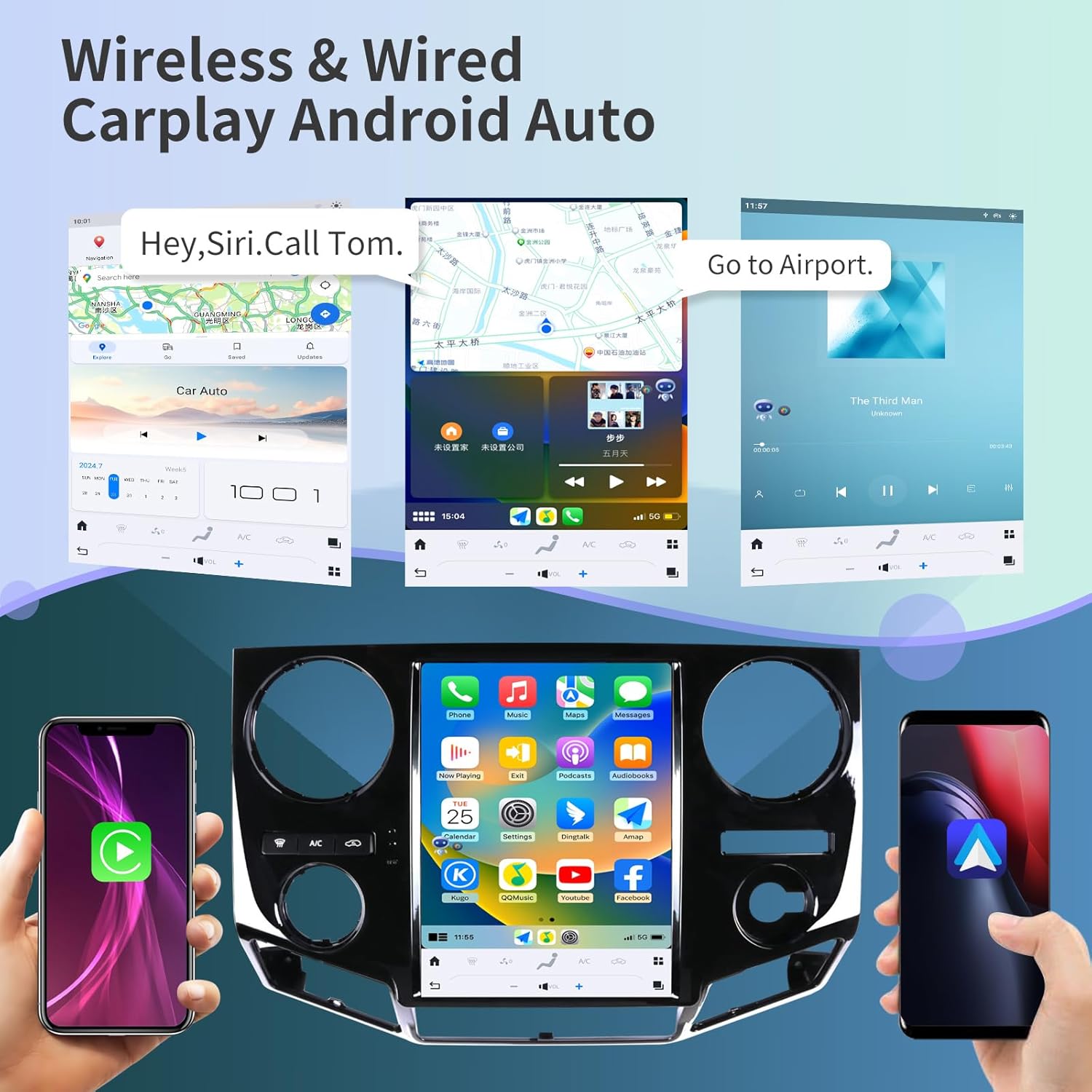
Image: Examples of Apple CarPlay and Android Auto interfaces displayed on the head unit, showing navigation and music playback.
5.3 GPS Navigation
The unit features a built-in GPS module with support for both online and offline maps, utilizing GPS + GLONASS for high-precision navigation.
- Map Applications: Compatible with popular navigation apps such as Apple Maps, Google Maps, and Waze.
- Online/Offline: Download offline maps for navigation without an internet connection, or use online maps for real-time traffic updates.

Image: The head unit displaying various navigation application icons and indicating Wi-Fi and 4G network capabilities.
5.4 Wi-Fi & 4G Network Connectivity
Access the internet via Wi-Fi or a 4G network (SIM card required for 4G, not included) to enhance your in-car experience.
- Online Content: Stream online videos, browse the web, and download applications from the app store (e.g., YouTube, Netflix, Facebook).
- Hotspot: Connect to your smartphone's hotspot for internet access.
5.5 Bluetooth 5.0
The integrated Bluetooth 5.0 module enables wireless audio streaming and hands-free calling.
- Hands-Free Calling: Make and receive calls safely using the external microphone and the unit's display.
- Audio Streaming: Play music from your Bluetooth-enabled devices.
- Contact Sync: Sync your phone contacts for easy access.
5.6 Steering Wheel Control
The unit supports your vehicle's original steering wheel controls, allowing you to manage audio, calls, and other functions without taking your hands off the wheel.
- Configuration: The unit can be configured to learn and map your vehicle's steering wheel buttons. Refer to the unit's settings menu for steering wheel control setup.

Image: The head unit displaying the interface for configuring steering wheel controls, alongside a view of the backup camera in action.
5.7 Backup Camera Functionality
The included HD backup camera provides a 170° wide viewing angle and night vision capabilities, enhancing safety during reversing maneuvers.
- Automatic Display: The camera feed automatically appears on the unit's screen when the vehicle is shifted into reverse.
- Night Vision: Improved visibility in low-light conditions.
5.8 Digital Sound Processor (DSP)
Customize your audio experience with the built-in 16-band equalizer and DSP settings.
- Equalizer: Adjust frequency bands to match your audio preferences.
- Sound Modes: Select from various preset sound modes or create custom profiles.
5.9 Split Screen Display
Enhance multitasking by displaying two applications simultaneously on the screen.
- Usage: For example, use navigation on one side and music playback on the other.
6. Maintenance
Proper maintenance ensures the longevity and optimal performance of your KiriNavi car radio.
- Screen Cleaning: Use a soft, lint-free cloth to gently wipe the touch screen. For stubborn smudges, slightly dampen the cloth with water or a screen-safe cleaner. Avoid harsh chemicals or abrasive materials.
- Software Updates: Periodically check for software updates through the unit's settings menu to ensure you have the latest features and performance improvements.
- Connection Checks: Occasionally inspect all visible cable connections to ensure they are secure and free from damage.
- Environmental Care: Avoid exposing the unit to extreme temperatures, direct sunlight for prolonged periods, or excessive moisture.
7. Troubleshooting
This section addresses common issues you might encounter with your KiriNavi car radio.
| Problem | Possible Cause | Solution |
|---|---|---|
| Unit does not power on. | Loose power connection, blown fuse, vehicle ignition issue. | Check power cable connections. Inspect vehicle's fuse box for blown fuses. Ensure vehicle ignition is on. |
| No sound or distorted audio. | Incorrect wiring, volume set to zero, DSP settings. | Verify speaker wiring. Adjust volume. Check DSP equalizer settings. Perform a soft reset. |
| GPS signal lost or inaccurate. | GPS antenna obstruction or faulty connection. | Ensure GPS antenna is mounted in a clear location with an unobstructed view of the sky. Check antenna connection to the unit. |
| Wi-Fi/4G connectivity issues. | Weak signal, incorrect network settings, SIM card issue (for 4G). | Move to an area with better signal. Verify Wi-Fi password or 4G SIM card installation and activation. Restart the unit. |
| CarPlay/Android Auto not connecting. | Incorrect phone settings, faulty USB cable, software glitch. | Ensure CarPlay/Android Auto is enabled on your phone. Try a different USB cable. Restart both phone and head unit. |
| Unit is slow or unresponsive. | Too many applications running, low memory, software issue. | Close unused applications. Restart the unit. If issues persist, consider a factory reset (see warning below). |
| Backup camera not displaying. | Loose camera connection, incorrect wiring, camera fault. | Check camera cable connections. Ensure the camera is receiving power. Verify settings in the unit. |
Warning regarding Factory Reset:
Performing a factory reset will erase all user data and settings. If you decide to perform a factory reset, ensure you have noted any critical information or settings. Some users have reported losing backup camera functionality after a factory reset without proper re-configuration. Refer to the product's included booklet or contact support for specific instructions if a factory reset is necessary.
8. Specifications
| Feature | Detail |
|---|---|
| Model | B0C7BP28RS |
| Operating System | Android 13 |
| Processor | 8 Core CPU (Qualcomm 665) |
| RAM | 4GB |
| ROM | 64GB |
| Display Size | 12.1 Inches |
| Resolution | 1920 x 1080 (2K IPS Touchscreen) |
| Connectivity | Bluetooth 5.0, Ethernet, USB, Wi-Fi, 4G Network Support |
| Special Features | Android Auto, Apple CarPlay, Built-In Bluetooth, DSP, GPS Navigation, Steering Wheel Control Support, Backup Camera Input |
| Map Type | Satellite (Online/Offline) |
| Voice Command | Buttons, Microphone, Touchscreen |
| Audio Output Mode | Stereo |
| Mounting Type | Dashboard Mount |
| Item Weight | 10.43 pounds |
| Package Dimensions | 22 x 16.12 x 8 inches |
9. Warranty and Support
KiriNavi is committed to providing excellent customer service and technical support for your product.
9.1 Technical Support
If you encounter any issues during installation or operation, or if you have questions about your KiriNavi car radio, please contact our technical support team. We offer one-on-one service to assist you.
To contact support, please follow these steps:
- Visit the KiriNavi store page on Amazon.
- Locate the 'Ask a question' button to send a message to the seller.

Image: A visual guide demonstrating how to navigate to the KiriNavi seller page on Amazon and use the 'Ask a question' feature for support.
9.2 Warranty Information
Specific warranty details are typically provided with your purchase documentation. Please retain your proof of purchase for warranty claims. Protection plans may also be available for extended coverage.