
Introduction
Thank you for choosing the cimetech Ultra-Thin 2.4G Wireless Keyboard and Mouse Combo. This manual provides detailed instructions for setting up, operating, and maintaining your new wireless peripheral set. Designed for comfort and efficiency, this combo offers a stable 2.4 GHz wireless connection, quiet operation, and an ergonomic design for an enhanced user experience.
Package Contents
- 1 x Wireless Keyboard
- 1 x Wireless Mouse
- 1 x USB Receiver (2-in-1, stored inside the mouse)
- 1 x User Manual
Setup
1. Inserting Batteries
The keyboard and mouse require batteries (not included) for operation.
- For the Mouse: Open the battery compartment on the underside of the mouse. Insert 1 AA battery, ensuring correct polarity.
- For the Keyboard: Open the battery compartment on the underside of the keyboard. Insert 2 AA batteries, ensuring correct polarity.
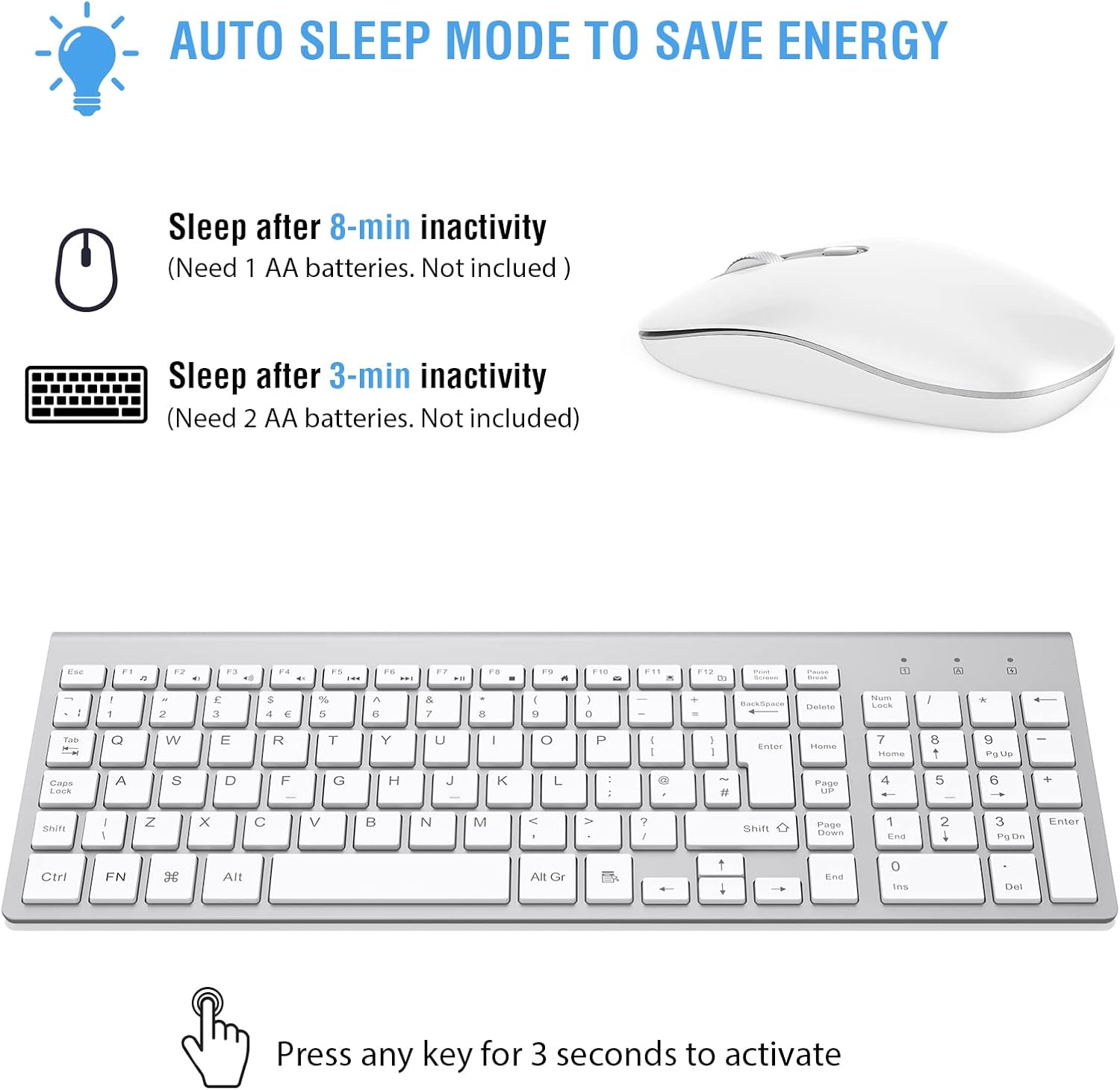
Figure 1: Battery installation and auto-sleep mode details for the keyboard and mouse. The mouse requires 1 AA battery, and the keyboard requires 2 AA batteries.
2. Connecting the USB Receiver
- Locate the 2-in-1 USB receiver. It is typically stored in a compartment on the underside of the mouse.
- Plug the USB receiver into an available USB port on your computer (laptop, desktop, etc.).
- Your computer should automatically detect and install the necessary drivers. No additional software installation is required.
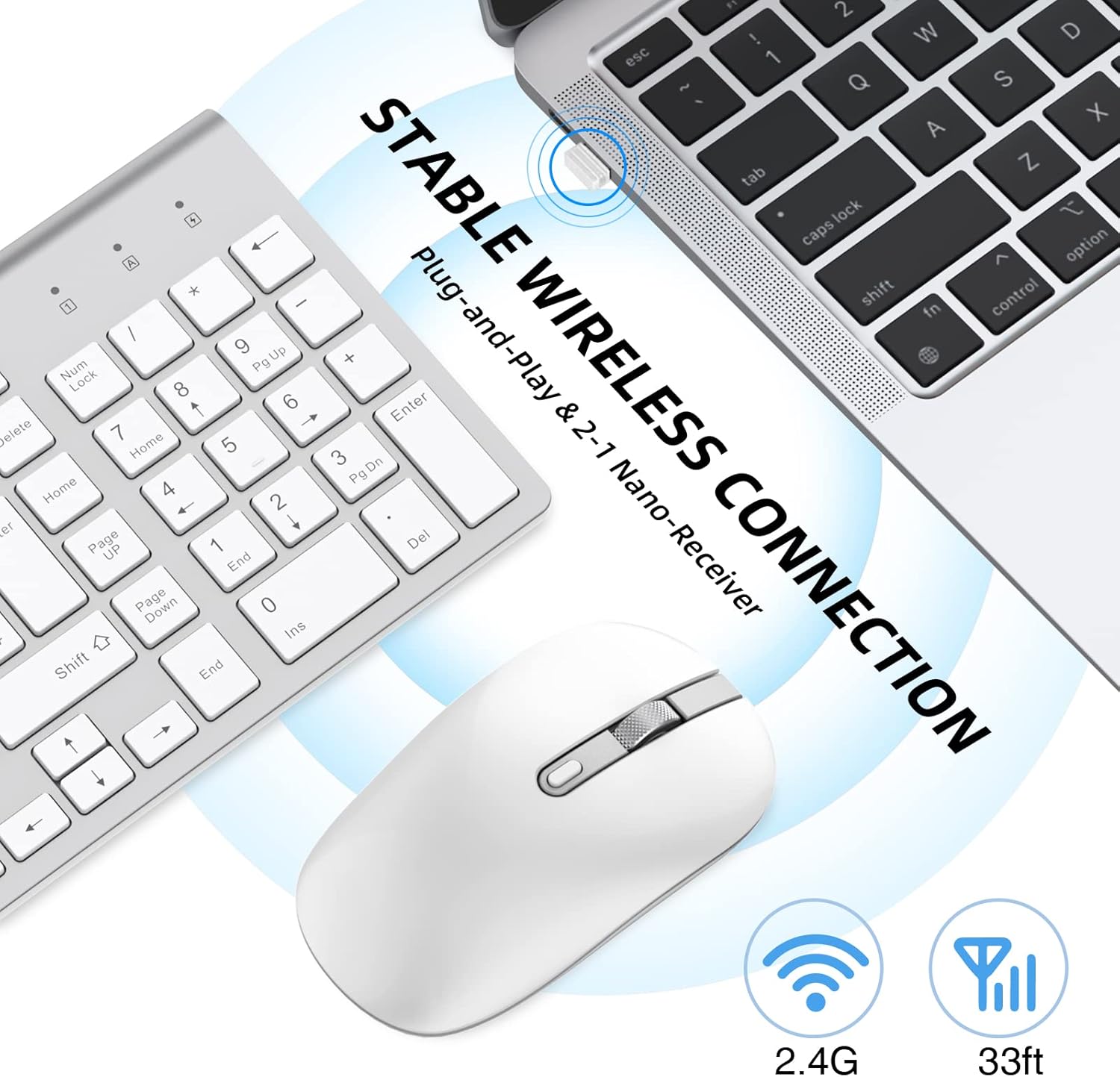
Figure 2: The USB receiver provides a stable 2.4G wireless connection. It is a plug-and-play device, requiring no additional drivers.

Figure 3: The USB receiver is conveniently stored in a dedicated compartment on the underside of the mouse.
3. Powering On
- Mouse: Ensure the ON/OFF switch on the underside of the mouse is set to "ON".
- Keyboard: The keyboard typically powers on automatically once batteries are inserted and the receiver is connected.
The keyboard and mouse are now ready for use. The wireless connection has a working range of up to 10 meters (33 feet).
Operation
Keyboard Functions
- Scissor-Switch Keys: The keyboard features low-profile scissor-switch keys for a responsive, quiet, and comfortable typing experience.
- Full-Size Layout: Includes a full QWERTY layout with a dedicated numeric keypad.
- Multimedia Hotkeys: Access common functions like music control, internet, email, and volume directly using the multimedia hotkeys. Note that hotkey compatibility may vary with different operating systems.
- Ergonomic Design: The keyboard has an inclined angle for an ergonomic typing position.

Figure 4: The keyboard utilizes scissor-switch technology for faster response and quieter typing.
Mouse Functions
- Adjustable DPI: The mouse offers three adjustable DPI levels (800, 1200, 1600) to customize cursor sensitivity. Press the DPI button (usually located near the scroll wheel) to cycle through the settings.
- Silent Click: Designed for quiet operation, the mouse features whisper-quiet clicks to minimize disturbance.
- Ergonomic Design: The contoured shape and skin-friendly finish provide comfortable use for extended periods.
Figure 5: The slim silent mouse features adjustable DPI levels (800/1200/1600), whisper-quiet clicks, and an ON/OFF switch.
Energy Saving Mode
To conserve battery life, both the keyboard and mouse enter an automatic sleep mode after periods of inactivity:
- Mouse: Enters sleep mode after approximately 8 minutes of inactivity.
- Keyboard: Enters sleep mode after approximately 3 minutes of inactivity.
To wake the devices, simply click any mouse button or press any key on the keyboard. The devices will reactivate within 3 seconds.
Figure 6: The auto-sleep mode helps conserve battery power. The mouse sleeps after 8 minutes, and the keyboard after 3 minutes of inactivity. Press any key or button to wake.
Compatibility
This wireless keyboard and mouse combo is compatible with a wide range of devices and operating systems, including:
- Operating Systems: Windows XP, Windows Vista, Windows 7, Windows 8, Windows 10.
- Devices: Laptops, desktop computers, personal computers, projectors, game consoles, televisions.
Maintenance
Cleaning
- To clean the keyboard and mouse, use a soft, dry, lint-free cloth.
- For stubborn dirt, slightly dampen the cloth with water or a mild, non-abrasive cleaning solution. Avoid excessive moisture.
- Do not immerse the devices in water or use harsh chemicals.
Battery Replacement
- When the devices stop responding or exhibit erratic behavior, it may be time to replace the batteries.
- Follow the instructions in the "Inserting Batteries" section to replace the AA batteries in both the keyboard and mouse.
- Dispose of used batteries responsibly according to local regulations.
Troubleshooting
- No Response from Keyboard/Mouse:
- Ensure batteries are correctly inserted and not depleted. Replace if necessary.
- Check if the mouse's ON/OFF switch is in the "ON" position.
- Verify the USB receiver is securely plugged into a working USB port on your computer. Try a different USB port.
- Move the keyboard and mouse closer to the USB receiver to rule out range issues.
- Restart your computer.
- Lag or Intermittent Connection:
- Ensure there are no large metallic objects or other wireless devices (e.g., Wi-Fi routers, cordless phones) operating too close to the receiver, which could cause interference.
- Move the USB receiver to a front USB port or use a USB extension cable to bring it closer to the devices.
- Replace batteries if they are low.
- Mouse Cursor Movement is Erratic:
- Clean the optical sensor on the underside of the mouse.
- Ensure you are using the mouse on a suitable surface. Avoid highly reflective or transparent surfaces. A mouse pad is recommended.
- Adjust the DPI setting of the mouse.
- Multimedia Hotkeys Not Working:
- Some hotkeys may have limited functionality or require specific software/drivers depending on your operating system.
- Ensure your operating system is up to date.
Specifications
| Brand | cimetech |
| Model | Ultra-Thin 2.4G Wireless Keyboard and Mouse Combo |
| Color | Silver/White |
| Connectivity | 2.4 GHz Wireless |
| Wireless Range | Up to 10 meters (33 feet) |
| Keyboard Type | Full-size QWERTY, Scissor-Switch, Ergonomic |
| Mouse Type | Optical, Silent Click, Ergonomic, Right-hand orientation |
| Mouse DPI Levels | 800 / 1200 / 1600 |
| Keyboard Battery | 2 x AA batteries (not included) |
| Mouse Battery | 1 x AA battery (not included) |
| Auto-Sleep (Keyboard) | After 3 minutes of inactivity |
| Auto-Sleep (Mouse) | After 8 minutes of inactivity |
| Compatible OS | Windows XP, Vista, 7, 8, 10 |
| Compatible Devices | PC, Laptop, Projector, Game Console, TV |
Warranty and Support
For warranty information or technical support, please refer to the documentation provided with your purchase or contact cimetech customer service through their official website or the retailer where the product was purchased. Please have your product model and purchase date available when seeking support.