
WiMiUS S26
WiMiUS S26 Projector User Manual
Model: S26 | Brand: WiMiUS
Introduction
Thank you for choosing the WiMiUS S26 Projector. This high-performance projector is designed to deliver an immersive viewing experience with its Full HD 1080P native resolution, 4K support, and high brightness. Equipped with advanced connectivity options like 5G/2.4G WiFi and Bluetooth 5.1, it offers versatile usage for home entertainment, gaming, and professional presentations. This manual provides detailed instructions to help you set up, operate, and maintain your projector for optimal performance.
Safety Information
Please read all safety instructions carefully before using the projector.
- Do not look directly into the projector lens when the lamp is on.
- Ensure proper ventilation to prevent overheating. Do not block ventilation openings.
- Use only the power adapter supplied with the projector.
- Do not expose the projector to rain or moisture to avoid electric shock or fire.
- Avoid placing the projector on unstable surfaces.
- Unplug the projector during lightning storms or when unused for long periods.
Package Contents
Verify that all items are included in your package:
- 1x WiMiUS S26 Projector
- 1x Power Cable
- 1x HDMI Cable
- 1x AV Cable
- 1x Remote Control (batteries not included)
- 1x Lens Cloth
- 1x User Manual
Product Overview
The WiMiUS S26 projector features a compact design with various ports for connectivity.

Figure 1: WiMiUS S26 Projector and Included Accessories. This image displays the main projector unit, a smartphone, and a carrying case, highlighting the projector's compact size and portability.

Figure 2: Connectivity Ports. This image illustrates the various input and output ports on the projector, including HDMI, USB, and AV, demonstrating its wide compatibility with different devices.
Setup
1. Placement
Choose a flat, stable surface for the projector. The projection distance and screen size can be adjusted. For optimal viewing, ensure the projector is positioned directly in front of the screen or wall.
2. Power Connection
Connect the power cable to the projector's power input and then plug it into a power outlet.
3. Initial Power On
Press the power button on the projector or the remote control to turn on the device.
4. Focus and Keystone Correction
Adjust the focus ring on the projector lens until the image is clear. Use the 4P/4D keystone correction function to adjust the image shape if it appears trapezoidal.

Figure 3: 4D and 4P Keystone Correction with Zoom Function. This image demonstrates how to correct distorted images using 4D and 4P keystone adjustments and how to reduce image size with the zoom feature.
Operating Instructions
1. Connecting Devices
- HDMI: Connect your laptop, game console (PS5), TV stick, or other HDMI-enabled devices using the HDMI cable. Select the HDMI input source from the projector's menu.
- USB: Insert a USB disk into the USB port to play media files (videos, photos, music) or to display Microsoft Office and Adobe PDF documents directly.
- AV: Use the AV cable to connect older devices like DVD players.
2. Wireless Connectivity (WiFi & Bluetooth)
WiFi Connection (5G/2.4G)
The projector supports dual-band 5G and 2.4G WiFi for stable and smooth wireless connections.
- Navigate to the WiFi settings in the projector's menu.
- Select your desired WiFi network (5G or 2.4G).
- Enter the password to connect.
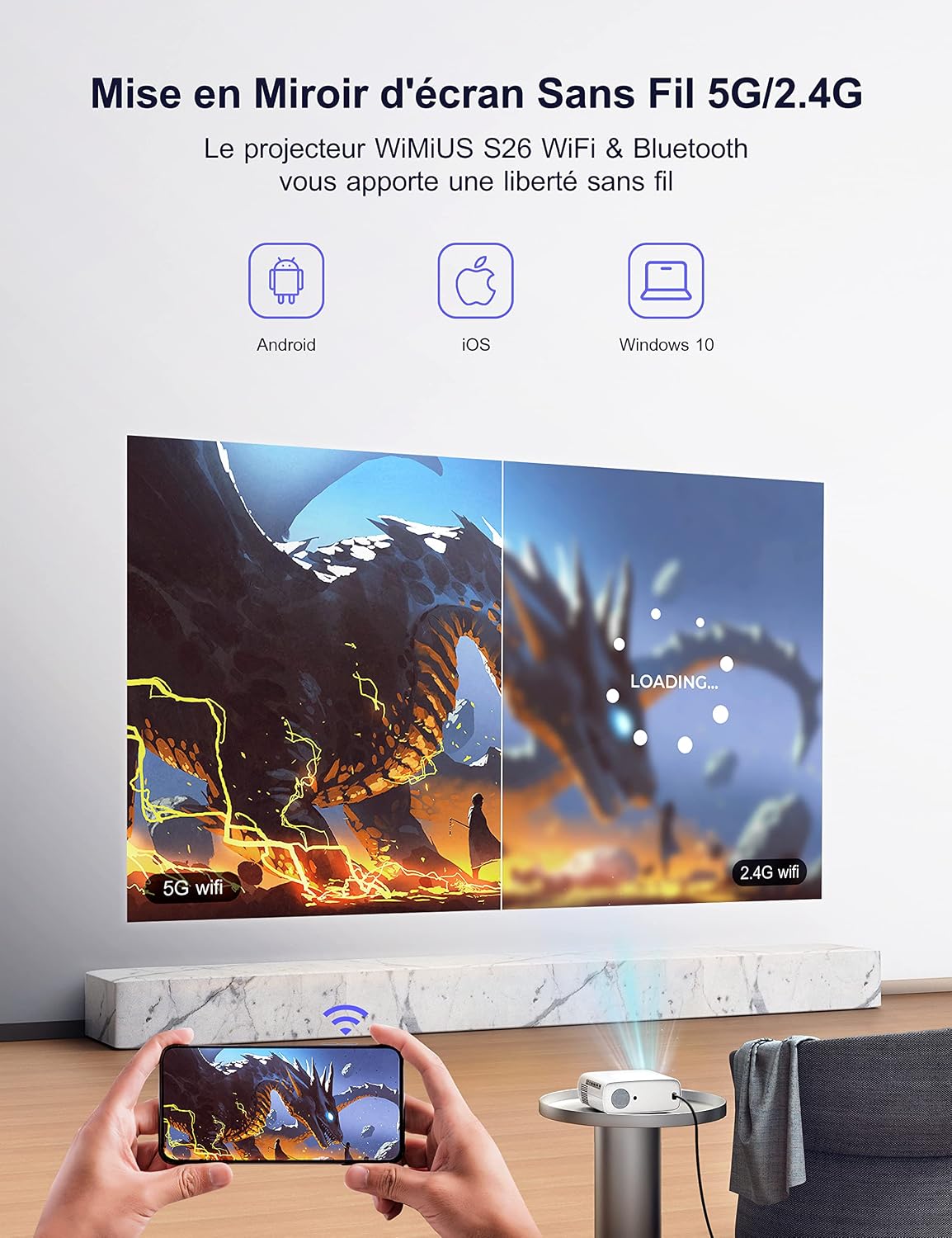
Figure 4: Wireless Screen Mirroring. This image demonstrates the projector's ability to mirror screens wirelessly from Android, iOS, and Windows 10 devices using 5G or 2.4G WiFi.
Bluetooth 5.1 Connection
Connect external Bluetooth speakers, headphones, or AirPods for an enhanced audio experience.
- Enable Bluetooth on the projector and your desired audio device.
- In the projector's Bluetooth settings, search for available devices.
- Select your audio device from the list to pair.

Figure 5: Bluetooth 5.1 Connectivity. This image shows the projector connected wirelessly to an external Bluetooth speaker, headphones, and earphones, illustrating its audio output flexibility.
3. Screen Mirroring
Mirror content from your iOS, Android, or Windows 10 devices wirelessly. Ensure both the projector and your device are connected to the same WiFi network.
- For iOS: Use the "iOS Cast" or "Screen Mirroring" function on your iPhone/iPad.
- For Android/Windows: Use "Miracast" or "Wireless Display" function on your device.
4. USB Playback (Office & PDF)
The projector can directly read and display Microsoft Office (Word, Excel, PowerPoint) and Adobe PDF files from a USB flash drive, making it ideal for business presentations.
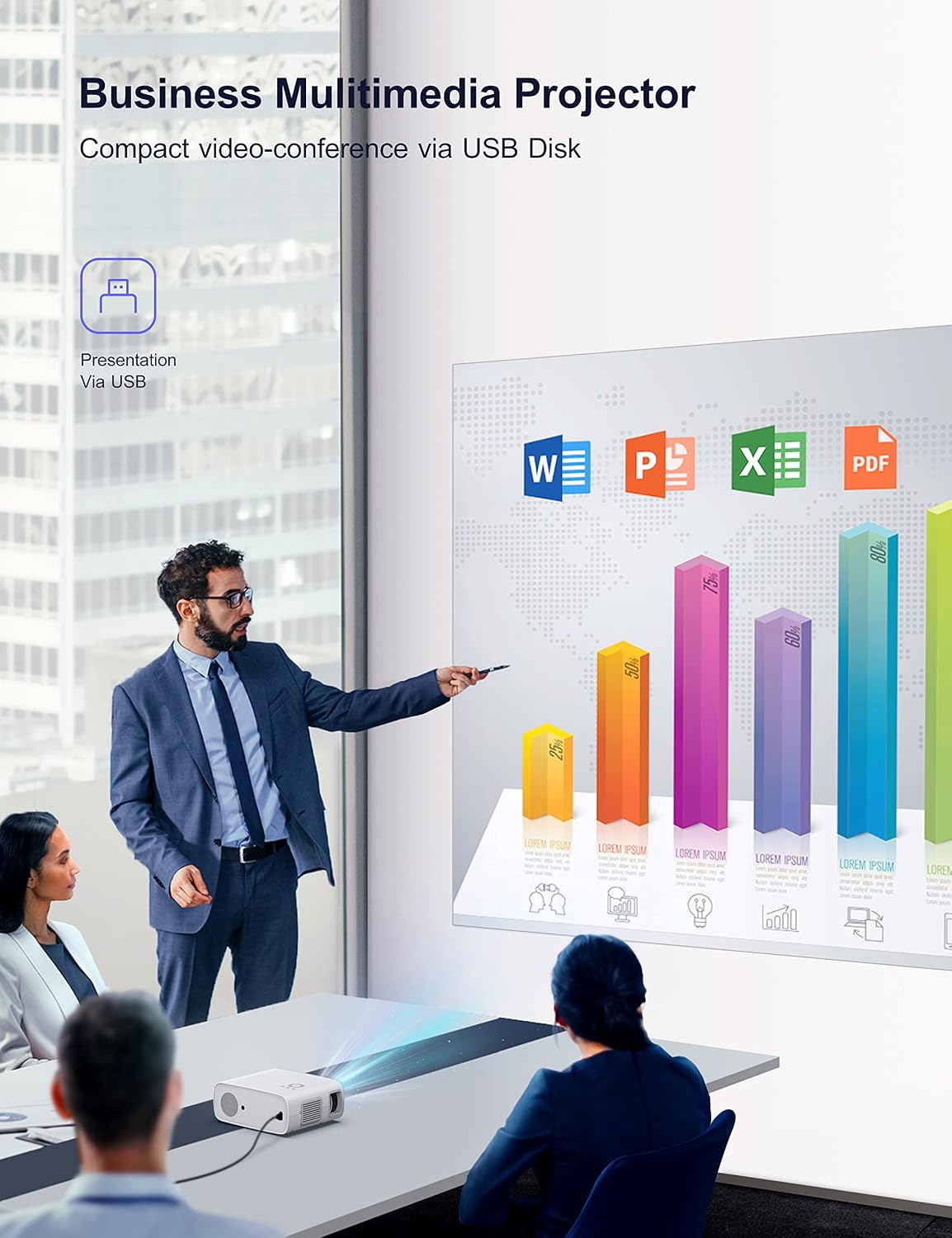
Figure 6: USB Presentation Capability. This image shows the projector being used in a business meeting setting, demonstrating its ability to display presentations directly from a USB disk.
5. Projection Modes
The WiMiUS S26 supports various projection modes:
- Front Projection: Standard setup, projector in front of the screen.
- Rear Projection: Projector behind a translucent screen.
- Ceiling Projection (Front/Rear): Mount the projector on the ceiling. Adjust image orientation in settings.
6. Zoom Function
The projector allows you to reduce the image size from 100% to 50% without moving the projector. Access this function through the projector's menu settings.
Maintenance
Regular maintenance ensures the longevity and optimal performance of your projector.
- Lens Cleaning: Use the provided lens cloth or a soft, lint-free cloth to gently wipe the lens. Do not use abrasive cleaners.
- Dust Removal: Periodically clean the ventilation openings with a soft brush or compressed air to prevent dust buildup and ensure proper airflow.
- Storage: When not in use, store the projector in a cool, dry place, away from direct sunlight and extreme temperatures. Use the original packaging or a protective case for storage and transport.
Troubleshooting
If you encounter issues, refer to the following common problems and solutions:
| Problem | Possible Cause / Solution |
|---|---|
| No image on screen |
|
| Image is blurry |
|
| Image is trapezoidal/distorted |
|
| No sound |
|
| WiFi/Bluetooth connection unstable |
|
| Projector fan is noisy |
|
Specifications
| Feature | Detail |
|---|---|
| Brand | WiMiUS |
| Model Number | S26 |
| Color | White |
| Product Type | Portable Projector |
| Native Display Resolution | 1920 x 1080P (Full HD) |
| Max Display Resolution | 3840 x 2160 (4K Supported) |
| Brightness | 13000 Lumens |
| Contrast Ratio | 20000:1 |
| Display Type | LED |
| Max Screen Size | 300 Inches |
| Connectivity Technology | Bluetooth 5.1, 5G/2.4G WiFi, USB, HDMI, AV |
| Compatible Devices | Smartphone (iOS, Android), Windows 10, PS5, TV Stick, Laptop, USB Disk |
| Special Features | Built-in Speaker, 4P/4D Keystone Correction, Zoom (50-100%), Direct USB Office/PDF Playback |
| Mounting Type | Ceiling Mount |
| Recommended Uses | Home Cinema, Gaming, Business Presentation |
Warranty and Support
The WiMiUS S26 Projector comes with a 3-year repair service warranty. For any technical support, warranty claims, or inquiries, please contact WiMiUS customer service. Refer to the contact information provided in your product packaging or on the official WiMiUS website.
Note: Keep your purchase receipt as proof of purchase for warranty purposes.
Related documentsS26


Ask a question about this manual
Ask about setup, troubleshooting, compatibility, parts, safety, or missing instructions. Manuals+ will review the question and use this page’s manual context to help answer it.