
Introduction
This manual provides instructions for the setup, operation, maintenance, and troubleshooting of your AWOW AiBook 10 detachable 2-in-1 laptop. The AiBook 10 functions as both a tablet and a laptop, featuring a 10.1-inch touchscreen display and running Windows 11. It is equipped with an Intel Celeron N4120 processor, 8GB RAM, and 256GB SSD storage.
What's in the Box
Upon unpacking, verify that all items are present:
- AWOW AiBook 10 Detachable 2-in-1 Laptop
- Detachable Keyboard
- Power Adapter (AC adapter)
Product Overview
The AWOW AiBook 10 is designed for versatility, allowing seamless transition between tablet and laptop modes. Familiarize yourself with the device's components and ports.

Image: The AWOW AiBook 10 in laptop configuration, showcasing the main unit and attached keyboard.

Image: Detailed view of the AiBook 10, highlighting its dimensions and port locations.
Ports and Connectors:
- USB 3.0 Port: For connecting USB devices such as external storage, mice, or printers.
- Micro HDMI Port: For connecting to external displays or projectors.
- TF Card Slot: For expanding storage with a microSD card (up to 512GB).
- Headphone Jack (3.5mm): For connecting headphones or external speakers.
- DC 12V/3A Jack: For connecting the power adapter to charge the device.
Cameras:
- Front Camera: 2.0MP, suitable for video calls.
- Rear Camera: 5.0MP, for capturing photos and videos.

Image: Illustration of the 2MP front camera and 5MP rear camera on the AiBook 10.
Setup
1. Initial Charging
Before first use, fully charge the AiBook 10. Connect the provided power adapter to the DC 12V/3A jack on the device and plug it into a power outlet. The charging indicator will illuminate.
2. Attaching the Keyboard
Align the magnetic connector of the detachable keyboard with the corresponding port at the bottom edge of the tablet. The keyboard will snap into place magnetically.

Image: The detachable keyboard being connected to the AiBook 10 tablet.
3. Power On
Press and hold the power button located on the side of the tablet until the screen illuminates. The device will boot into Windows 11.
4. Initial Windows Setup
Follow the on-screen prompts to complete the Windows 11 setup process. This includes selecting your language, region, connecting to a Wi-Fi network, and creating a user account.
Operating
Switching Between Tablet and Laptop Modes
The AiBook 10 automatically detects the presence of the detachable keyboard. When the keyboard is attached, it functions as a laptop. When detached, it operates as a tablet, and Windows 11 will adjust its interface accordingly.
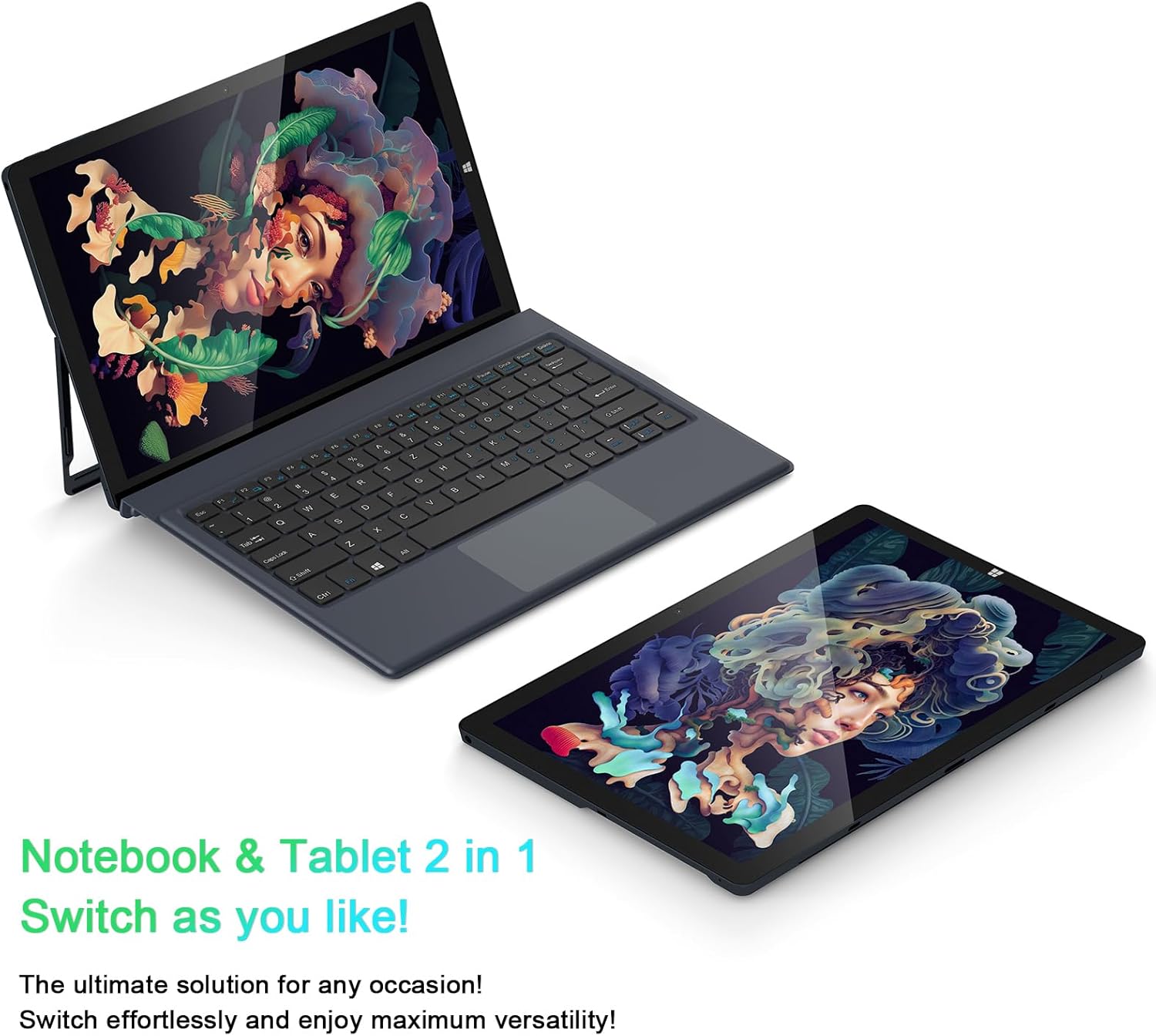
Image: The AiBook 10 displayed in both its laptop and tablet configurations.
Using the Touchscreen
The 10.1-inch IPS display supports multi-touch gestures. Use your fingers to navigate, tap, swipe, and pinch-to-zoom.
Connecting Peripherals
- Bluetooth: Enable Bluetooth in Windows settings to pair with compatible devices such as headphones, mice, or keyboards. The device supports Bluetooth 4.2.
- USB Devices: Plug USB devices into the USB 3.0 port.
- External Display: Connect an external monitor using the Micro HDMI port. An appropriate adapter or cable may be required.
Adjusting the Stand
The integrated stand bracket allows you to adjust the viewing angle of the tablet up to 145 degrees. Carefully extend the stand from the back of the tablet to your desired position.
Maintenance
Cleaning the Device
Use a soft, lint-free cloth to clean the screen and exterior surfaces. For stubborn marks, slightly dampen the cloth with water or a screen-cleaning solution. Avoid harsh chemicals or abrasive materials.
Battery Care
To prolong battery life, avoid fully discharging the battery frequently. Store the device in a cool, dry place when not in use for extended periods. The device features a 6500mAh Lithium Polymer battery.

Image: Visual representation of the 6500mAh battery capacity.
Software Updates
Regularly check for and install Windows updates to ensure optimal performance and security. Access Windows Update through the Settings menu.
Troubleshooting
This section addresses common issues you might encounter with your AiBook 10.
Device Does Not Power On
- Ensure the device is charged. Connect the power adapter and wait a few minutes before attempting to power on again.
- Press and hold the power button for 10-15 seconds to perform a hard reset.
Screen Flickering or Display Issues
- Restart the device.
- Check for updated display drivers through Windows Update or the device manufacturer's website.
- If connected to an external display, ensure the cable is securely connected.
Keyboard or Touchpad Not Responding
- Ensure the detachable keyboard is securely attached to the tablet.
- Restart the device.
- Check Windows settings for keyboard and touchpad functionality.
Wi-Fi or Bluetooth Connectivity Problems
- Ensure Wi-Fi or Bluetooth is enabled in Windows settings.
- Restart your router/modem for Wi-Fi issues.
- For Bluetooth, try unpairing and re-pairing the device.
- Check for updated network drivers.
Slow Performance
- Close unnecessary applications running in the background.
- Ensure sufficient free storage space on the SSD.
- Run a disk cleanup and optimize drives in Windows.
- Check for and install any pending Windows updates.
Specifications
| Brand | AWOW |
| Model Name | AiBook 10 |
| Screen Size | 10.1 Inches |
| Display Resolution | 1280 x 800 Pixels (Full HD IPS) |
| Operating System | Windows 11 |
| CPU Model | Intel Celeron N4120 (up to 2.6 GHz) |
| RAM Memory | 8 GB LPDDR4 |
| Hard Disk Size | 256 GB SSD (eMMC) |
| Graphics Card | Integrated Intel UHD Graphics 600 |
| Connectivity | 2.4G+5G WiFi, Bluetooth 4.2, USB 3.0, Micro HDMI |
| Cameras | Front 2.0MP, Rear 5.0MP |
| Battery | 6500mAh Lithium Polymer |
| Item Weight | 1.4 Pounds (tablet only) |
| Dimensions (L x W x Thickness) | 10.1" x 6.8" x 0.38" (tablet only) |
Warranty and Support
Warranty Information
The AWOW AiBook 10 comes with a 1 Year Limited Warranty. Please retain your proof of purchase for warranty claims. The warranty covers manufacturing defects under normal use conditions.
Customer Support
For technical assistance, troubleshooting beyond this manual, or warranty inquiries, please contact AWOW customer support. Refer to the product packaging or the official AWOW website for the most current contact information.


