
1. Introduction
Welcome to the CHUBORY F89 Foldable Brushless Drone user manual. This guide provides essential information for the safe and effective operation, maintenance, and troubleshooting of your new drone. Please read this manual thoroughly before operating the device to ensure optimal performance and to prevent damage.
The CHUBORY F89 is designed for beginners, offering a stable flight experience with powerful brushless motors and a 1080P HD camera for capturing aerial footage.
2. Safety Guidelines
Operating a drone requires responsibility. Adhere to the following safety guidelines:
- Read the Manual: Understand all instructions and warnings before use.
- Age Restriction: This product is suitable for children (beginners) but adult supervision is recommended.
- Flight Environment: Fly in open, unobstructed areas, away from people, animals, buildings, and power lines. Avoid flying in strong winds or adverse weather conditions.
- Maintain Line of Sight: Always keep the drone within your visual line of sight.
- Battery Safety: Use only approved batteries and chargers. Do not overcharge or puncture batteries. Discontinue use if batteries are damaged or swollen.
- Propeller Safety: Keep hands, face, and loose clothing away from rotating propellers.
- Respect Privacy: Be mindful of privacy laws when recording videos or taking photos.
- Local Regulations: Be aware of and comply with all local drone regulations and laws.
3. Package Contents
Verify that all items are present in your package:
- CHUBORY F89 Drone
- Remote Control
- Lithium-ion Batteries (2 included)
- USB Charging Cable
- Spare Propellers
- Carrying Bag
- User Manual (this document)
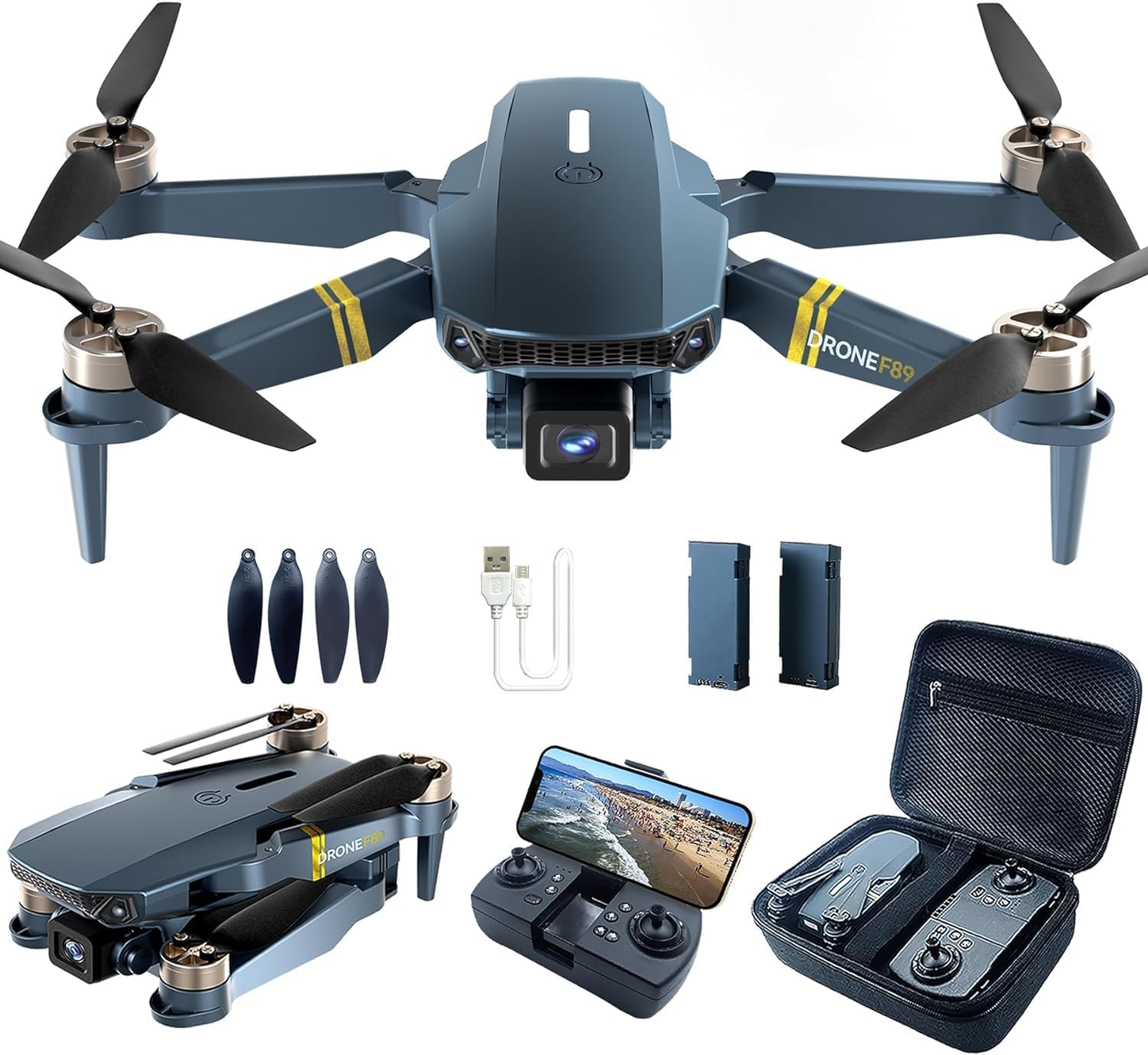
Image 3.1: CHUBORY F89 Drone, remote control, batteries, charging cable, spare propellers, and carrying bag.
4. Drone Overview
Familiarize yourself with the main components of your CHUBORY F89 drone.
- Foldable Arms: For compact storage and transport.
- Brushless Motors: Provide powerful and efficient flight.
- Propellers: Generate lift for flight.
- 1080P HD Camera: Captures high-definition photos and videos with a 120° wide-angle view.
- Battery Compartment: Houses the drone's flight battery.
- LED Indicator Lights: Provide status information (e.g., power, signal, battery).

Image 4.1: The CHUBORY F89 drone showcasing its design and propellers.
5. Remote Control Overview
The remote control is your primary interface for flying the drone. Understand its buttons and functions.
- Left Joystick: Controls altitude (up/down) and rotation (yaw left/right).
- Right Joystick: Controls forward/backward and left/right movement.
- One-Key Takeoff/Landing Button: Initiates automatic takeoff or landing.
- Speed Switch: Adjusts flight speed (e.g., low, medium, high).
- Photo/Video Button: Triggers camera functions.
- Phone Holder: Securely holds your smartphone for FPV viewing.
Note: Specific button layouts may vary slightly. Refer to the diagram in your quick start guide for precise identification.
6. Battery Installation and Charging
6.1 Drone Battery
- Ensure the drone is powered off.
- Locate the battery compartment on the drone.
- Insert the fully charged Lithium-ion battery into the compartment, ensuring it clicks into place.
- Close the battery compartment cover securely.
6.2 Charging the Drone Battery
- Connect the USB charging cable to the drone battery.
- Connect the other end of the USB cable to a USB power adapter (5V/1A recommended) or a computer USB port.
- The indicator light on the charging cable/battery will show charging status (e.g., red for charging, green/off for fully charged).
- Charging typically takes approximately 180 minutes for a full charge. Do not leave batteries unattended while charging.
6.3 Remote Control Batteries
The remote control typically uses standard AA batteries (not included) or has a built-in rechargeable battery. Refer to the remote control's specific instructions for battery installation.
7. Setup
7.1 Unfolding the Drone
Gently unfold the drone arms until they lock into position. Ensure all arms are fully extended before flight.
7.2 Powering On and Pairing
- Place the drone on a flat, level surface.
- Press and hold the power button on the drone until the indicator lights flash.
- Power on the remote control. The remote control will emit a beep, and its indicator light will flash.
- Push the left joystick up and then pull it down. The drone and remote control will pair, indicated by solid lights and a confirmation beep.
7.3 App Installation and Wi-Fi Connection (FPV)
- Download the dedicated CHUBORY FPV app from your smartphone's app store (iOS/Android).
- Ensure the drone is powered on.
- On your smartphone, go to Wi-Fi settings and connect to the Wi-Fi network named "CHUBORY-F89-XXXXXX" (or similar).
- Open the CHUBORY FPV app. You should see the live camera feed from the drone.
8. Operating
8.1 Pre-Flight Check
- Ensure drone and remote control batteries are fully charged.
- Check that propellers are securely attached and undamaged.
- Confirm drone arms are fully unfolded and locked.
- Calibrate the drone (if required by the app or quick start guide).
8.2 Takeoff and Landing
- Manual Takeoff: Push both joysticks diagonally outwards and downwards to start the motors. Then, gently push the left joystick up to ascend.
- One-Key Takeoff: Press the One-Key Takeoff button on the remote control. The drone will automatically ascend to a safe height.
- Manual Landing: Gently pull the left joystick down to descend. Once landed, pull both joysticks diagonally inwards and downwards to stop the motors.
- One-Key Landing: Press the One-Key Landing button. The drone will automatically descend and land.
8.3 Basic Flight Controls
- Ascend/Descend: Left joystick up/down.
- Forward/Backward: Right joystick up/down.
- Turn Left/Right (Yaw): Left joystick left/right.
- Fly Left/Right (Strafe): Right joystick left/right.
8.4 Camera Operation
- Take Photo: Press the Photo button on the remote control or tap the camera icon in the app.
- Record Video: Press the Video button on the remote control or tap the video icon in the app to start/stop recording.
- View Footage: Access recorded photos and videos through the app's gallery or by connecting the drone's memory card (if applicable) to a computer.

Image 8.1: The CHUBORY F89 drone in flight, demonstrating its aerial capabilities.
9. Maintenance
- Cleaning: Use a soft, dry cloth to clean the drone and remote control. Avoid water or harsh chemicals.
- Propeller Inspection: Regularly check propellers for cracks, bends, or damage. Replace damaged propellers immediately.
- Battery Care: Store batteries in a cool, dry place. Do not store fully charged or completely depleted batteries for extended periods. Charge them to about 50-60% for long-term storage.
- Storage: When not in use, fold the drone arms and store the drone and accessories in the provided carrying bag to protect them from dust and damage.
10. Troubleshooting
| Problem | Possible Cause | Solution |
|---|---|---|
| Drone does not power on. | Battery depleted or not installed correctly. | Charge the battery fully. Ensure battery is correctly inserted and connected. |
| Drone does not pair with remote control. | Incorrect pairing sequence or low remote battery. | Ensure both devices are powered on. Repeat pairing steps (Section 7.2). Replace remote control batteries if necessary. |
| Drone drifts during flight. | Not calibrated or environmental factors (wind). | Perform drone calibration on a flat surface. Avoid flying in windy conditions. Use trim adjustments on the remote control. |
| No FPV feed in the app. | Wi-Fi not connected or app issue. | Ensure your phone is connected to the drone's Wi-Fi network. Restart the app and drone. |
| Short flight time. | Battery not fully charged or aged battery. | Ensure battery is fully charged. Consider replacing old batteries if performance degrades significantly. |
11. Specifications
| Brand | CHUBORY |
| Model Name | F89 |
| Item Weight | 116 Grams |
| Product Dimensions (L x W x H) | 4.5 x 7.5 x 13.5 cm (folded) |
| Batteries | 2 Lithium-ion batteries (included) |
| Video Recording Resolution | 1080p |
| Special Feature | 120° Wide-angle 1080p HD Camera, Brushless Motors |
| Connectivity Technology | Wireless (Wi-Fi FPV) |
| Skill Level | Beginner |
| Age Range (Description) | Child |
12. Warranty and Support
CHUBORY products are manufactured to high-quality standards. For warranty information, please refer to the documentation provided at the time of purchase or contact CHUBORY customer support.
If you encounter any issues not covered in this manual or require further assistance, please contact our customer support team through the official CHUBORY website or your retailer.
Please have your model number (F89) and purchase details ready when contacting support.


