
Geeky GK61 60% US Layout - Mechanical
Geeky GK61 60% Hot Swappable Mechanical Gaming Keyboard User Manual
Model: GK61 60% US Layout - Mechanical | Brand: Geeky
1. Introduction
Thank you for choosing the Geeky GK61 60% Hot Swappable Mechanical Gaming Keyboard. This manual provides detailed instructions for setting up, operating, maintaining, and troubleshooting your new keyboard. Please read this manual thoroughly to ensure optimal performance and longevity of your device.

Image: The Geeky GK61 60% Mechanical Gaming Keyboard, showcasing its compact design and vibrant RGB backlighting.
2. Package Contents
Before proceeding with the setup, please verify that all items are present in the package:
- Geeky GK61 60% Mechanical Gaming Keyboard
- USB Type-C to Type-A Cable (5FT/1.5M)
- Keycap Puller
- Switch Puller / Removal Tool
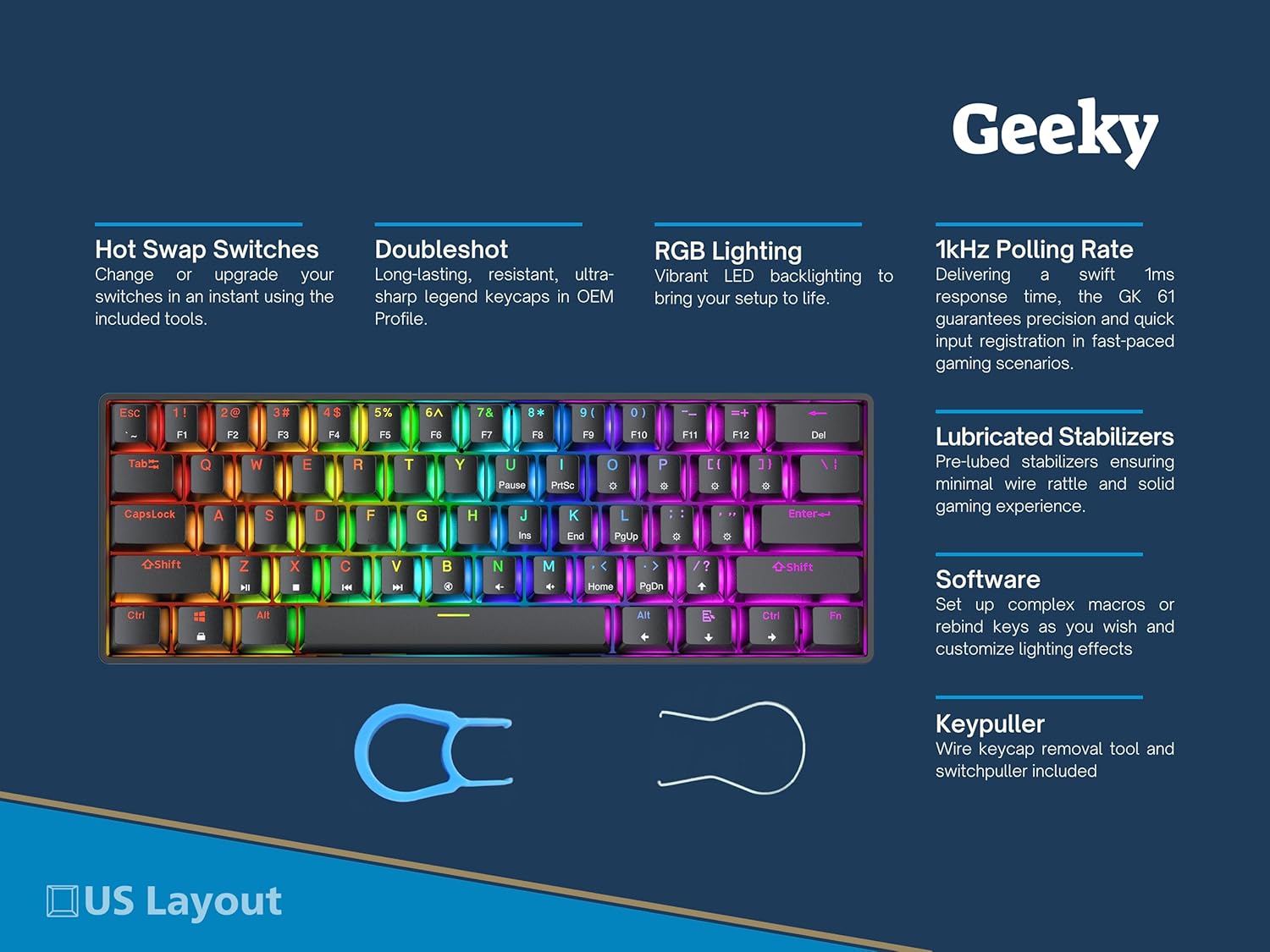
Image: The Geeky GK61 keyboard along with the included keycap puller and switch puller, essential tools for customization.
3. Setup Guide
3.1 Connecting the Keyboard
- Connect the USB Type-C end of the provided cable to the port on the back of the GK61 keyboard.
- Connect the USB Type-A end of the cable to an available USB port on your computer (PC or Mac).
- The keyboard will automatically be recognized by your operating system.
3.2 Software Installation (Optional)
For advanced customization, including macro setup, key remapping, and detailed RGB lighting effects, it is recommended to install the official Geeky software. The software is compatible with Windows 10, Win 8, Win 7, Win Vista, Windows XP, and Mac OS (some key remapping might be needed for Mac).
- Visit the official Geeky website to download the latest software version.
- Follow the on-screen instructions to complete the installation.
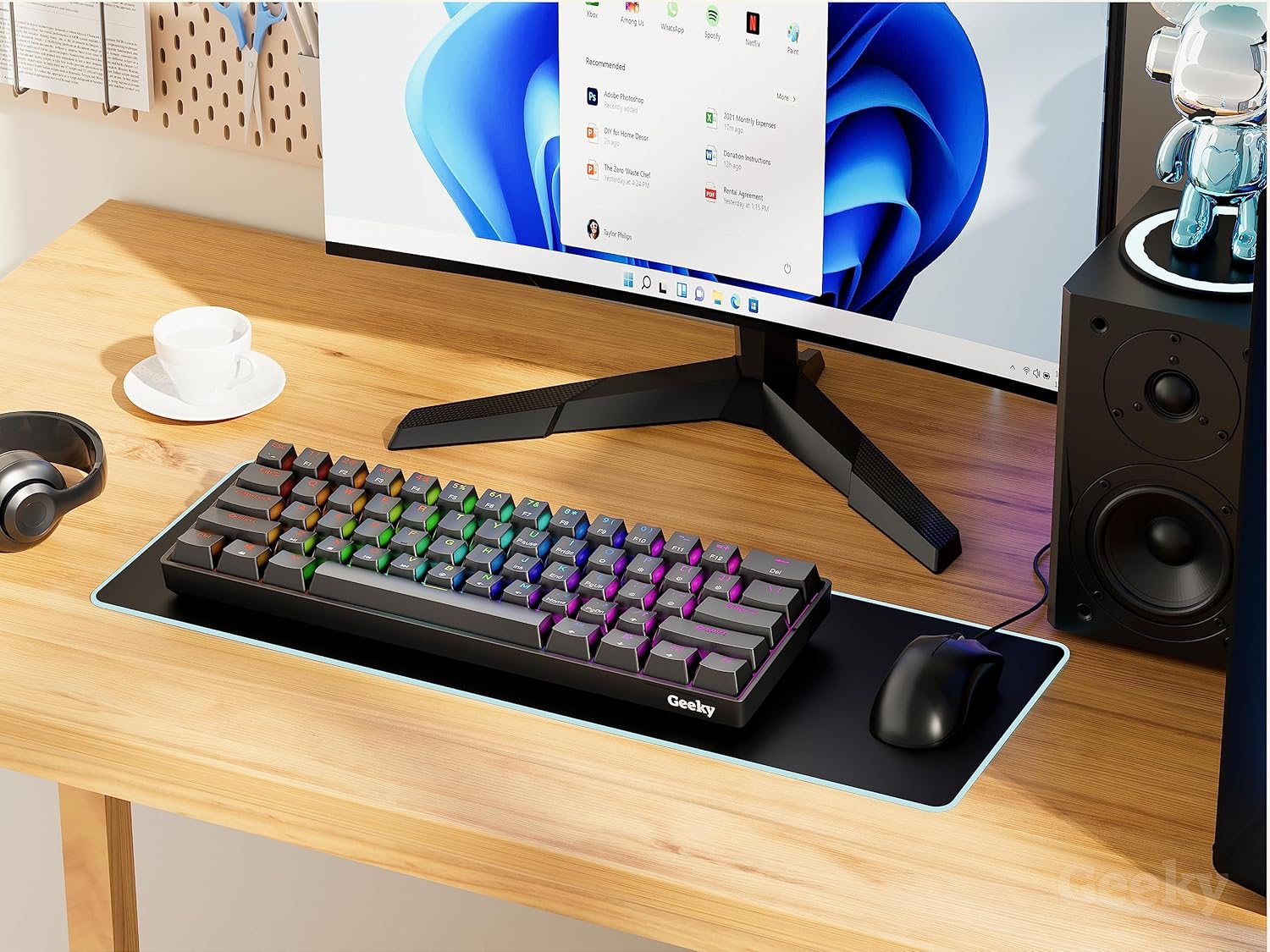
Image: The Geeky GK61 keyboard integrated into a typical desktop setup, demonstrating its compact size and aesthetic appeal.
4. Operating Instructions
4.1 Key Features Overview
- Hot Swappable Mechanical Switches: Easily change, lube, or upgrade your switches without soldering using the included tools. Supports both 3-pin and 5-pin switches.
- RGB Lighting: Features 16.8 million colors and twenty customizable backlight patterns via software.
- Doubleshot Keycaps: Long-lasting, resistant, and ultra-sharp legends in OEM Profile, ideal for both typing and gaming.
- 1kHz Polling Rate: Delivers a swift 1ms response time for precise and quick input registration.
- Lubricated Stabilizers: Pre-lubed stabilizers minimize wire rattle for a solid gaming experience.

Image: An infographic detailing the core features of the GK61 keyboard, including hot-swappable switches, doubleshot keycaps, RGB lighting, and a 1kHz polling rate.
4.2 Function Key Combinations
The GK61 keyboard utilizes an Fn (Function) key for accessing secondary functions and media controls. Press and hold the Fn key, then press the desired key to activate its secondary function.

Image: A visual guide to the GK61's function key combinations, illustrating how to control lighting brightness, speed, and modes, as well as media playback.
Lighting Control:
- Fn + [Q]: Increase brightness (10 levels)
- Fn + [A]: Decrease brightness (10 levels)
- Fn + [W]: Increase lighting speed (10 levels)
- Fn + [S]: Decrease lighting speed (10 levels)
- Fn + [E]: Switch lighting mode
- Fn + [D]: Turn lighting on/off
Media Control:
- Fn + [R]: Play/Pause
- Fn + [F]: Stop
- Fn + [T]: Previous Track
- Fn + [G]: Next Track
- Fn + [Y]: Mute
- Fn + [H]: Volume Down
- Fn + [U]: Volume Up
4.3 Mechanical Switch Types
The GK61 keyboard supports various mechanical switch types, each offering a distinct typing and gaming experience. The current product variant features Brown switches, known for their tactile feedback.
| Switch Type | Description | Operating Force | Pre Travel | Total Travel | Clicky |
|---|---|---|---|---|---|
| Black | Linear, for gaming | 60 cN | 2mm | 4mm | No click |
| Blue | Clicky, for fast tactile typing; great for speed-typing | 50 cN | 2mm | 4mm | Clicky |
| Brown | Tactile, for tactile responsive typing and gaming | 45 cN | 2mm | 4mm | No click |
| Red | Linear, for fast, responsive gaming | 45 cN | 2mm | 4mm | No click |
| Speed Yellow | Linear, for ultra fast, responsive gaming | 35 cN | 1.2mm | 3.4mm | No click |
| Speed Silver | Linear, for ultra fast, responsive gaming | 45 cN | 1.2mm | 3.4mm | No click |
Table: Detailed specifications for various GK Series mechanical switches, including their type, operating force, pre-travel, total travel, and click characteristics.

Image: A visual representation of the different mechanical switch types available for the GK series, detailing their characteristics and ideal uses.
5. Maintenance
5.1 Cleaning the Keyboard
To maintain the performance and appearance of your GK61 keyboard, regular cleaning is recommended:
- Disconnect the keyboard from your computer before cleaning.
- Use a soft, lint-free cloth slightly dampened with water or a mild cleaning solution to wipe down the keycaps and chassis.
- For dust and debris between keycaps, use compressed air.
- Avoid using harsh chemicals or abrasive materials.
5.2 Replacing Keycaps and Switches
The GK61 features hot-swappable switches, allowing for easy replacement or customization. Use the included keycap and switch puller tools for this process.
- Removing Keycaps: Use the keycap puller to gently grip the keycap and pull upwards until it detaches from the switch stem.
- Removing Switches: Use the switch puller to carefully depress the two clips on the sides of the switch, then pull the switch upwards from the PCB.
- Installing Switches: Align the pins of the new switch with the hot-swap sockets on the PCB. Gently push the switch down until it clicks into place. Ensure the pins are straight to avoid bending.
- Installing Keycaps: Align the keycap with the switch stem and press down firmly until it is securely seated.

Image: A detailed close-up showing the hot-swappable mechanical switches on the GK61 keyboard, highlighting the ease of replacement.
6. Troubleshooting
6.1 Keyboard Not Responding
- Ensure the USB cable is securely connected to both the keyboard and the computer.
- Try connecting the keyboard to a different USB port on your computer.
- Test the keyboard on another computer to rule out system-specific issues.
- Restart your computer.
6.2 RGB Lighting Issues
- Use the Fn key combinations (Fn + Q/A/W/S/E/D) to adjust brightness, speed, or switch lighting modes.
- Ensure the lighting is not turned off (Fn + D).
- If using the software, check the lighting settings within the application.
- Update the keyboard firmware via the official software, if available.
6.3 Keys Not Registering or Double Typing
- This could indicate a faulty switch. Use the switch puller to remove the problematic switch and replace it with a new one.
- Ensure the switch is fully seated in its socket.
- Clean around the switch area to remove any debris.
6.4 Software Not Recognizing Keyboard
- Ensure the keyboard is properly connected.
- Run the software as an administrator (Windows).
- Reinstall the software.
- Check for any conflicting software or drivers.
7. Specifications
| Feature | Detail |
|---|---|
| Brand | Geeky |
| Model Series | GK61 60% US Layout - Mechanical |
| Item Model Number | GK61 60% US Layout - Mechanical |
| Hardware Platform | PC |
| Operating System Compatibility | Windows (10, 8, 7, Vista, XP), Mac OS |
| Item Weight | 1.28 pounds |
| Product Dimensions (LxWxH) | 14.8 x 5.2 x 0.9 inches |
| Connectivity Technology | USB-C |
| Number of Keys | 61 |
| Keyboard Backlighting | RGB (16.8 million colors) |
| Polling Rate | 1kHz (1ms response time) |
| Recommended Uses | Gaming |
| Special Feature | Hot Swappable Switches, Backlit, Programmable |
| Power Source | DC power supply (USB) |
| Country of Origin | China |
8. Warranty and Support
For warranty information, technical support, or further inquiries, please contact Geeky customer service or visit the official Geeky website. Keep your purchase receipt for warranty claims.
You can also visit the Geeky Store on Amazon for more information and products: Geeky Store
Ask a question about this manual
Ask about setup, troubleshooting, compatibility, parts, safety, or missing instructions. Manuals+ will review the question and use this page’s manual context to help answer it.