
Sxhlseller Sxhlseller4ma7zpvtbw
4G LTE USB WiFi Modem Dongle User Manual
Model: Sxhlseller4ma7zpvtbw
Introduction
The Sxhlseller 4G LTE USB WiFi Modem Dongle is a portable and convenient device designed to provide internet access via a 3G/4G SIM card. It functions as both a mobile WiFi hotspot and a USB modem, allowing multiple devices to connect simultaneously. Its compact and lightweight design makes it ideal for various uses, including travel, business, outdoor activities, and car WiFi.

Image: The Sxhlseller 4G LTE USB WiFi Modem Dongle, a compact white device with a removable cap, showing its USB connector.
Package Contents
Please check the box for the following items:
- 1 x LTE 4G USB MODEM
Note: A standard SIM card is required for operation and is not included.
Setup Guide
1. Inserting the SIM Card
Locate the SIM card slot on the device. Gently slide open the cover to reveal the slot. Insert a standard SIM card into the designated slot, ensuring it is correctly oriented. Close the cover securely.

Image: The underside of the 4G LTE USB WiFi Modem Dongle, showing the open compartment for the standard SIM card and internal components.
2. Initial Connection and Configuration
Plug the USB modem into a USB port on your computer or a compatible USB power adapter. The device is plug-and-play, meaning no driver installation is typically required.

Image: The 4G LTE USB WiFi Modem Dongle connected to a USB port, illustrating its power source and function as a WiFi router or USB modem.
If your SIM card is compatible with hotspot WiFi devices, it may not be plug and play, and you may need to disable the SIM PIN code and modify the APN (Access Point Name).
To configure the device:
- Enter the IP address of the router (typically 192.168.100.1) into your web browser.
- Log in using the default credentials (Login Password: admin).
- Navigate to the network settings.
- Find the APN settings.
- Enable APN and modify it according to your SIM card provider's specifications.
- Ensure your SIM card is active and has a data plan.

Image: The 4G LTE USB WiFi Modem Dongle with text overlay detailing the "How to Use" steps, including SIM card insertion and APN configuration.
Operating Instructions
Using as a WiFi Hotspot
Once powered on and configured, the device will broadcast a WiFi signal. You can connect up to 10 devices simultaneously, including smartphones, tablets, and laptops. The WiFi range can extend up to 10 meters.

Image: The 4G LTE USB WiFi Modem Dongle shown in a setting with multiple devices, illustrating its capability to connect up to 10 devices simultaneously.
Using as a USB Modem
When plugged into a computer's USB port, the device can also function directly as a USB modem, providing internet access to that specific computer without broadcasting a WiFi signal.
Supported Operating Systems
The mini router is compatible with a wide range of operating systems:
- Windows: 2000, 2003, XP, Vista, 7, 8, 10 (32/64 bit)
- macOS: OS 10.4 or higher
- Linux
Firewalls are supported, and Wi-Fi security modes include Open, WPA-PSK, and WPA2-PSK.
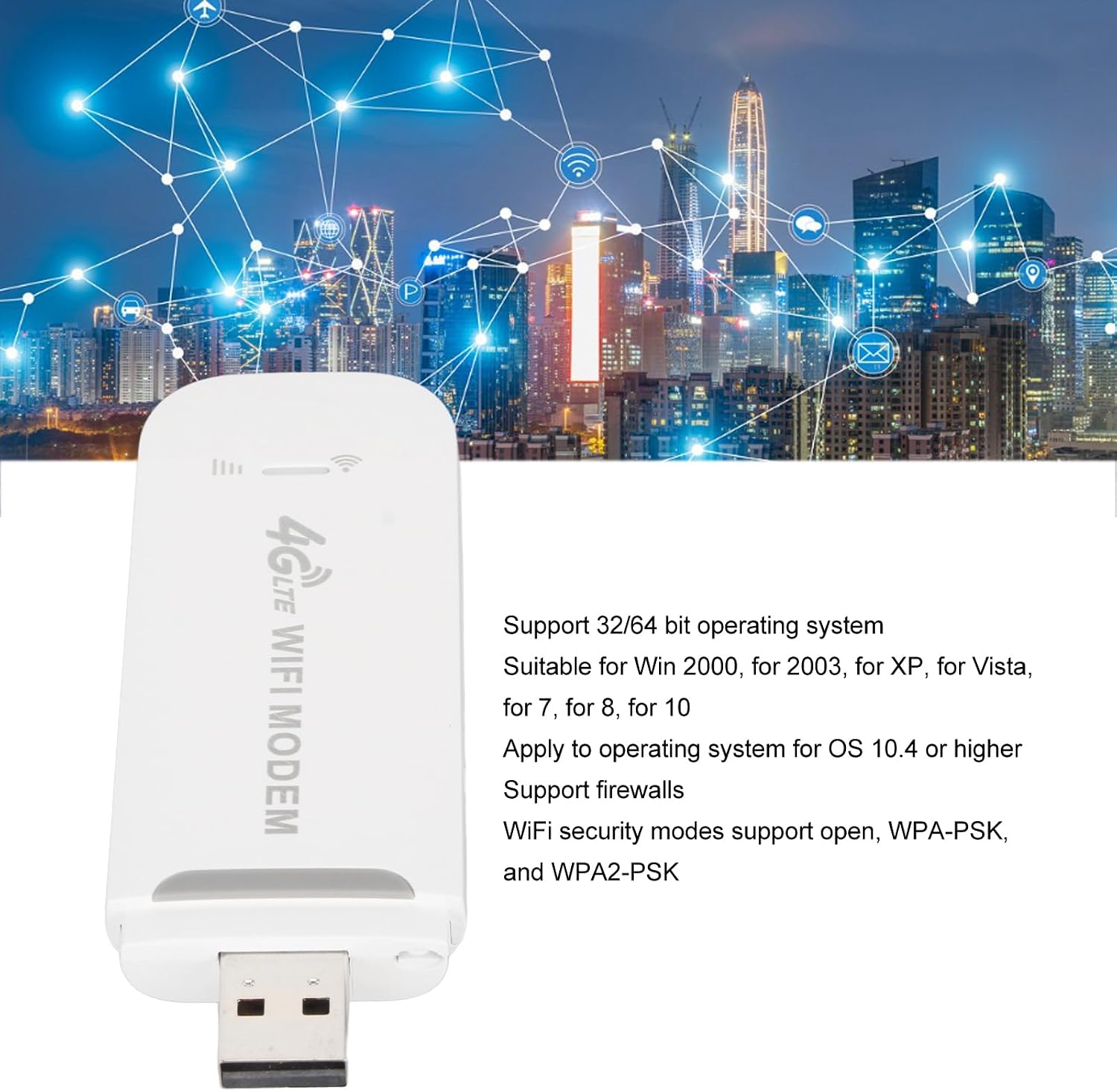
Image: The 4G LTE USB WiFi Modem Dongle with text indicating its compatibility with 32/64 bit operating systems, including various Windows versions, macOS, and Linux, and support for firewalls and Wi-Fi security modes.
Specifications
| Product Type | LTE 4G USB MODEM WiFi HotSpot |
| Material | ABS |
| Color | White |
| SIM Card Slot | Standard SIM (not included) |
| 4G LTE-FDD Bands | B1/B3/B5/B7/B8/B20 |
| 4G LTE-TDD Bands | 38/39/40/41 |
| 3G WCDMA Bands | B1/B2/B5/B8 |
| GSM Bands | 900/1800/1900/850 |
| WiFi Standard | 802.11b/g/n |
| Data Rate (LTE-FDD/LTE-TDD) | UL 50 Mbps / DL 150 Mbps |
| Max Users | 10 users |
| Supported OS | Win 2000/2003/XP/Vista/7/8/10, macOS 10.4+, Linux |
| Security Protocols | Open, WPA-PSK, WPA2-PSK |
| Model Number | Sxhlseller4ma7zpvtbw |

Image: The 4G LTE USB WiFi Modem Dongle with text highlighting its high-speed 4G LTE chipset and support for various network types (TDD-LTE, FDD-LTE, WCDMA/HSPA+, GSM).
Maintenance
- Keep the device clean and free from dust. Use a soft, dry cloth for cleaning.
- Avoid exposing the device to extreme temperatures, direct sunlight, or high humidity.
- Do not drop or subject the device to strong impacts.
- Do not attempt to disassemble or repair the device yourself. This will void the warranty.
Troubleshooting
No Internet Connection
- Check SIM Card: Ensure the SIM card is correctly inserted and active with a valid data plan.
- APN Settings: Verify that the APN settings are correctly configured for your mobile network provider. Refer to the "Setup Guide" section.
- SIM PIN: If your SIM card has a PIN, ensure it is disabled or correctly entered through the router's web interface.
- Signal Strength: Check the signal indicator on the device or in the web interface. Move to an area with better network coverage if the signal is weak.
- Reboot Device: Unplug the modem from the USB port, wait a few seconds, and plug it back in.
Cannot Connect to WiFi Hotspot
- Power: Ensure the modem is properly powered via a USB port.
- WiFi Enabled: Confirm that the WiFi function is enabled in the device's web interface.
- Password: Double-check the WiFi password (SSID and KEY are often printed on the device itself, e.g., SSID: 4G-UFI-XX, WIFI KEY: 1234567890).
- Device Limit: Ensure you are not exceeding the maximum of 10 connected devices.
Slow Internet Speed
- Network Congestion: Speed can vary based on network traffic and signal strength.
- Data Plan: Check if your data plan has speed limitations or if you have exceeded your high-speed data allowance.
- Distance: Ensure connected devices are within the 10-meter WiFi range.
Warranty Information
This product comes with a 1 Year Warranty Against Manufacturer Defects. Please retain your proof of purchase for warranty claims. The warranty does not cover damage caused by misuse, accidents, unauthorized modifications, or normal wear and tear.
Support
For further assistance or if you encounter issues not covered in this manual, please refer to the product's listing page on Amazon or contact the seller directly through the Amazon platform. You may also find additional support resources on the manufacturer's official website, if available.
For general inquiries, please visit Amazon.com.be.
Related documentsSxhlseller4ma7zpvtbw


Ask a question about this manual
Ask about setup, troubleshooting, compatibility, parts, safety, or missing instructions. Manuals+ will review the question and use this page’s manual context to help answer it.