
1. Introduction
The Kmise 8 Channel Professional Audio Mixer is designed for versatile audio mixing and recording applications. It features multiple input channels, integrated sound effects, and flexible connectivity options including Bluetooth and USB. This manual provides essential information for setting up, operating, and maintaining your audio mixer to ensure optimal performance.

Figure 1: Overview of the Kmise 8 Channel Professional Audio Mixer.
2. Product Features
- 8-Channel Input: Eight separate input channels, each with individual gain control, high, mid, and bass adjustments, and dedicated effects.
- Bluetooth Wireless Streaming: Seamless audio streaming from Bluetooth-enabled devices like smartphones and tablets.
- USB Connectivity: Connect external USB devices, computers, or flash drives for mixing and recording. Supports WMA, MP3, FLAC, and APE file types.
- 99 DSP Effects: Integrated professional reverb effects to enhance sound realism and spatial quality.
- Built-in Upgrade Chip: Low power consumption, smooth operation, and precise sound processing for improved audio quality.
- Versatile Applications: Suitable for family KTV, band performances, campus activities, DJ shows, and live streaming.
3. Package Contents
Upon unboxing, please verify that all items listed below are included in your package:
- Kmise 8 Channel Professional Audio Mixer (Model J121)
- Power Adapter
- USB Cable
- User Manual

Video 1: Unboxing a professional audio mixer, demonstrating typical package contents.
4. Setup
Follow these steps to set up your Kmise audio mixer:
- Power Connection: Connect the provided power adapter to the AC-IN port on the rear of the mixer and plug it into a power outlet.
- Microphone/Line Inputs: Connect microphones (XLR) or line-level instruments (6.35mm jack) to the respective input channels (1-8) on the top panel.
- Phantom Power: If using condenser microphones, activate the +48V Phantom Power for the relevant channels. Ensure dynamic microphones do not have phantom power applied.
- Main Outputs: Connect your main speakers or amplifier to the MAIN OUTPUTS (XLR or 6.35mm TRS) on the top right of the mixer.
- Headphones: Plug your headphones into the PHONES jack for monitoring.
- USB/Bluetooth Devices: For digital audio playback or recording, connect a USB drive to the USB port or pair a Bluetooth device (see Section 5.2 for details).

Figure 2: Connectivity diagram for the audio mixer.
5. Operating Instructions
5.1 Channel Controls
Each input channel (1-8) features the following controls:
- GAIN: Adjusts the input sensitivity for the connected microphone or instrument.
- HIGH, MID, LOW (EQ): Three-band equalizer knobs to adjust the treble, midrange, and bass frequencies of the channel's audio.
- AUX: Controls the level of the signal sent to the auxiliary output, often used for monitor mixes.
- FX: Controls the amount of the internal effect (reverb, delay, etc.) applied to the channel.
- PAN: Adjusts the stereo position of the channel's signal (left to right).
- PEAK Indicator: Lights up when the input signal is too high, indicating potential clipping. Reduce GAIN if this light illuminates.
- Volume Fader: Controls the overall output level of the individual channel.
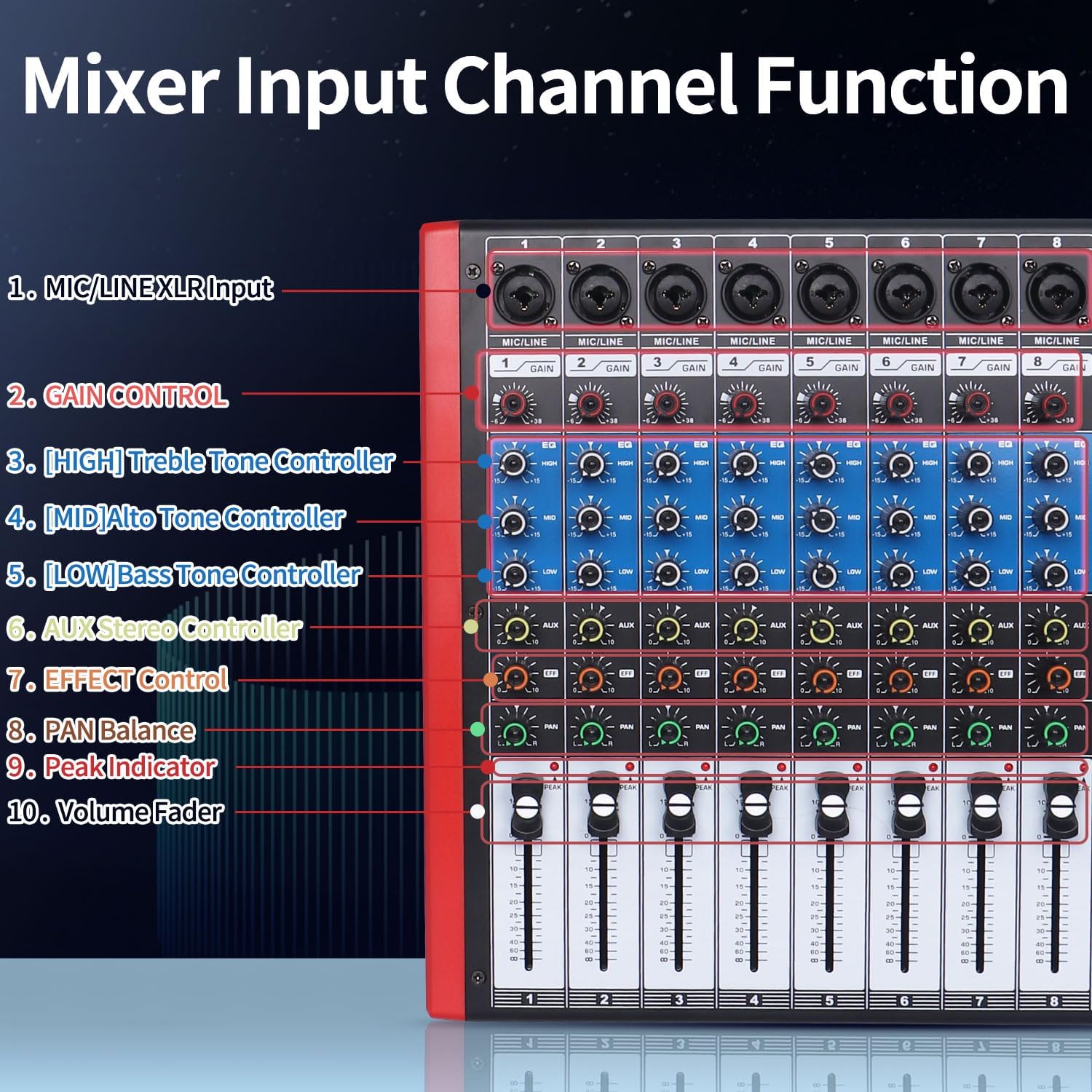
Figure 3: Detailed view of input channel functions.
5.2 USB/MP3 and Bluetooth Operation
The mixer supports digital audio playback and recording via USB and Bluetooth.
- USB Playback: Insert a USB flash drive containing audio files (WMA, MP3, FLAC, APE) into the USB port. Use the control buttons (Play/Pause, Skip Tracks, Mode) on the digital audio player section to manage playback.
- Bluetooth Streaming: Press the BT button on the digital audio player section to activate Bluetooth mode. Search for the mixer on your Bluetooth-enabled device and pair. You can then stream audio wirelessly to the mixer.
- Recording: The mixer can record the mixed output to a connected USB device. Refer to the digital audio player section for recording controls.

Figure 4: Bluetooth wireless streaming setup.
5.3 Effects Processing (99 DSP Effects)
The mixer includes 99 built-in DSP effects to enhance your audio.
- Effect Selection: Use the PROGRAM knob to browse and select from the 99 available effects (e.g., Reverb, Delay, Chorus). The selected effect number will be displayed on the digital display.
- Effect Level: Adjust the FX knob on each channel to control how much of the selected effect is applied to that specific channel.
- Main Effect Control: The main FX fader controls the overall output level of the effects.

Figure 5: Main controls and DSP effects section.
6. Maintenance
To ensure the longevity and optimal performance of your Kmise audio mixer, follow these maintenance guidelines:
- Cleaning: Regularly wipe the surface of the mixer with a soft, dry cloth. Avoid using liquid cleaners or solvents that could damage the finish or internal components.
- Storage: Store the mixer in a cool, dry place away from direct sunlight, extreme temperatures, and high humidity.
- Cable Management: Ensure all cables are properly coiled and stored to prevent damage. Avoid bending cables sharply or placing heavy objects on them.
- Ventilation: Do not block the ventilation openings on the mixer to prevent overheating.
7. Troubleshooting
If you encounter issues with your mixer, refer to the following common troubleshooting tips:
- No Power: Ensure the power adapter is securely connected to both the mixer and a working power outlet. Check the power switch on the rear of the unit.
- No Sound Output: Verify that all volume faders (channel and main) are up. Check all cable connections to speakers/amplifiers. Ensure input sources are active and sending a signal.
- Distorted Sound: Reduce the GAIN knob on the input channels if the PEAK indicator lights up. Check the input level of your source device.
- Humming/Noise: Ensure all cables are properly shielded and connected. Try using different cables or power outlets. Disconnect unused devices to identify potential interference sources.
- Bluetooth Connectivity Issues: Ensure the mixer is in Bluetooth pairing mode. Check that your device's Bluetooth is enabled and within range. Try unpairing and re-pairing the device.
- USB Playback/Recording Failure: Ensure the USB drive is formatted correctly and contains compatible audio files. Try a different USB drive.
8. Specifications
| Feature | Specification |
|---|---|
| Brand | Kmise |
| Model Number | J121 |
| Number of Channels | 8 |
| Connectivity Technology | Bluetooth, USB |
| Power Source | Corded Electric |
| Item Weight | 3.89 Kilograms (8.56 pounds) |
| Package Dimensions | 17.6 x 15.12 x 5.75 inches |
| DSP Effects | 99 (Reverb, Delay, Chorus, etc.) |
9. Warranty and Support
For warranty information, technical support, or service inquiries, please refer to the documentation included with your product or contact Kmise customer service directly. Keep your purchase receipt as proof of purchase for warranty claims.