
1. Introduction
The STARSIKI Ultra-Slim Quiet Mouse Jiggler is a device designed to prevent your computer from entering sleep mode or displaying an inactive status. It achieves this by subtly moving the mouse pointer, simulating active user presence. This device features an ultra-slim design, a quiet micro motor, and adjustable interval settings for varied movement patterns.

Image: The STARSIKI Ultra-Slim Quiet Mouse Jiggler in operation, keeping a computer active.
2. Safety Information
- Keep the device away from water and moisture.
- Do not attempt to disassemble or repair the device. Refer to qualified personnel for service.
- Use only with compatible USB power sources (e.g., computer USB port, wall adapter).
- Avoid placing heavy objects on the device.
- Ensure proper ventilation around the device during operation.
3. Package Contents
Please check the package for the following items:
- 1 x STARSIKI Ultra-Slim Quiet Mouse Jiggler Unit
- 1 x USB Power Cable
- 1 x User Manual (this document)
4. Setup
Follow these steps to set up your mouse jiggler:
- Connect Power: Plug the provided USB cable into the mouse jiggler unit and connect the other end to a USB power source. This can be a computer USB port or a wall adapter (not included).
- Power On: Press the power button on the side of the device to turn it on. Indicator lights will illuminate.
- Place Mouse: Place your optical mouse on the turntable surface of the jiggler. Ensure the mouse's optical sensor is positioned directly over the rotating part for optimal movement detection.
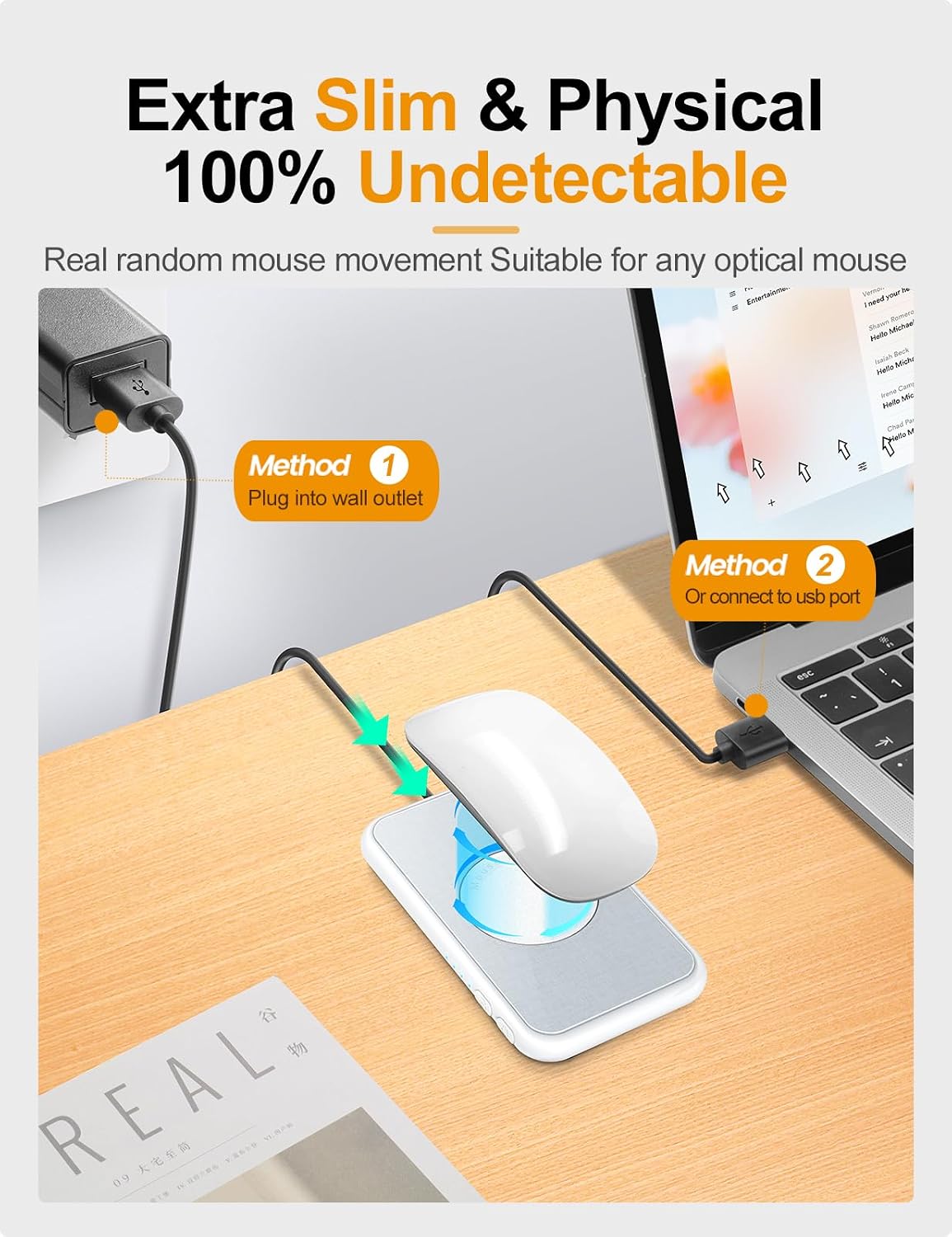
Image: The mouse jiggler connected via USB, with a mouse placed on its surface.
Video: Demonstration of correctly placing the mouse sensor on the jiggler's turntable for effective operation.
5. Operation
The mouse jiggler operates by rotating a small turntable, causing the optical sensor of your mouse to detect subtle movement. This prevents your computer from going to sleep or showing an inactive status.
Adjusting Interval Timer
The device features an adjustable interval timer with four settings to simulate varied mouse activity. The turntable runs for approximately 15 seconds, then pauses for a set interval before restarting.
- 10s: Pauses for 10 seconds.
- 30s: Pauses for 30 seconds.
- 3min: Pauses for 3 minutes.
- 1-60s Random: Pauses for a random duration between 1 and 60 seconds.
To change the interval setting, press the dedicated interval button on the device. The corresponding indicator light will show the selected setting.

Image: Close-up of the mouse jiggler showing the interval setting buttons and indicator lights.
Video: Demonstration of adjusting the interval timer settings on the mouse jiggler.
Subtle Pointer Movement
The device is designed to move the mouse pointer subtly, typically 1-2 pixels at a time. This minimal movement is intended to keep the computer active without causing noticeable cursor displacement on the screen, allowing for simultaneous use of another mouse if desired.
6. Compatibility
The STARSIKI Ultra-Slim Quiet Mouse Jiggler is compatible with a wide range of operating systems and mice:
- Operating Systems: Windows 7 and above, Mac OS 10.10 and above, iOS 12 and above, Android 7.1.1 and above, Chrome OS, Linux, Unix.
- Mice: Suitable for most optical mice. Not compatible with trackball mice.
- Devices: Compatible with laptops and personal computers.

Image: Visual representation of the mouse jiggler's broad compatibility with different operating systems and devices.
7. Maintenance
To ensure the longevity and optimal performance of your mouse jiggler, follow these simple maintenance guidelines:
- Cleaning: Wipe the device with a soft, dry cloth. Do not use liquid cleaners or abrasive materials.
- Storage: Store the device in a cool, dry place when not in use.
- Handling: Handle the device with care to avoid physical damage.
8. Troubleshooting
If you encounter issues with your STARSIKI Ultra-Slim Quiet Mouse Jiggler, refer to the following common problems and solutions:
| Problem | Possible Cause | Solution |
|---|---|---|
| Mouse pointer does not move. | Device not powered on; mouse sensor not aligned; incompatible mouse. | Ensure the device is powered on and indicator lights are active. Reposition the mouse so its optical sensor is directly over the rotating turntable. Confirm your mouse is an optical type (not trackball). |
| Computer still enters sleep mode. | Incorrect interval setting; specific software/system settings overriding jiggler. | Adjust the interval timer to a shorter duration (e.g., 10s or 30s). Check your computer's power management settings to ensure they do not conflict with the jiggler's operation. |
| Device makes unexpected noise. | Obstruction on turntable; internal issue. | Ensure no debris is on the turntable. The device is designed with a super-quiet micro motor; if unusual noise persists, contact customer support. |
9. Specifications
| Feature | Detail |
|---|---|
| Brand | STARSIKI |
| Model | Ultra-Slim Quiet Mouse Jiggler |
| Color | White |
| Connectivity Technology | USB |
| Special Feature | Super-Silent, Undetectable Subtle Movement, Adjustable Interval Timer |
| Movement Detection | Optical |
| Button Quantity | 1 (Power), 1 (Interval) |
| Hand Orientation | Ambidextrous |
| Compatible Devices | Laptop, Personal Computer |
| Operating System Compatibility | Windows 7+, Mac 10.10+, iOS 12+, Android 7.1.1+, Chrome OS, Linux, Unix |
| Power Source | Corded Electric (USB) |
| Item Weight | 2.82 Ounces |
| Item Dimensions (L x W) | 5.51"L x 3.22"W |
| Enclosure Material | Plastic |
10. Warranty & Support
Warranty Information
This STARSIKI product comes with a 1-year warranty from the date of purchase. This warranty covers manufacturing defects and malfunctions under normal use. It does not cover damage caused by misuse, accidents, unauthorized modifications, or improper installation.
Customer Support
For technical assistance, troubleshooting, or warranty claims, please contact STARSIKI customer support through the retailer's platform or the official STARSIKI website. Please have your purchase receipt and product model information ready when contacting support.