
Introduction
This manual provides essential information for the safe and effective use of your goopow Kids Selfie Camera, Model H21. Please read these instructions carefully before operating the device. This camera is designed for children aged 3-9 years, offering various functions including photo capture, video recording, playback, games, and creative effects.
Setup
1. Charging the Battery
The camera features a built-in 3.7V rechargeable lithium battery. Before first use, fully charge the camera. Connect the provided USB data line to the camera's charging port and to a suitable USB power source. A full charge typically takes 1.5-2 hours. Important: Charging must be supervised by an adult.

Image: The goopow Kids Selfie Camera in purple, showing its compact design and protective cover. This image represents the camera during initial setup or general use.
2. Inserting the Micro SD Card
A 32GB Micro SD card is included to store thousands of photos and videos. Locate the Micro SD card slot on the camera. Gently insert the card until it clicks into place. Ensure the camera is powered off before inserting or removing the card.

Image: An illustration highlighting the camera's multi-function capabilities, including photo, video, games, and storage. This image helps visualize the camera's features relevant to SD card use.
3. Attaching the Lanyard and Protective Cover
The camera comes with a durable lanyard and a protective silicone cover. Attach the lanyard to the designated loops on the camera for easy carrying and to prevent accidental drops. Ensure the protective cover is securely fitted around the camera for effective anti-fall protection.
Operating Instructions
1. Power On/Off
To power on the camera, press and hold the power button located on the device. To power off, press and hold the same button until the screen turns off.
2. Taking Photos
Once powered on, the camera typically defaults to photo mode. Aim the camera at your subject and press the shutter button to capture a 12-megapixel photo.
3. Recording Videos
Navigate to the video recording mode using the menu buttons. Press the shutter button once to start recording 1080P video, and press it again to stop recording.

Image: The camera screen displaying the video recording function with a 'REC' indicator. This illustrates how the camera appears when actively recording video.
4. Using Selfie Mode
The camera is equipped with front and rear dual-lenses, supporting a selfie mode. Switch to selfie mode through the menu options. Position the camera to capture your selfie and press the shutter button.

Image: A collage demonstrating the camera's selfie capabilities, showing children and families taking self-portraits. This highlights the dual-lens functionality for selfies.
5. Applying Frames and Filters
Enhance your photos with 28 different scene selections and 6 special effects and filters. Access these options through the camera's menu and apply them before or after taking a picture, depending on the specific setting.
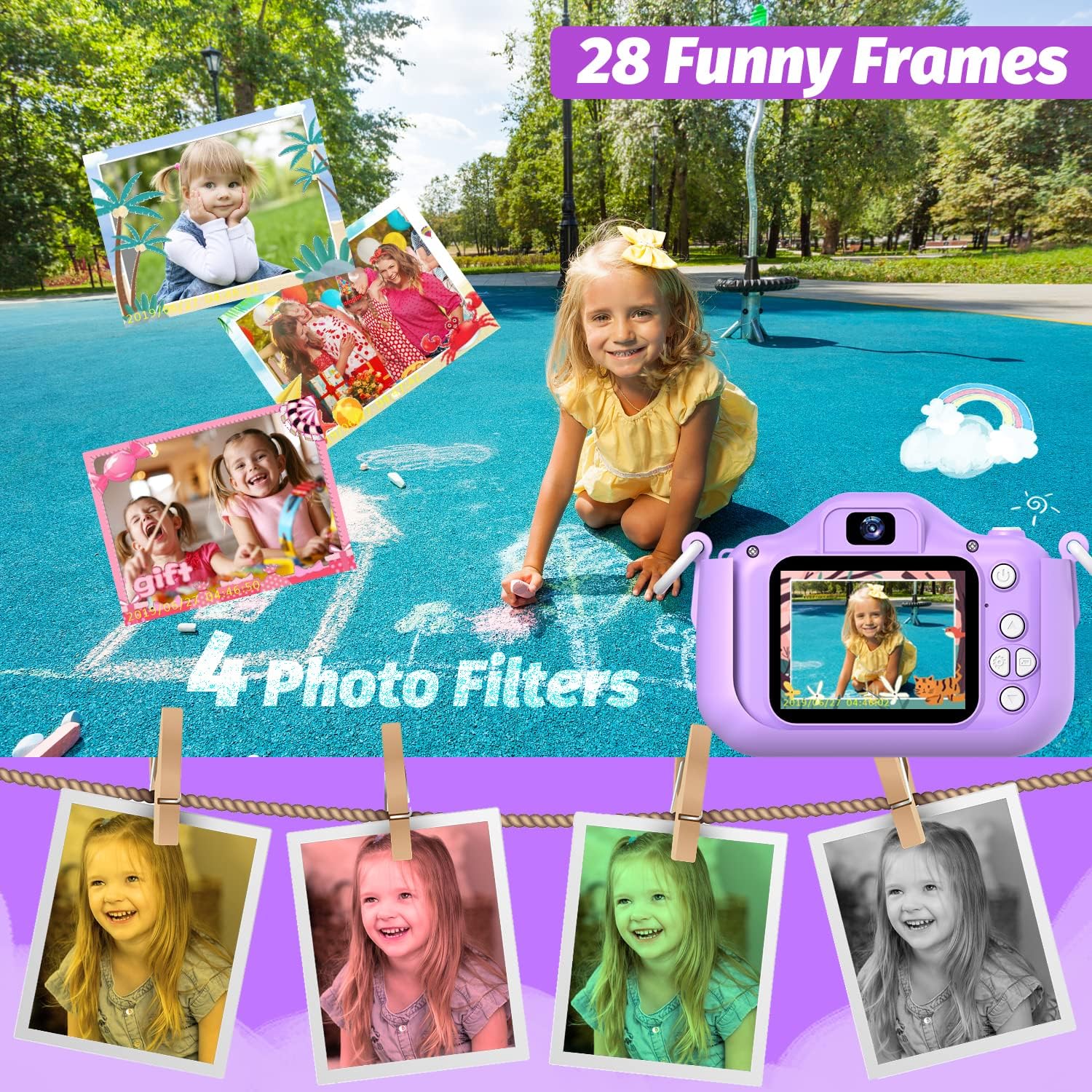
Image: The camera screen displaying various frames and filters, with examples of photos taken using these effects. This visually explains the creative options available.
6. Digital Zoom
The camera features an 8x digital zoom. Use the zoom buttons (usually up/down arrows) to adjust the magnification of your subject before capturing a photo or video.

Image: An illustration showing the effect of 8x digital zoom, with a child's image progressively magnified. This demonstrates the camera's zoom capability.
7. Playing Games
The camera includes built-in games for entertainment. Navigate to the 'Game Play' option in the menu to select and play available games.
8. Playback Mode
To review your captured photos and videos, switch to playback mode. Use the navigation buttons to browse through your media files on the screen.
Maintenance
1. Cleaning
To clean the camera, gently wipe the exterior with a soft, dry cloth. For stubborn smudges, slightly dampen the cloth with water. Avoid using harsh chemicals or abrasive materials. Keep the lens clean for clear images.
2. Battery Care
To prolong battery life, avoid fully discharging the battery frequently. Recharge the camera when the battery indicator is low. If the camera will not be used for an extended period, charge it partially (around 50%) before storing.
3. Storage
Store the camera in a cool, dry place away from direct sunlight and extreme temperatures. Ensure the protective cover is on to prevent scratches and damage.
Troubleshooting
Camera Not Turning On:
- Ensure the battery is charged. Connect the camera to a power source and try again.
- Check if the power button is being pressed and held long enough.
Cannot Take Photos/Videos:
- Verify that a Micro SD card is properly inserted.
- Check if the Micro SD card has sufficient free space. Delete old files or replace the card if full.
- Ensure the camera is in the correct mode (photo or video).
Poor Image/Video Quality:
- Clean the camera lens with a soft, dry cloth.
- Ensure adequate lighting in the environment.
- Hold the camera steady while capturing.
Camera Freezes or Becomes Unresponsive:
- Try resetting the camera by pressing the reset button (if available) or by powering it off and on again.
- If possible, remove and reinsert the Micro SD card.
Specifications
| Brand | goopow |
| Model Name | H21 |
| Photo Sensor Resolution | 12 MP |
| Video Resolution | 1080p |
| Digital Zoom | 8x |
| Screen Size | 2 inches |
| Memory Storage Capacity | 32 GB (Micro SD Card Included) |
| Battery Type | Built-in 3.7V Lithium Ion |
| Battery Average Life | 1.5 hours (continuous photograph time) |
| Connectivity Technology | USB |
| Supported File Format | AVI, JPEG |
| Age Range Description | Over 3 years old |
Warranty Information
The goopow Kids Selfie Camera Model H21 comes with a 12-month warranty from the date of purchase. This warranty covers manufacturing defects and malfunctions under normal use. It does not cover damage caused by misuse, accidents, unauthorized repairs, or normal wear and tear. Please retain your proof of purchase for warranty claims.
Customer Support
For any questions, technical assistance, or warranty inquiries regarding your goopow Kids Selfie Camera, please contact goopow customer support. You can find more information and contact details by visiting the official goopow Store on Amazon.