
TELE System PALCO19 LS13
TELE System Smart TV 19-inch PALCO19 LS13 User Manual
Model: PALCO19 LS13
Introduction
This manual provides detailed instructions for the installation, operation, and maintenance of your TELE System PALCO19 LS13 19-inch Smart TV. Please read this manual thoroughly before using the product to ensure proper and safe operation. Keep this manual for future reference.
Product Overview
The TELE System PALCO19 LS13 is a compact and versatile 19-inch television designed for both home and mobile use. It features dual DVB-T2 and DVB-S2 tuners with H.265/HEVC 10-bit encoding, providing access to numerous terrestrial and satellite digital channels with clear and fluid images.
Key features include:
- 19-inch television with DVB-T2 and DVB-S2 tuners.
- Compatible with Tivùsat and CI/CI+ CAM modules.
- TV PAUSE function and USB multimedia player.
- Dual power supply (220V AC / 12V DC), suitable for campers, caravans, trucks, and boats.
- Includes an Easy RCU (remote control unit) for simplified navigation.
- Automatic channel search, sorting, and updating.
- Home Channel system for automatic Tivùsat channel updates with LCN HD sorting.

Image: The TELE System PALCO19 LS13 19-inch TV, showcasing its compact design and the two included remote controls. The screen displays a vibrant image, and the TV is branded with "TELE System DVB T2/S2 HEVC Main10".
Package Contents
Verify that all items are present in the package:
- TELE System PALCO19 LS13 19-inch TV
- Standard Remote Control
- Easy RCU (Simplified Remote Control)
- Power Cable (220V AC)
- 12V DC Power Adapter
- User Manual (this document)

Image: A close-up of the two remote controls included with the TV. One is a standard remote with many buttons, and the other is a simplified "Easy RCU" with larger, fewer buttons, designed for intuitive use.
Setup
1. Unpacking and Placement
- Carefully remove the TV and all accessories from the packaging.
- Place the TV on a stable, flat surface or mount it using a compatible VESA wall mount (not included). Ensure adequate ventilation around the TV.
2. Connecting Power
The TV supports dual power input:
- 220V AC: Connect the provided AC power cable to the TV's power input and then to a standard wall outlet.
- 12V DC: For mobile applications (campers, caravans, trucks, boats), connect the 12V DC power adapter to the TV's DC input and then to a 12V DC power source. The TV is protected up to 24V.

Image: The TELE System TV shown in a mobile environment, such as a camper van, emphasizing its dual 12V and 220V power compatibility for use on the go.
3. Antenna/Satellite Connection
- Terrestrial (DVB-T2): Connect a terrestrial antenna cable to the "ANT IN" port on the TV.
- Satellite (DVB-S2): Connect a satellite dish cable to the "SAT IN" port on the TV.
4. CI/CI+ CAM Module Installation (Optional)
If you intend to use a Tivùsat CAM or other CI/CI+ compatible module for encrypted channels:
- Ensure the TV is powered off.
- Insert the CI/CI+ CAM module into the designated slot on the TV, following the module's orientation instructions.
- Insert your smart card into the CAM module if required.
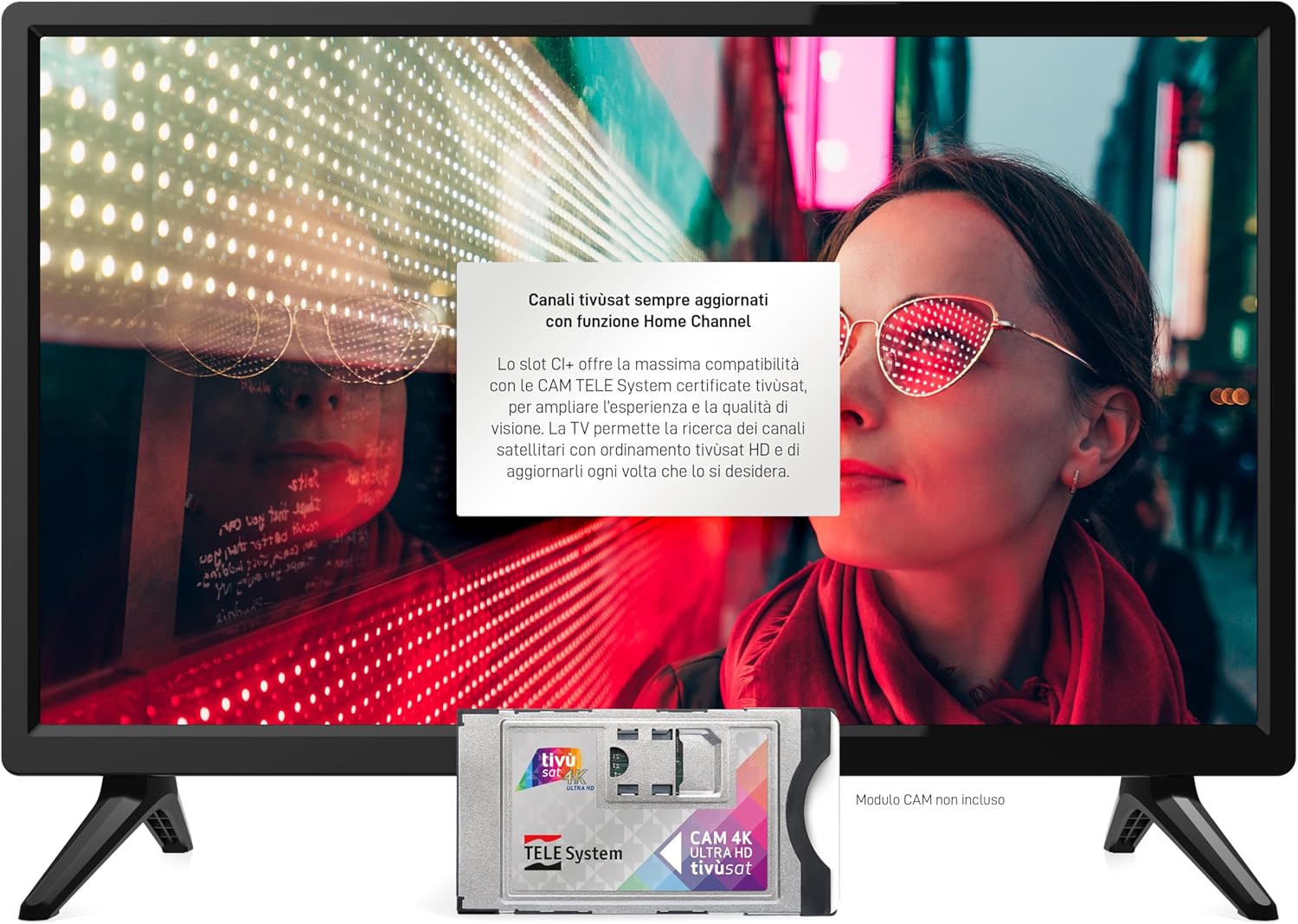
Image: The TELE System TV screen showing text about updated Tivùsat channels and compatibility with certified CAM modules. A Tivùsat CAM 4K Ultra HD module is depicted below the screen, indicating its use for accessing encrypted content.
5. Initial Setup Wizard
Upon first power-on, the TV will guide you through an initial setup process, including language selection, country, and automatic channel scanning for both terrestrial and satellite signals.
Operating Instructions
1. Basic TV Functions
- Power On/Off: Press the Power button on the remote control or the TV.
- Channel Selection: Use the CH+/- buttons or numeric buttons on the remote.
- Volume Control: Use the VOL+/- buttons on the remote.
- Source Selection: Press the SOURCE button to switch between inputs (DTV, ATV, HDMI, USB, etc.).
- Menu Navigation: Use the MENU button and arrow keys to navigate the on-screen menu.
2. TV PAUSE Function
The TV PAUSE function allows you to pause live television broadcasts and resume viewing later. To use this feature:
- Connect a USB flash drive or external hard drive to the TV's USB 2.0 port.
- While watching a live program, press the dedicated TV PAUSE button on the remote control.
- Press the Play button to resume viewing.
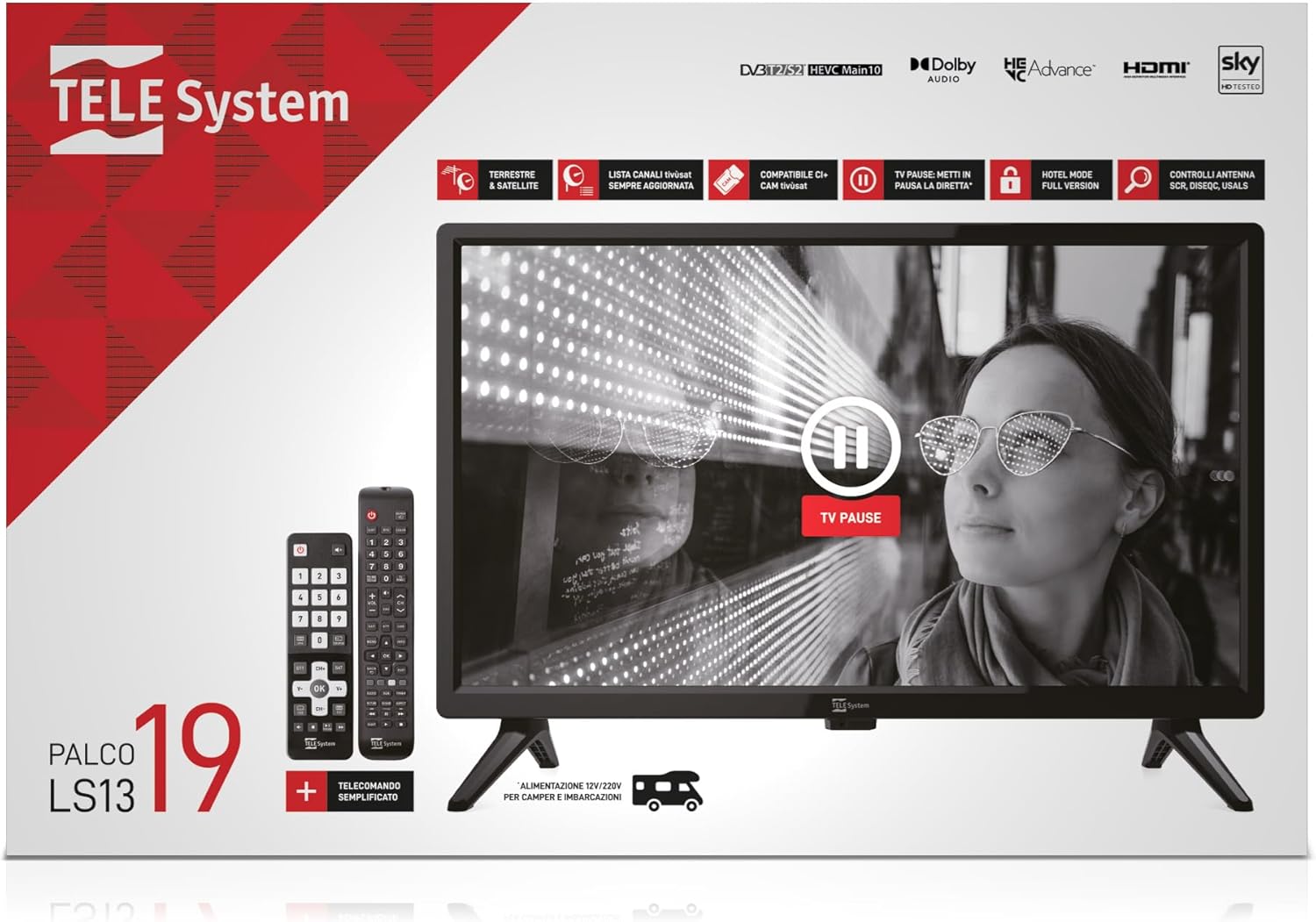
Image: The TELE System TV screen displaying a prominent "TV PAUSE" icon, illustrating the functionality to temporarily halt live television broadcasts.
3. USB Multimedia Player
The integrated multimedia player allows you to play audio, video, and image files directly from USB devices.
- Insert a USB device containing your media files into the TV's USB 2.0 port.
- Select the USB source from the input menu.
- Navigate through your files using the remote control and select the desired media to play.
Maintenance
1. Cleaning the TV
- Always unplug the TV before cleaning.
- Use a soft, dry cloth to wipe the screen and cabinet.
- For stubborn marks, lightly dampen the cloth with water or a mild, non-abrasive screen cleaner. Never spray cleaner directly onto the screen.
- Avoid using abrasive cleaners, waxes, or solvents as they can damage the TV's finish.
2. Software Updates
The TV may receive software updates to improve performance or add new features. Check the TV's menu settings for an "Software Update" or "System Update" option. Follow the on-screen instructions to perform any available updates.
Troubleshooting
Before contacting customer support, refer to the following common issues and solutions:
| Problem | Possible Cause / Solution |
|---|---|
| No power |
|
| No picture, but sound is present |
|
| No sound, but picture is present |
|
| Remote control not working |
|
| Cannot find channels |
|
Specifications
| Feature | Detail |
|---|---|
| Brand | TELE System |
| Model Name | LS13 (PALCO19 LS13) |
| Screen Size | 19.0 inches |
| Display Technology | LED |
| Resolution | 720p |
| Refresh Rate | 60 Hz |
| Aspect Ratio | 16:9 |
| Connectivity Technology | HDMI, RF, USB |
| Total USB Ports | 1 |
| Dimensions (D x W x H) | 11 cm x 49 cm x 32 cm |
| Power Supply | 220V AC / 12V DC (protected up to 24V) |
| Included Components | Remote Control, Power Cable, User Manual |
| Energy Efficiency Rating | E |
Warranty and Support
Warranty Information
This product comes with a manufacturer's warranty of 2 years. Please retain your proof of purchase for warranty claims. The warranty covers defects in materials and workmanship under normal use.
Customer Support
For technical assistance, troubleshooting beyond this manual, or warranty service, please contact TELE System customer support. Refer to the official TELE System website or the product packaging for the most up-to-date contact information.
Information regarding spare parts availability and guaranteed software updates is not available at the time of printing.
Related documentsPALCO19 LS13


Ask a question about this manual
Ask about setup, troubleshooting, compatibility, parts, safety, or missing instructions. Manuals+ will review the question and use this page’s manual context to help answer it.