1. Introduction
The CHUWI Hi10 XPro is a versatile 10.1-inch Android 14 tablet designed for both productivity and entertainment. Featuring an Unisoc T606 Octa-Core processor, 8GB RAM, and 128GB ROM (expandable up to 1TB), it offers smooth performance for various applications. This tablet supports 4G LTE and 5G WiFi connectivity, includes a 7000mAh battery, and comes with 13MP rear and 5MP front cameras. This manual provides essential information for setting up, operating, and maintaining your device.

Figure 1.1: Front and rear view of the CHUWI Hi10 XPro Tablet.
2. What's in the Box
Verify that all items are present in the package:
- CHUWI Hi10 XPro Tablet
- 5V/2A adapter (PSE, CE, UL, FCC certified)
- Multi-language manual
- Certificate of conformity
- Quality certificate
- Warranty card
- 128GB Micro SD Card
3. Setup
3.1 Initial Charging
Before first use, fully charge the tablet using the provided 5V/2A adapter and Type-C cable. The battery indicator on the screen will show charging progress.
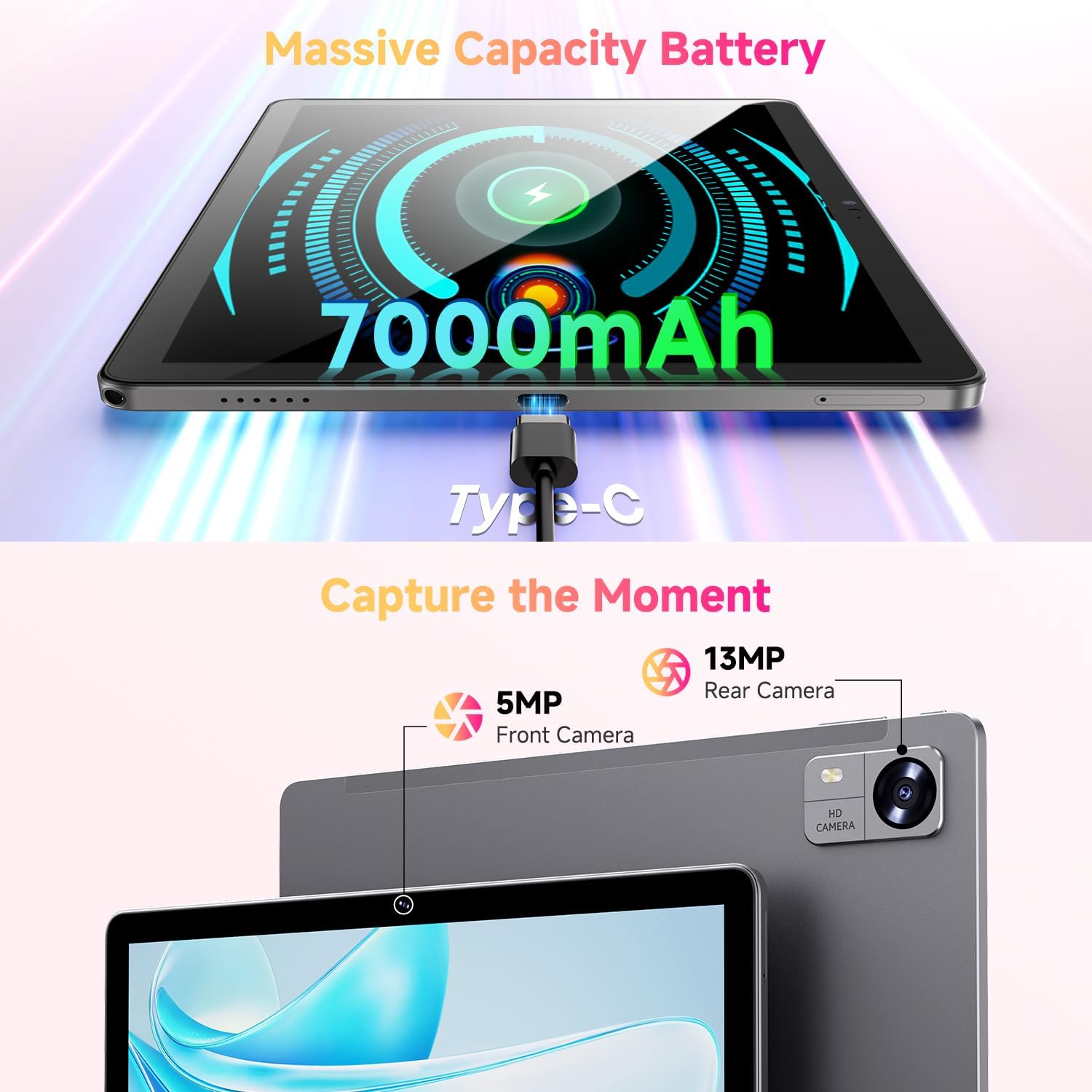
Figure 3.1: Charging the tablet via Type-C port.
3.2 Power On/Off
- Power On: Press and hold the Power button on the side of the tablet until the CHUWI logo appears.
- Power Off: Press and hold the Power button until a power-off menu appears. Select "Power off" to shut down the device.
- Restart: From the power-off menu, select "Restart" to reboot the device.
3.3 SIM Card and TF Card Installation
The tablet supports dual SIM cards and a TF (MicroSD) card for expanded storage. Use the provided SIM ejector tool to open the tray.
- Locate the SIM/TF card tray on the side of the tablet.
- Insert the SIM ejector tool into the small hole next to the tray and push gently until the tray pops out.
- Place your Nano-SIM cards and/or MicroSD card into the designated slots on the tray, ensuring correct orientation.
- Carefully push the tray back into the tablet until it clicks into place.
*Important Note for Cellular Functionality: Please register the IMEI number of your device with local carriers before using cellular network functions. Failure to do so may result in the SIM card functions (network and calls) being disabled by the carriers after a period of use.
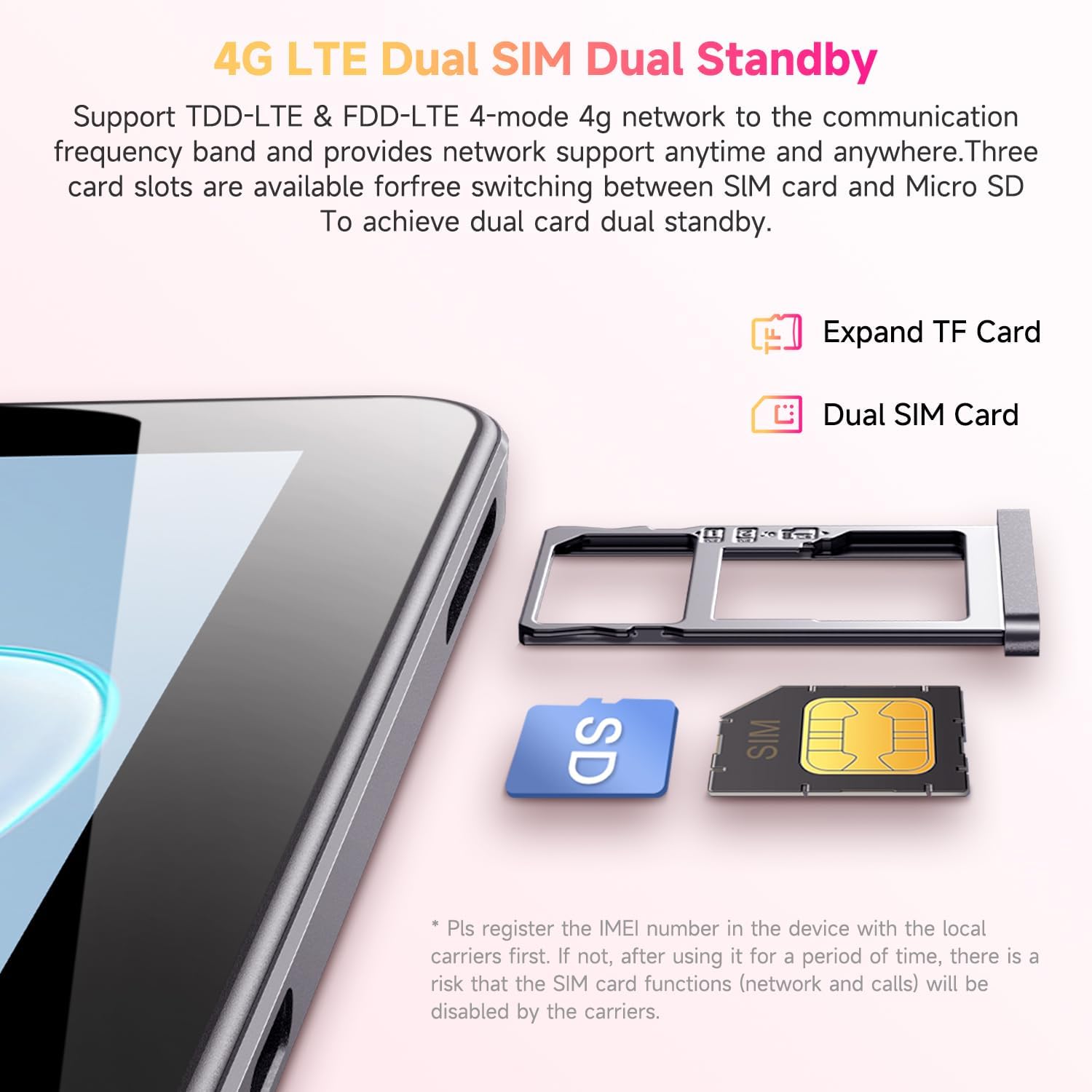
Figure 3.2: Inserting SIM and TF cards into the tray.
3.4 Initial Setup Wizard
Upon first power-on, the tablet will guide you through an initial setup process. Follow the on-screen prompts to:
- Select your language.
- Connect to a Wi-Fi network.
- Sign in with your Google account or create a new one.
- Set up screen lock (PIN, pattern, password).
- Review and accept terms and conditions.
4. Operating Instructions
4.1 Display and Navigation
The CHUWI Hi10 XPro features a 10.1-inch HD IPS touchscreen with a resolution of 1280x800 pixels, providing clear and vibrant visuals. Navigation is primarily touch-based, with gestures and on-screen buttons for home, back, and recent apps.

Figure 4.1: The tablet's 10.1-inch HD IPS display.
4.2 Performance and Storage
Equipped with a 1.6GHz Unisoc T606 Octa-Core processor and Mali-G57 GPU, the tablet ensures smooth operation for daily tasks, browsing, and light gaming. It comes with 8GB RAM (4GB physical + 4GB virtual) and 128GB of internal storage, expandable up to 1TB via a MicroSD card.

Figure 4.2: Illustration of the Unisoc T606 Octa-Core Processor.

Figure 4.3: Visual representation of storage and connectivity options.
4.3 Connectivity
The tablet supports dual-band 2.4G+5G WiFi (802.11ac) for stable and fast internet connections, and Bluetooth 5.0 for connecting wireless accessories. Dual 4G LTE support allows for mobile data and calls (with proper SIM registration).
4.4 Camera Functions
Capture moments with the 13MP rear camera and take clear selfies or make video calls with the 5MP front camera.
4.5 Battery Life
The built-in 7000mAh battery provides approximately 8-10 hours of usage on a full charge, depending on usage patterns.
4.6 Android 14 Operating System
The CHUWI Hi10 XPro runs on Android 14, offering enhanced privacy controls, efficient memory management, and multitasking capabilities. It supports Widevine L1 for high-definition streaming on platforms like Netflix, Prime Video, and Disney+.
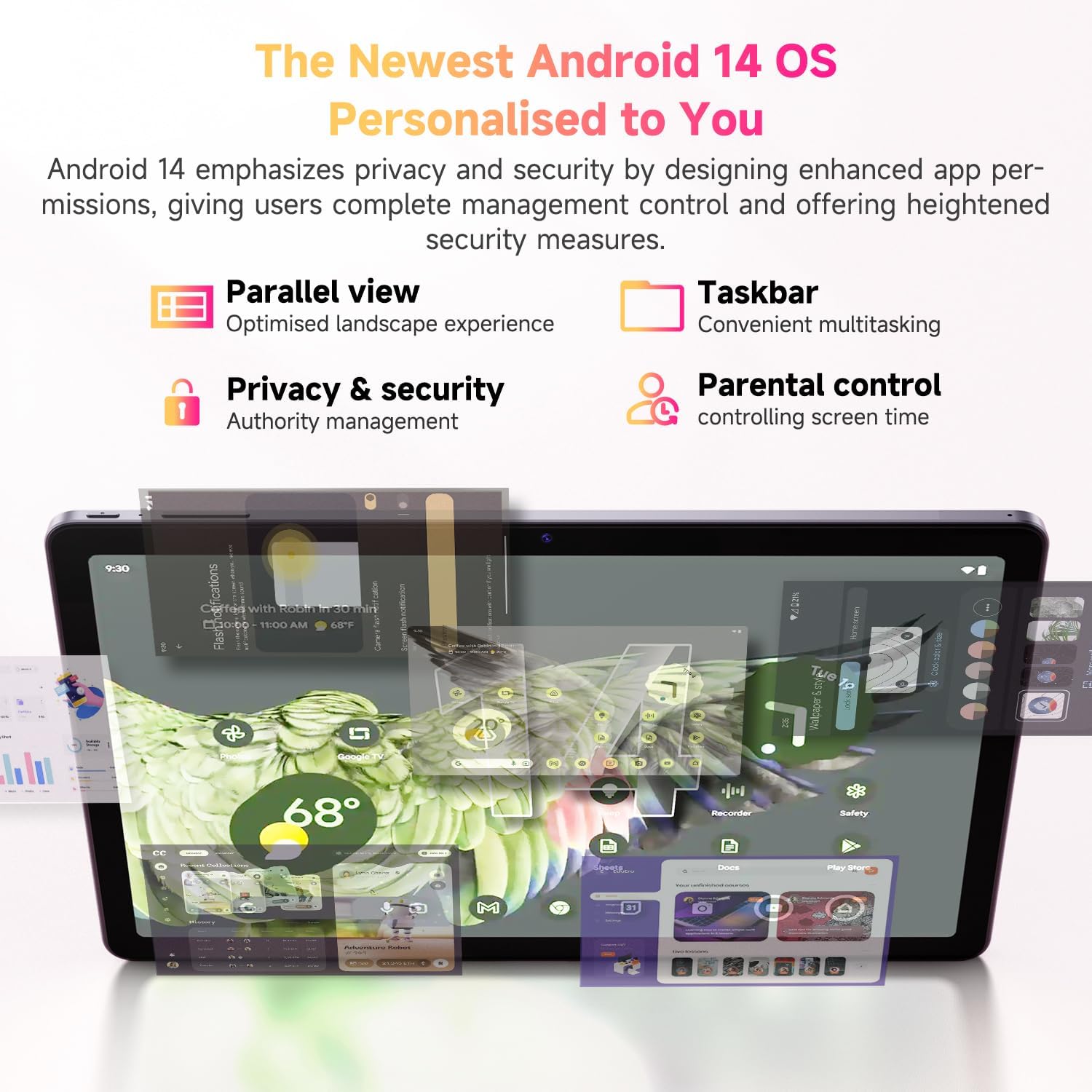
Figure 4.4: Key features of the Android 14 operating system.
4.7 Official Product Video
Video 4.1: An official product video showcasing the CHUWI Android 13 Tablet Hi10 XPro Tablet 10.1 Inch 8+128GB. This video highlights various features and usage scenarios of the tablet, including its sleek design, display quality, and performance capabilities.
5. Specifications
| Feature | Specification |
|---|---|
| Brand | CHUWI |
| Model Name | Hi10 XPro |
| Standing screen display size | 10.1 Inches |
| Screen Resolution | 1280 x 800 pixels |
| Processor | 1.6 GHz Unisoc T606 Octa-Core |
| Graphics Coprocessor | Mali-G57 |
| RAM | 8GB (4GB+4GB virtual) |
| Hard Drive / Flash Memory Size | 128 GB SSD |
| Expandable Storage | Up to 1TB with MicroSD card |
| Operating System | Android 14 |
| Wireless Type | 802.11ac (2.4G+5G WiFi), Bluetooth 5.0 |
| Cellular Connectivity | Dual 4G LTE |
| Rear Webcam Resolution | 13 MP |
| Front Camera Resolution | 5 MP |
| Battery Capacity | 7000mAh Lithium Polymer |
| Average Battery Life | 8-10 Hours |
| Item Weight | 15.5 ounces (approx. 438g) |
| Product Dimensions | 9.41 x 6.2 x 0.29 inches (approx. 239.3 x 158 x 7.5 mm) |
| Color | Black |
| GPS Function | Supported (GPS, Glonass, Galileo, Beidou) |
| Widevine Certification | L1 Supported |
6. Maintenance
- Cleaning: Use a soft, lint-free cloth to clean the screen and body of the tablet. Avoid using harsh chemicals or abrasive materials.
- Software Updates: Periodically check for system updates in the tablet's settings to ensure optimal performance and security.
- Battery Care: To prolong battery life, avoid extreme temperatures and do not let the battery completely drain frequently.
- Storage Management: Regularly clear unnecessary files and apps to maintain sufficient free storage space for smooth operation.
- Protection: Consider using a screen protector and a protective case to guard against scratches and accidental damage.
7. Troubleshooting
7.1 Tablet Does Not Power On
- Ensure the tablet is sufficiently charged. Connect it to the charger for at least 30 minutes.
- Press and hold the Power button for 10-15 seconds to force a restart.
7.2 Wi-Fi Connection Issues
- Check if Wi-Fi is enabled in the tablet's settings.
- Restart your Wi-Fi router.
- Forget the network in tablet settings and reconnect.
- Ensure you are within range of the Wi-Fi signal.
7.3 Slow Performance
- Close unnecessary background applications.
- Clear cache and data for frequently used apps.
- Ensure sufficient free storage space.
- Restart the tablet.
7.4 Apps Crashing or Not Responding
- Force close the app from recent apps or app settings.
- Clear the app's cache and data.
- Uninstall and reinstall the app.
- Ensure the tablet's software is up to date.
8. Warranty and Support
CHUWI offers a One-year reassuring quality assurance for the Hi10 XPro tablet. This includes long-term technical support and 24-hour online customer service.
For technical assistance or warranty claims, please contact CHUWI customer service. You can typically find contact information by logging into your Amazon account, finding your order, and selecting "Contact the seller."
For more information, visit the official CHUWI website or refer to the warranty card included in your product package.