
1. Introduction
The SagaSave Smart Valve Controller is an advanced device designed to automate the control of water and gas valves in various environments. It offers convenient remote operation, timer-based scheduling, and voice control capabilities, enhancing safety and efficiency for your home, garden, or farm. This manual provides detailed instructions for installation, operation, and maintenance of your smart valve controller.

Figure 1: Front view of the Smart Valve Controller, showing the power button and status indicator.
2. Product Features
- App Control: Remotely open or close valves using a mobile application (Tuya Smart/Smart Life) from anywhere, ensuring home safety even when you are away.
- Timer Control: Schedule automatic valve opening or closing times, ideal for irrigation or other routine tasks.
- Voice Control: Compatible with popular voice assistants like Amazon Alexa and Google Assistant for hands-free operation.
- Linkage Control: Integrate with other smart home devices such as gas alarms or water leak detectors to automatically shut off valves in case of emergencies.
- Versatile Application: Suitable for household water supply pipes, farmland irrigation, garden watering, and farm water supply systems.
3. Specifications
| Feature | Specification |
|---|---|
| Power Supply | 12V/1A |
| Communication Technology | Zigbee/WiFi |
| Wireless Distance | 30m (outdoor) |
| Valve Pressure | 1.6 MPa |
| Applicable Valve Specifications | DN15 1/2", DN20 3/4", DN25 1" |
| Valve Open/Close Time | 5 ~ 10 seconds |
| Applicable Valve Type | Handle valve |
| Dimensions | 13 x 12 x 9 cm |
| Weight | 530 grams |
4. Package Contents
- 1 x Smart Valve Controller
5. Setup and Installation
Follow these steps to properly install your Smart Valve Controller:
- Identify Valve Type: Ensure your valve is a handle-type valve, as shown in Figure 2. The controller is designed for compatibility with DN15 1/2", DN20 3/4", and DN25 1" valves.
- Mount the Controller: Position the controller directly above the valve handle. Use the provided bracket and hex bolts to secure the controller to the pipe. Ensure the manipulator output shaft aligns with the valve spindle. Refer to Figure 3 for a schematic diagram and Figure 4 for the installation procedure.
- Connect Power: Plug the 12V/1A power adapter into the power socket on the controller (refer to Figure 5) and then into a standard electrical outlet.
- Pair with App: Download the Tuya Smart or Smart Life app from your mobile app store. Follow the in-app instructions to add and pair your Smart Valve Controller. The connection status indicator (Figure 5) will help confirm successful pairing.

Figure 2: The Smart Valve Controller is applicable to one-shaped handle valves, commonly used for water, gas, natural gas, and liquid gas switches.

Figure 3: Schematic diagram illustrating the installation of the pipeline robot (valve controller) on a gas line, showing connection to a stove.

Figure 4: Step-by-step visual guide for installing the smart valve controller onto a pipe, showing the mounting process and securing the device.

Figure 5: Detailed view of the Smart Valve Controller, highlighting the Manipulator Power Button, Connection Status Indicator, Power Socket, and internal components like the Limit Switch and Mental Gear.
6. Operating Instructions
Once installed and paired, you can control your valve controller using various methods:
6.1. App Control
Use the Tuya Smart or Smart Life app on your smartphone to control the valve. You can open or close the valve with a single tap, providing remote access from anywhere with an internet connection.

Figure 6: Remote control functionality allows you to turn off the gas valve using your smartphone, providing peace of mind when traveling.
6.2. Timer Control
Set schedules within the app to automatically open or close the valve at specific times. This feature is useful for automating irrigation systems or managing gas supply for appliances.

Figure 7: The timing control feature allows you to set specific times for the valve to automatically open or close, as demonstrated with a garden sprinkler system.
6.3. Voice Control
Integrate the valve controller with Amazon Alexa or Google Assistant. Once linked, you can use voice commands such as "Alexa, turn on the water valve" or "Hey Google, turn off the water valve" to operate the device.
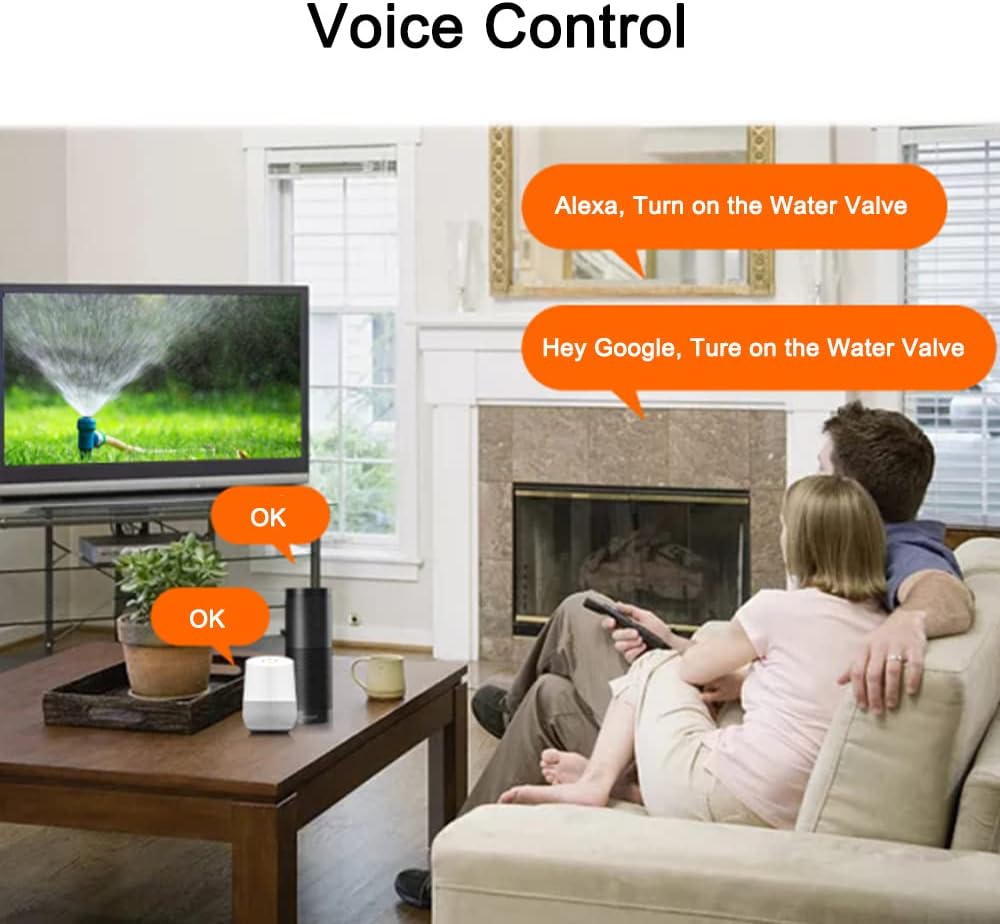
Figure 8: Voice control integration with Alexa and Google Assistant allows for convenient hands-free operation of the water valve.
6.4. Linkage Control
The controller can be linked with other smart sensors. For example, if a gas alarm or water leak detector detects an issue, the valve controller can automatically shut off the corresponding valve to prevent further damage.
6.5. Applicable Environments
The Smart Valve Controller is designed for a variety of applications, including:
- Household water supply pipes
- Farmland irrigation pipes
- Garden irrigation pipes
- Water pipes for breeding farms

Figure 9: The Smart Valve Controller is suitable for multiple environments, including automatic irrigation of farmland, automatic water supply for farm valves, garden valve automatic watering, and automatic water supply from kitchen hoses.
7. Maintenance
To ensure optimal performance and longevity of your Smart Valve Controller:
- Regularly check the physical connections and mounting for any looseness.
- Keep the device clean and free from dust or debris. Use a soft, dry cloth for cleaning.
- Avoid exposing the device to extreme temperatures or direct water spray, unless specifically designed for such conditions.
8. Troubleshooting
If you encounter issues with your Smart Valve Controller, refer to the following common problems and solutions:
- Device not responding:
- Check if the power adapter is securely connected and receiving power.
- Verify that your Wi-Fi network is active and the controller is within range.
- Check the connection status indicator on the device (Figure 5). If it's not indicating a connection, try re-pairing with the app.
- Valve not opening/closing fully:
- Ensure the controller is correctly mounted and aligned with the valve handle.
- Check for any obstructions preventing the valve handle from moving freely.
- Cannot connect to app:
- Ensure your smartphone is connected to a 2.4GHz Wi-Fi network during the pairing process.
- Try resetting the device to factory settings by pressing and holding the Manipulator Power Button for 5-10 seconds (refer to Figure 5). Then, attempt to pair again.
9. Warranty and Support
For warranty information and technical support, please refer to the contact details provided with your purchase or visit the official SagaSave website. Keep your proof of purchase for warranty claims.