
Introduction
The Amazon Fire TV Stick 4K Select is a streaming media player designed to deliver essential 4K Ultra HD content with HDR10+. It provides access to a wide range of streaming services, personalized recommendations, and integrated Alexa voice control for an enhanced entertainment experience.
This device offers fast app launches and a responsive interface, making it an efficient solution for streaming movies, TV shows, and other digital content. It integrates seamlessly with your existing television setup to transform it into a smart entertainment hub.
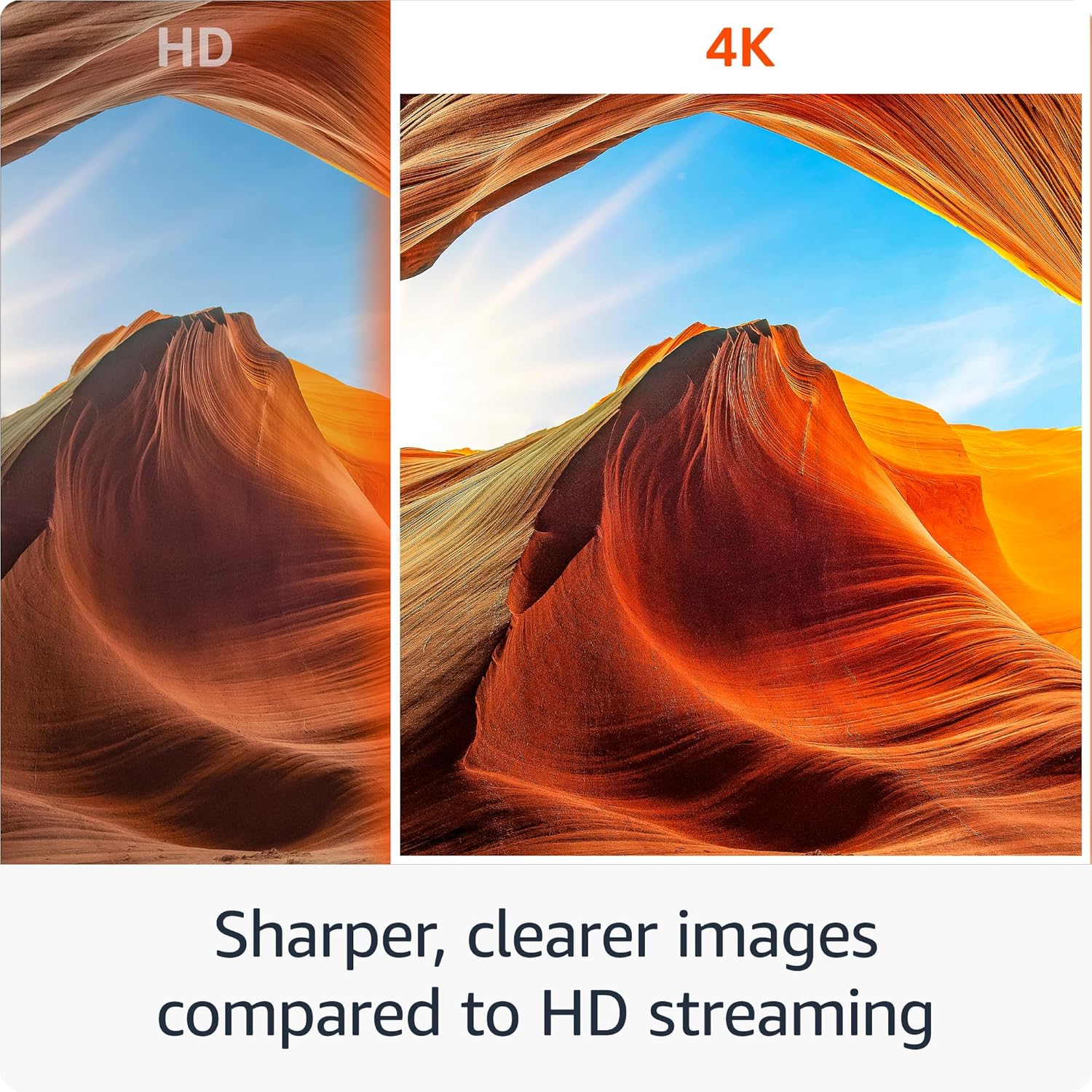
Image: A side-by-side comparison demonstrating the sharper and clearer image quality of 4K streaming compared to standard HD.
What's Included
Your Amazon Fire TV Stick 4K Select package contains the following items:
- Fire TV Stick 4K Select device
- Alexa Voice Remote
- Power cable and power adapter
- HDMI extender cable
- 2 AAA batteries
- Quick Start Guide
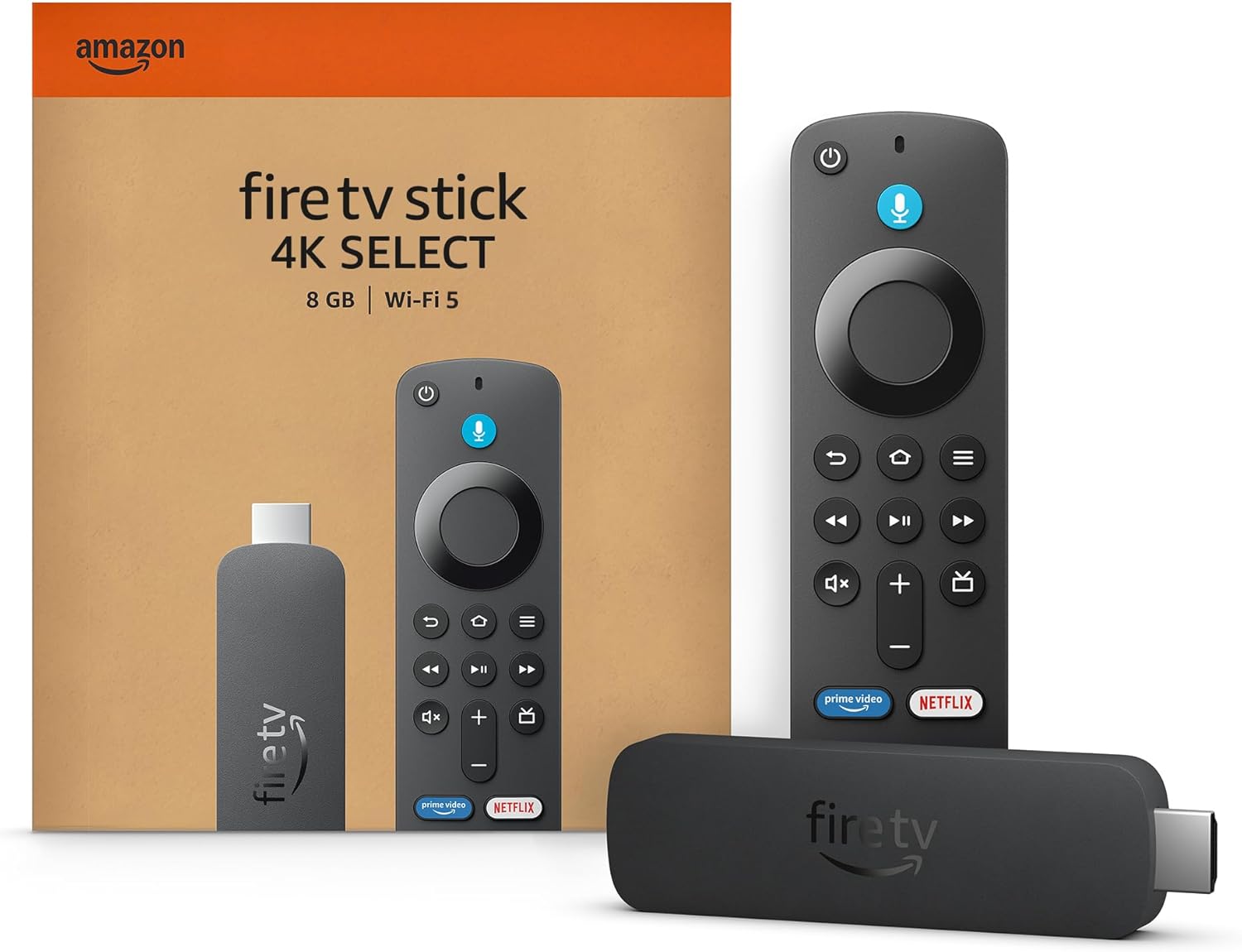
Image: The Fire TV Stick 4K Select device, its Alexa Voice Remote, and the product packaging, illustrating the contents of the box.
Setup Guide
Follow these steps to set up your Fire TV Stick 4K Select:
- Step 1: Connect the Fire TV Stick. Plug the Fire TV Stick 4K Select directly into an available HDMI input on your television. If space is limited, use the included HDMI extender cable.
- Step 2: Provide Power. Attach the power cable to the Fire TV Stick and plug the power adapter into a wall outlet.
- Step 3: Pair Remote and Connect to Internet. Insert the included AAA batteries into the Alexa Voice Remote. Follow the on-screen instructions to pair the remote with your TV, connect to your Wi-Fi network, and complete the initial setup.

Image: A visual guide depicting the three setup steps: plugging the stick into the TV's HDMI port, connecting the power cable to an outlet, and pairing the remote for internet connection.
Operating Your Fire TV Stick
The Fire TV Stick 4K Select is operated primarily using the included Alexa Voice Remote. The remote allows you to navigate menus, select content, and control playback.
Alexa Voice Control
Press and hold the Alexa button on your remote to activate voice commands. You can ask Alexa to search for shows, launch applications, control playback, and more. For example, say "Find action movies" or "Open Netflix."
Remote Functions
- Navigation Ring: Use to move through menus and select items.
- Select Button: Confirm selections.
- Back Button: Return to the previous screen.
- Home Button: Go to the Fire TV home screen.
- Play/Pause, Rewind, Fast Forward: Control media playback.
- Volume Buttons: Control the volume of your TV or soundbar.
- Power Button: Turn your TV on or off.

Image: The Fire TV Stick 4K Select device and its accompanying Alexa Voice Remote, highlighting the primary tools for device operation.
Smart Home Control
The Fire TV Stick 4K Select allows you to control compatible smart home devices using Alexa voice commands. This feature enables you to manage various aspects of your smart home directly from your television.
You can use Alexa to check the weather, dim lights, stream music, and interact with other connected devices. For example, say "Alexa, show me the front door camera" or "Alexa, dim the living room lights."

Image: A television screen integrated into a living room setting, showing icons for thermostat, smart camera, and light, demonstrating smart home control capabilities.
Maintenance
To ensure optimal performance and longevity of your Fire TV Stick 4K Select, consider the following maintenance guidelines:
- Cleaning: Gently wipe the device and remote with a soft, dry, lint-free cloth. Avoid using liquid cleaners or abrasive materials.
- Environment: Operate the device in a well-ventilated area and avoid exposing it to extreme temperatures, direct sunlight, or high humidity.
- Software Updates: The device receives guaranteed software security updates for at least four years after its last availability for purchase as a new unit. Ensure your device is connected to the internet to receive these updates, which often include performance improvements and new features.
- Storage: When not in use for extended periods, store the device in a cool, dry place.
Troubleshooting
If you encounter issues with your Fire TV Stick 4K Select, try the following troubleshooting steps:
- No Power/No Display: Ensure the power adapter is securely plugged into a working wall outlet and the power cable is connected to the Fire TV Stick. Verify the HDMI cable is firmly connected to both the Fire TV Stick and your TV's HDMI input. Try a different HDMI port on your TV.
- Remote Not Responding: Replace the AAA batteries in the Alexa Voice Remote. If the issue persists, try re-pairing the remote by holding the Home button for 10 seconds.
- Buffering/Poor Streaming Quality: Check your internet connection. Ensure your Wi-Fi signal is strong. Restart your Wi-Fi router and modem. Move the Fire TV Stick closer to your router or use the included HDMI extender to position the stick away from other electronics that might cause interference.
- Device Unresponsive/Slow Performance: Restart the Fire TV Stick by unplugging it from the power source for a few seconds, then plugging it back in. This can resolve many temporary software glitches.
- Audio Issues: Check your TV's volume and ensure it's not muted. Verify that your TV's audio output settings are correct. If using a soundbar or AV receiver, ensure it is properly connected and selected as the audio output.
- App Not Working: Try restarting the app. If the problem continues, clear the app's cache or uninstall and reinstall the app from the Fire TV app store.
Specifications
Fire TV Stick 4K Select
| Feature | Detail |
|---|---|
| Size | 3.9” x 1.2” x 0.6” (99 x 30 x 14 mm) |
| Weight | 1.5 oz (42 g) |
| Processor | Quad-core 1.7 GHz |
| Storage | 8 GB internal |
| Wi-Fi | Dual-band, dual-antenna (MIMO) 802.11a/b/g/n/ac |
| Bluetooth | Bluetooth 5.0 and Bluetooth Low Energy |
| Voice Support | Yes, with Alexa Voice Remote or Fire TV app |
| Ports | HDMI output, micro-USB (power only) |
| Audio Support | HDMI pass-through of Dolby-encoded audio (AC-3, E-AC-3 and E-AC3_JOC) |
| 4K Support | Requires compatible Ultra HD TV; services may vary |
| Video Formats | HDR10, HDR10+, HLG, H.265, H.264, VP9, AV1 |
| Output Resolution | 2160p, 1080p, 720p up to 60 fps |
| System Requirements | HDTV with HDMI input, Wi-Fi, power outlet |
| TV Compatibility | 4K UHD TVs with HDCP 2.2; HDTVs with 1080p or 720p |
Alexa Voice Remote
| Feature | Detail |
|---|---|
| Size | 38 x 142 x 16 mm |
| Weight | 43.4 g (without batteries) |
| Batteries | 2 AAA (included) |
| Technology | Bluetooth |
| Compatibility | Fire TV Stick HD, Fire TV Stick (3rd Gen and later), Fire TV Stick 4K Select, Fire TV Stick 4K (1st Gen and later), Fire TV Stick 4K Max (1st Gen and later), Fire TV Cube (2nd Gen and later), and Echo Show 15. |
Warranty and Support
The Amazon Fire TV Stick 4K Select comes with a 90-day limited warranty and service. Optional 1-year, 2-year, and 3-year extended warranties are available for U.S. customers and are sold separately.
For detailed warranty terms and conditions, or to access customer support, please refer to the official Amazon support website or the documentation included with your product. Use of Fire TV is subject to the terms found on the Amazon website.


