
MARKLIFE P50
MARKLIFE P50 Label Maker Machine User Manual
Model: P50
Introduction
The MARKLIFE P50 Label Maker Machine is a compact, portable, and versatile thermal label printer designed for a wide range of labeling applications. Utilizing thermal printing technology, it produces clear black and white labels without the need for ink. This manual provides comprehensive instructions for setting up, operating, and maintaining your P50 label maker to ensure optimal performance.
What's in the Box
- MARKLIFE P50 Label Maker Machine
- USB Charging Cable
- Labels (one roll)
- User Manual
Specifications
| Feature | Description |
|---|---|
| Brand | MARKLIFE |
| Model Name | P50 |
| Printing Technology | Thermal |
| Printer Output | Monochrome |
| Max Print Speed (Monochrome) | 30 ppm |
| Max Print Resolution | 300 dpi |
| Connectivity Technology | Bluetooth |
| Compatible Devices | Smartphones (iOS, Android), PC, Tablets |
| Printer Media Size Maximum | 60MM (0.59''-2.24'' width) |
| Item Weight | 6 ounces (0.17 Kilograms) |
| Product Dimensions | 5.7 x 2.55 x 3.93 inches |
Setup Guide
1. Charging the Device
Before first use, fully charge your P50 Label Maker. Connect the provided USB charging cable to the Type-C port on the side of the device and plug the other end into a compatible USB power source.

Image: The MARKLIFE P50 Label Maker highlighting its Type-C charging port, indicating its portability and built-in 1200mAh battery.
2. Loading Label Paper
The P50 Label Maker supports thermal labels with a width range of 0.59'' to 2.24'' (15mm to 57mm). Ensure the label paper is loaded correctly for proper printing.
- Gently open the paper cover by holding the sides of the fuselage.
- Remove the paper roll holder.
- Place the label paper roll onto the holder, ensuring the print side is facing down.
- Insert the loaded holder back into the paper bin.
- Pull a small section of the label paper out through the paper outlet.
- Close the paper cover firmly until it clicks into place.
Video: A tutorial demonstrating the correct procedure for installing label paper into the P50 Label Maker. This includes opening the cover, placing the label roll on the holder, and closing the device.
3. App Download and Bluetooth Connection
The MARKLIFE P50 operates via a dedicated mobile application. Download the "Marklife" app from your smartphone's app store (available for Android and iOS).
- Turn on the P50 Label Maker by long-pressing the power button on the side. The indicator light will illuminate.
- Open the "Marklife" app on your smartphone.
- In the app, navigate to the connection interface (often indicated by a printer icon or "Unlink" status).
- Allow Bluetooth permissions if prompted. The app will search for nearby printers.
- Select your P50 device from the list (e.g., "P50S_XXXX_BLE") to establish a Bluetooth connection. The indicator light on the printer will turn blue when connected.
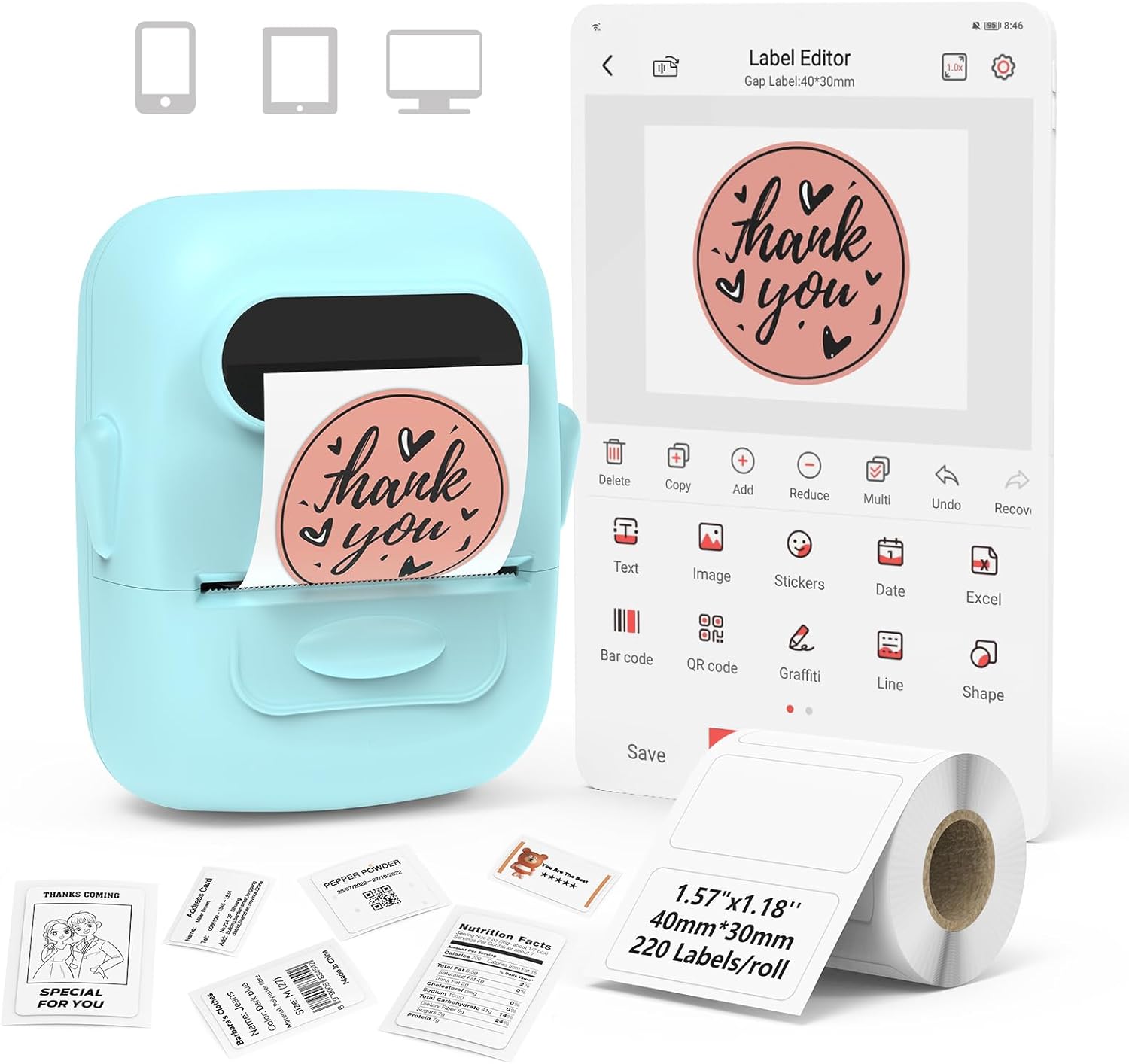
Image: The MARKLIFE P50 Label Maker positioned next to a smartphone displaying the intuitive label editing interface of the Marklife app, showcasing its mobile compatibility.
Video: A detailed tutorial on how to operate the P50 Label Maker using the mobile application, covering initial setup and basic functions.
Operating Instructions
1. Creating and Editing Labels
The Marklife app offers various tools to design your labels:
- Text: Enter text, customize font size, style (bold, italic, underline), alignment, and spacing.
- Images/Pictures: Insert images from your gallery or use the OCR (Optical Character Recognition) function to scan text from images.
- Stickers: Choose from a wide variety of pre-designed stickers and icons.
- Barcode/QR Code: Generate barcodes or QR codes by scanning existing ones or entering data.
- Templates: Utilize numerous pre-set templates for different label types (e.g., price labels, address labels, cable labels).
Video: A demonstration of how to create and edit labels using the companion software, including text input, formatting, and barcode generation.
2. Printing Labels
Once your label design is complete, you can proceed to print:
- Review your label design in the app's preview mode.
- Adjust print density (clarity) and the number of copies as needed.
- Select the appropriate paper type (e.g., gap label for pre-cut labels, continuous label for continuous rolls).
- Tap the "Print" button. The label maker will feed and print your labels.

Image: The MARKLIFE P50 Label Maker actively printing a series of labels, demonstrating its batch printing capability and efficiency.
Video: This video illustrates the P50's capability to print labels ranging from 12mm to 50mm in width, showcasing its versatility for different label sizes.
3. Label Applications
The P50 Label Maker is ideal for various uses:
- Retail: Price labels, barcode labels, product information.
- Home & Office: Address labels, file organization, name tags, food storage labels.
- Specialty: Jewelry labels, clothing labels, cable labels.

Image: The MARKLIFE P50 Label Maker being used in a bakery environment, demonstrating its application for creating ingredient labels, DIY labels for baked goods, and labels with photo logos.

Image: The MARKLIFE P50 Label Maker in an office setting, illustrating its use for creating name tags, address labels for packages, and clothing labels.
Maintenance
To ensure the longevity and optimal performance of your P50 Label Maker, follow these maintenance tips:
- Keep the device clean and free from dust and debris. Use a soft, dry cloth for cleaning.
- Avoid exposing the printer to extreme temperatures or direct sunlight.
- Use only genuine MARKLIFE label paper to prevent damage to the print head.
Troubleshooting
If you encounter issues with your P50 Label Maker, refer to the following common solutions:
| Problem | Possible Cause & Solution |
|---|---|
| Printer not connecting via Bluetooth | Ensure printer is on and charged. Check Bluetooth settings on your phone. Restart both devices. Make sure the app has Bluetooth permissions. |
| Poor print quality (faint or blurry) | Adjust print density in the app. Ensure label paper is loaded correctly with the print side down. Clean the print head with an alcohol wipe. |
| Paper jams | Ensure label paper is properly aligned and not wrinkled. Remove any jammed paper carefully. Use correct label size. |
| Device not turning on | Charge the device fully. If still unresponsive, contact customer support. |
Warranty and Support
Your MARKLIFE P50 Label Maker Machine comes with a limited warranty. For detailed warranty information, product support, or technical assistance, please refer to the contact information provided in your product packaging or visit the official MARKLIFE website.
For additional resources and tutorials, you may also refer to the following seller-provided videos:
- P50 label Maker Printer:
Description: An overview of the P50 label maker printer, showcasing its features and design.
- The P50 can print labels from 12 to 50 mm wide.:
Description: Demonstrates the range of label widths the P50 printer can handle, from 12mm to 50mm.
Related documentsP50


Ask a question about this manual
Ask about setup, troubleshooting, compatibility, parts, safety, or missing instructions. Manuals+ will review the question and use this page’s manual context to help answer it.